Sign in and reset your password
This page covers signing in to Practiceful as a practice manager or provider, and getting back into your account when you have forgotten your password. Clients of a practice usually get in through the links their practice emails them — see Client guides.
Sign in
- Press Login in the site header. The sign-in page opens on the Sign In tab, headed Welcome back.
- Enter your email address in Username and your Password. Tick Remember me if you are on your own computer.
- Wait a moment while the page checks you are human; Sign In becomes pressable when the check has passed.
- Press Sign In.
- Practice staff are then asked for a second step. The Two-step verification page says Enter the 6-digit code we sent to your address. Type the code from your email and press Verify & sign in. If no code came, press Didn't get a code? Resend.
- Your dashboard opens. If your practice has no active subscription or trial, you are taken to your subscription page instead.
Reset a forgotten password
- On the sign-in page, press Lost password?
- The Reset Password page opens. Enter your Email. The page shows Checking you are human… while it runs a security check; Reset My Password becomes pressable when it has passed.
-
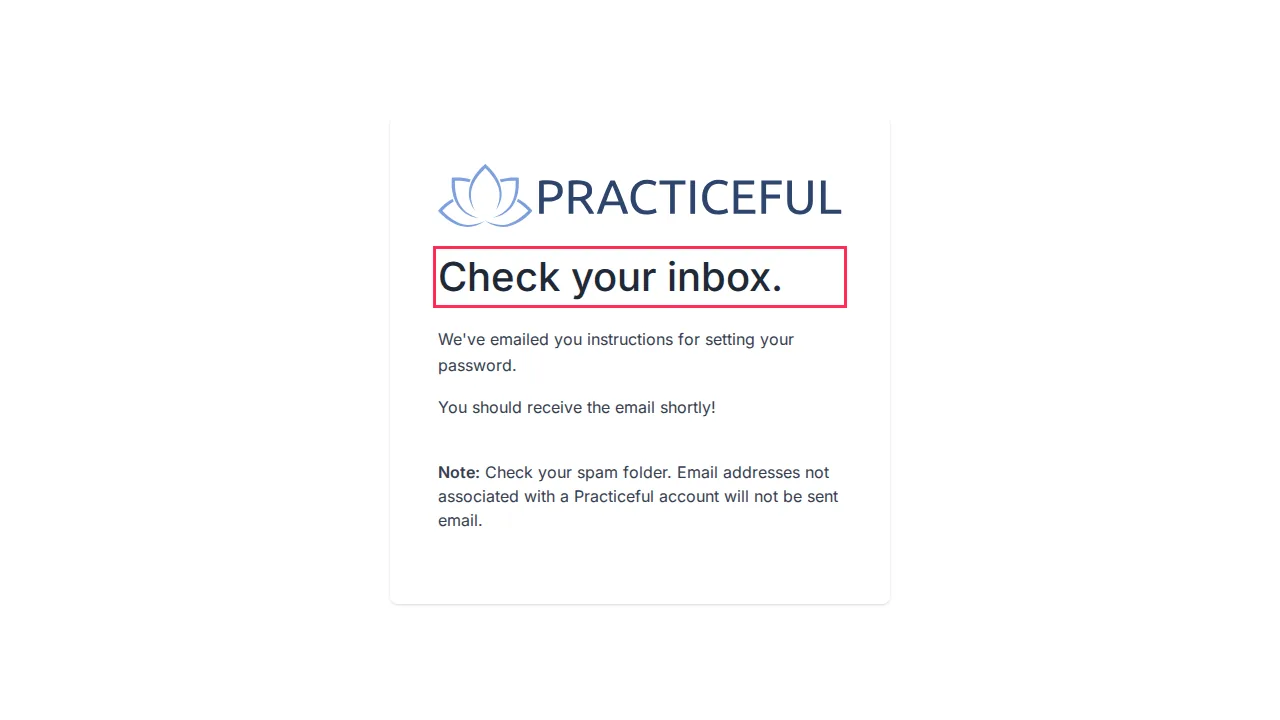
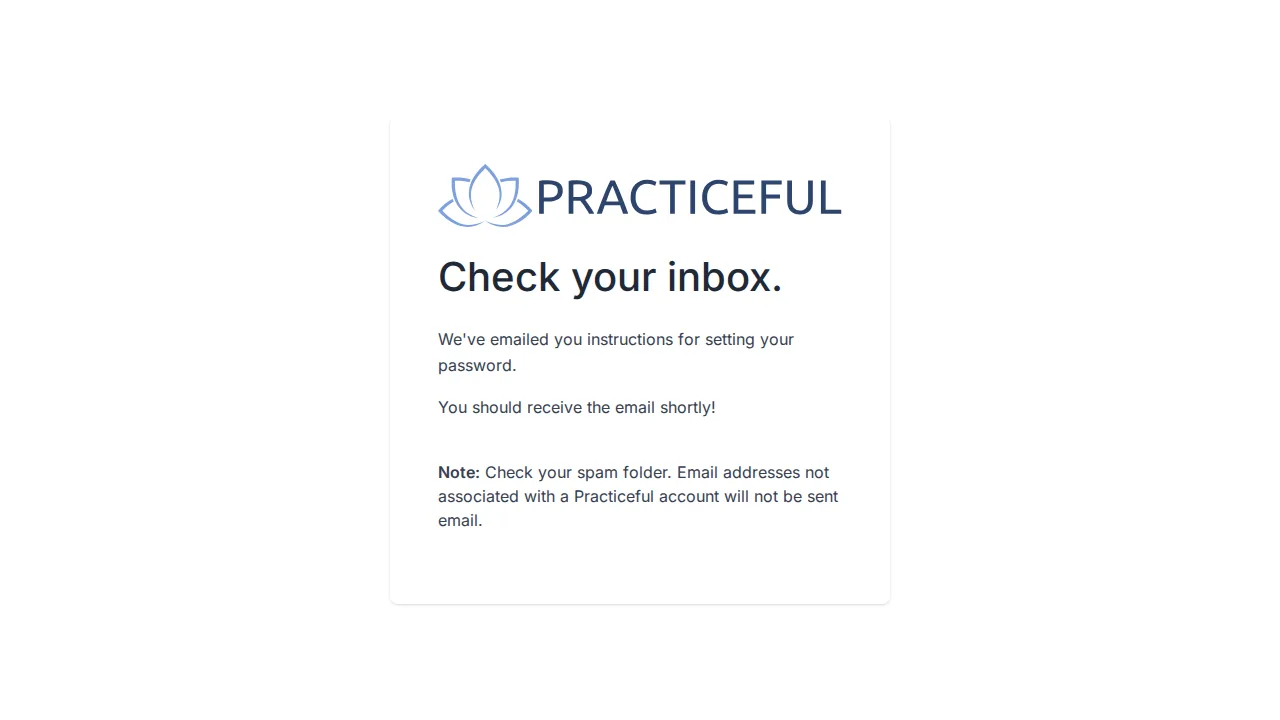
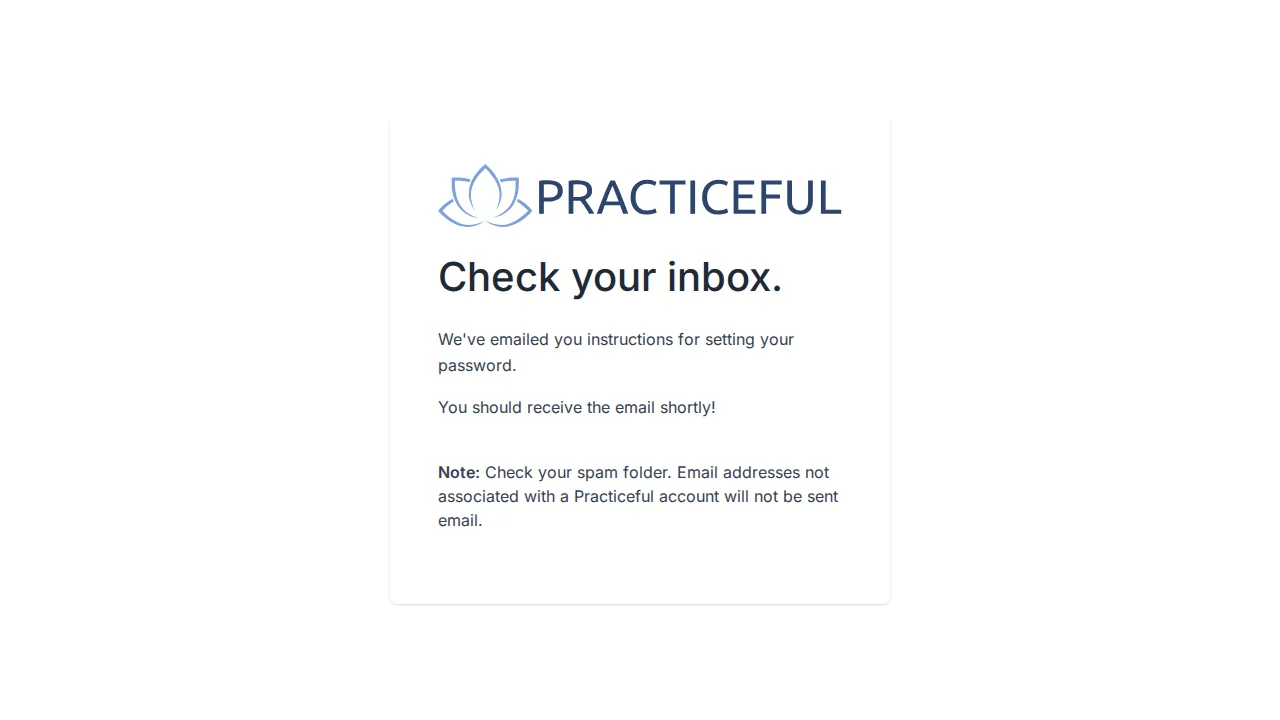
Press Reset My Password. You see Check your inbox. The page says the same thing whether or not the address has an account, so nobody can use it to find out who has one.
-
Open the email and follow the link. Enter your New password twice (New password confirmation).
-
Press Change my password. You see Password Reset complete — Your new password has been set.
-
Press log in and sign in with your new password. The emailed link cannot be used again.
Reset with an emailed code instead of a link
Practiceful also has a code-based reset at /accounts/password_reset_code/request/.
The sign-in page does not link to it.
- Enter your email address in Email or Phone Number and press Send Reset Code. The page confirms a code has been sent. It does not say whether the address has an account.
- Press Enter Code. Type the 6-digit Email Verification Code from your email and your New Password — at least 8 characters with uppercase, lowercase, numbers and symbols.
- Press Reset Password. When you see the confirmation, press Sign In.
Resetting with a phone number
If you have a verified phone number on your account, you can type it instead of an email address at step 1. Practiceful then sends a code to both your email and your phone, and the next screen asks for both codes.
If the text message could not be sent, the page tells you so and says you will only need the emailed code — you do not need to wait for a text that is not coming, and the Phone Verification Code box does not appear on the next screen.
If something goes wrong
| You see | What it means | What to do |
|---|---|---|
| Sorry! Username and password combination not found. | The email or password is wrong | Check both, or reset your password. |
| Too many login attempts. Please wait a minute and try again. | Too many tries in a short time | Wait a minute, then try again. |
| This account signs in from the link we email you. | This is a client account added by a practice, with no password | Open the most recent email from the practice, or ask them to send a fresh link. |
| Sorry! this account has not yet been activated | The account's email address has not been confirmed | Follow the activation email, or press Resend Activation Email — see Create your account. |
| We couldn't send your verification code — use Resend on the next screen. | The two-step verification email was not sent | Press Didn't get a code? Resend on the Two-step verification page. |
| The password reset link was invalid, possibly because it has already been used. | The reset link was already used or is not valid | Start again from Lost password? |