Analytics
Analytics gathers four reports on one page — Sales, Billing, Utilization and Scheduling — each with a few summary charts and a link to a detail report. This page is for practice managers and staff who want to see how the practice is doing. Every figure is worked out from the leads, invoices, availability and sessions already in Practiceful.
Before you start
Each section needs its own permission: Sales needs permission to view clients, Billing to view billing, and Utilization and Scheduling to view the schedule. A section you do not have permission for is not shown.
Open Analytics
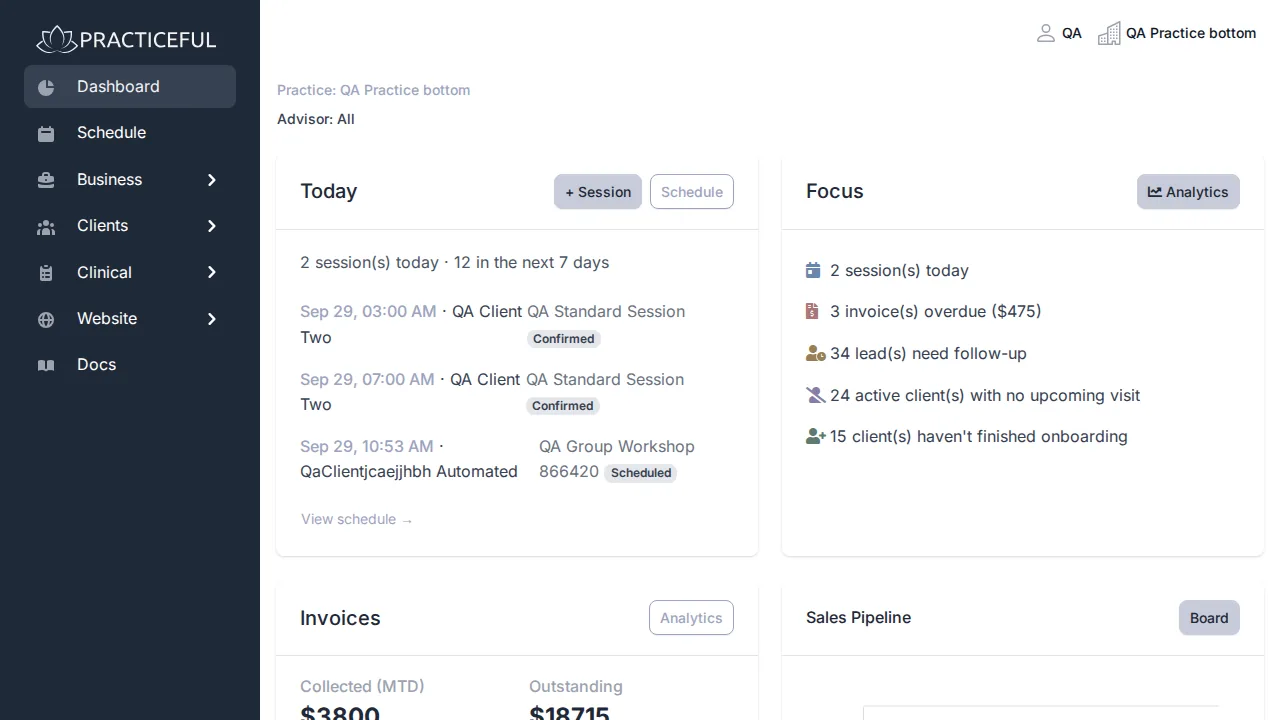
- In the sidebar, open Business › Analytics. You can also press Analytics on the dashboard.
-
The page shows the four sections one after another.
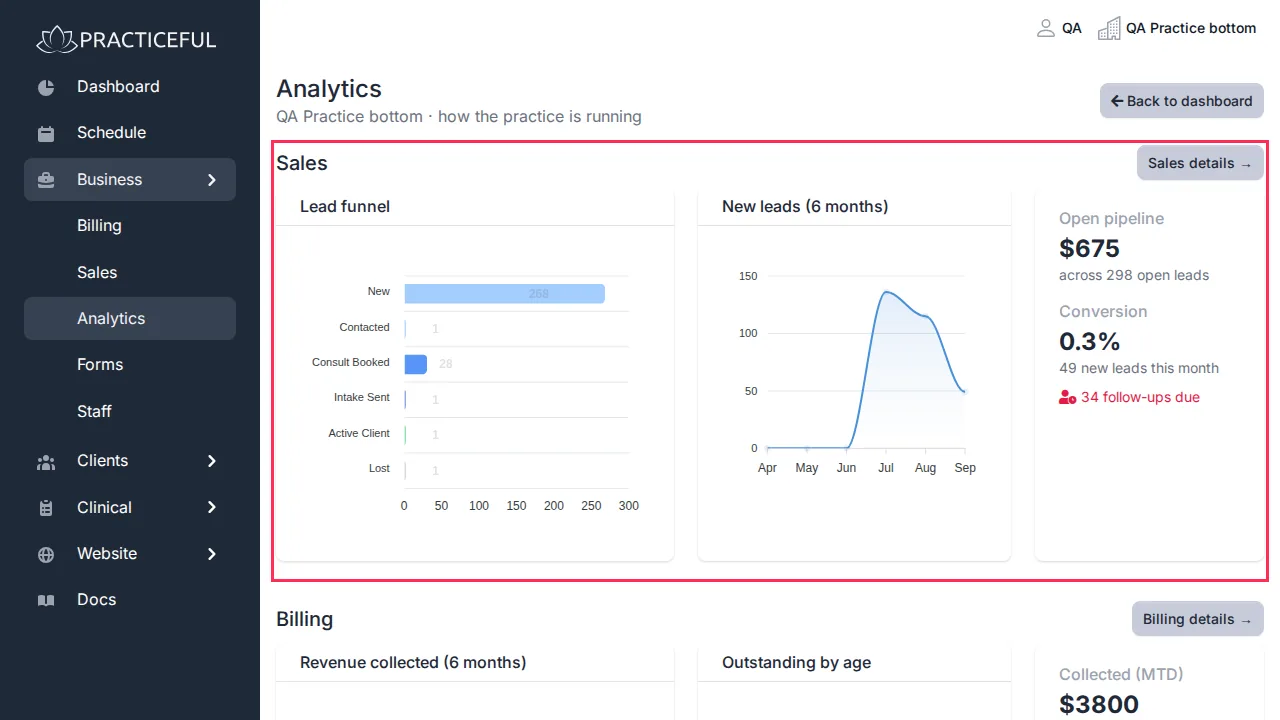
A section with nothing to report yet still appears, with a note saying so — for example Nothing to trend yet. or Nothing outstanding — you're all caught up.
Where leads come from
- In the Sales section, press Sales details →. Sales analytics opens.
-
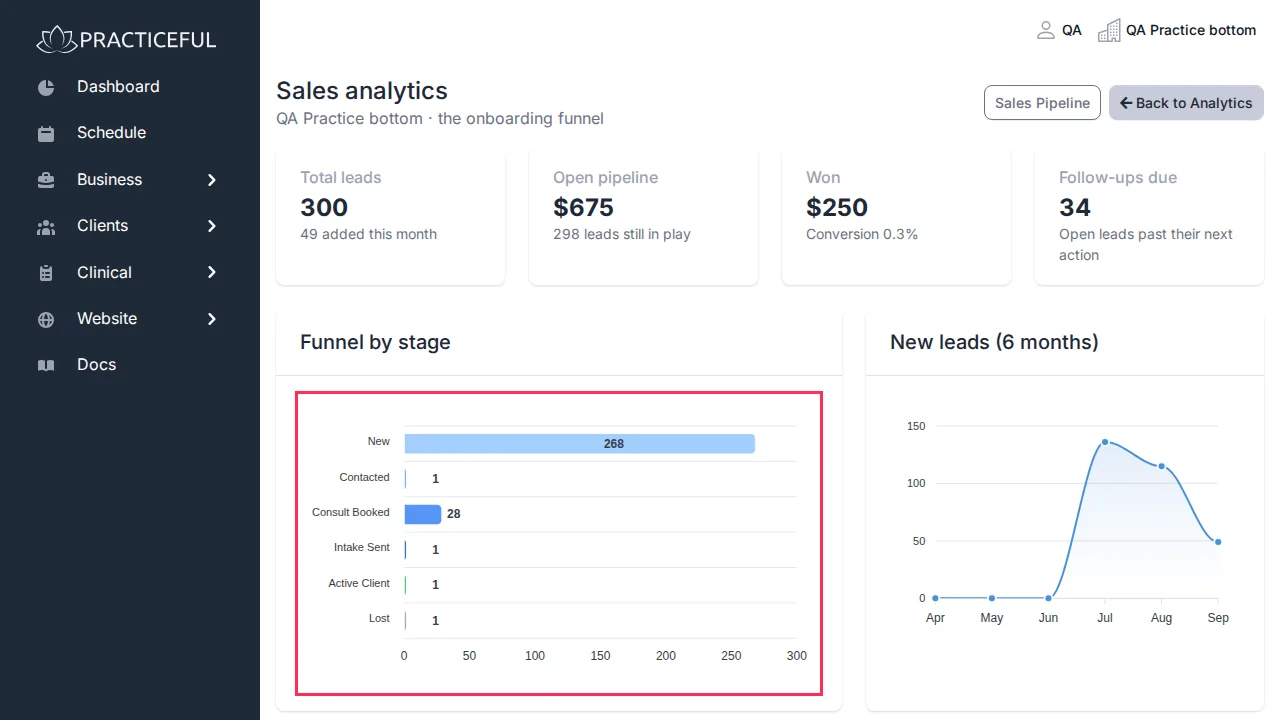
Funnel by stage shows how many leads are at each stage, and Where leads come from splits them by source.
-
Follow-ups due lists open leads past their next action, with Open lead beside each.
What the practice is owed
- In the Billing section, press Billing details →. Billing Analytics opens.
- Outstanding by age shows unpaid invoices grouped by how long they have been owed, and Revenue by service (MTD) shows what each service has brought in this month.
- Top outstanding clients (using your practice's own word for clients) lists who owes the most. Press View invoices to see the overdue invoices.
How busy the practice is
Utilization compares the hours booked with the hours your providers have made available.
- In the Utilization section, press Utilization details →. Schedule utilization opens.
-
Read Booked vs available by day, the No-show & cancellation trend and Utilization by provider (this week). The figures at the top show utilization, unsold hours and available hours for this week.
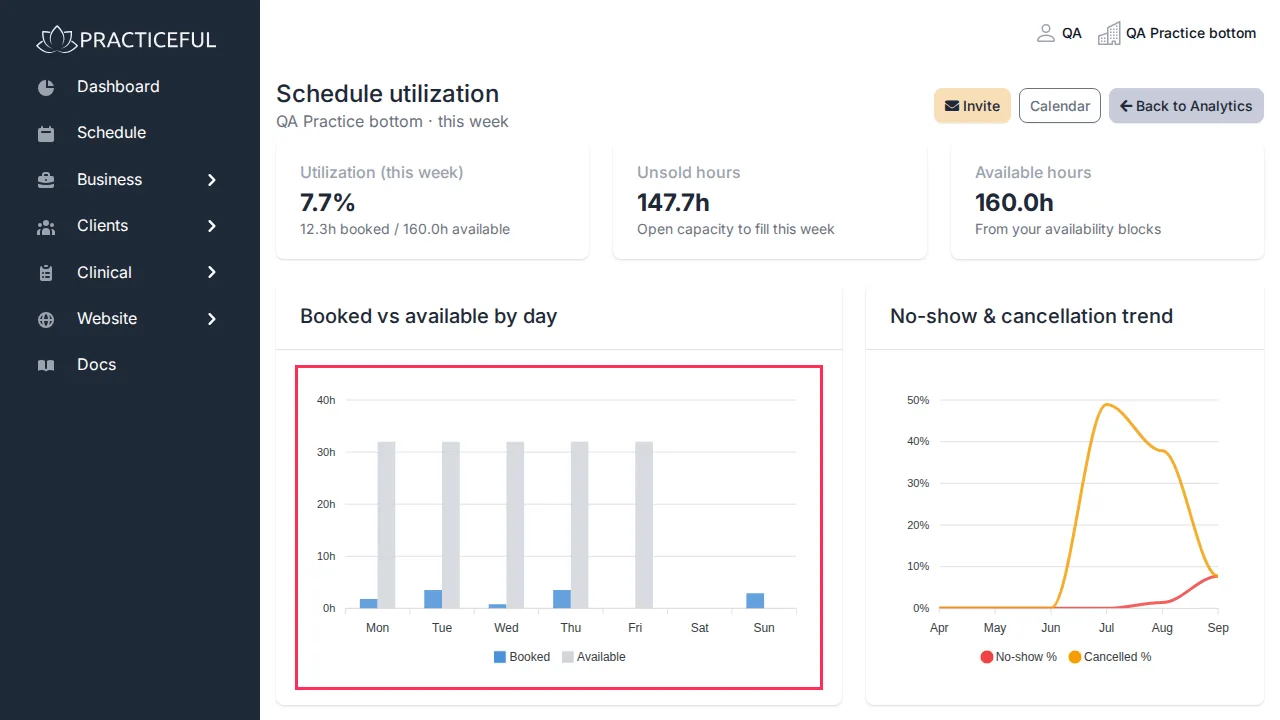
If no provider has published availability yet, there is nothing to measure against.
What happens to the sessions you book
- In the Scheduling section, press Scheduling details →. Scheduling analytics opens.
-
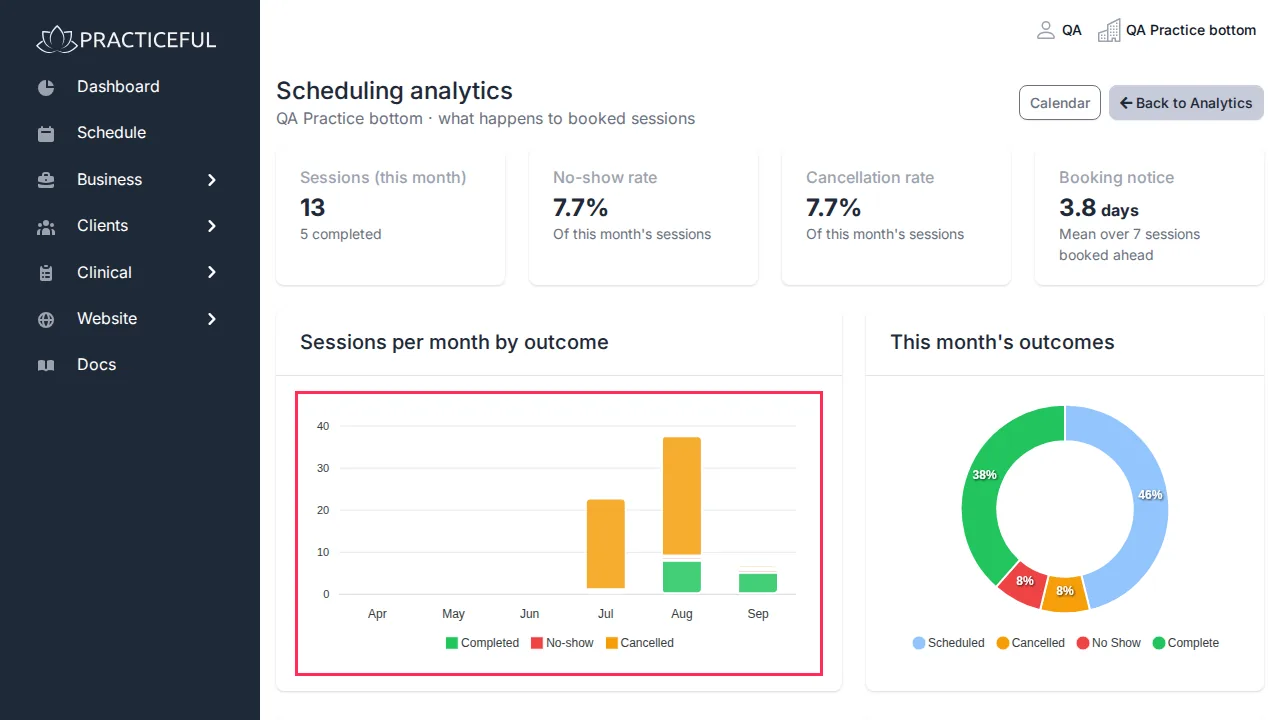
Sessions per month by outcome shows how many sessions were kept, missed or cancelled. No-show & cancellation trend shows how those rates change over time.
-
The figures at the top show this month's sessions, no-show rate, cancellation rate and Booking notice — how far ahead, on average, sessions are booked. Sessions by weekday (this month) is shown in your own timezone.
Get back to where you were
Every detail report has a back button in its title bar. It returns you to wherever you opened the report from, and its label says where — for example Back to Analytics, or Back to dashboard if you opened Billing Analytics from the dashboard's Invoices card.
If something goes wrong
| You see | What it means | What to do |
|---|---|---|
| No analytics available for your role | You have none of the permissions the sections need | Ask a practice manager to grant billing, client or schedule viewing permission. |
| A section shows a note instead of charts | There is no data for it yet | Nothing to do — it fills in as the practice records leads, invoices, availability and sessions. |