Treatment plans and templates
A treatment plan records the goals you have agreed with one client and how you will work towards them. Templates let you start notes and plans from a shape you use often. This page is for providers and managers.
Plans belong to one client, so you reach them from that client's chart or from a session with them. Templates belong to nobody, so they have their own entries in the sidebar under Clinical: Note Templates and Plan Templates. Everyone in the practice can read the templates.
Write a note template
-
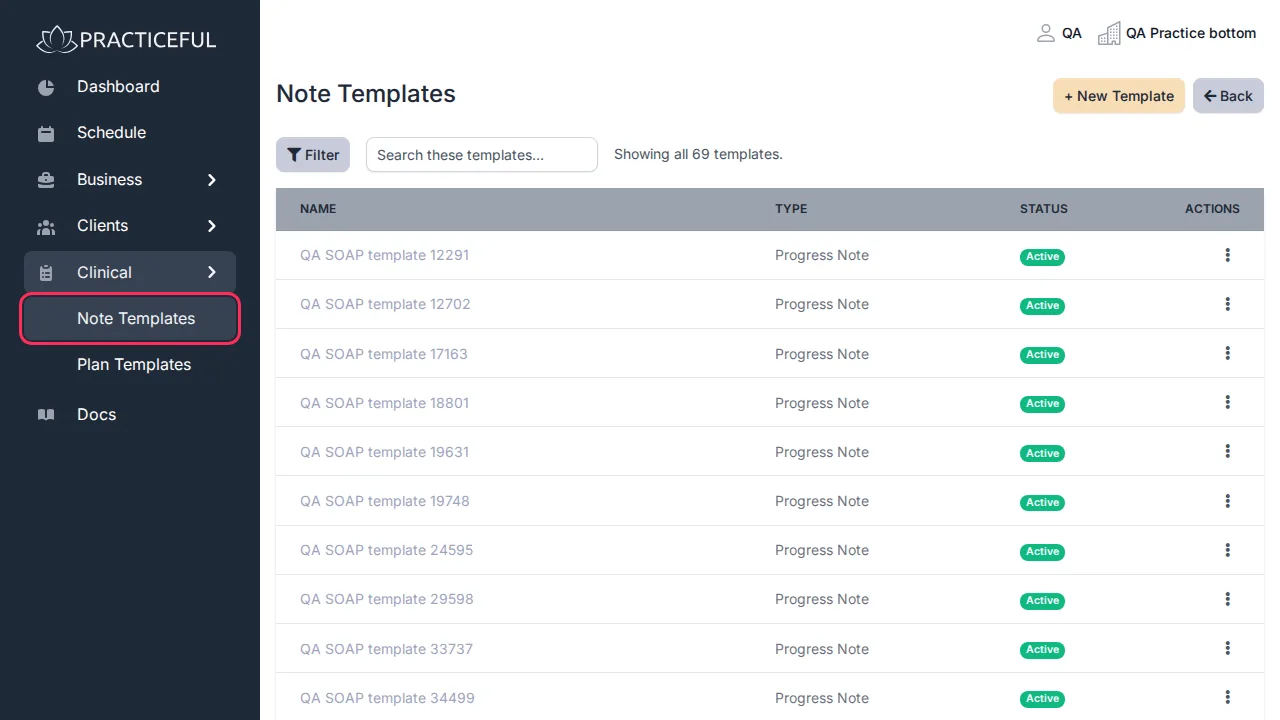
In the sidebar, open Clinical and press Note Templates.
-
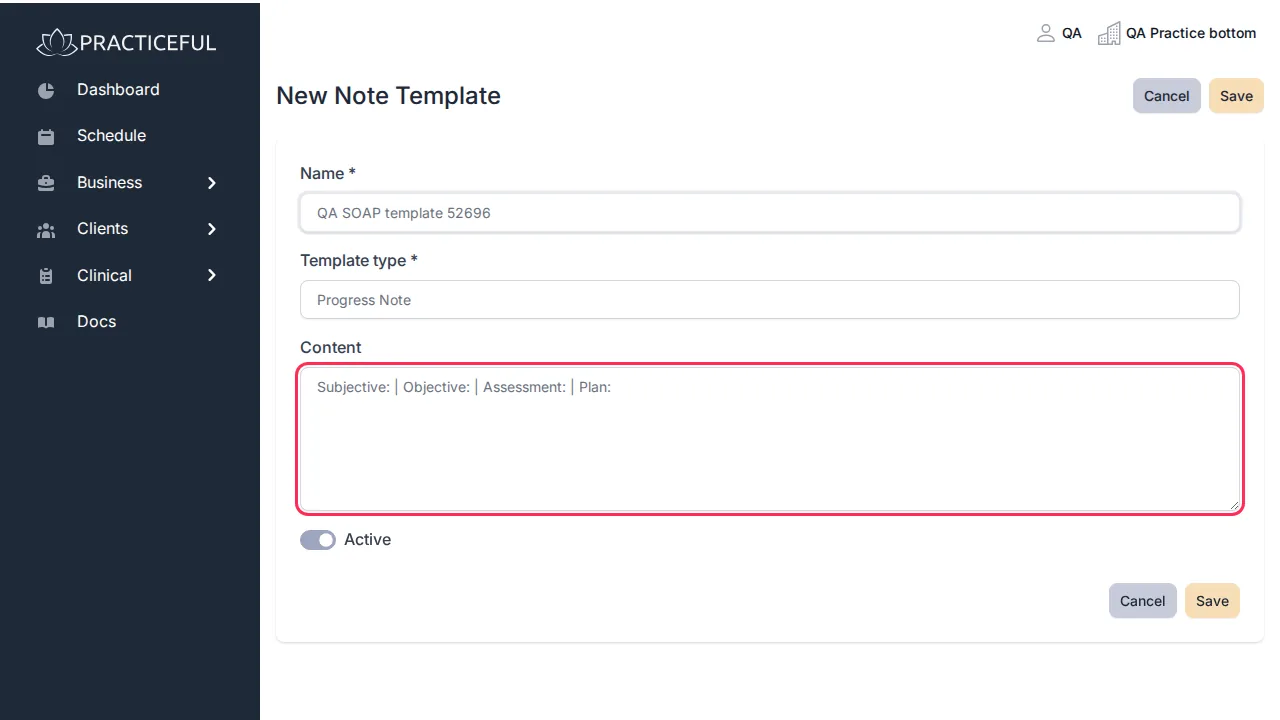
Press + New Template. New Note Template opens.
- Give it a Name and choose its Type: Progress Note, Intake, Treatment Plan or Discharge Summary.
-
Write the Content — the text every note of this kind should start with.
-
Press Save. You return to Note Templates, where the new template is listed as Active.
To correct a template later, press its name (or Edit template in its row menu). Only active templates are offered when you write a note. To use one, see Sessions and notes: on New Progress Note, choose it under Start from a template and press Apply template.
Agree a treatment plan with a client
Before you start
The client is on your practice's client list.
-
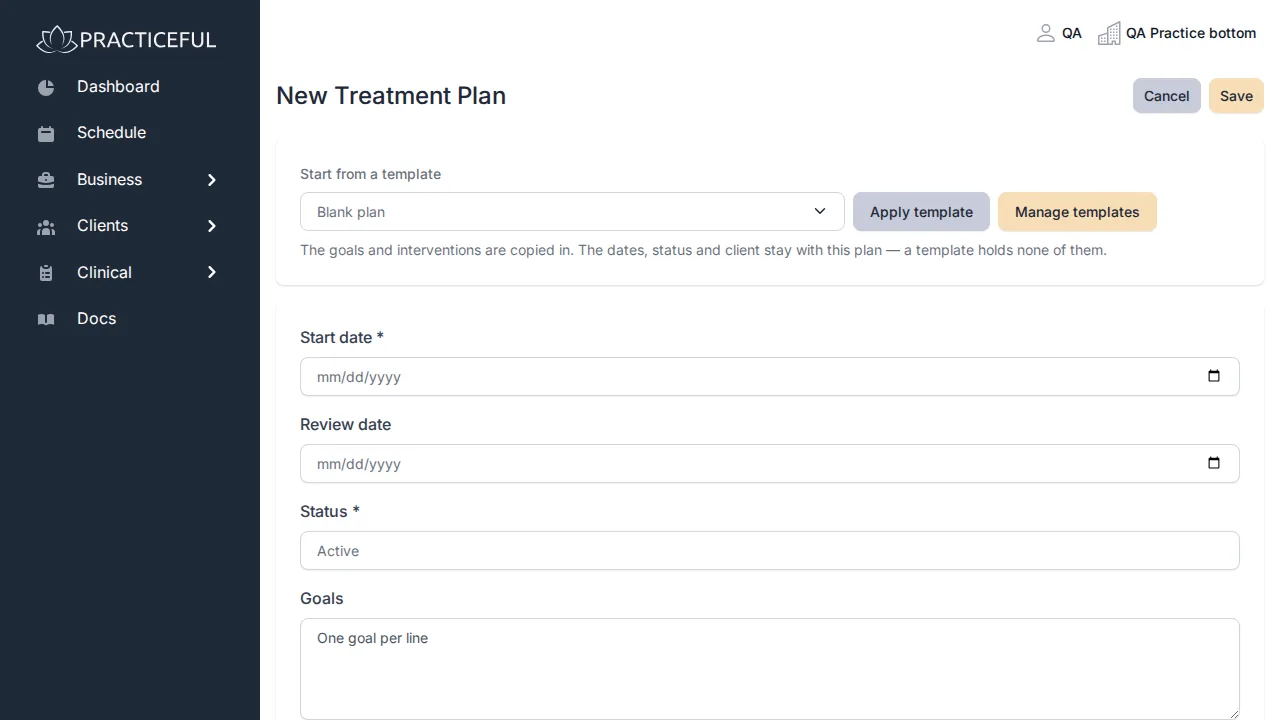
Open the client's chart. In Documentation, next to Treatment Plans, press + Plan. New Treatment Plan opens with the client already chosen. (You can also press + Plan in a session's Client documentation card.)
-
Check the Client, and set the Start date, and a Review date if you want one.
-
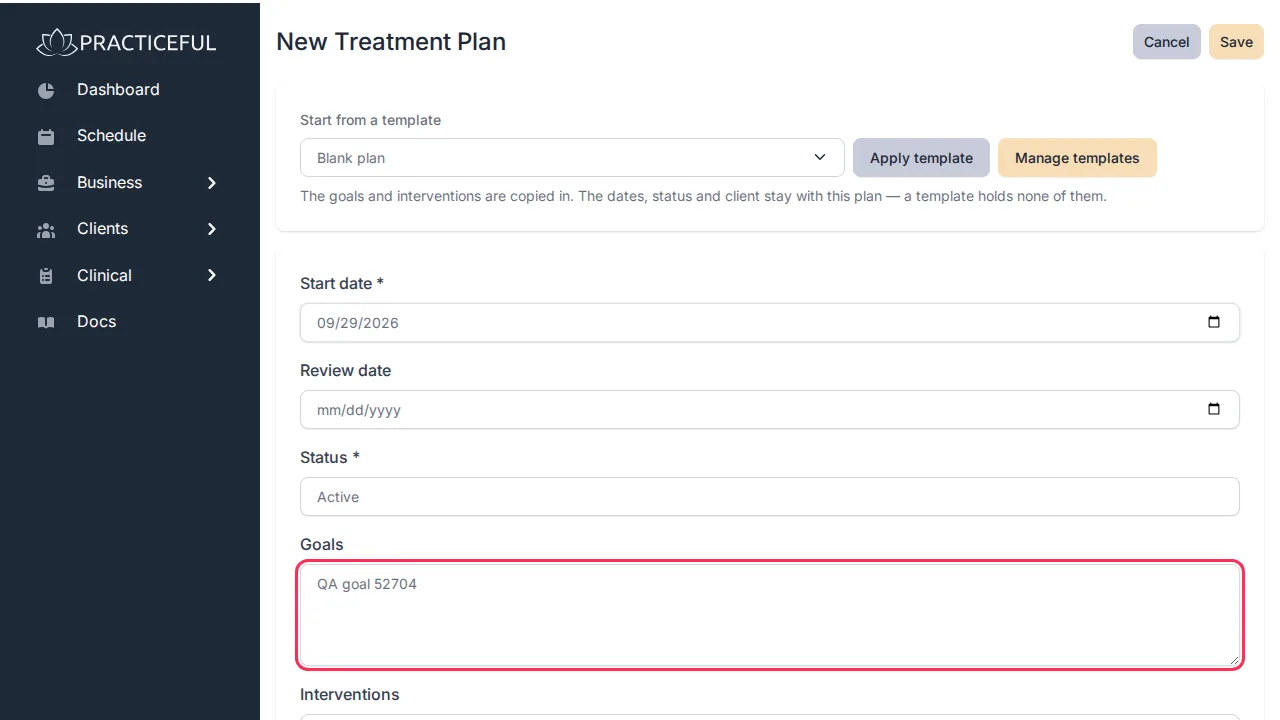
Write the Goals, one per line, and the Interventions, one per line.
-
Press Save. The Treatment Plan opens, showing the client, provider, status, dates, goals and interventions.
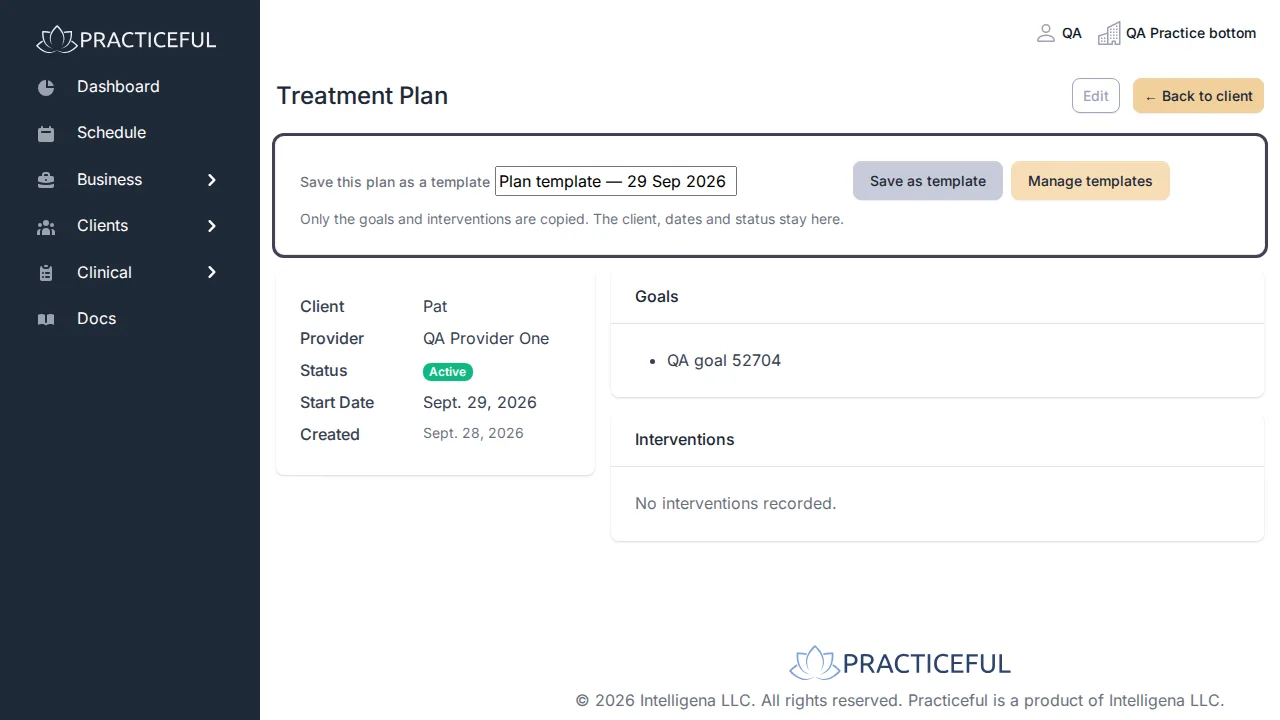
To review or update the plan later, open it from the client's chart and press Edit. A plan's status is Active, Completed or Discontinued.
Keep a set of goals you use often
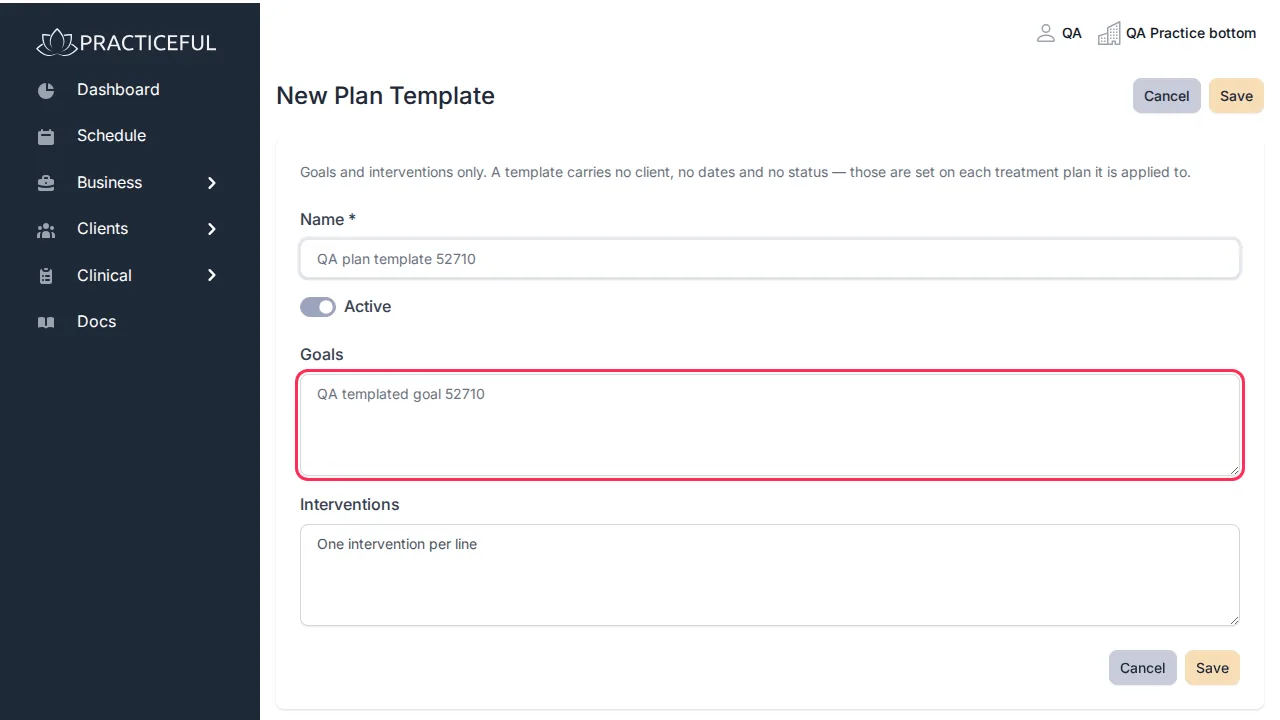
A plan template holds goals and interventions only. It carries no client, no dates and no status — those are set on each plan it is applied to.
- In the sidebar, open Clinical and press Plan Templates.
- Press + New Template. New Plan Template opens.
-
Give it a Name, then write the Goals and Interventions, one per line.
-
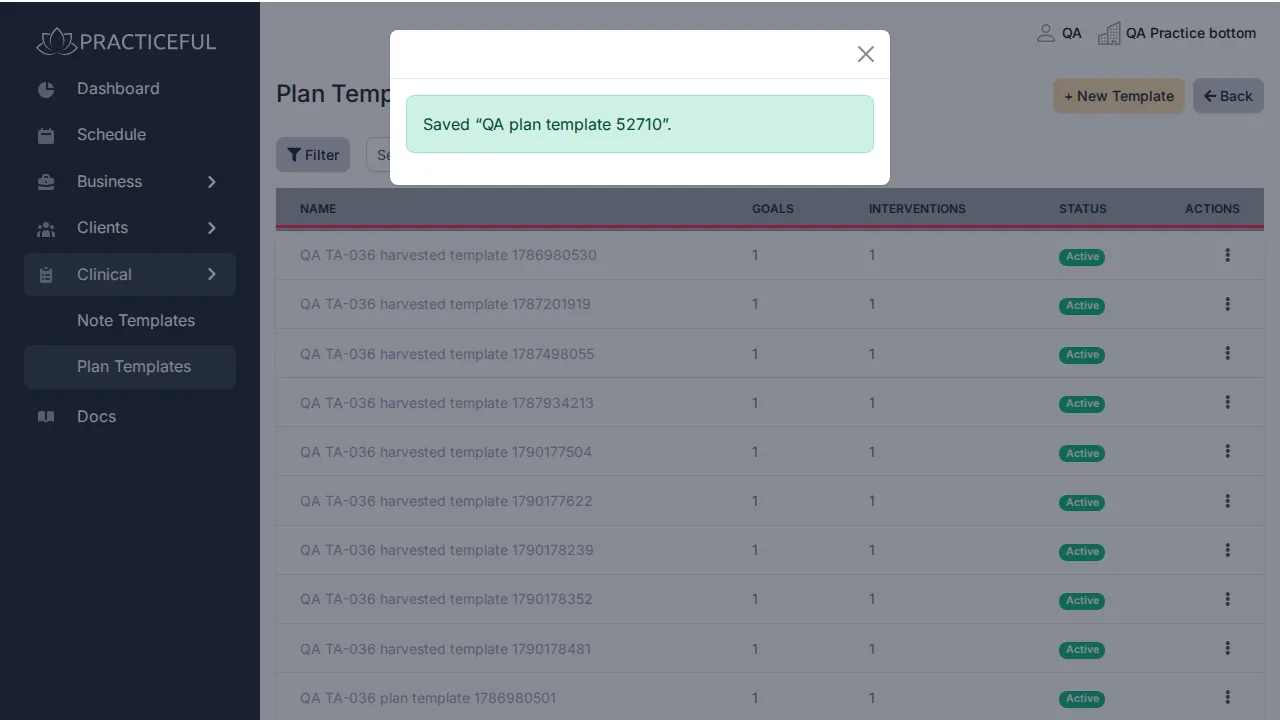
Press Save. The template is listed under Plan Templates, with how many goals and interventions it holds.
Start a plan from a template
- From the client's chart, press + Plan.
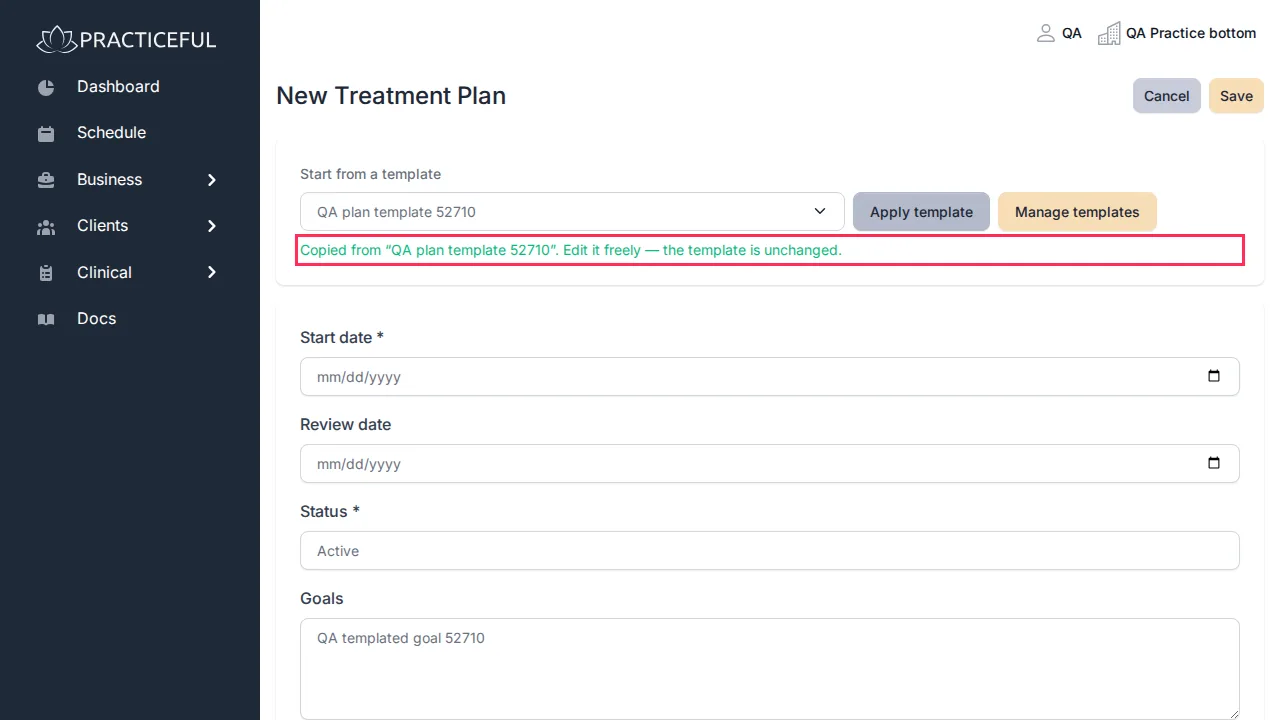
- Under Start from a template, choose the template and press Apply template.
-
The goals and interventions are copied in, and the page says Copied from “[template name]”. Edit it freely — the template is unchanged.
-
Adjust the plan for this client, set the dates, and press Save.
Applying a template copies it. Changing the template later does not change plans already made from it. Start from a template is only offered when you create a plan, not when you edit one, and only active templates are listed.
Turn a plan into a template
- Open the treatment plan.
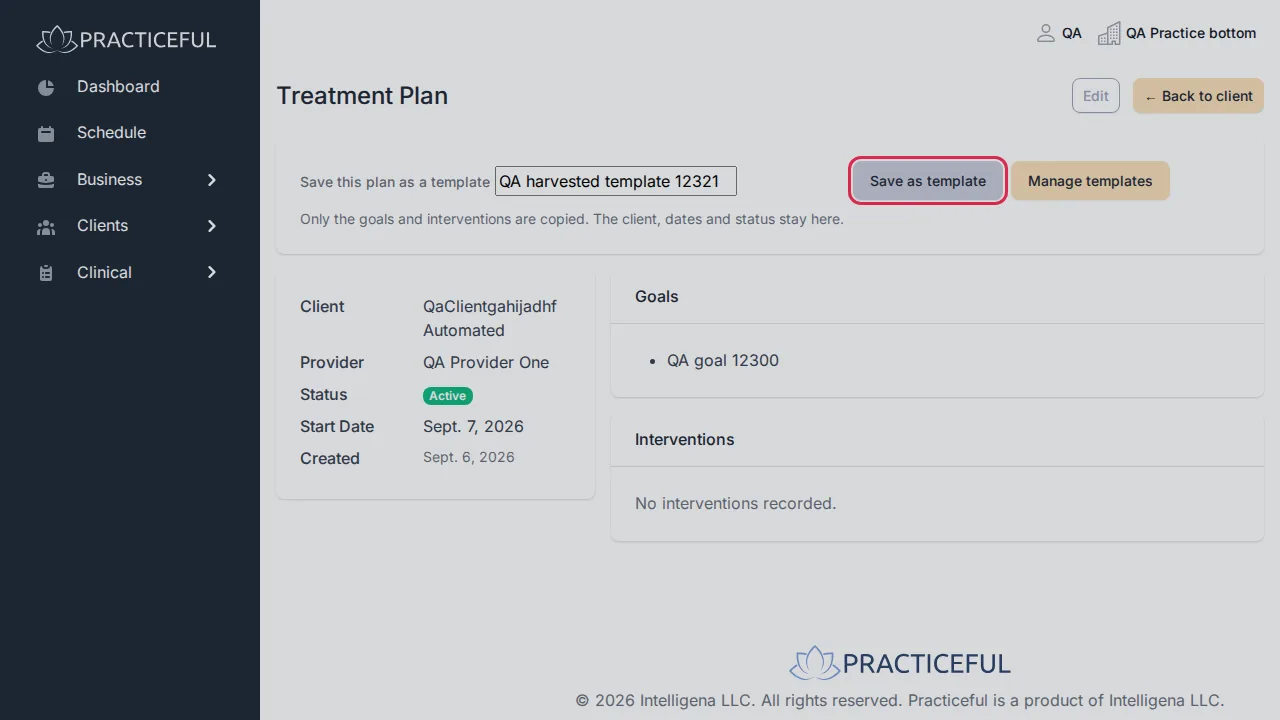
- Under Save this plan as a template, type a name for the template.
-
Press Save as template. A dialog asks you to confirm, and reminds you that the template is read by everyone in the practice — check it holds nothing about this client.
-
Press Save template. The new template appears under Plan Templates.
Only the goals and interventions are copied. The client, dates and status stay with the plan. A progress note can be saved as a note template the same way, from the note's own screen.
If something goes wrong
| You see | What it means | What to do |
|---|---|---|
| You have no plan templates yet. on a new plan | There is nothing to start from | Create one under Clinical › Plan Templates, or save this plan as a template afterwards. |
| No goals recorded. on a plan | The plan was saved without goals | Press Edit and add them. |
| A template is missing from Start from a template | It is marked inactive | Open it from its template list and tick Active. |