Booking an appointment
This page is for clients of a practice that uses Practiceful. You can book a time yourself instead of phoning, as long as your practice has opened its calendar to online booking.
Before you start
- You are signed in to your account. See Your client dashboard and portal.
- Your practice has published times you can book. If it has not, you are not offered any times — contact the practice.
- If your practice needs a card on file to book, an Add a card to book panel appears at the top of the booking page. Enter your card and press Save card first.
Book a time yourself
- Press Book Session in the menu on the left, or + Book on your dashboard. The Book page opens on Schedule Session.
-
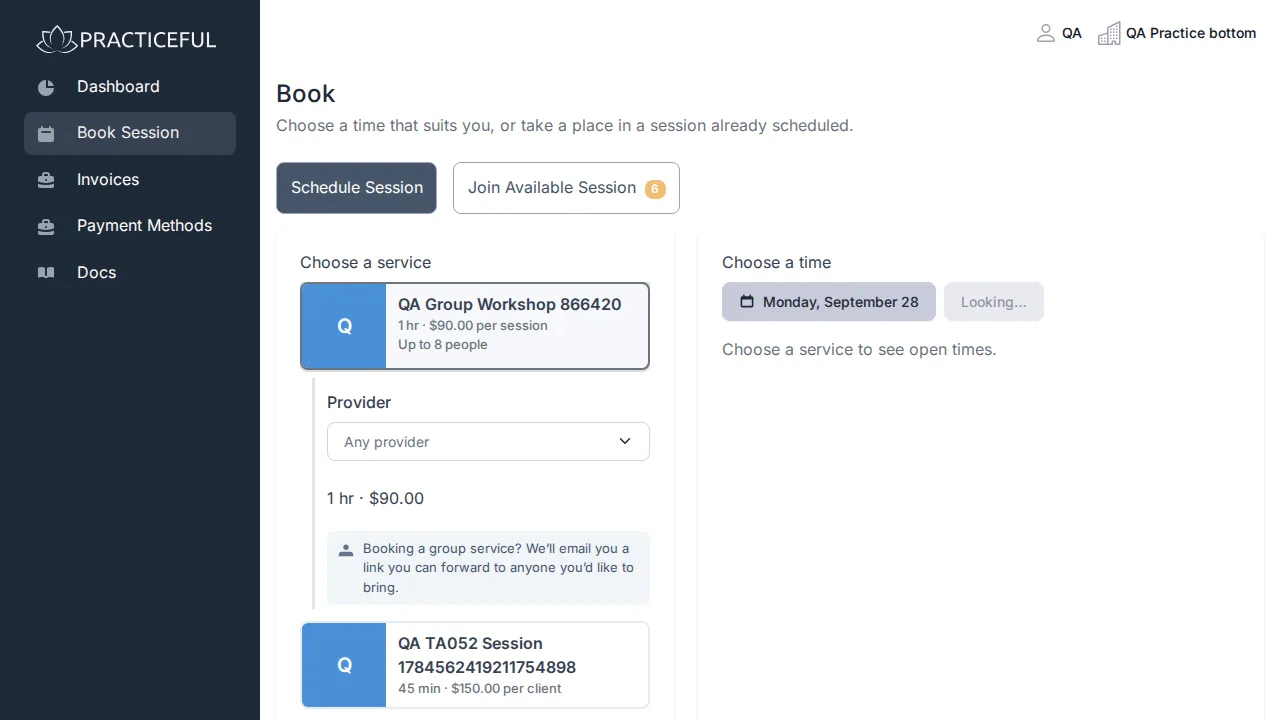
Under Choose a service, press the service you want. Each card shows its picture, description, and the lengths and prices it is offered at.
-
The options for that service open inside its card. Choose a Provider if you want a particular one — Any provider is chosen for you where the practice allows it — and choose How long? if the service comes in more than one length. If there is only one provider or one length, the card just says who or how long.
-
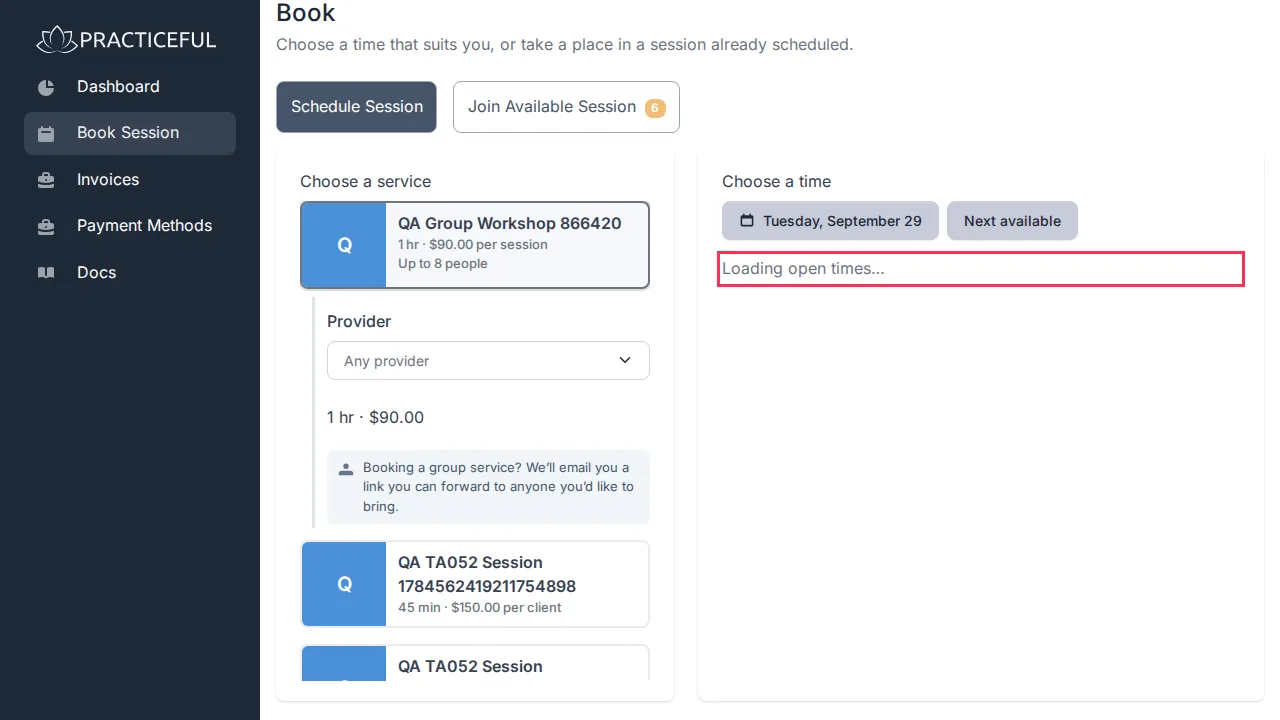
Under Choose a time, press the date button to open Pick a date, and choose a day. The open times for that day appear, grouped into parts of the day.
-
Press a time. Nothing is booked yet: Confirm your booking opens, showing the service, provider and time, what you will be charged now, and anything left to pay.
- If the practice charges a fee for missed or late-cancelled sessions, the terms are listed. Read them and tick I agree to these terms.
-
Press Confirm booking. You see Session booked for the day and time you chose.
To pick a different time instead, press Choose another time.
Booking a group service? You are told that the practice will email you a link you can forward to anyone you would like to bring.
Get the earliest free time
- On Book, press the service.
-
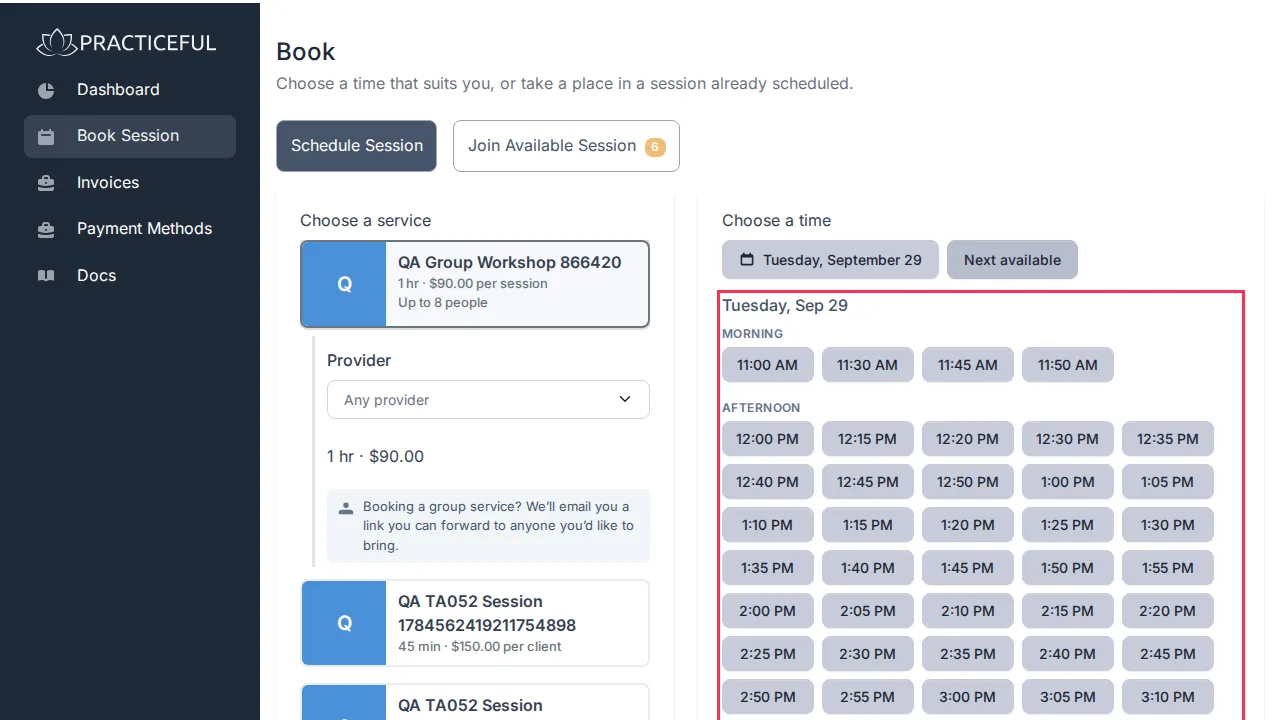
Press Next available. The date jumps to the first day with a free time for that service, and that day's times appear. With Any provider chosen, it looks across every provider who offers the service.
-
Press a time and confirm it as above.
Take a place in a session the practice has already scheduled
Some sessions — groups and workshops, for example — are already in the practice's calendar, and you can take one of the places left.
-
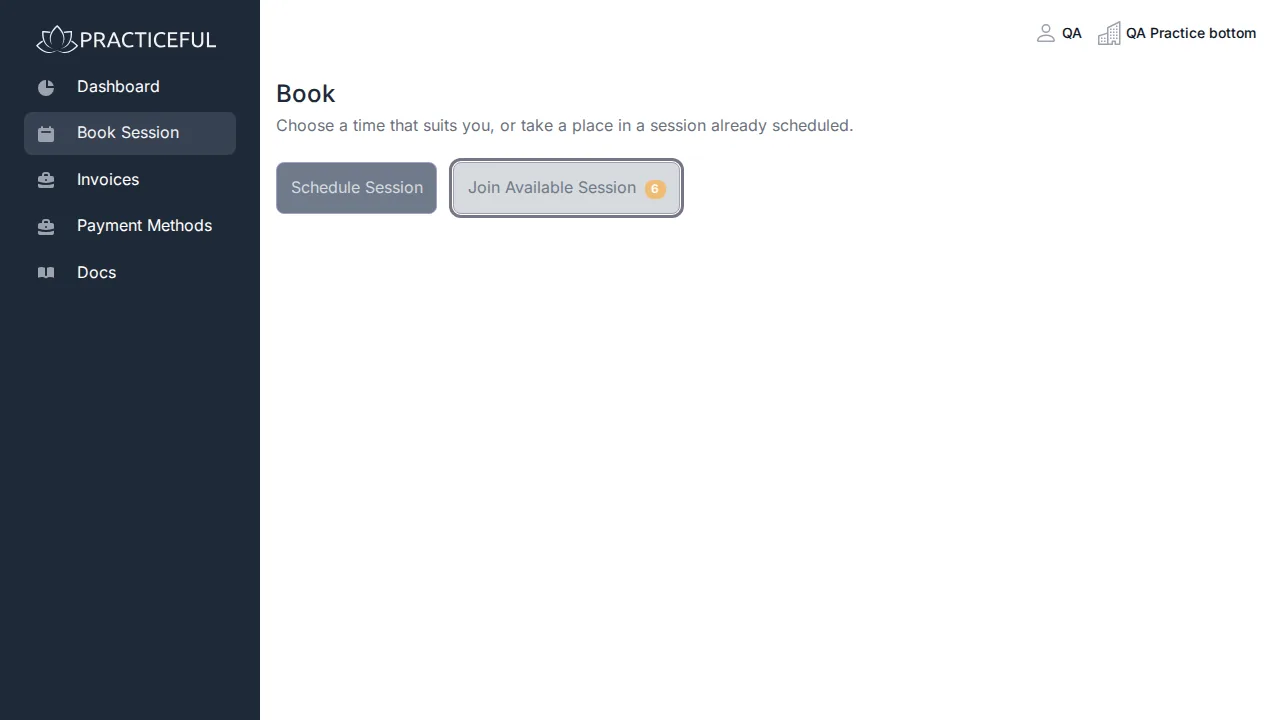
On Book, press the Join Available Session tab. This tab only appears when there is a session you can join. Sessions are listed under a heading for each day.
-
Press Take a place beside the session you want. Join a Session opens with its details.
-
Press Join this session. You see You're on the list.
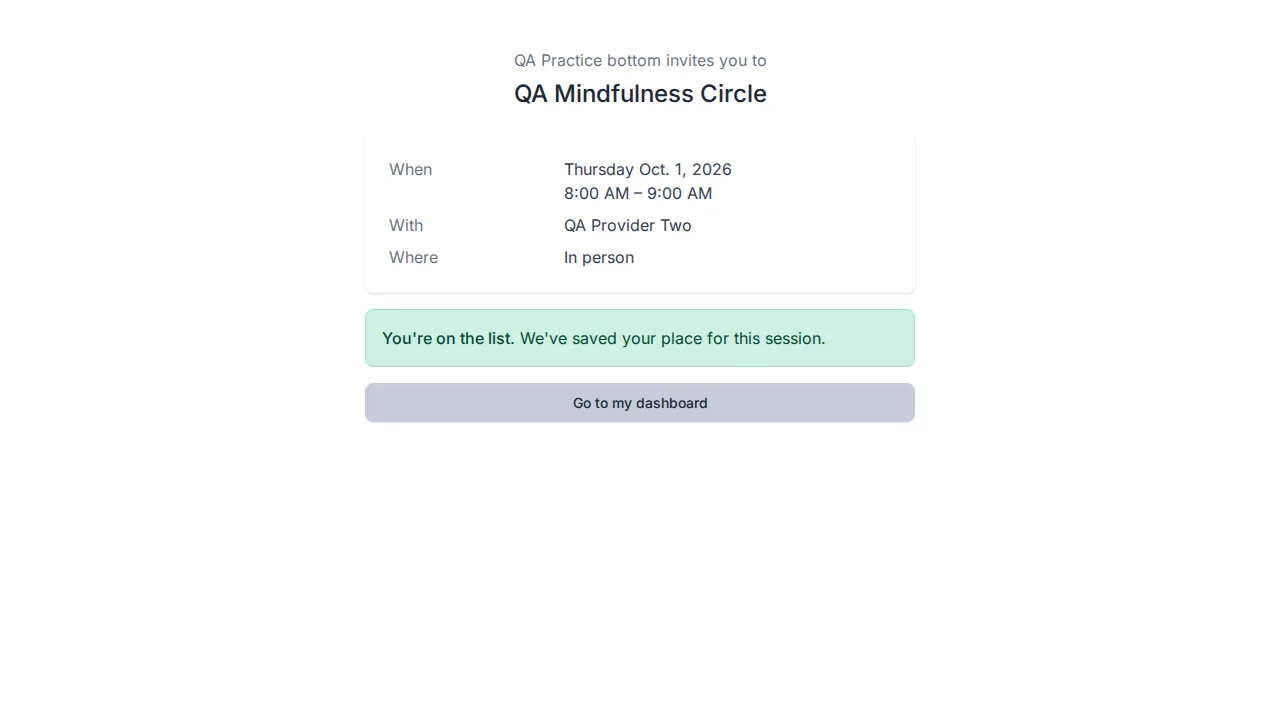
A session you have already joined shows You're going → instead, and takes you to it.
Find a session that fits
When there are many sessions, narrow the list on the Join Available Session tab:
- From and To — the dates to look between.
- Room for — only sessions with at least that many places free (1 or more up to 5 or more), useful if you are bringing people.
-
Service — only one kind of session.
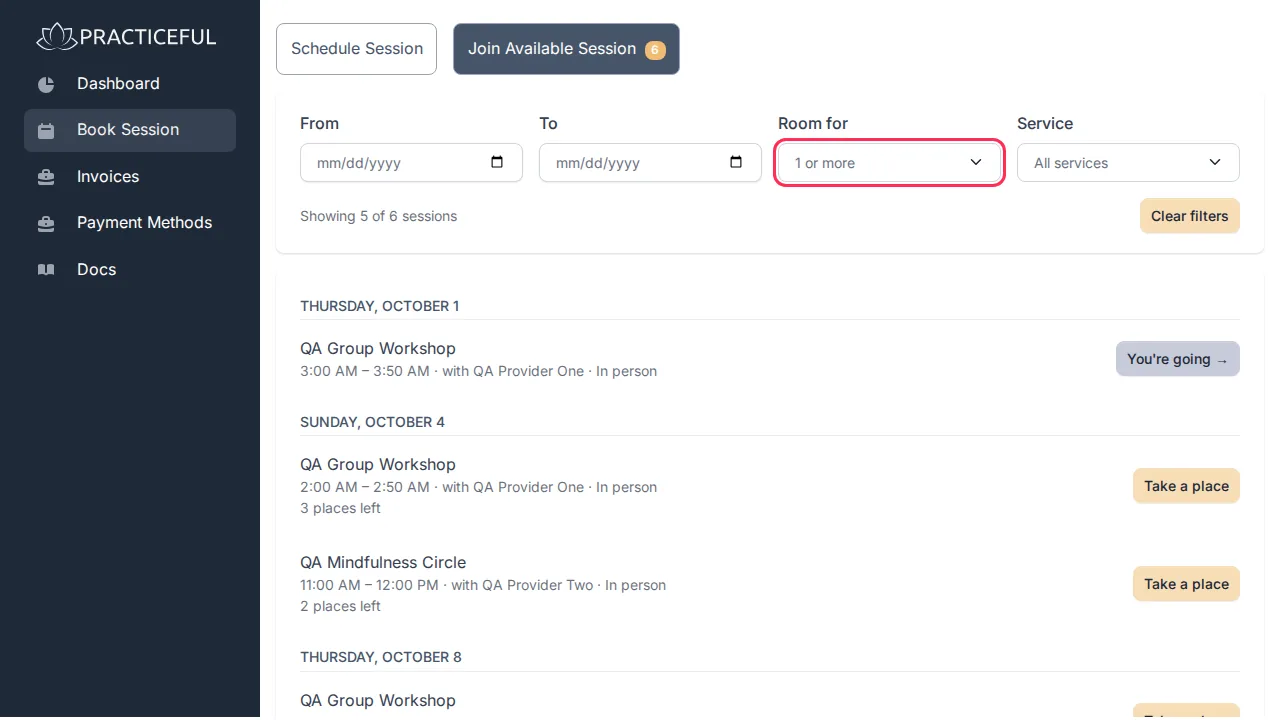
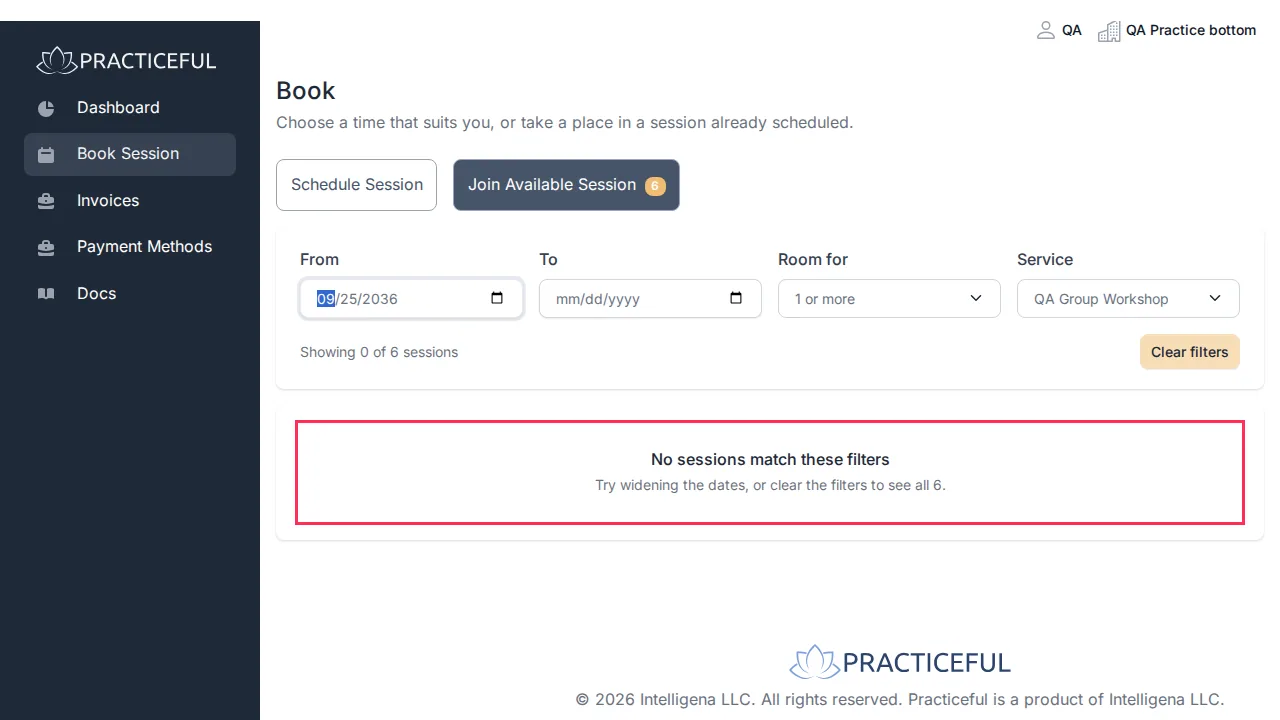
The filters work together, and the count above the list says how many sessions are shown. If nothing matches, you see No sessions match these filters; press Clear filters to see every session again.
Book from a link your practice emailed you
Your practice can email you a link to book one particular appointment. They choose the service, the provider and the length; you only choose the day and the time. You do not need an account.
Opening the link shows Choose a time with what the practice chose (What, With, How long and, if set, Cost). Pick a day under Pick a day, then a time under Open times. Times are shown in the practice's timezone. The link can be used once. If it has already been used, expired or been withdrawn, the page says so — see When a link has stopped working.
Book from the practice's website
If your practice allows it, you can book from its public booking page without having an account first. The page is headed Book with and the practice's name.
- Choose the service, then a time under When.
- Under Nearly there — how should we reach you?, choose Email or Mobile, fill in your details and press Send me a code.
- Enter the 6-digit code you are sent and press Confirm.
- Give One more way to reach you — the practice needs both an email address and a mobile number.
- If you are new to the practice, you are asked to sign its Terms before you book: type your name to sign, tick that you intend it as your signature and that you agree to sign electronically, enter Your full name (printed) and press Agree and continue.
- If the service needs a card, enter it under Payment details.
- Under Confirm your booking, press Confirm booking. The page says You are booked in.
If you already have an account with a password, you are asked to sign in and book from your dashboard instead. Some practices take new clients by referral only, and the page says so.
If something goes wrong
| You see | What it means | What to do |
|---|---|---|
| No open times on this day. Try another date, or use “Next available”. | That day is fully booked or not open | Pick another day, or press Next available. |
| Schedule not currently available. Please try again later. | Nothing is open for that provider yet | Try again later, or contact the practice. |
| Nothing is free in the next … days. Please contact the practice. | Next available found no time | Contact the practice. |
| Could not load open times. Please try again. | The times could not be fetched | Press Try again. |
| That time was just taken. Here are the latest open times. | Someone else booked it first | Choose another time. |
| Please agree to the terms above before confirming. | The fee terms are not ticked | Tick I agree to these terms. and confirm again. |
| Add a card at the top of this page to complete this booking. | Your practice needs a card on file | Add a card under Add a card to book, then confirm. |
| No services can be booked online yet | Your practice has not opened any service to online booking | Take a place in a scheduled session if one is offered, or contact the practice. |
| A Confirm your email address page | Your practice has not yet confirmed your email address | Follow Confirm your email address before you book. |
| This session is full. | Every place in the session has been taken | Contact the practice about the next one. |