Forms
This page is for clients of a practice that uses Practiceful. Before your first session your practice may ask you to complete forms — an intake questionnaire or a consent form, for example. You can do this from your account, or from a link your practice emails you.
Complete a form from your account
Before you start
- You are signed in to your account. See Your client dashboard and portal.
- Your practice has given you at least one form to complete.
If your practice needs a form before you carry on, signing in takes you straight into it,
with Please complete this form to continue. (and how many forms are outstanding, if more
than one). Otherwise, your list of forms is at /forms/mine/.
-
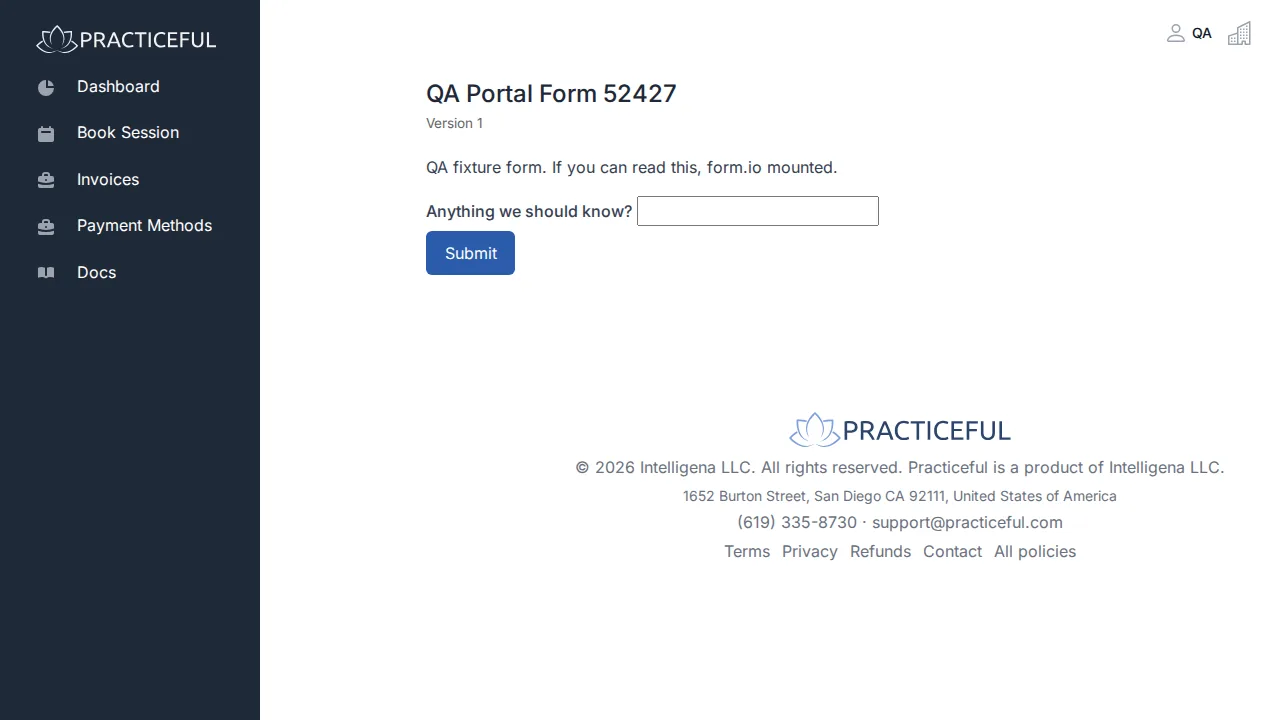
On Forms, press Complete this form beside the form.
-
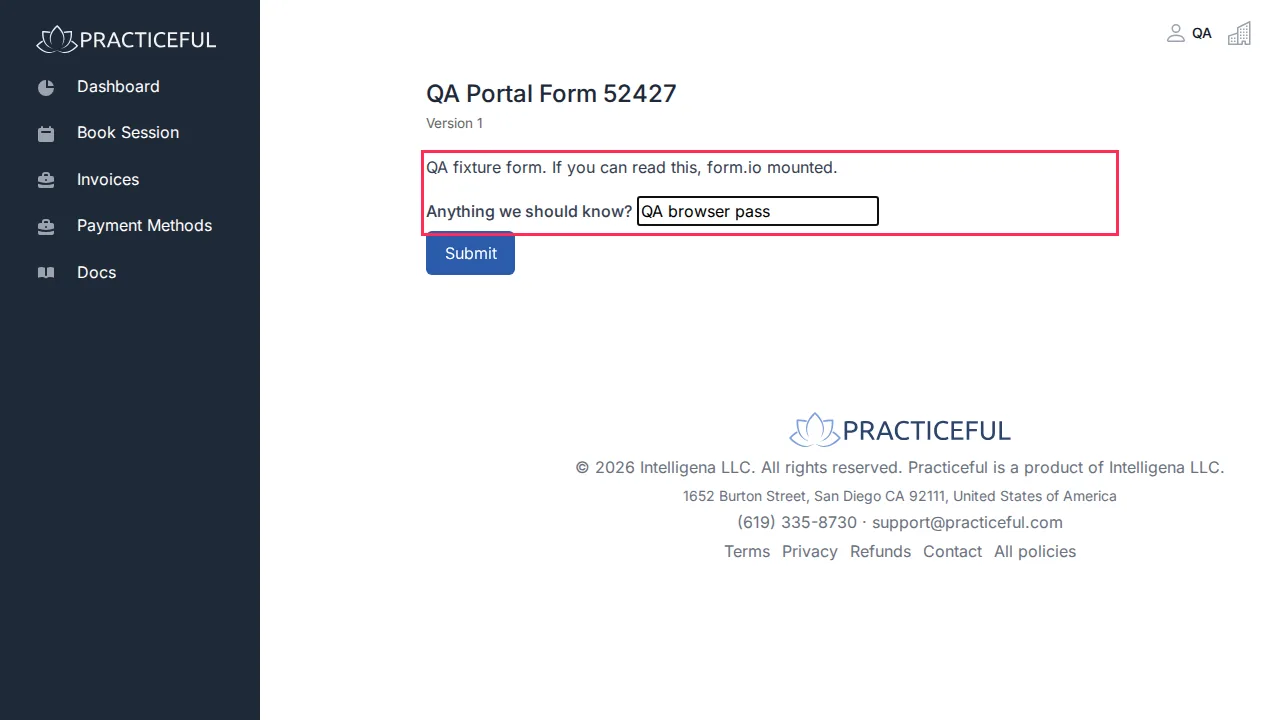
Fill in the form.
-
If the form needs your signature, sign it under Sign this form:
- Choose Type your name and type your full name to sign, or choose Draw your signature and sign on the pad (Clear starts again).
- Tick I intend this to be my signature on this document.
- Tick I agree to sign this document electronically.
- Enter Your full name (printed).
-
Press Submit. The form is recorded and you return to your dashboard.
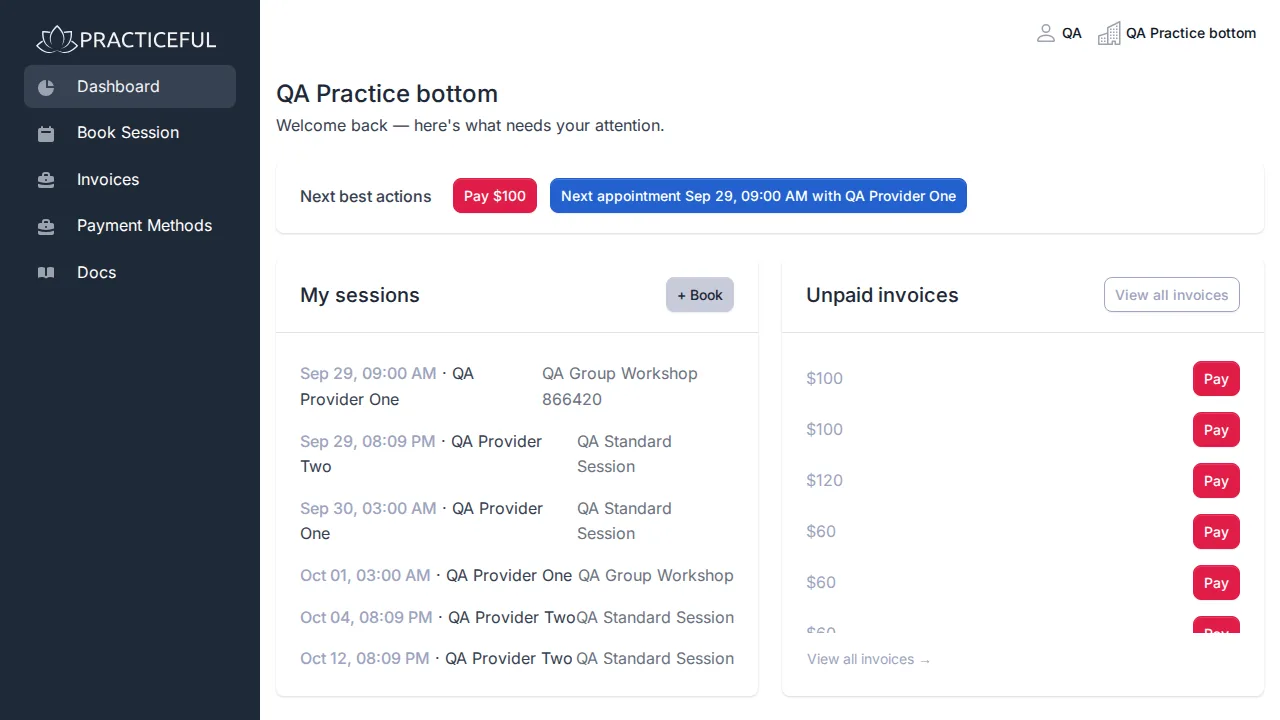
A completed form stays on your Forms list marked Completed, with Download PDF (or Download signed PDF) so you can keep a copy. If nothing is assigned, the list says You have no forms to complete.
Complete a form from a link your practice emailed you
Forms hold private information, so a link to them is not enough on its own: you confirm a code sent to your email address first. You do not need an account.
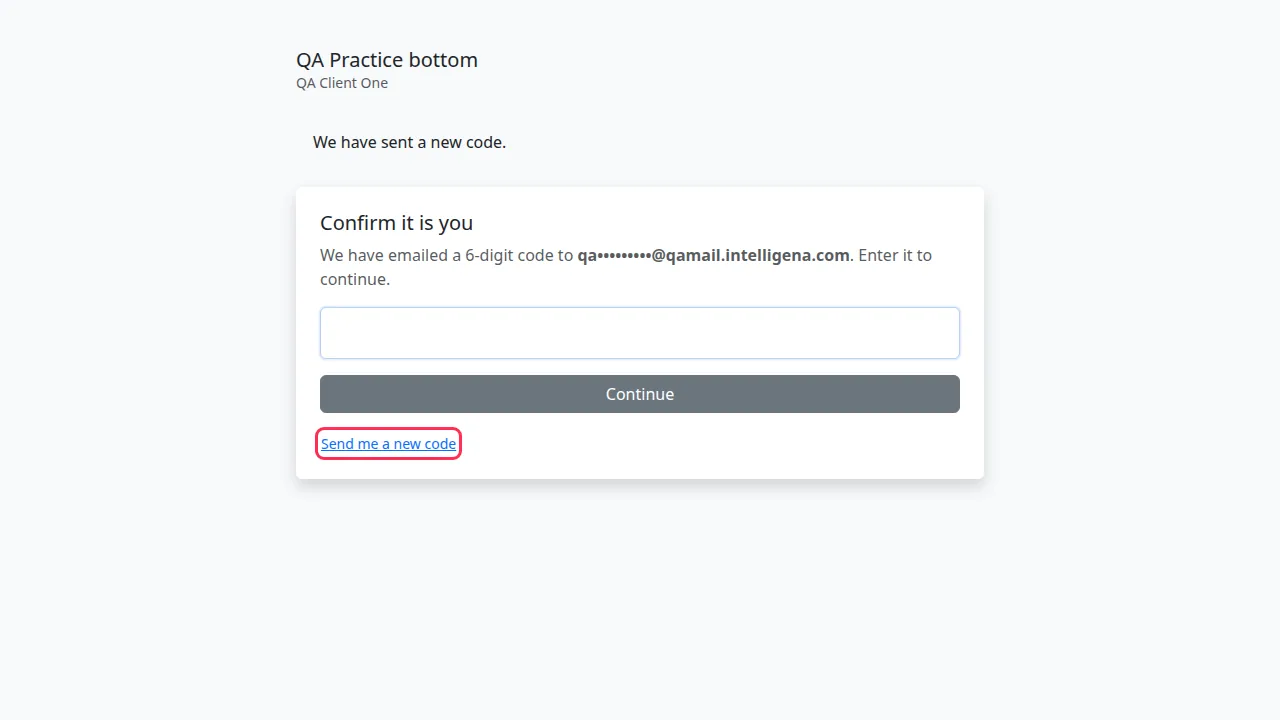
- Open the link. Confirm it is you says a 6-digit code has been emailed to you (the address is partly hidden).
-
Type the code and press Continue.
-
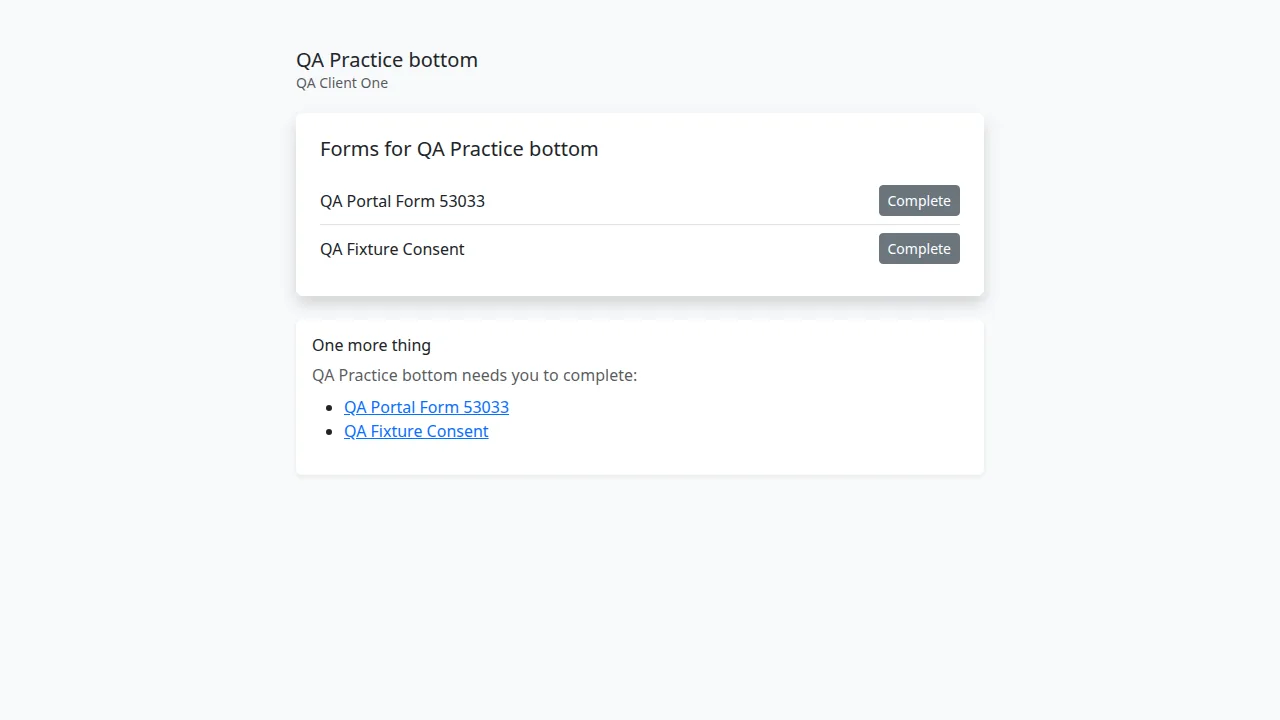
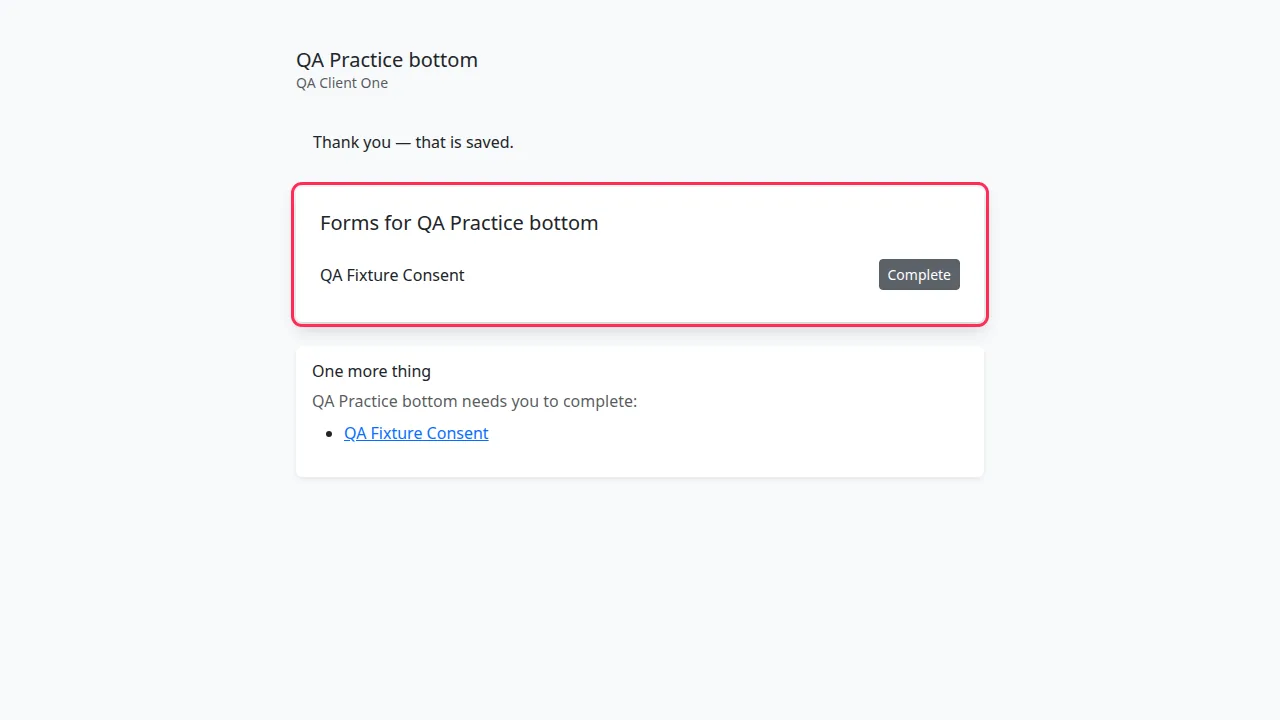
Forms for your practice lists what is waiting for you. Press Complete beside a form.
-
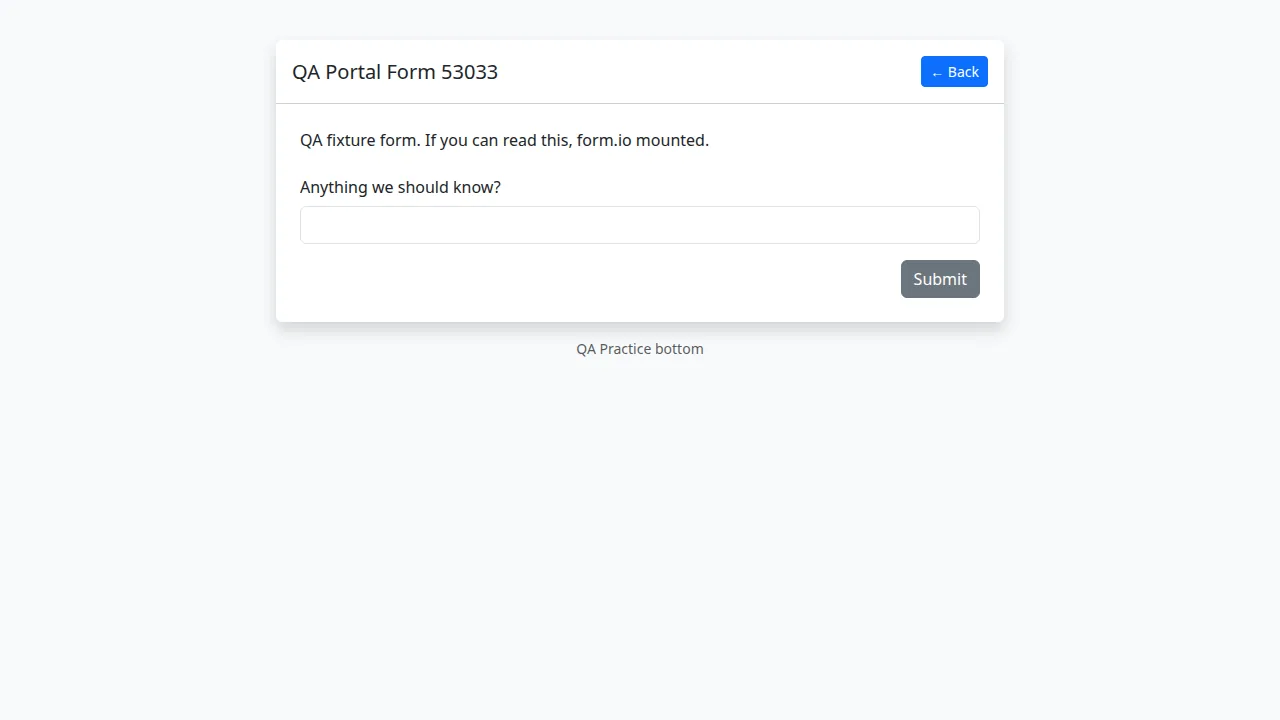
Fill in the form and press Submit.
-
You see Thank you — that is saved. When nothing is left, the list says Nothing outstanding — thank you.
The code keeps working for a short while, so you can fill in several forms in one go. After that, open the link again and confirm a new code.
If the code does not arrive
- On Confirm it is you, press Send me a new code.
-
You see We have sent a new code. Use the newest code — asking for a new one replaces the earlier one.
Check your spam folder too. The code can only go to the address your practice holds for you; if that is wrong, ask them to update it.
If something goes wrong
| You see | What it means | What to do |
|---|---|---|
| That code doesn't match. Please check and try again. | The code was mistyped, or it is not the newest one | Check the latest email and try again. |
| That code has expired. Ask for a new one below. | The code is too old | Press Send me a new code. |
| Too many attempts on that code. Ask for a new one below. | Too many wrong tries | Press Send me a new code. |
| Please wait a moment before asking for another code. | Codes were requested too quickly | Wait a moment, then ask again. |
| This link no longer works | The link has expired or been withdrawn | Ask your practice to send a new one. |
| A message in red above the form after pressing Submit | Something in the form was not accepted | Correct it; your answers are kept. Submit again. |