Paying your practice
This page is for clients of a practice that uses Practiceful. You can see your invoices and pay them by card, either from your account or from a payment link your practice emails you.
See what you owe
Before you start
You are signed in to your account. (If you only have a link from your practice, press Open under Bills and payments on the page it opens instead — see Your client dashboard and portal.)
-
Press Invoices in the menu on the left. Your invoices are split into Unpaid and Past invoices.
-
On an unpaid invoice, open the menu in its Actions column and press View invoice. (Pressing the amount opens it too.)
-
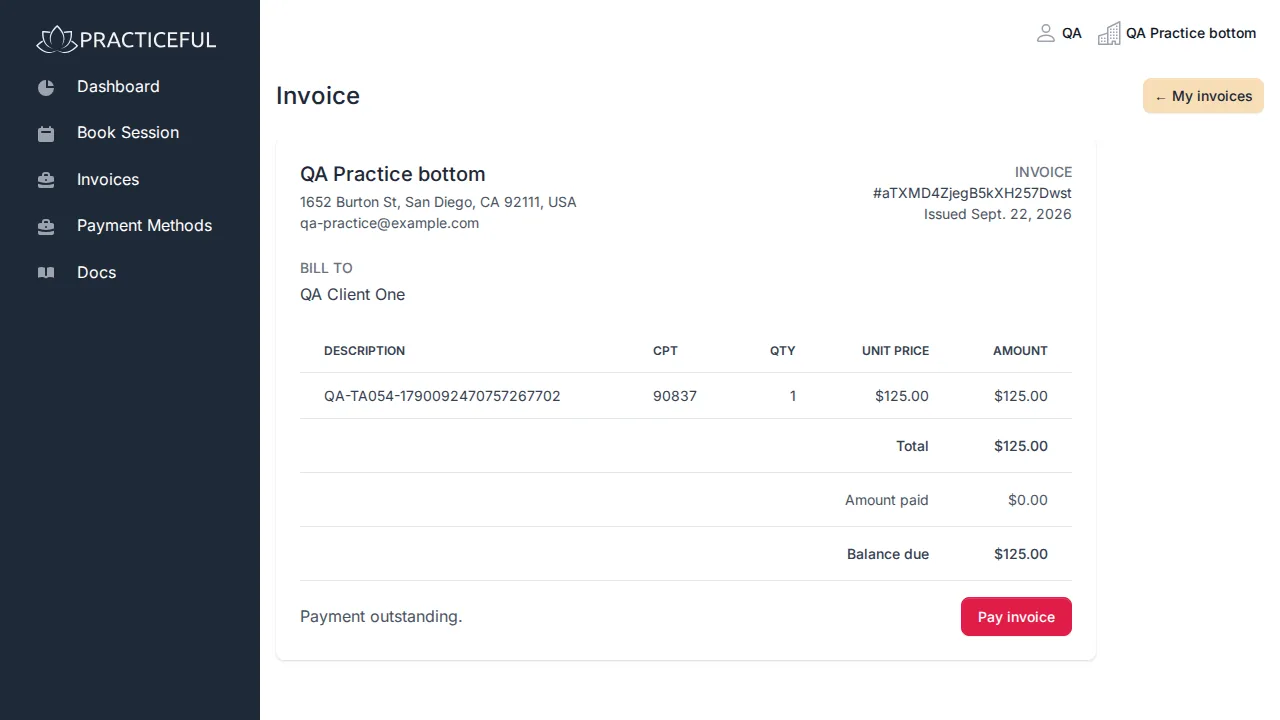
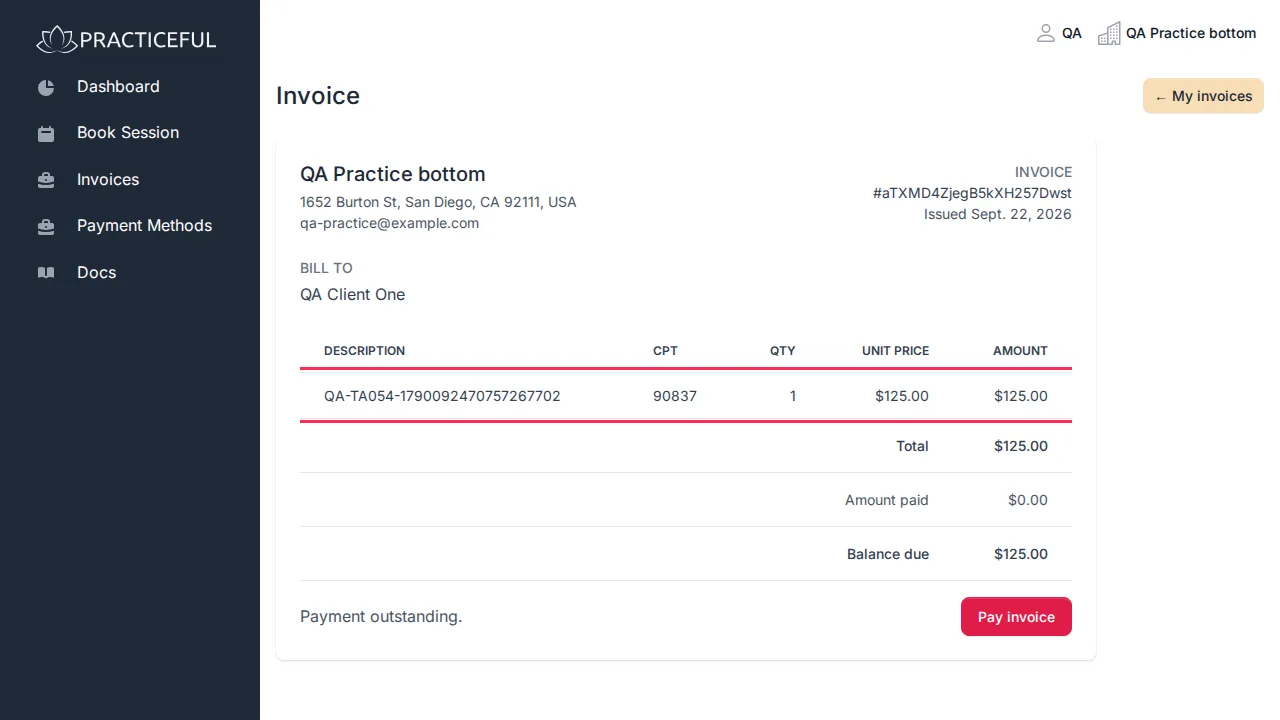
The Invoice shows your practice's details, the date issued and due, and each line: Description, CPT code, Qty, Unit price and Amount, with the Total, Amount paid and Balance due.
-
To pay it, press Pay invoice (or Pay this invoice from the invoice's menu in the list).
Where a superbill is available, the invoice also offers Download superbill (PDF) — a document you can send to your insurer. Your dashboard's Unpaid invoices card lists the same invoices, each with a Pay button.
Pay by card
-
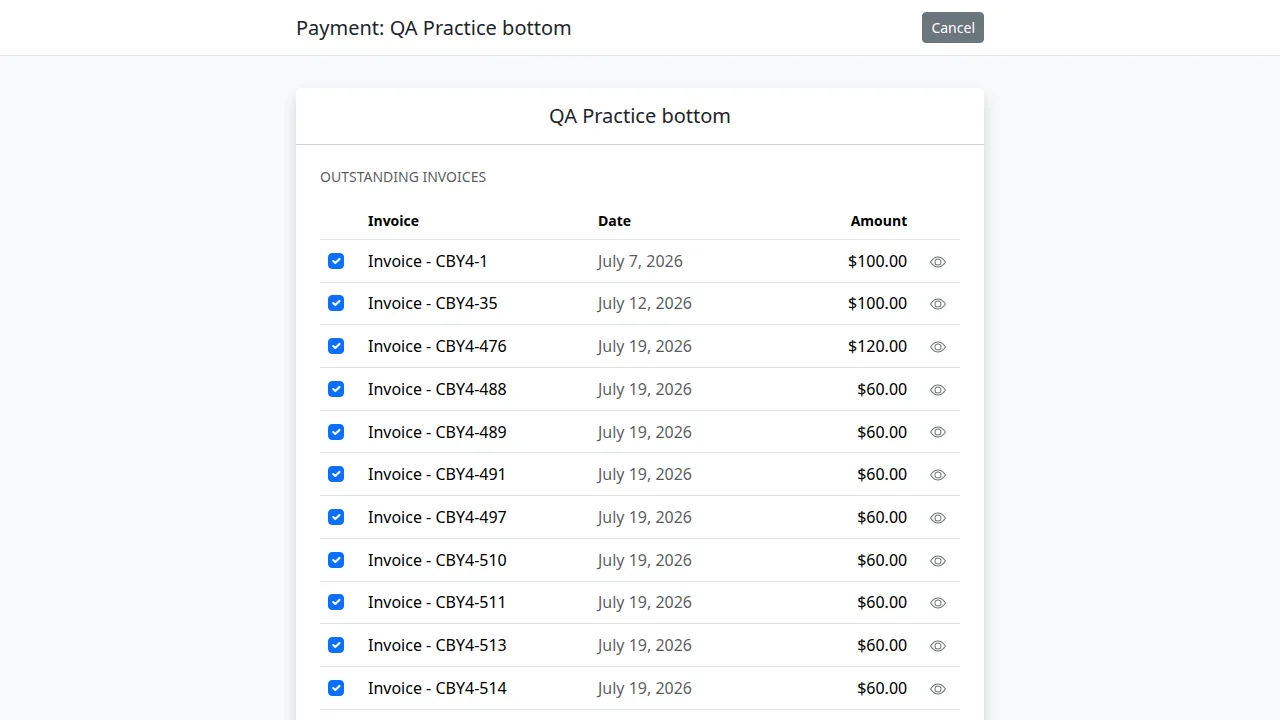
The payment page lists your Outstanding invoices with the practice. Tick the invoices you want to pay.
-
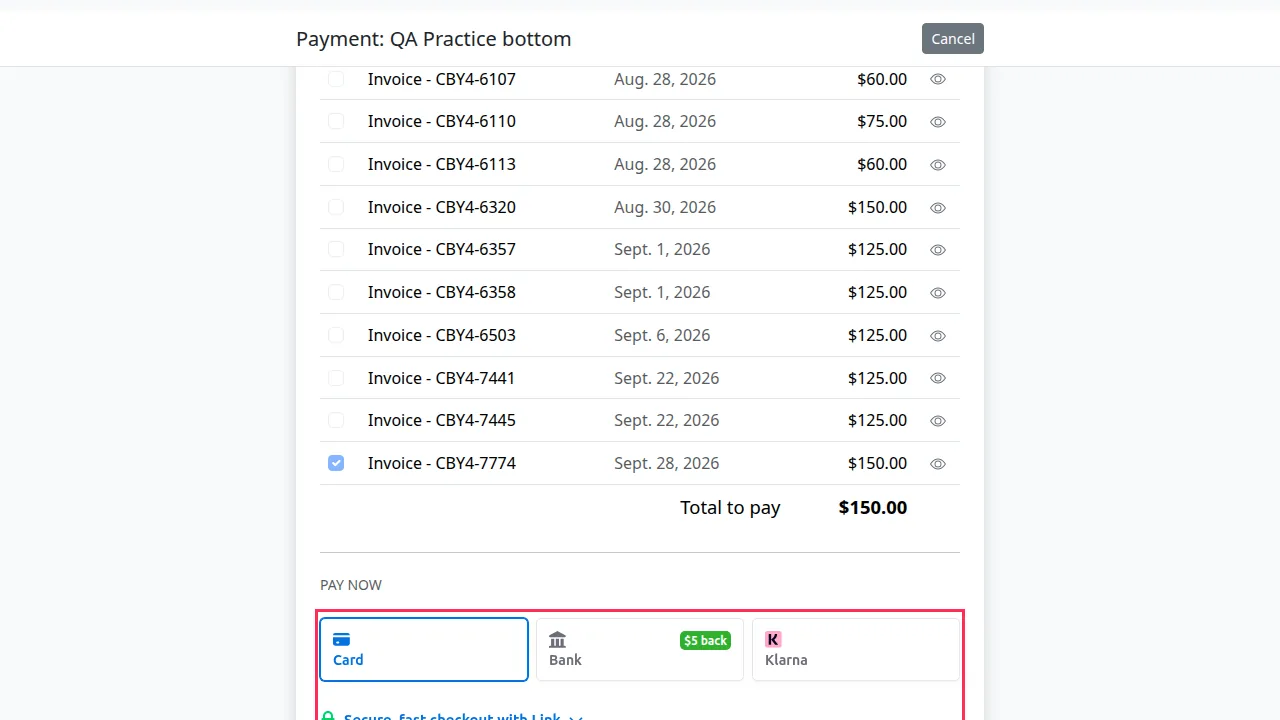
Under Pay Now, press Credit Card. The card entry appears.
-
Enter your card details.
-
Press Pay.
-
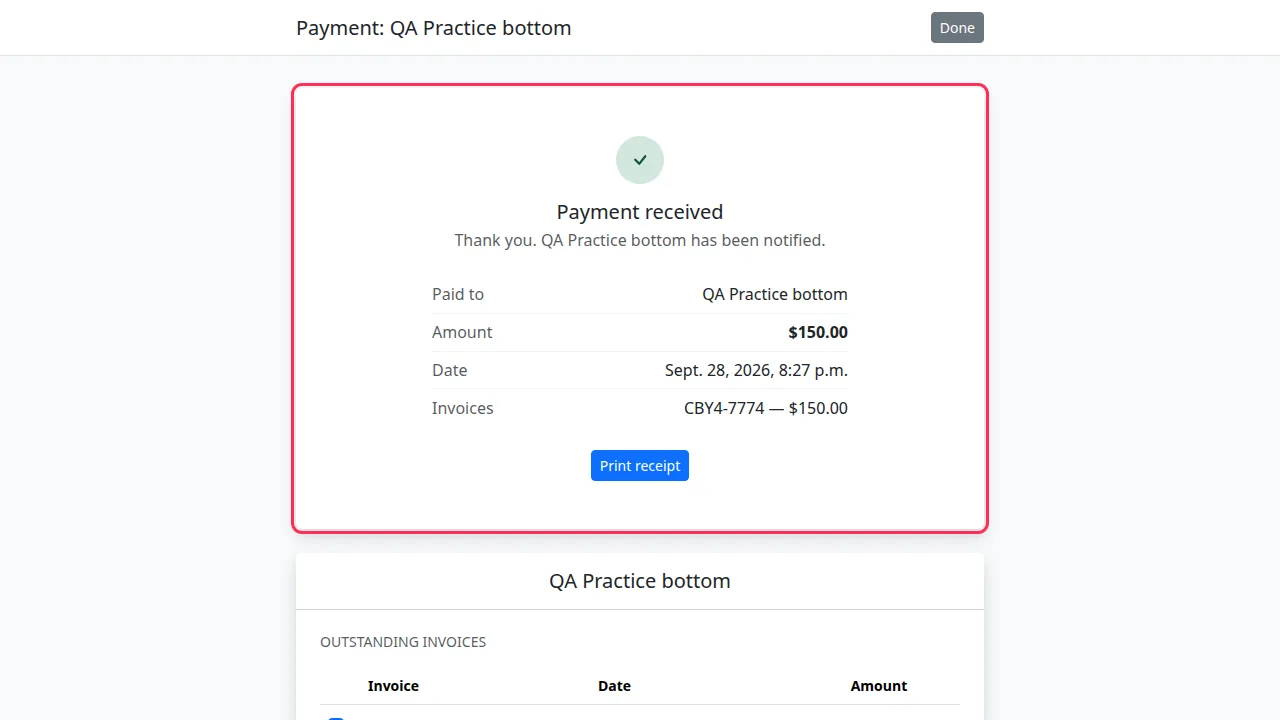
When the payment goes through, you see Payment received, with who it was paid to, the amount, the date and the invoices it settled, and a Print receipt option. Your practice is notified.
Card details are entered into a secure card field provided by the payment processor.
Other outcomes you may see after paying:
- Your payment is processing — it has not finished yet. Do not pay again.
- Your bank needs to confirm this payment — follow your bank's step, or press Try the payment again.
- Your payment was not completed or Payment cancelled — no money has been taken and your invoices are still outstanding. Press Try the payment again.
- We could not confirm your payment — we could not reach the payment provider to check. Please do not pay again; press Check again in a minute, or contact your practice.
If you have nothing to pay, the page says You have nothing outstanding.
Leave without paying
-
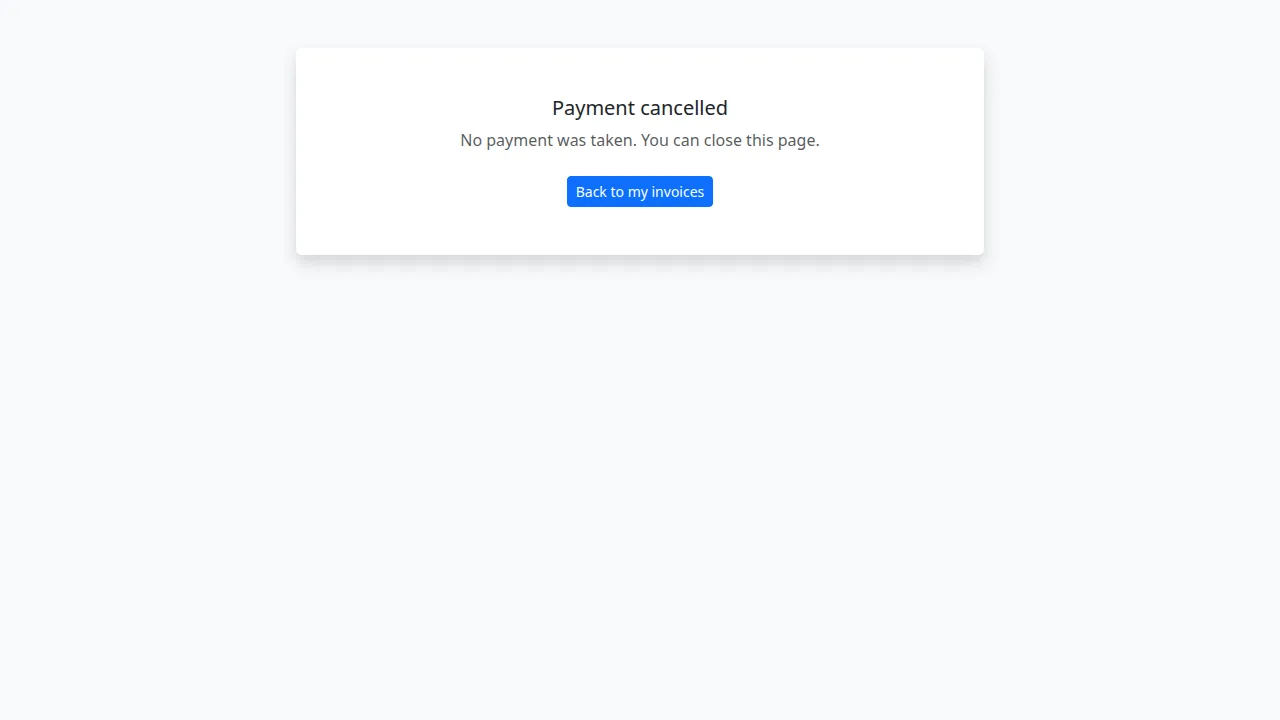
On the payment page, press Cancel at the top.
-
You see Payment cancelled — No payment was taken. You can close this page.
-
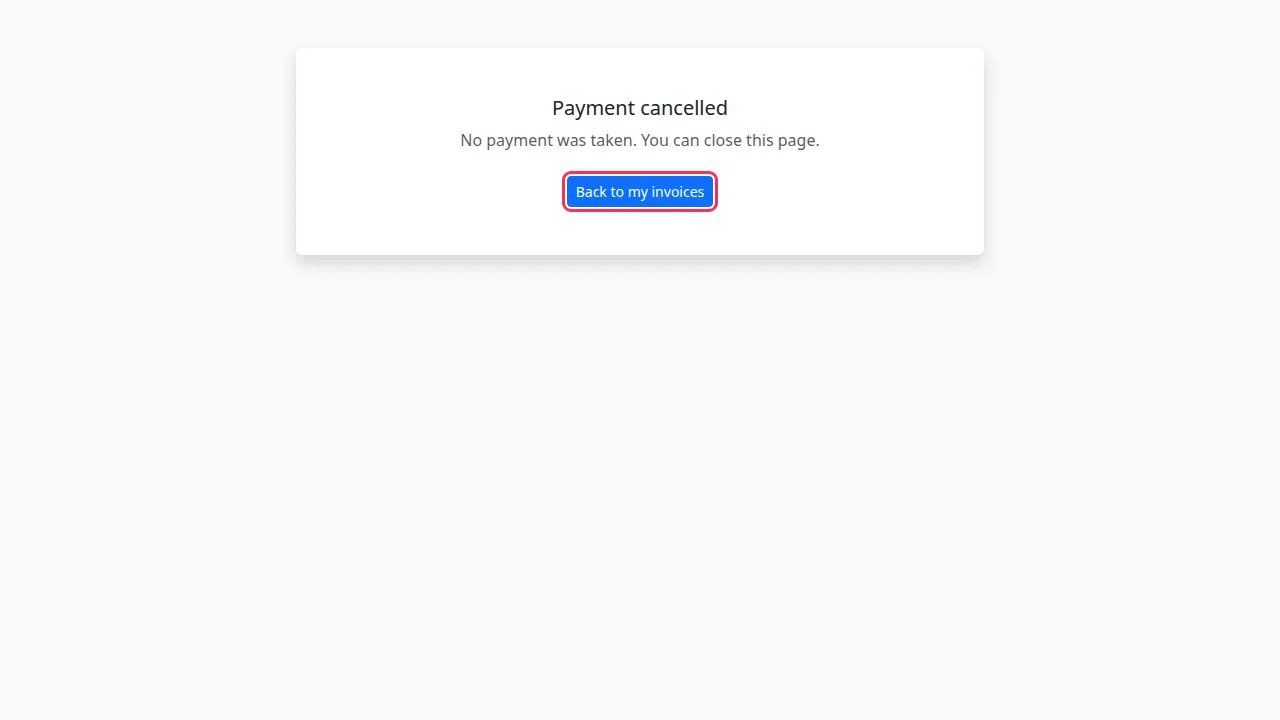
Press Back to my invoices if you want to return to them.
After a payment has been made, the same button reads Done instead of Cancel.
If something goes wrong
| You see | What it means | What to do |
|---|---|---|
| A message under the card field after pressing Pay | The card was declined, or the payment could not start | Check the card details or use another card. The invoice stays unpaid. |
| Your payment was not completed | The payment failed; nothing was taken | Press Try the payment again. |
| We could not confirm your payment | The result could not be checked yet | Do not pay again. Press Check again, or contact your practice. |
| No line items on this invoice. | The invoice has a total but no itemised lines | Contact your practice if you need it explained. |
| You have no unpaid invoices. | You owe nothing | Nothing to do. |