Practice settings
Your own details and the practice's details are both reached from the account menu — your name at the top of the screen. This page is for practice managers. You will update your profile, put the practice's details on record, and set up the practice to match how you work.
Update your own details and emails
-
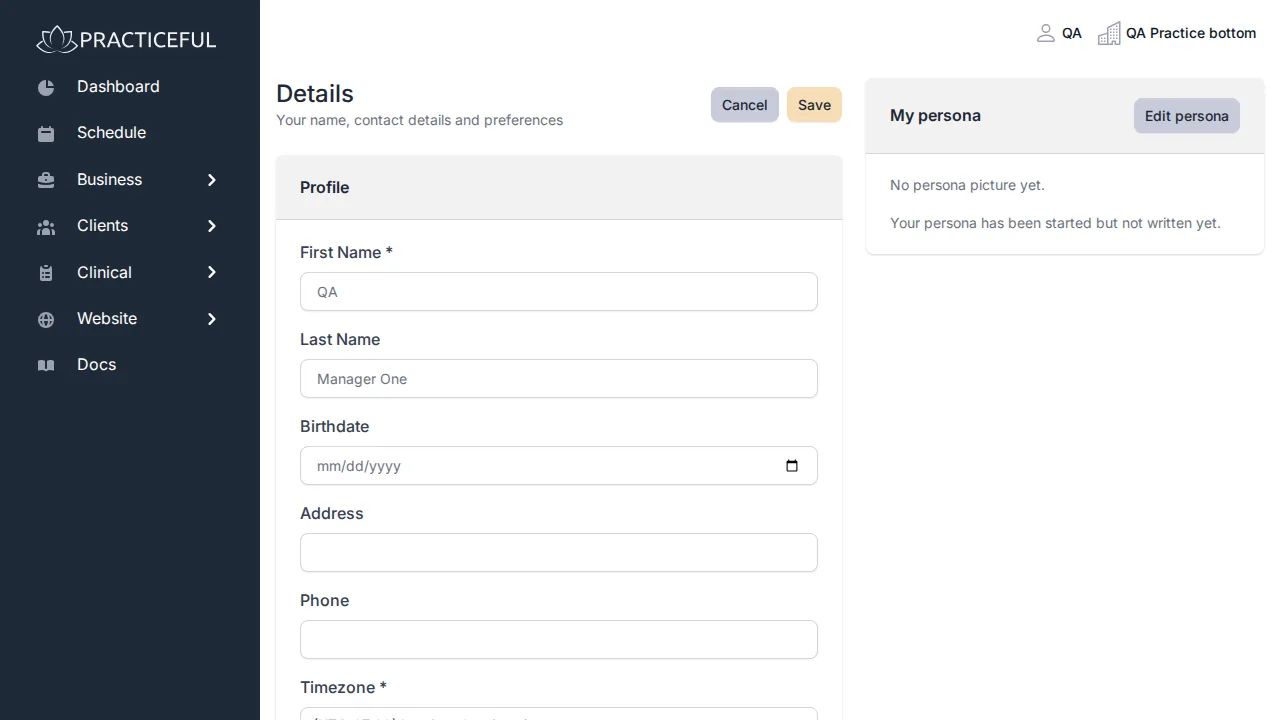
Open the account menu and choose My Info. The Details screen opens.
-
Change what you need under Profile, such as First Name or Last Name.
-
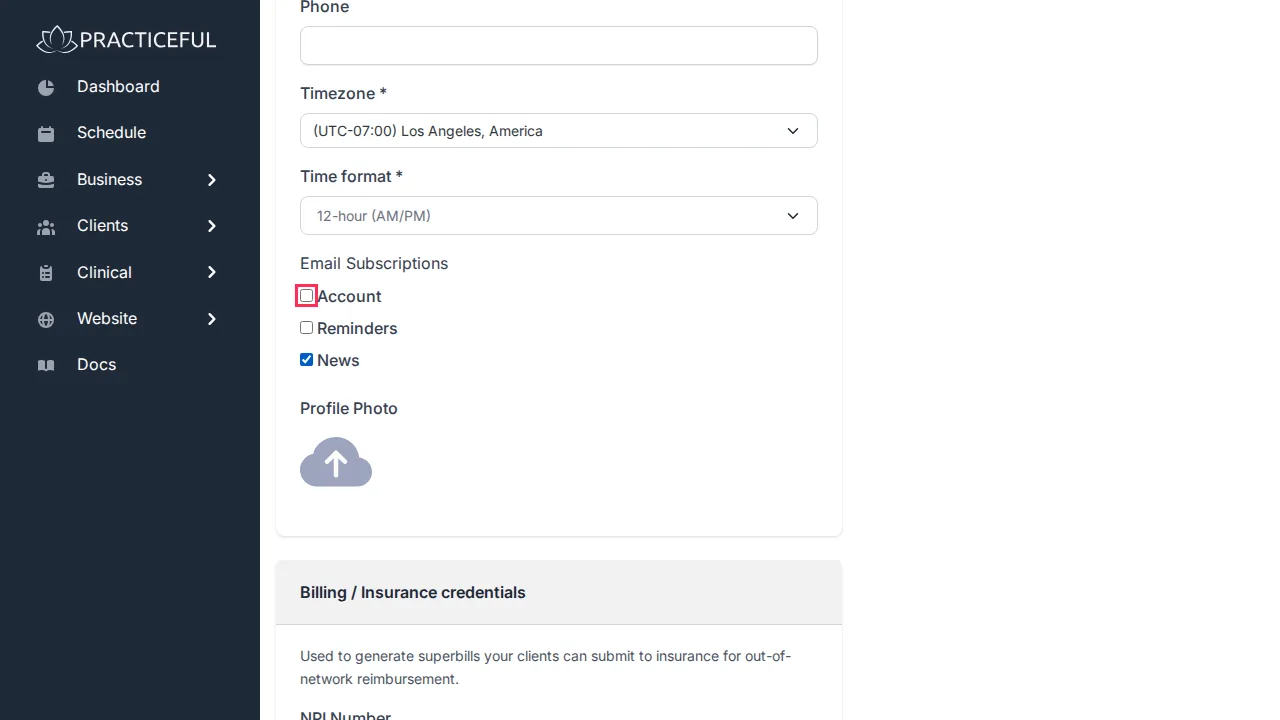
Tick or untick the kinds of email you want to receive.
-
Press Save. There is a Save button at the top of the form and another at the bottom; both do the same thing.
See clients as well as run the practice
In a one-person practice, you are both the manager and the clinician. To take on the provider role:
- Open the account menu and choose My Info.
-
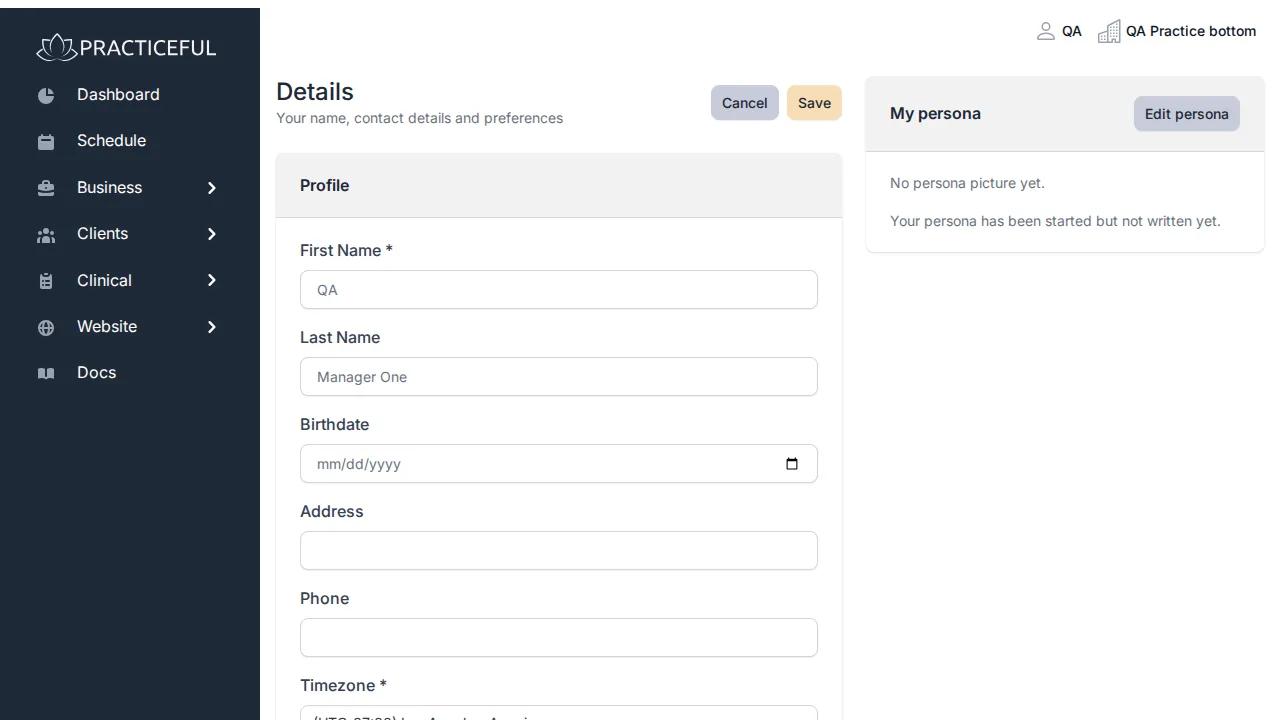
Under Roles, tick Provider as well as Manager.
-
Press Save. The sidebar now includes what a provider needs.
See For clinicians for what the provider role lets you do.
Record the practice's details
Before you start
Only practice managers see Practice Info in the account menu.
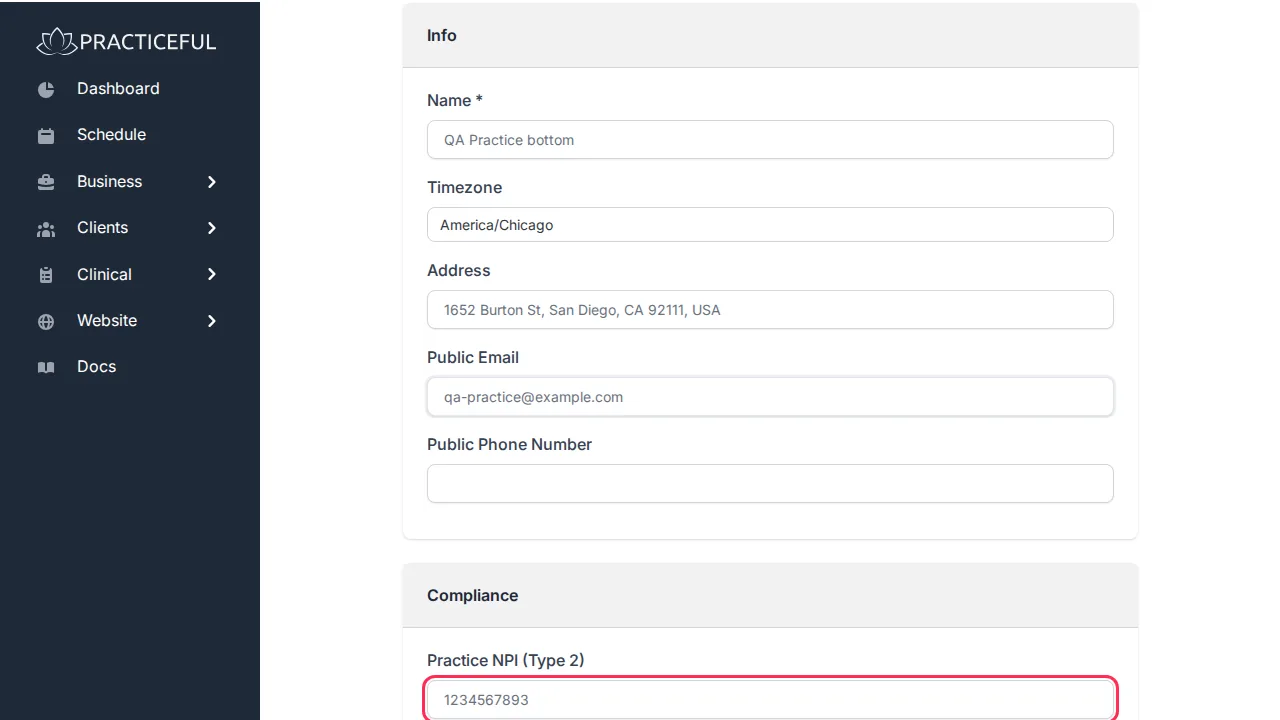
- Open the account menu and choose Practice Info. The Practice Profile screen opens.
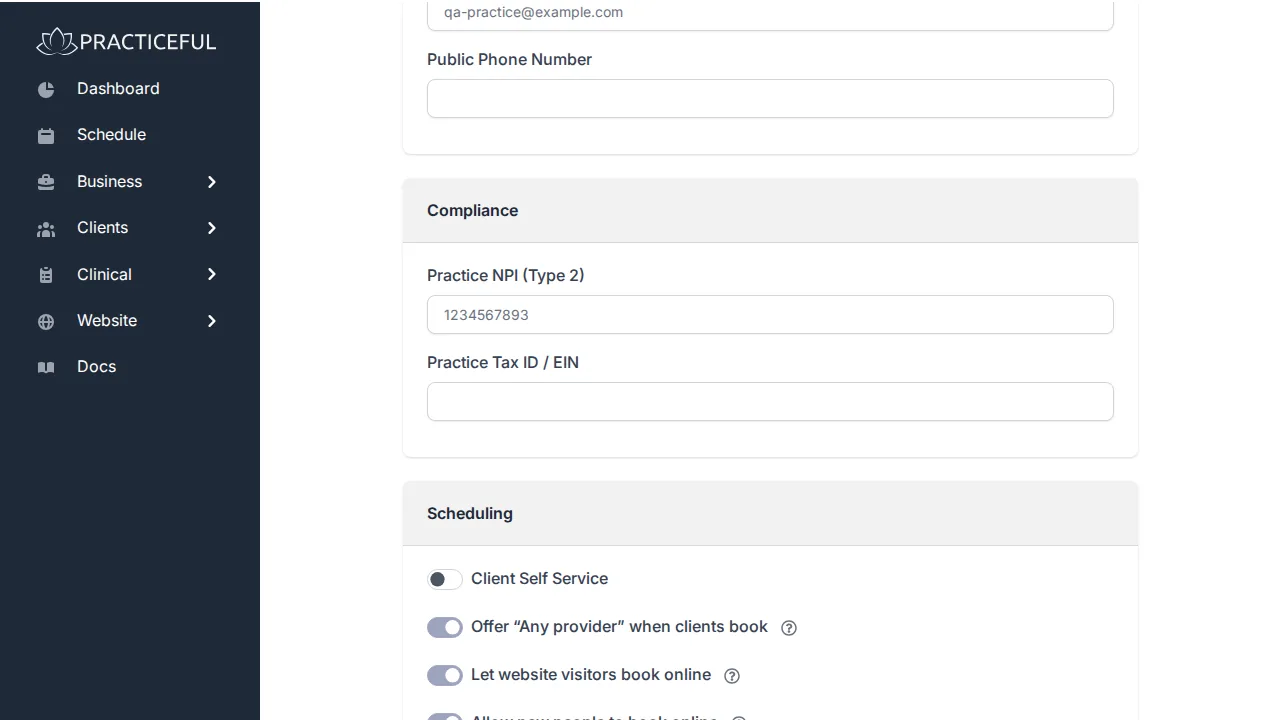
- Fill in the practice's public details, such as its Public Email, Public Phone Number and address.
-
Enter the practice's identifiers: Practice NPI (Type 2) and Practice Tax ID / EIN. The NPI appears on the superbills you give clients, so fill it in before you produce one.
-
Press Save.
The same screen also links to the Practice Persona, Your Persona and billing settings (Edit Settings).
Choose what the practice calls its clients
A physiotherapist may say "patients" and a coach "members". The word you choose is used throughout Practiceful.
- On Practice Info, choose a term in What We Call Clients.
-
If none fits, choose Other… and type your own word in Custom term.
-
Press Save.
Add a second practice
If you run more than one practice, you can hold them all on one account.
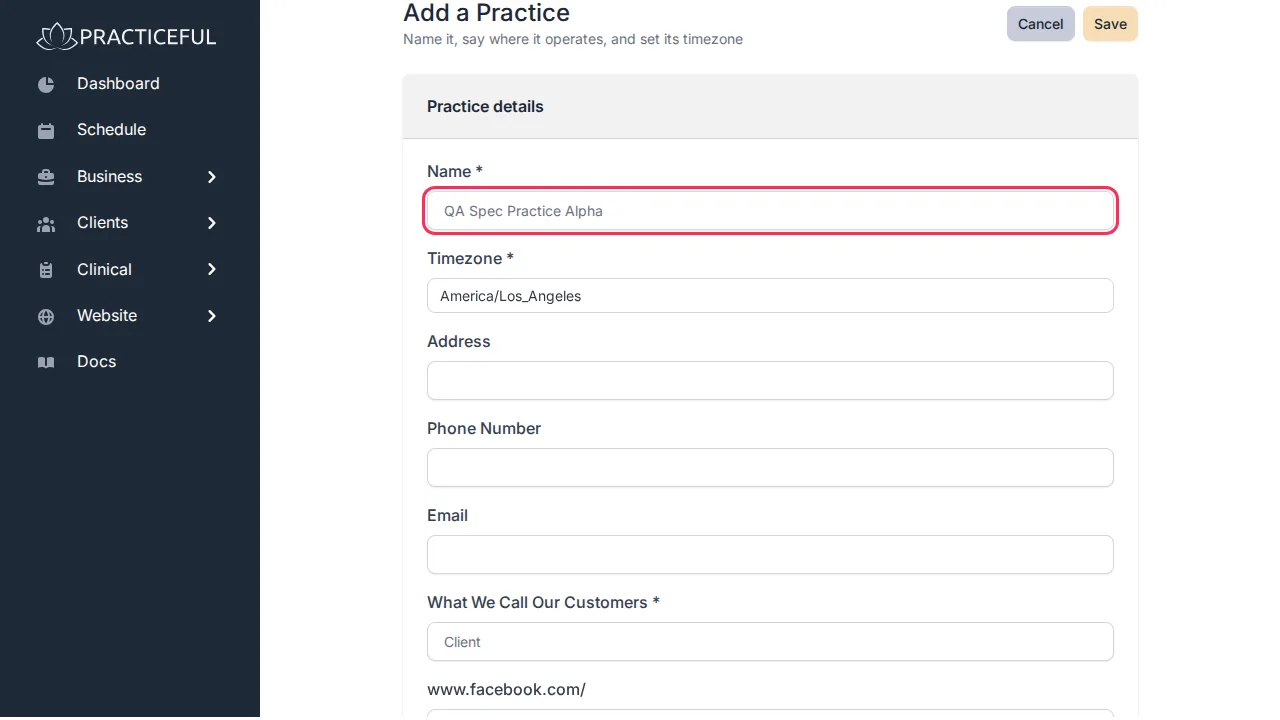
- Open the account menu and choose Add a Practice.
-
Fill in the new practice's details, such as its name and public email.
-
Press Save.
You become the new practice's manager. The practice you were working in stays the active one. Once your account holds more than one practice, the account menu lists each of them; choose one to switch to it.
If something goes wrong
| You see | What it means | What to do |
|---|---|---|
| Enter what you call your clients. under Custom term | You chose Other… but left the term empty | Type the word you use, or choose one from the list. |
| No Practice Info in the account menu | You are not a manager of this practice | Ask a practice manager. |
Related
- Custom domain — use your own domain name
- Practice persona — describe the practice in its own voice
- Billing — billing settings, fees and currency
- Invite your team — add staff to the practice