Your practice website
Practiceful includes a website builder. You compose the site from ready-made sections, choose a colour scheme, preview it as a visitor will see it, and publish it. This page is for practice managers.
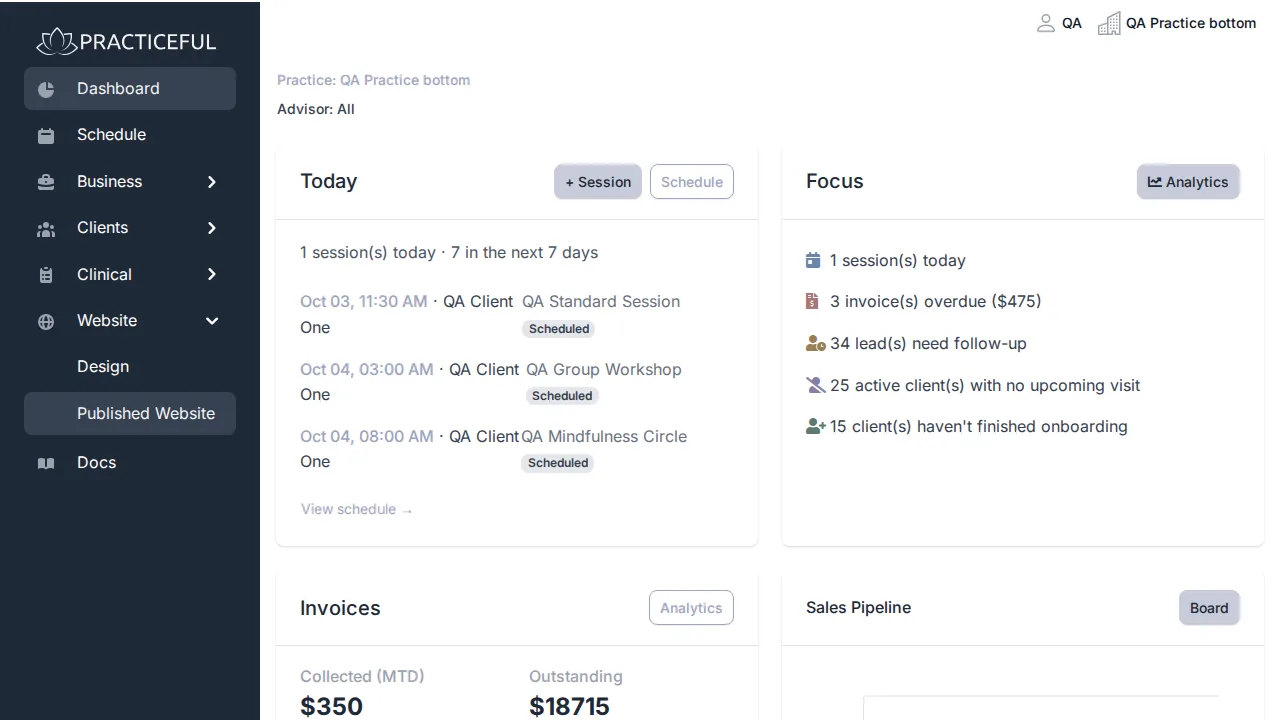
The website is under Website in the sidebar: Design opens the editor, and Published Website opens the live site in a new tab.
Before you start
- You are signed in as a practice manager.
- The Website menu appears once the practice has a website. If you do not see it, the practice does not have one yet.
- Publishing, and resubmitting the site to Google, are for managers who hold full control of the practice.
Compose the site
-
In the sidebar, open Website › Design. The editor shows your site as it will look, with editing controls over it.
-
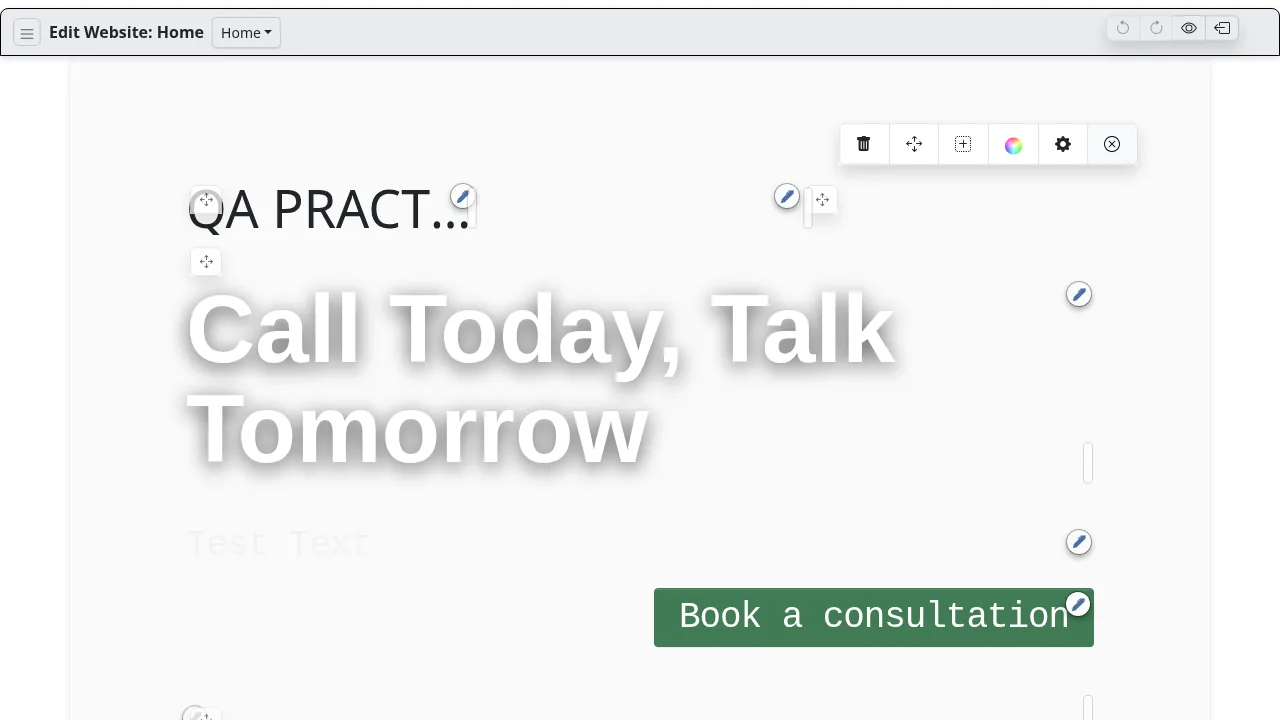
Hover over a section and press its pen (Edit this section). A small toolbar opens with buttons to remove the section, drag it to a new position, insert a section, change its colours, open its settings (the gear), and close the toolbar.
-
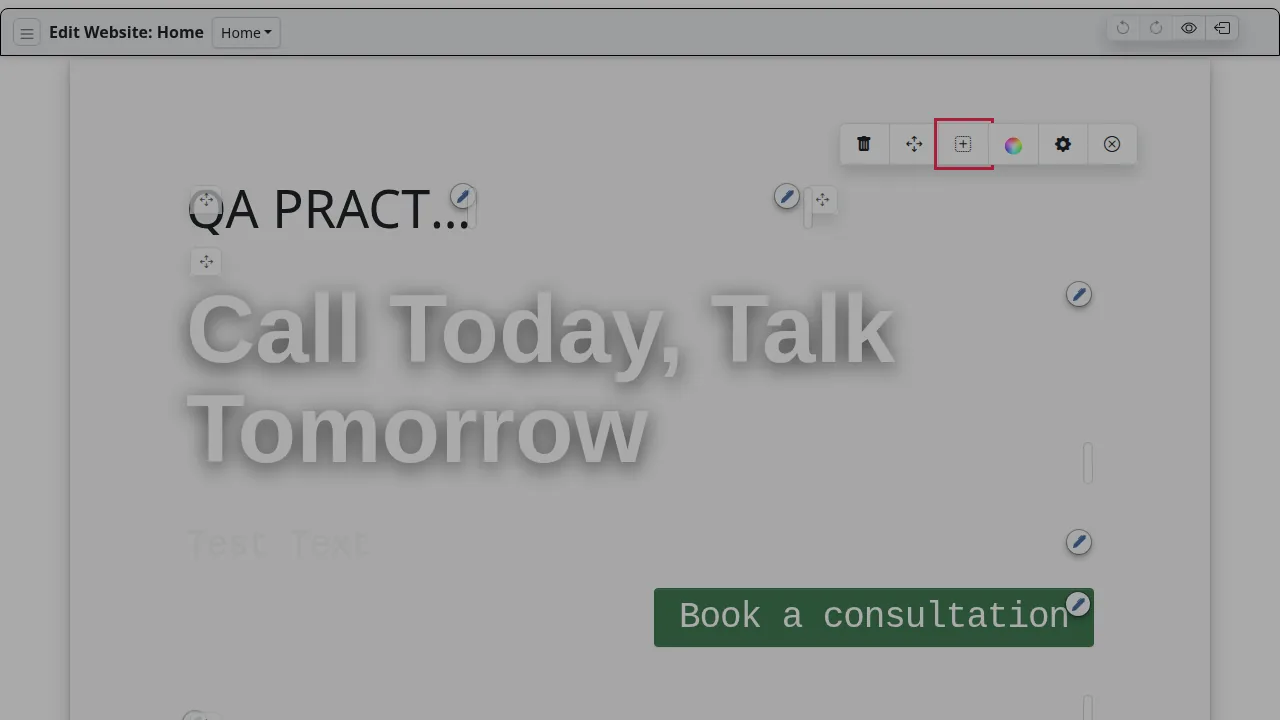
To add a section, press the insert button (a square with a plus). The Insert Section dialog lists the section types; choose one. A type your site can only have one of, such as a footer, is greyed out once you have it.
-
To change a section's settings, press the gear on its toolbar.
The editor saves your changes as you go. Undo and Redo are in the editor toolbar.
Preview before you publish
-
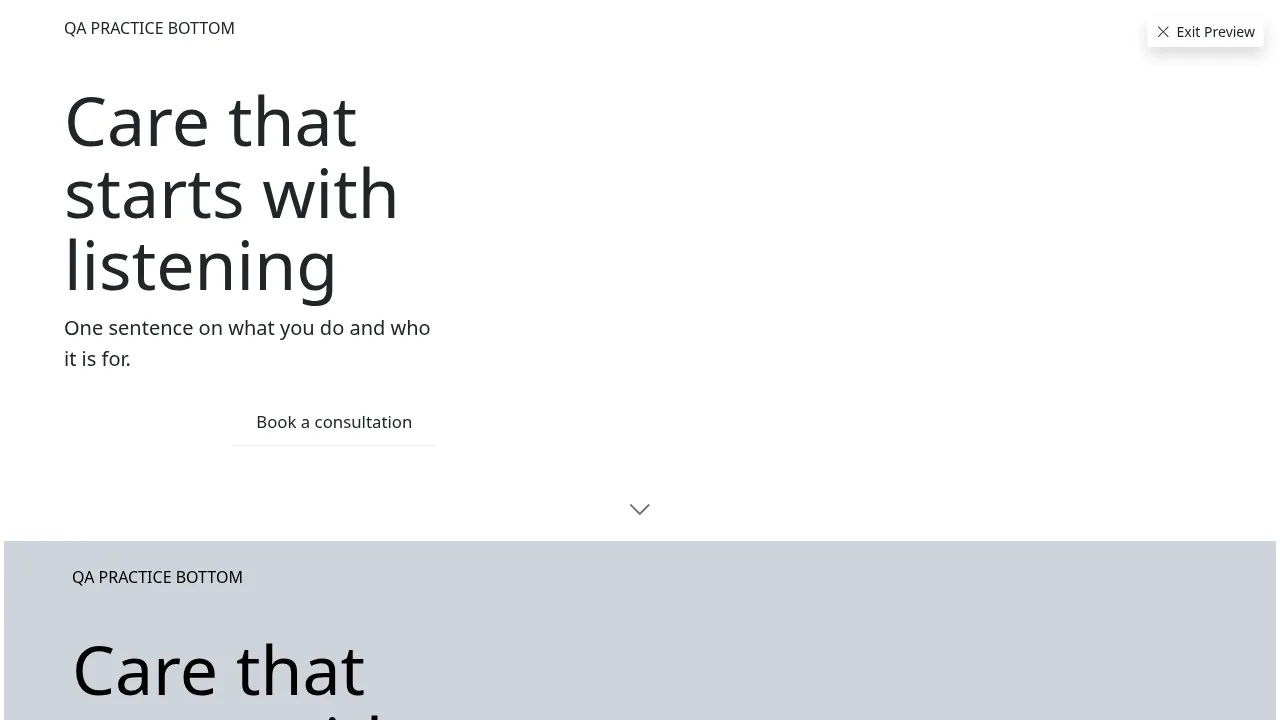
In the editor toolbar, press Preview. The editing controls disappear and you see the site as a visitor will.
-
Press Exit Preview to return to editing.
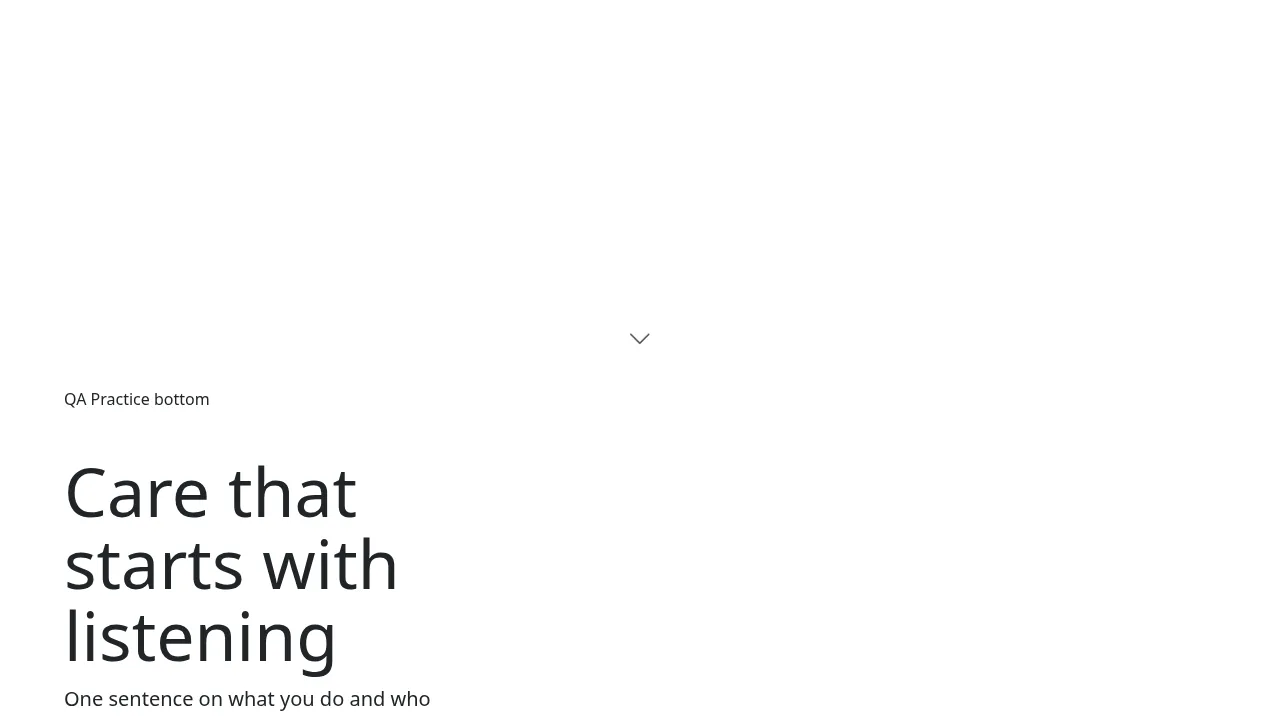
The draft can also be viewed as a page of its own, laid out exactly as the published site
will be, at /website/<your practice id>/preview. It shows the unpublished draft, so you
can check it before anyone else sees it.
Publish the site
- In the editor, open the editor menu (the menu button at the top of the editor). A panel opens with Website and Pages headings.
- Under Website, press Settings. The Settings dialog opens with Publishing at the top, which says whether there are unpublished changes.
-
Press Publish.
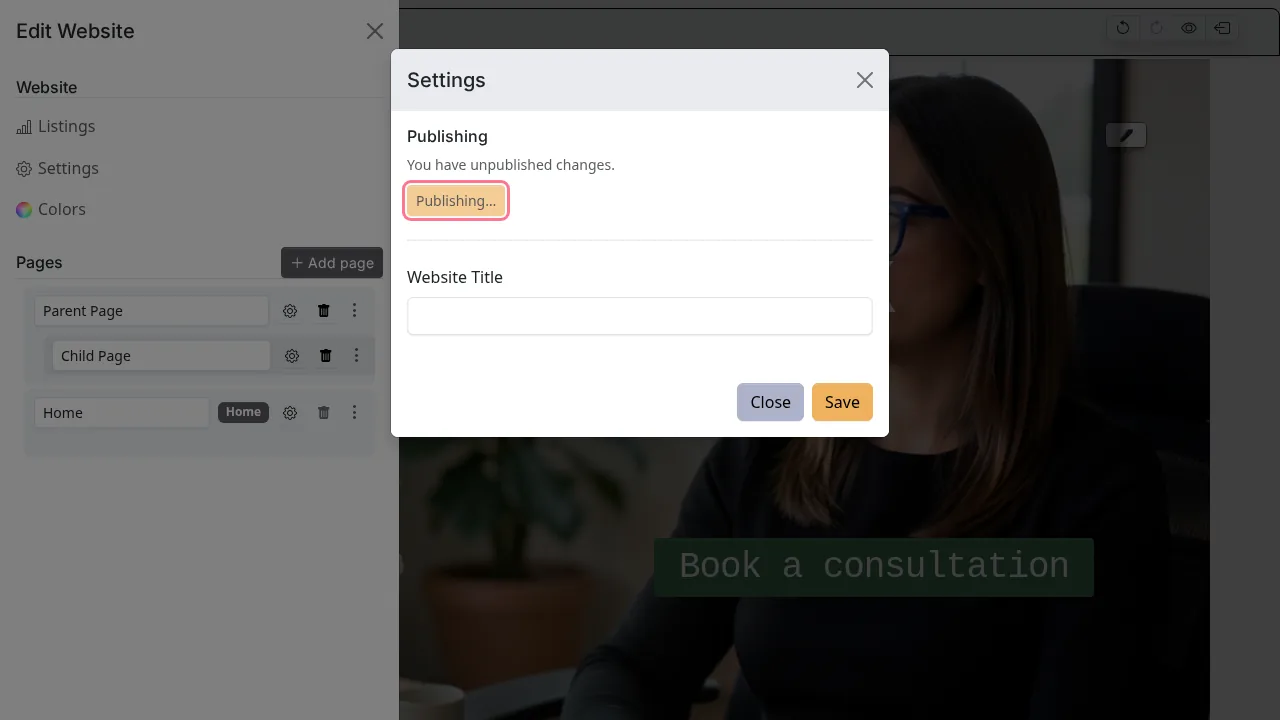
A Website published message offers to take you to your listings: press Go to Listings to check them now.
Change the colour scheme
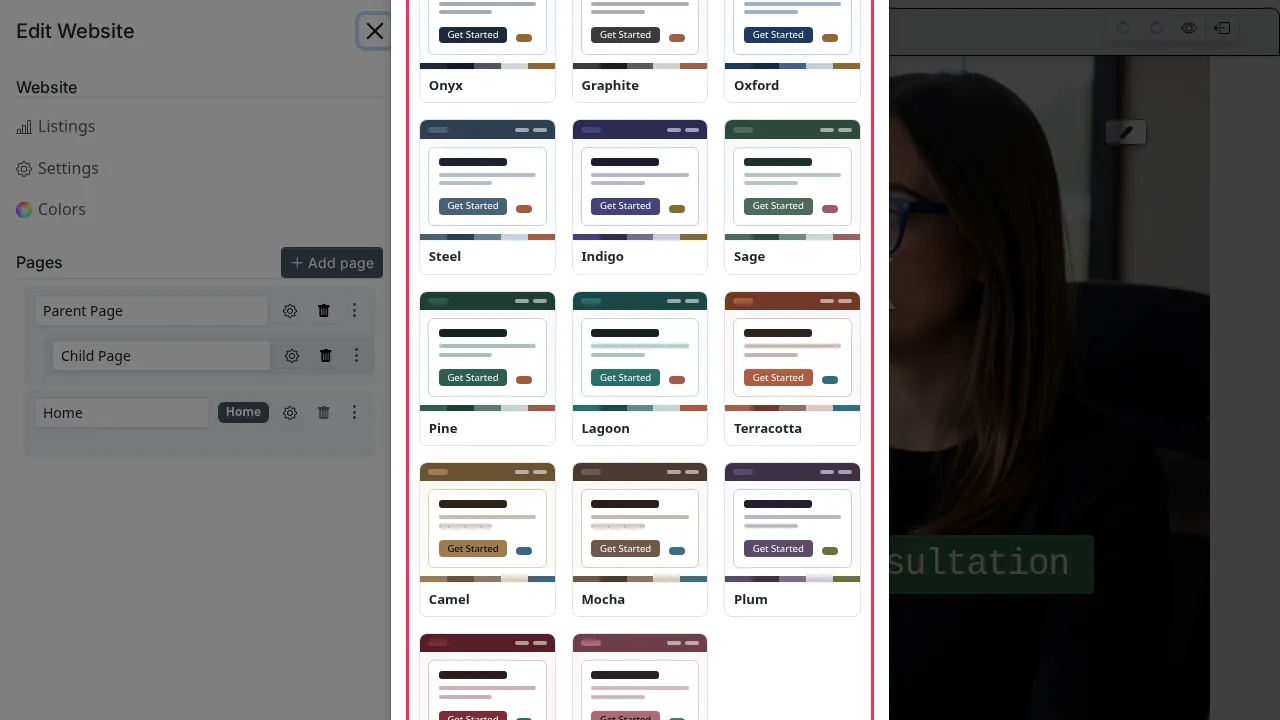
- Open the editor menu, and under Website press Colors. The Select Color Scheme Below dialog opens.
-
Each scheme is drawn as a small preview of a website, so you can see what it will look like before you choose.
-
Choose a scheme.
Your choice is saved to the draft. Publish the site to show it to visitors.
Split the site into pages
A site starts with one page, Home. You can add more and arrange them in an outline. The outline is in the editor menu under Pages.
- Add a page: press Add page. The new page appears at the top of the outline. Type its name in the row.
- Nest a page: drag a page by its handle onto another page to put it one level underneath. Home always stays at the top level.
- Set a page's address and search details: press the page's gear to set its URL slug, SEO title and SEO description.
- Delete a page: press the page's delete button. A Delete page confirmation explains that its sections move to Home, any of its own sub-pages move up to take its place, and it is removed from the menu. Home cannot be deleted.
When a page has pages nested under it, you can choose which of them appear in that page's drop-down in the site menu. Open the navigation's own editor from the header section, expand the page's card, and use the eye button beside each sub-page to show or hide it.
Look at the published site
In the sidebar, open Website › Published Website. The live site opens in a new tab, exactly as the public sees it.
Check your Google and Yelp listings
- Open the editor menu, and under Website press Listings. Website Listings opens.
-
The Google Business Profile card shows the listing's Status — Not Submitted, Pending Verification, Verified or Suspended — and when it was last submitted.
-
Press Resubmit to Google to submit the site again. Google Business Console → opens Google's own site.
- The Yelp card shows whether the practice was found on Yelp. Press Recheck Yelp to look again. Depending on the result it offers Claim on Yelp → or Create Yelp Listing →.
Press ← Back to Website Builder to return to the editor.
Related
- Custom domain — serve the site on your own domain name
- Practice persona — describe the practice once, in its own voice
- Leads — follow up the enquiries the site brings in