Forms
Forms are the intake questionnaires, consent forms and agreements you ask people to complete. This page is for practice managers and staff: you will build a form, check it as a client will see it, send it to the people who need to complete it, and take back an assignment you made by mistake.
The form library is under Business › Forms in the sidebar.
Before you start
- You are signed in as practice staff.
- Forms provided by Practiceful, such as the platform Terms of Service, are listed but cannot be edited or deleted.
Build a form
-
In the sidebar, open Business › Forms, then press + Add Form.
-
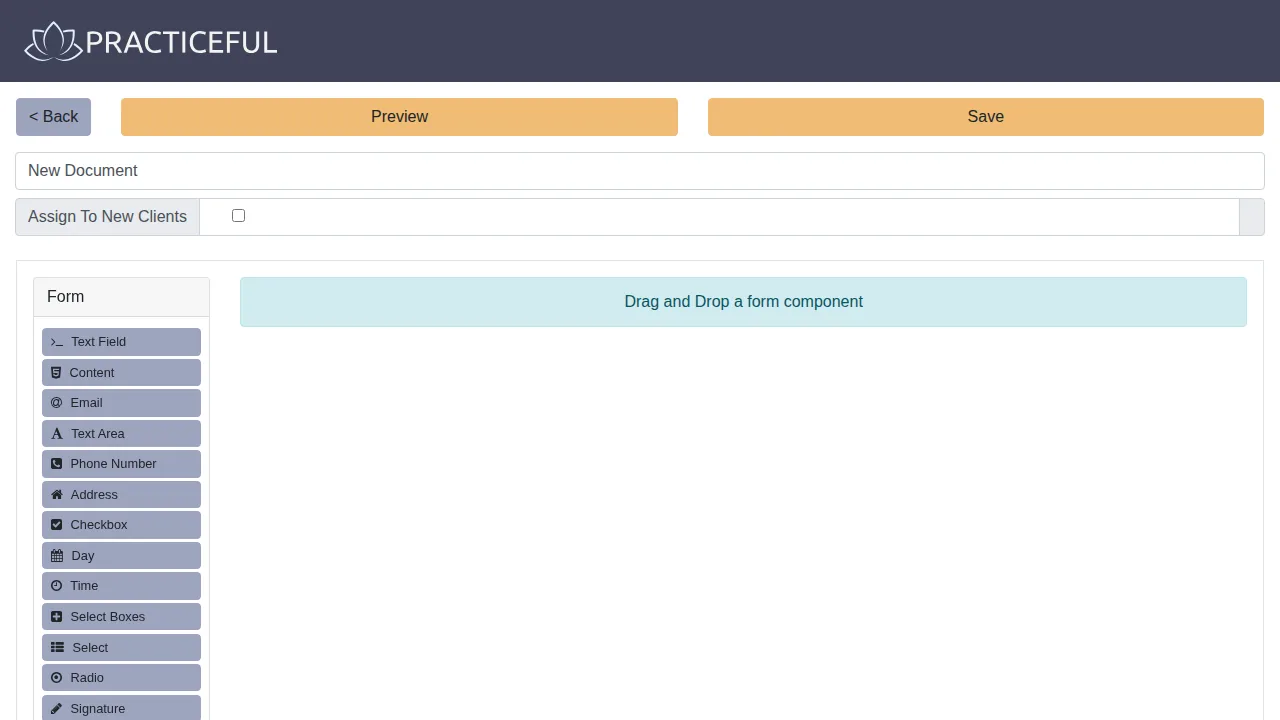
Give the form a Name. This is its title in the form list and when someone opens it.
- Build the questions in the form builder by dragging in the fields you need.
- To give this form to every new client automatically, turn on Assign To New Clients. The form list then marks it In the intake pack.
- Press Save. You return to the form list, where the new form is listed.
To change a form later, open the row's actions menu (the ⋮ button at the right-hand end of the row) and choose Edit form, or click the form's name. This is the only form editor available to a practice — every form you build, preview, assign or withdraw goes through this page and this list.
Preview a form
Check a form before anyone is asked to complete it.
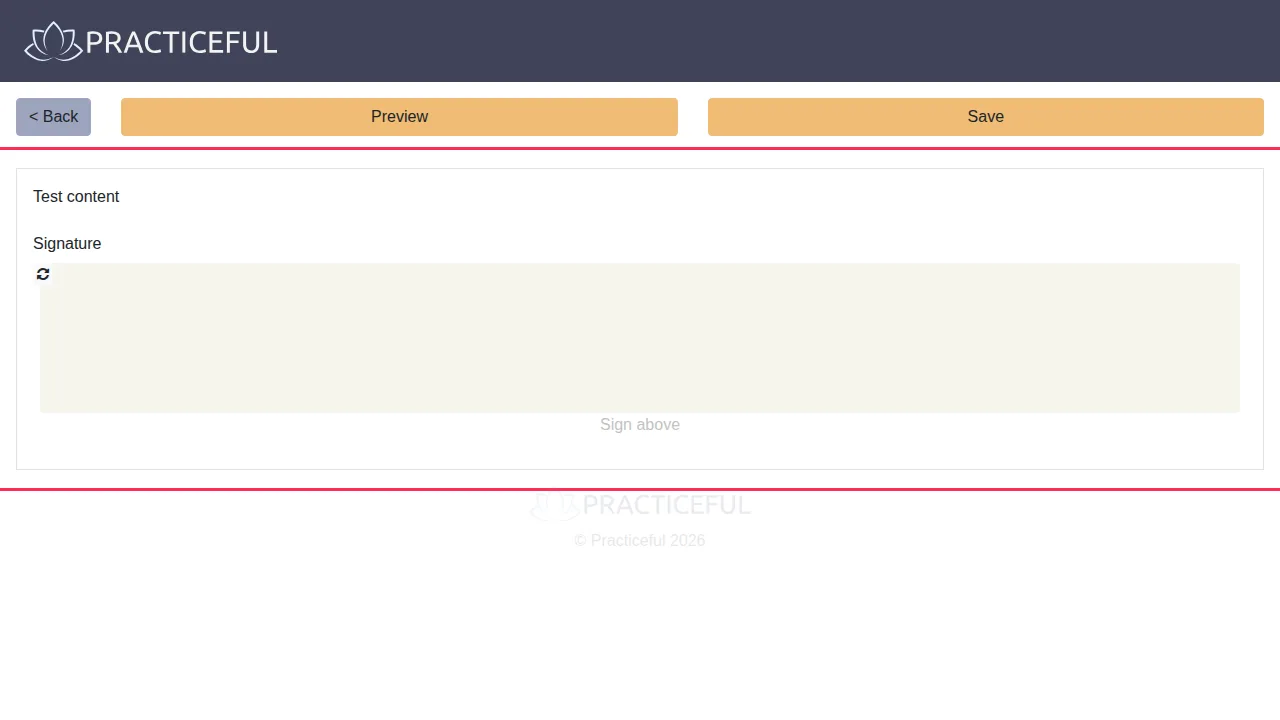
- On the form list, open the row's actions menu and choose Preview form. The preview opens in a new tab.
- The form is shown as a client will see it.
Assign a form
- On the form list, open the row's actions menu and choose Assign to people.
-
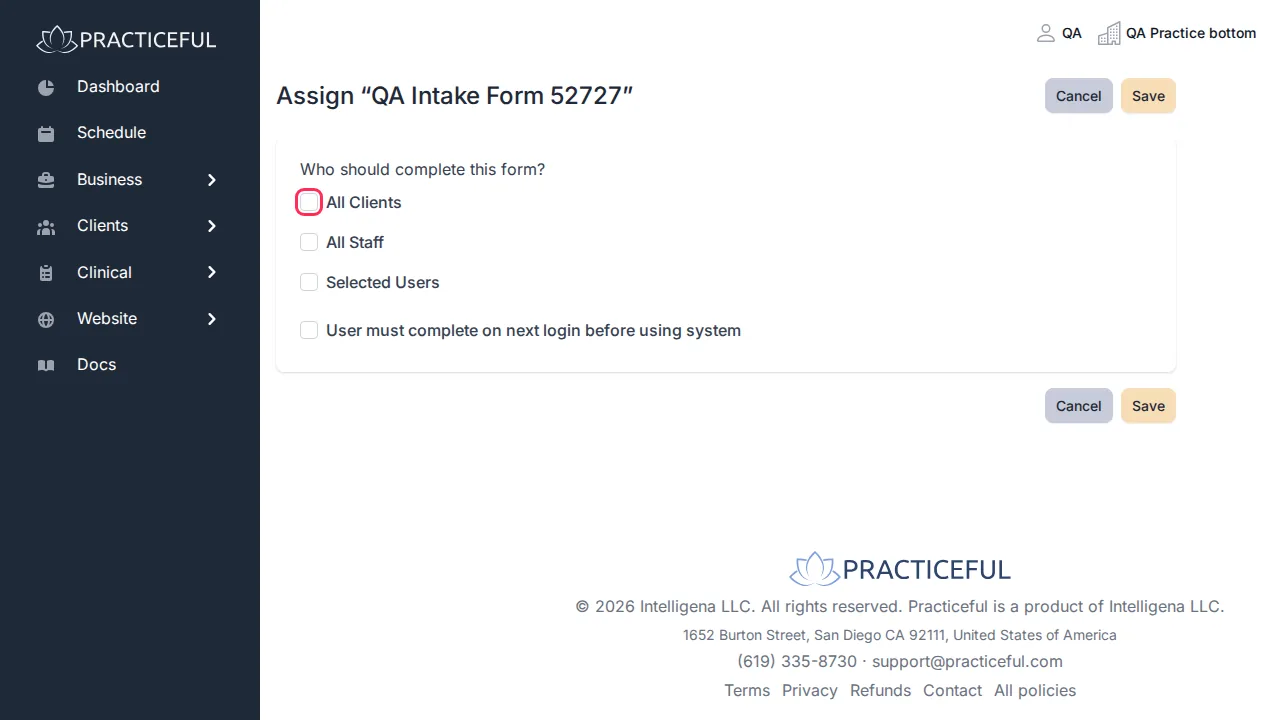
On Assign "[form name]", answer Who should complete this form?:
- All Clients
- All Staff
- Selected Users — pick people from the list. Use Filter by name to find them.
-
To make the form a requirement, tick User must complete on next login before using system.
- Press Save. Assigning to many people can take a few seconds; the button says Assigning… while it works.
You see Assigned "[form name]" to [number] users. The Already assigned list on the same screen shows each person with Completed [date], Required — outstanding or Optional — outstanding.
Clients complete the forms assigned to them from their own account. See Forms, for clients.
Withdraw an assignment
- Open the form's Assign to people screen. The Already assigned list is at the bottom.
-
Next to the person, press Withdraw.
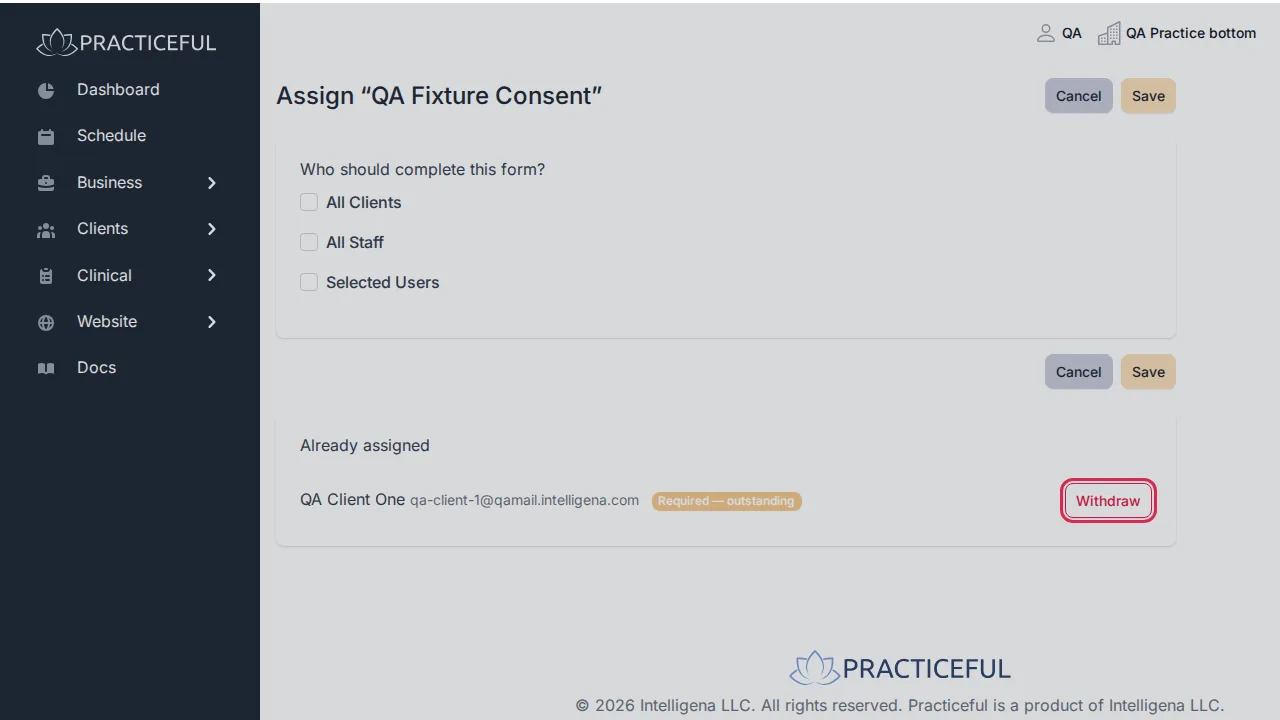
You see Withdrew "[form name]". The form is no longer asked of that person.
A form someone has already completed cannot be withdrawn. It shows Part of their record instead of Withdraw, and what they submitted is kept.
If something goes wrong
| You see | What it means | What to do |
|---|---|---|
| This form was not saved. above the builder | The form contains a field Practiceful cannot use, named in the message | Your work is still there. Remove or replace the named field and save again. |
| "[form name]" has already been completed by this person and is part of their record — it cannot be withdrawn. | The person has already completed the form | Nothing to do; the completed form stays on their record. |
| This document is provided by Practiceful and cannot be edited. | You tried to change a platform form | Build your own form instead. |
| Edit form or Delete form is greyed out | The form is provided by Practiceful | Nothing to do. |
Related
- Client onboarding — required forms are part of onboarding
- Services — decide whether forms must be finished before a client books
- Forms, for clients — what clients see