Invite your team
Once your practice is set up, a practice manager subscribes and invites the clinicians who work in it. Each invited person gets an email with a link to join your practice. When they have accepted, you give them their role — usually Provider.
Before you start
- You are signed in as the practice's manager.
- To subscribe you need a payment card.
- You need each clinician's name and email address.
Subscribe
- Open the account menu (your name, top right) and choose Subscription.
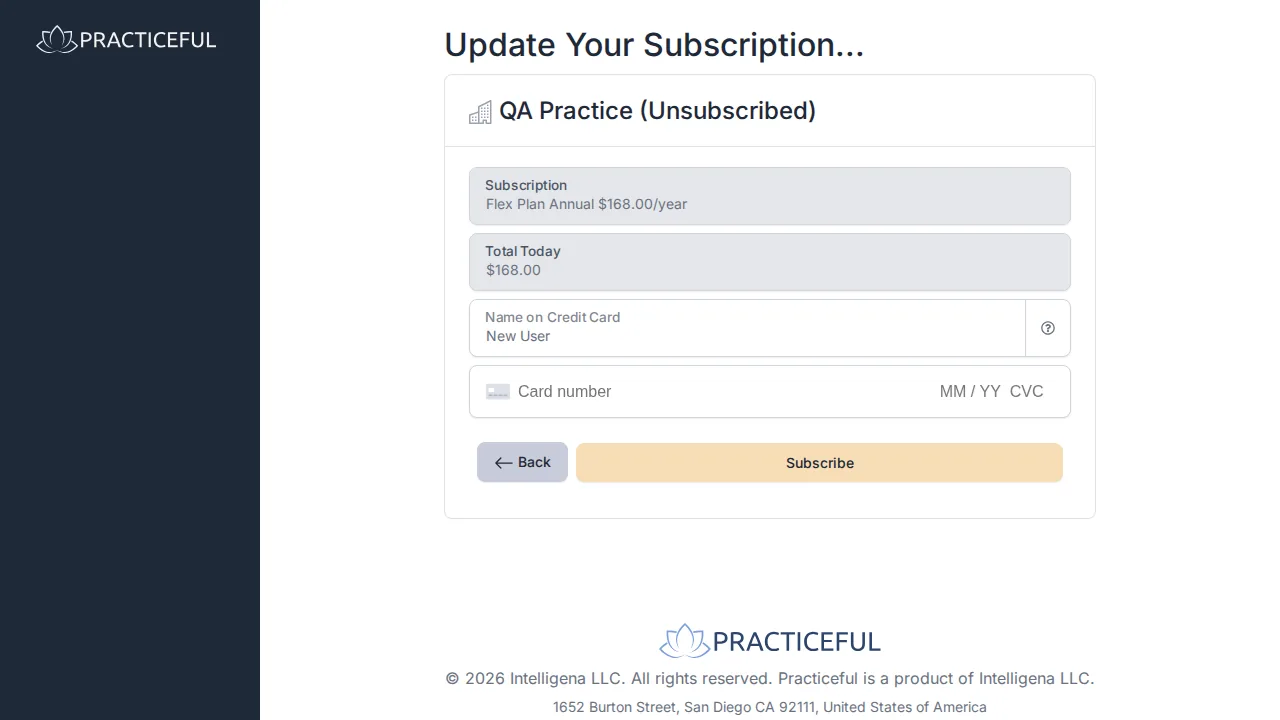
- Choose a plan by pressing its Go Monthly or Go Yearly button. The checkout opens, headed Update Your Subscription..., showing the Subscription you chose and the Total Today.
-
Check Name on Credit Card and enter your card details.
-
Press Subscribe. If the card is accepted, your subscription is active. If it is declined, a dialog shows the card error and the subscription is not started — correct the details and press Subscribe again.
Invite a clinician
- In the sidebar, open Business and choose Staff.
- Press Invite Staff Member.
-
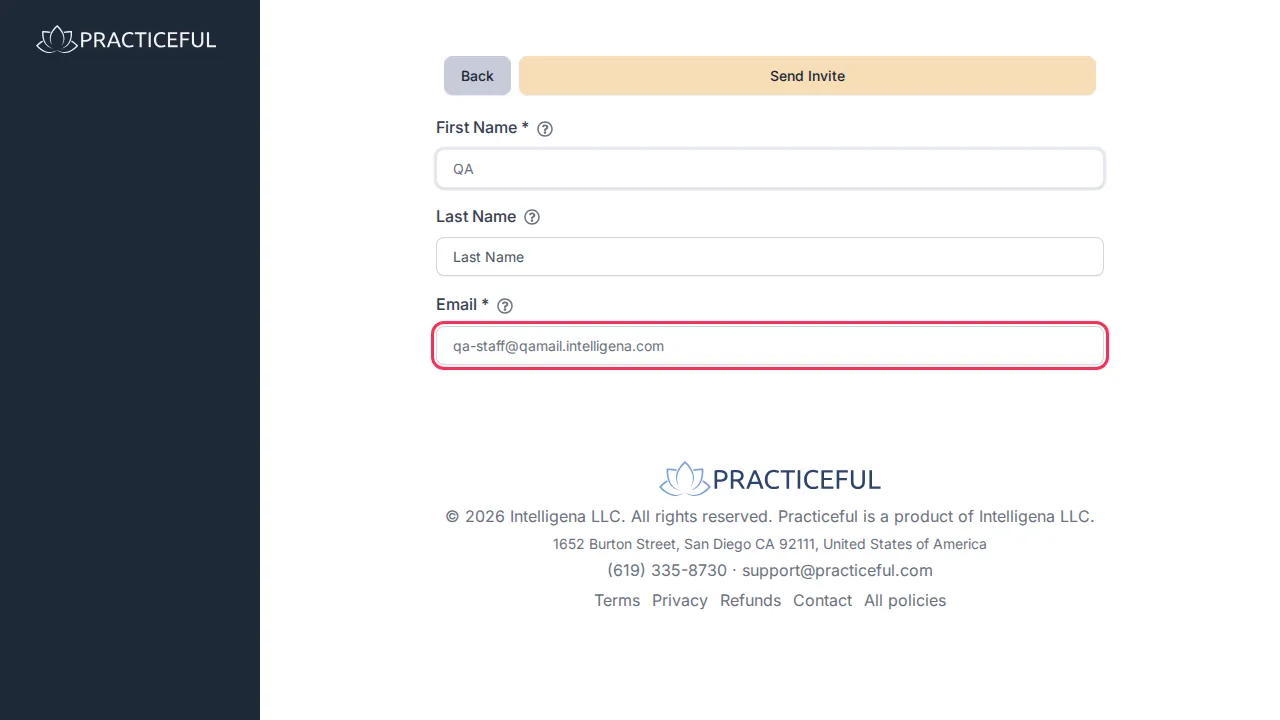
Enter their First Name, Last Name and Email.
-
Press Send Invite. The button stays unavailable for a moment while the page runs a security check, then becomes pressable.
-
You return to Staff, and a message names the address. The new row shows Invitation sent in the Account column.
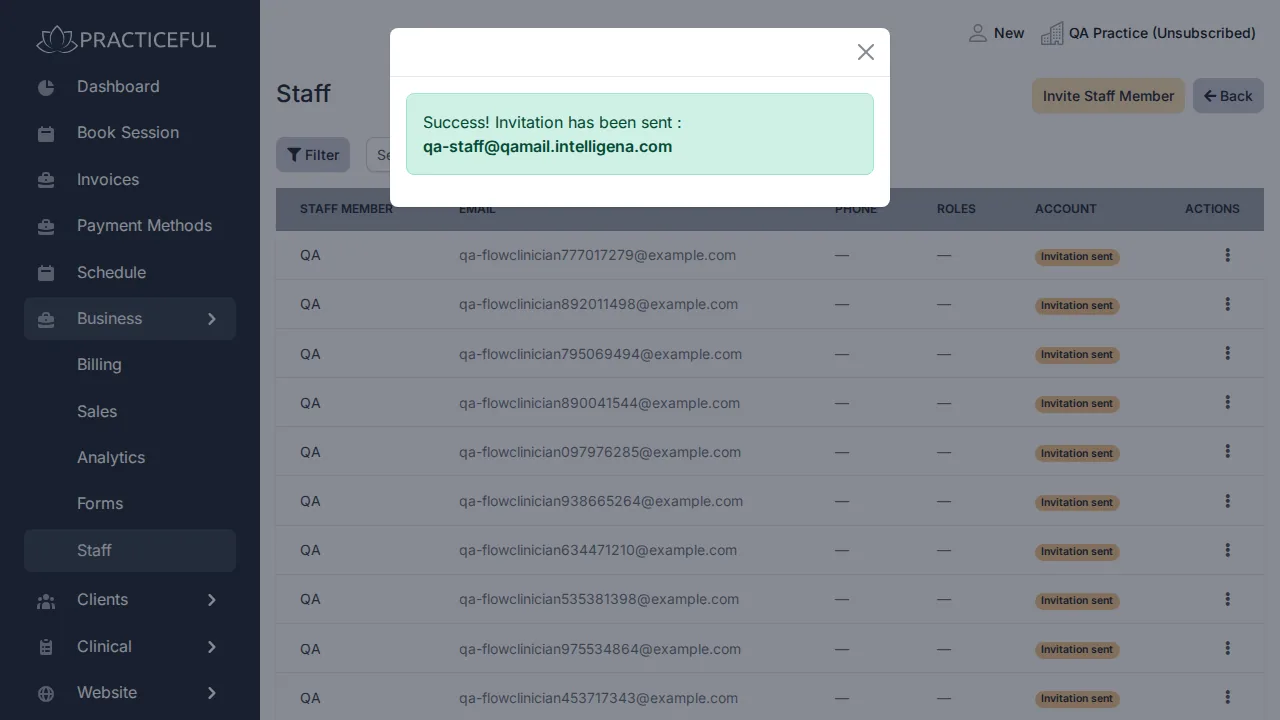
The Invitation sent badge means the invitation was recorded. Only the message tells you whether the email itself went out.
To send an invitation again, open the row's actions menu (the three dots in the Actions column), choose Resend invitation, and press Resend in the dialog.
Give a clinician their role
You can do this once the clinician has accepted the invitation and their row no longer shows Invitation sent.
-
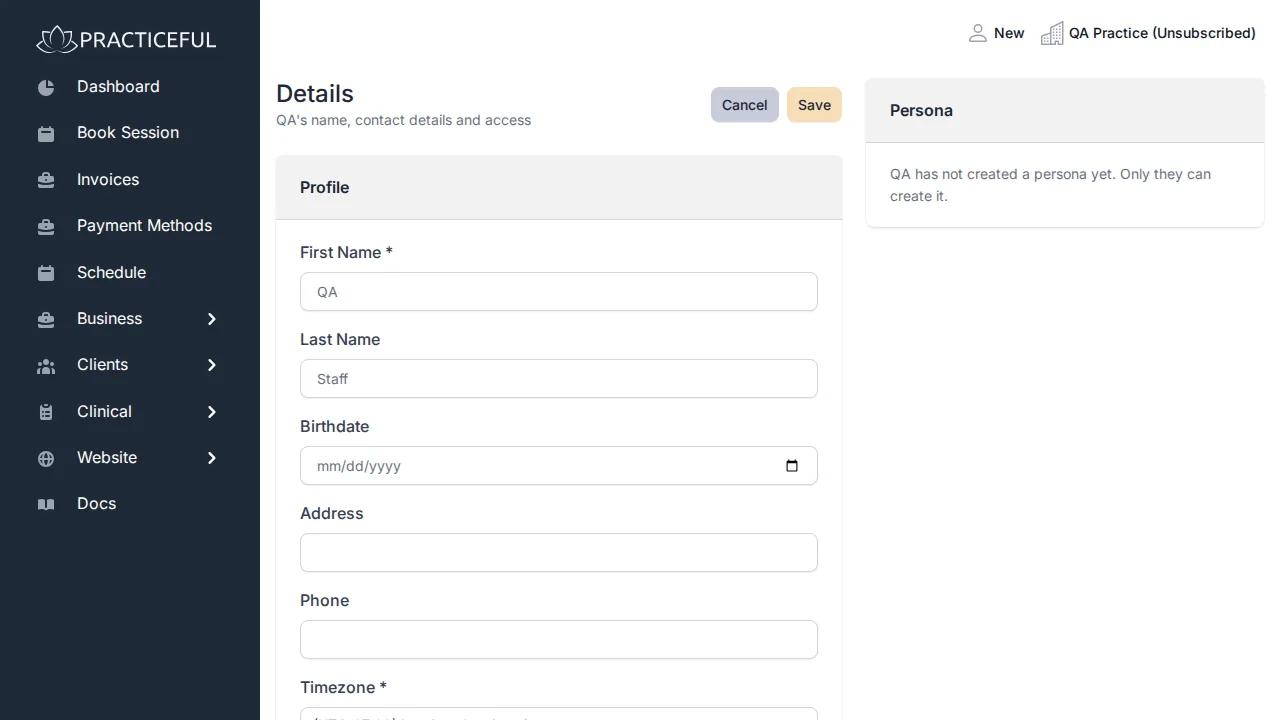
On Staff, open the clinician's actions menu and choose Profile.
-
In the Roles card, tick Provider (or Manager for someone who will help run the practice).
- Press Save. One Save stores the profile and the roles together.
The Roles card appears only when you are a manager, and only for someone whose roles are all ones the form can show. A practice must always keep at least one manager.
If something goes wrong
| You see | What it means | What to do |
|---|---|---|
| Success! Invitation has been sent : followed by the address | The invitation email was sent | Nothing — wait for them to accept. |
| The invitation for the address was saved, but the email could not be delivered. | The invitation is recorded but the email was refused | Check the address. Use Resend invitation on the list to try again. |
| A dialog with a card error after Subscribe | The card was declined or incomplete | Correct the card details and press Subscribe again. |
| No Roles card on the profile | The person has not accepted yet, or holds a role the form cannot show | Wait until they have accepted, then look again. |
Related
- Set up your practice
- Add and book your first client
- Practice settings — including taking on the provider role yourself
- Billing