Leads and the sales pipeline
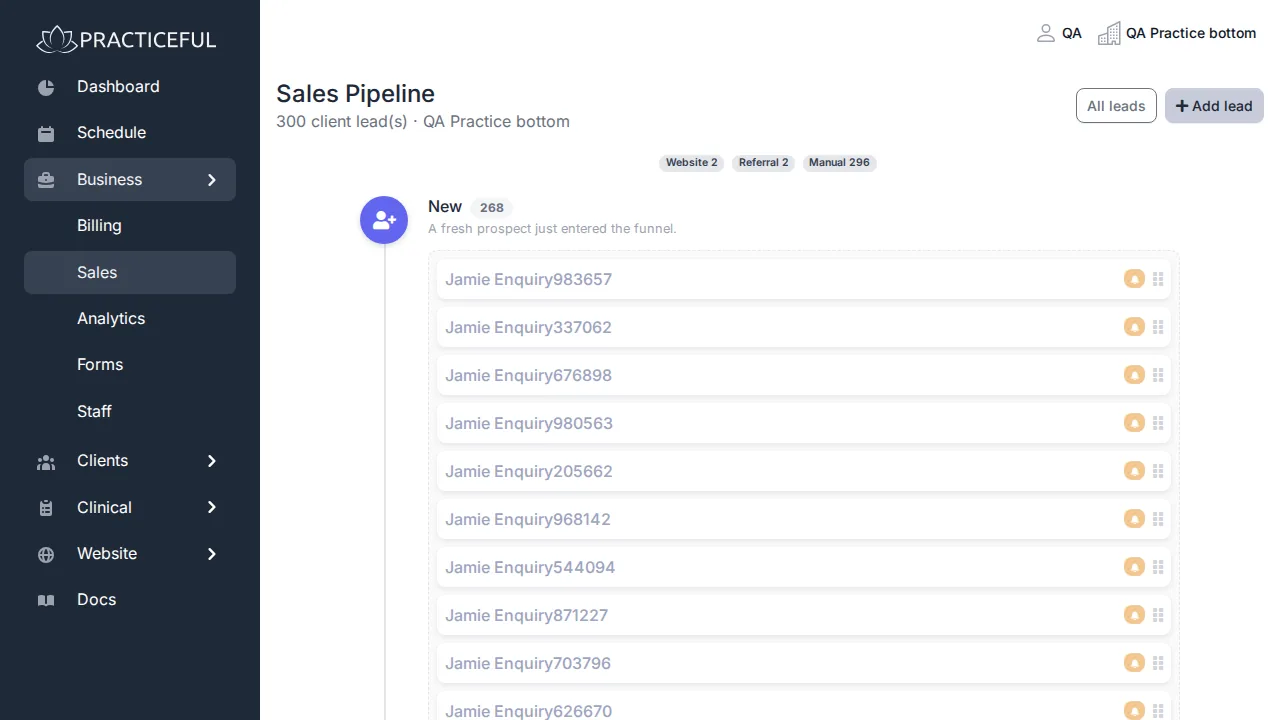
A lead is someone who has enquired but is not yet a client. The Sales Pipeline board shows every lead in its stage, so you can see who to chase next. This page is for practice managers and staff: you will add a lead, record what happened when you spoke to them, move them on, and search your leads.
The board is under Business › Sales in the sidebar.
Leads move through these stages: New, Contacted, Consult Booked, Intake Sent, Active Client and Lost.
Add a lead
- In the sidebar, open Business › Sales. The Sales Pipeline board opens.
-
Press Add lead.
-
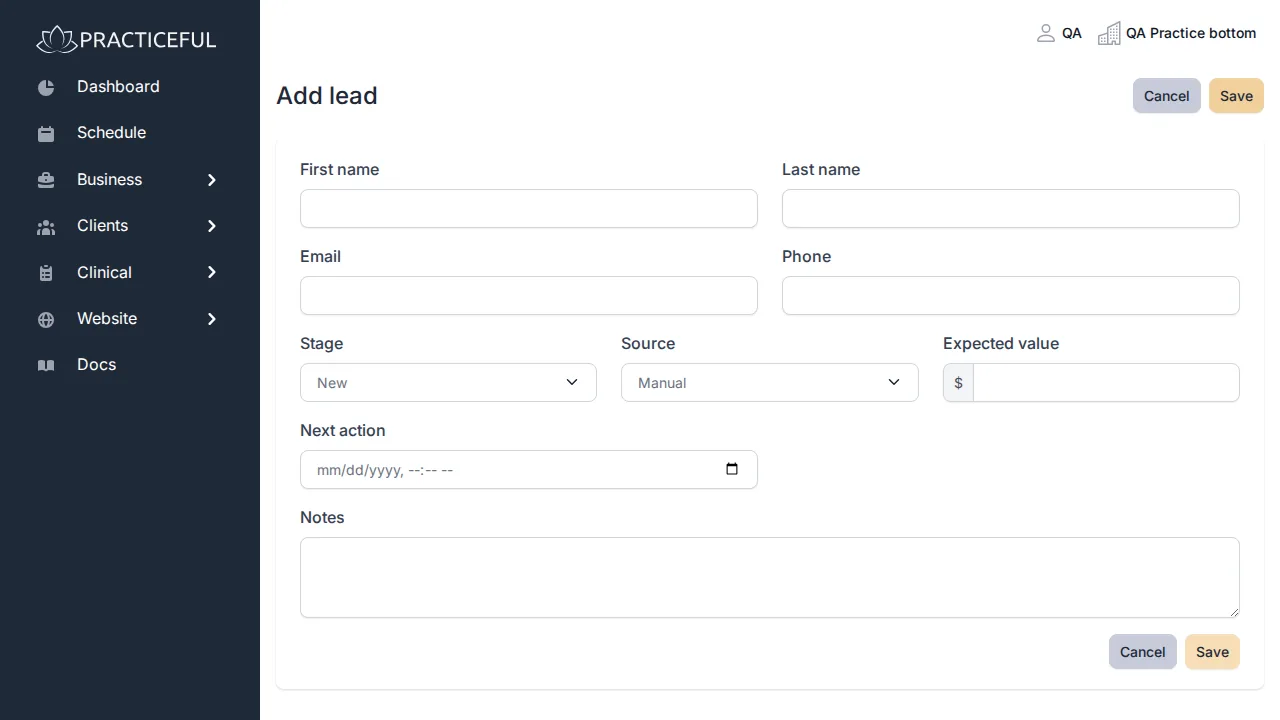
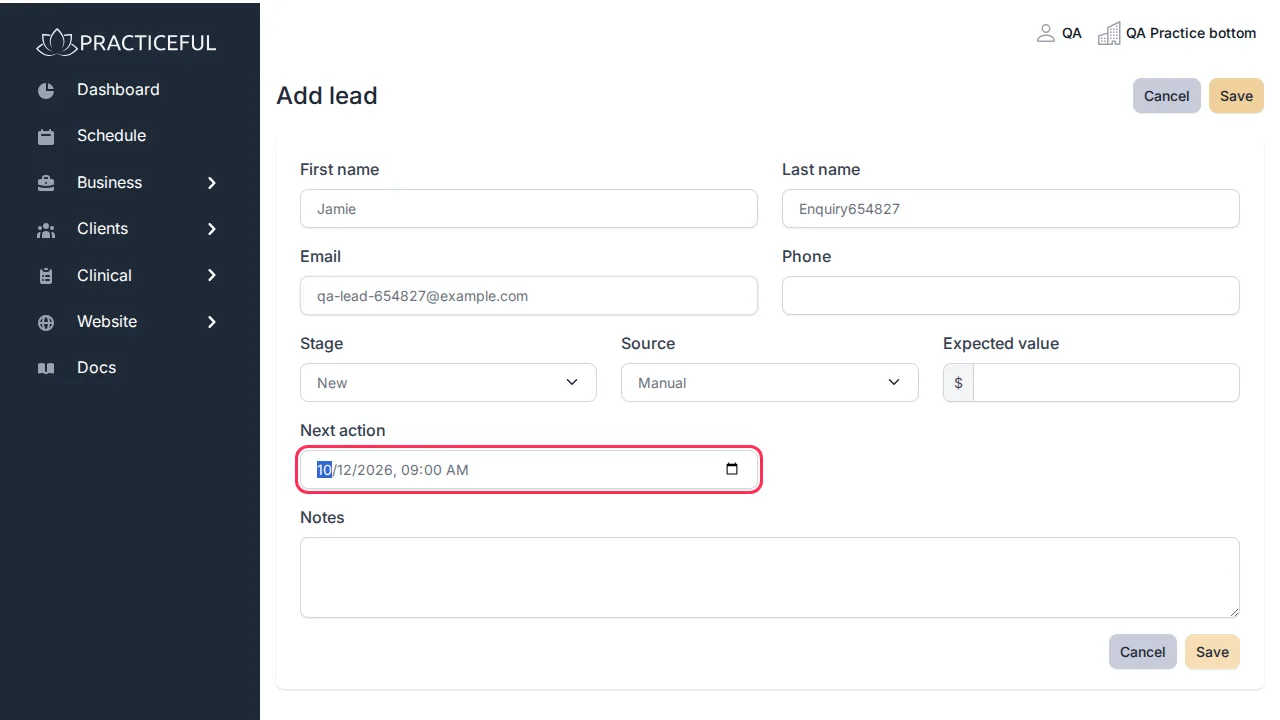
Fill in what you know: First name, Last name, Email, Phone, the Stage, the Source and an Expected value.
-
Set a Next action date — when you next plan to contact them. When it is reached, the lead is marked as due.
-
Press Save.
The lead appears on the board in its stage.
Record a contact and move the lead on
- On the board, press All leads.
- On the lead's row, open the actions menu (the ⋮ button at the right-hand end of the row) and choose Open lead.
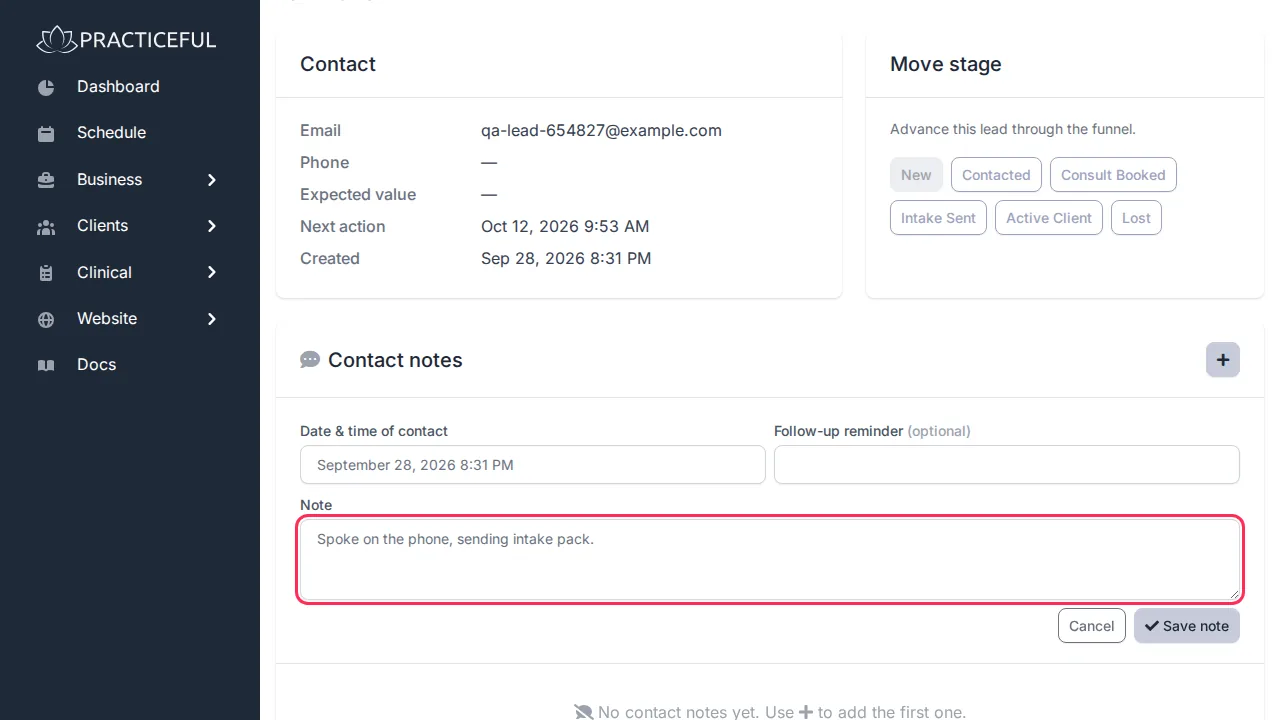
- Under Contact notes, press the + button to open the note form.
-
Fill in the Date & time of contact, the Note, and optionally a Follow-up reminder.
-
Press Save note. The note is added to the lead's Contact notes.
-
Under Move stage, press the button for the lead's new stage. The current stage is highlighted.
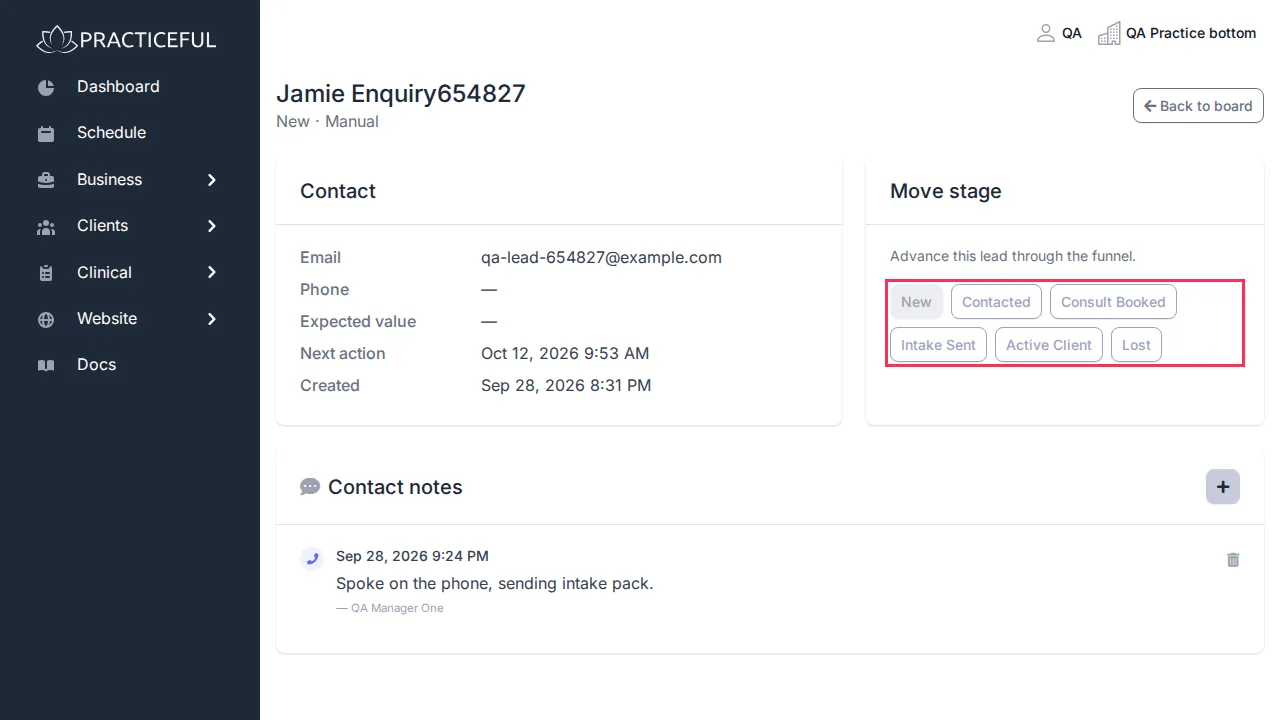
You can also drag a lead's card from one stage to another on the board. The Move stage buttons do the same thing without dragging.
Find a lead
- On the board, press All leads to open the Leads list.
-
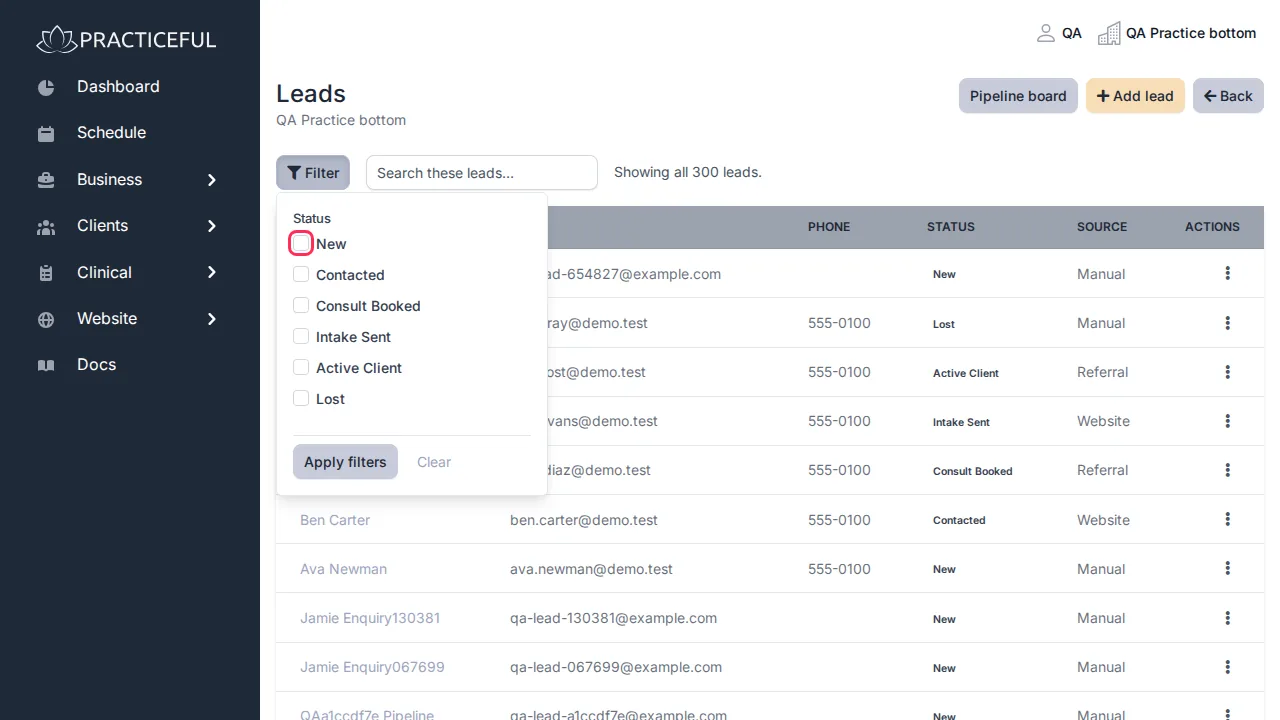
To narrow the list by stage, press Filter, tick the stages you want under Status, and press Apply filters.
-
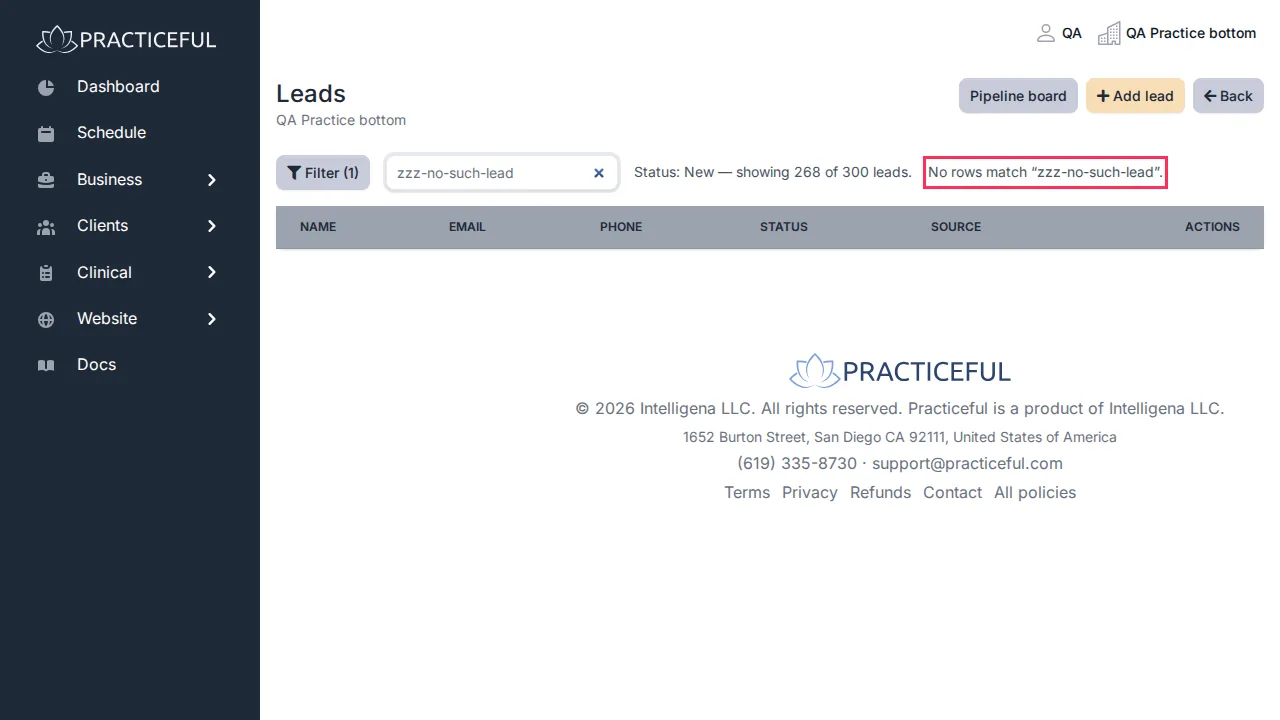
To find someone by name, type in Search these leads…. The list narrows as you type.
If nothing matches your search, the list says so — for example No rows match "[your search]".