Availability and booking rules
Clients can only book you inside the hours you publish. This page is for providers, and for managers who look after a provider's calendar. It covers adding availability, shrinking it when sessions are already booked, and the booking rules that decide which start times clients are offered.
Before you start
- You are signed in as a provider, or as a manager who can see the provider's calendar.
- Availability has no entry of its own in the sidebar. You reach it from the calendar: Schedule in the sidebar, then Availability.
No availability means no self-booking
If you have published no availability, clients who try to book themselves are offered no times at all. Every staff screen still looks normal, so check this first when a client says booking "doesn't work".
Add availability
- In the sidebar, press Schedule. The calendar opens.
-
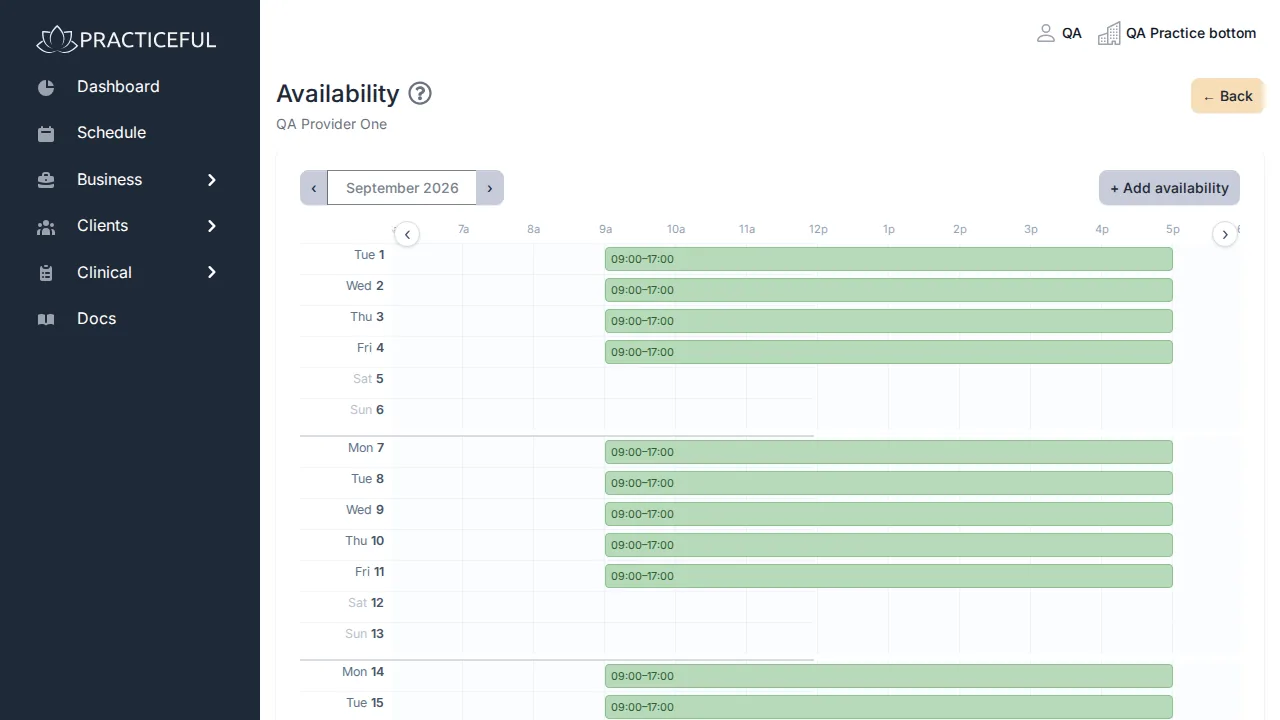
Press Availability. The availability grid opens for the current month.
-
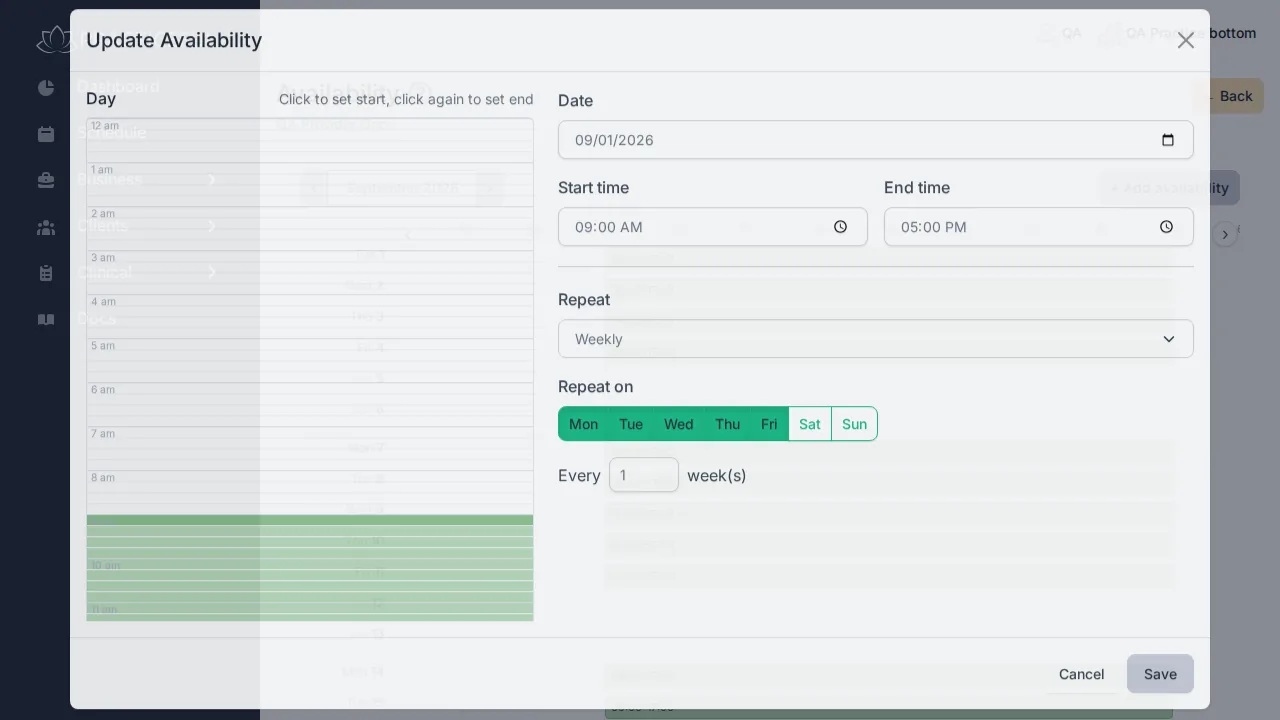
Press + Add availability. The Update Availability dialog opens.
-
Set the Date, the Start time and the End time. On a wide screen you can also click the day timeline on the left: click once to set the start, again to set the end.
- Choose how it repeats under Repeat: Does not repeat, Weekly or Monthly. For weekly, pick the days under Repeat on and how many weeks apart; for monthly, pick which weekday of the month. Until (optional) ends the series on a date.
-
Press Save. The dialog closes and the new block appears in green on the grid.
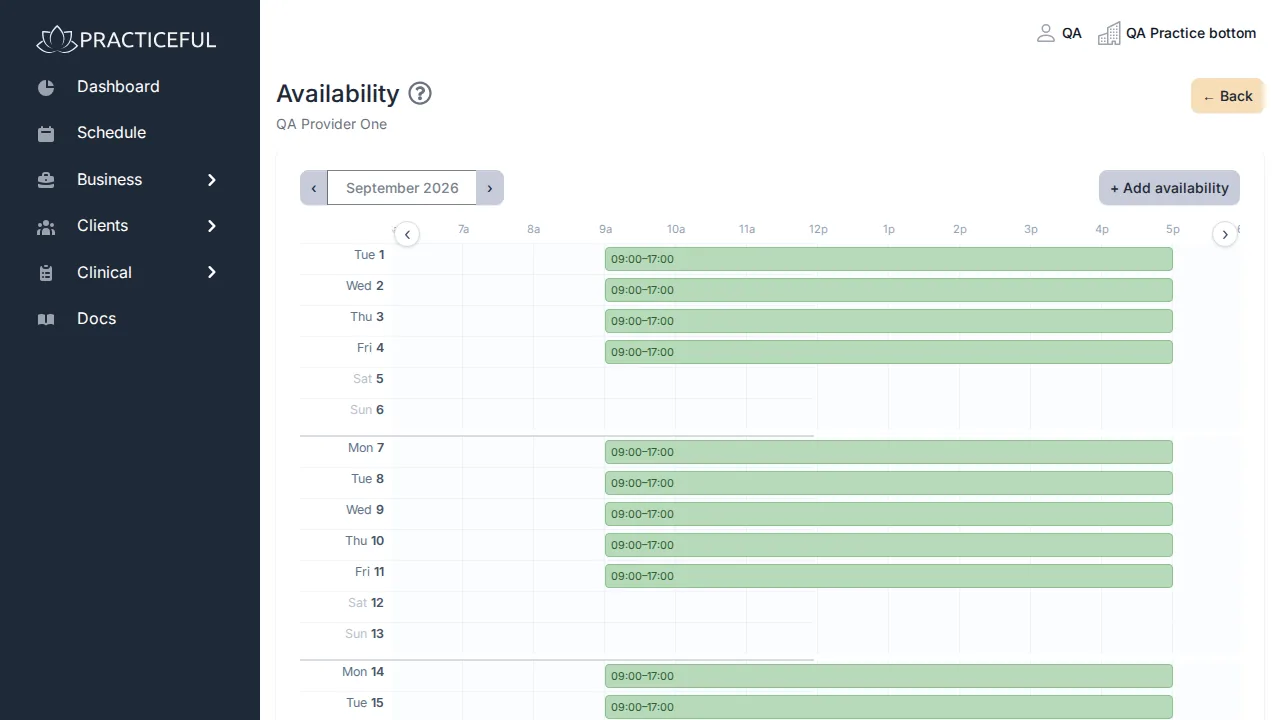
Use the ‹ and › buttons beside the month name to move between months. A manager who looks after more than one provider can pick whose availability to edit from the provider list at the top; a provider sees only their own.
You can also click an empty part of a day on the grid to add availability, or drag across a day to set a range.
Change or remove availability when sessions are booked
- On the availability grid, click the green block you want to change. The Update Availability dialog opens with that block's times, and shows Delete and an Apply changes to choice (This occurrence or Entire series) for repeating blocks.
- Change the times — for example, make the End time earlier.
- Press Save.
-
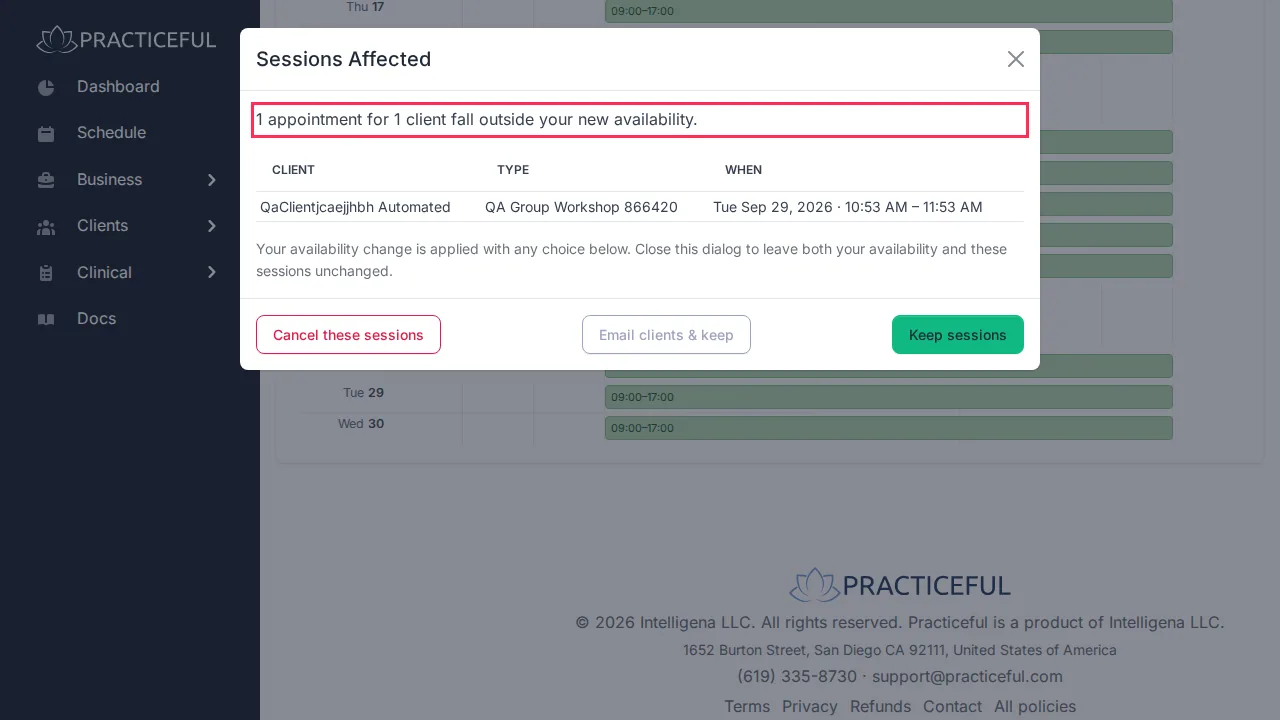
If no booked sessions fall in the time you removed, the change is saved straight away. If some do, a Sessions Affected dialog opens instead. It tells you how many appointments and clients are affected — for example 2 appointments for 2 clients fall outside your new availability. — and lists each one by client, type and time.
-
Choose what happens to those sessions:
- Keep sessions — your availability changes and the sessions stay booked.
- Email clients & keep — your availability changes, the sessions stay booked, and the clients are emailed.
- Cancel these sessions — your availability changes and those sessions are cancelled.
Your availability change is applied with any of the three choices. To leave both your availability and the sessions as they were, close the dialog instead.
The product never decides for you: nothing happens to a booked session until you pick one of these.
Set your booking rules
Booking rules decide where a session may start and which of those start times a client booking themselves is shown.
-
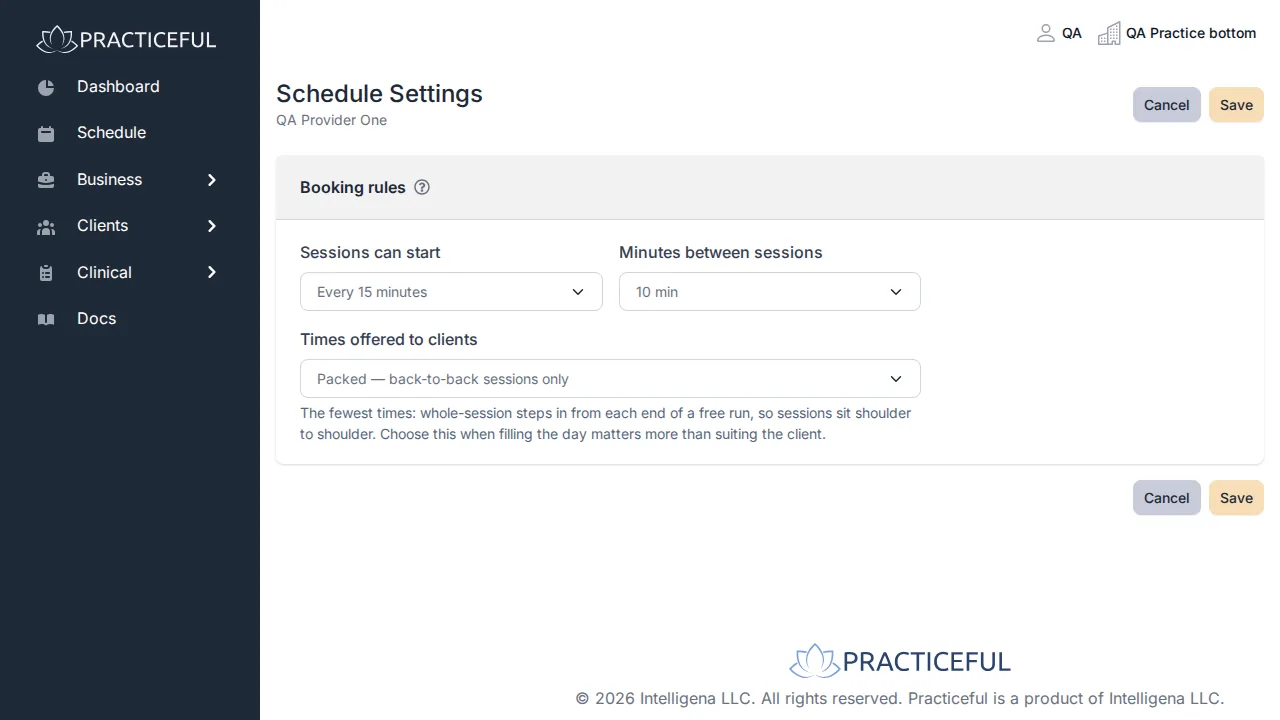
In the sidebar, press Schedule, then press Settings at the top of the calendar. Schedule Settings opens.
-
Under Booking rules, set:
- Sessions can start — how often a start time may fall, counted from the top of the hour (for example every 15 minutes: :00, :15, :30, :45).
- Minutes between sessions — a gap held after each session before the next one may start.
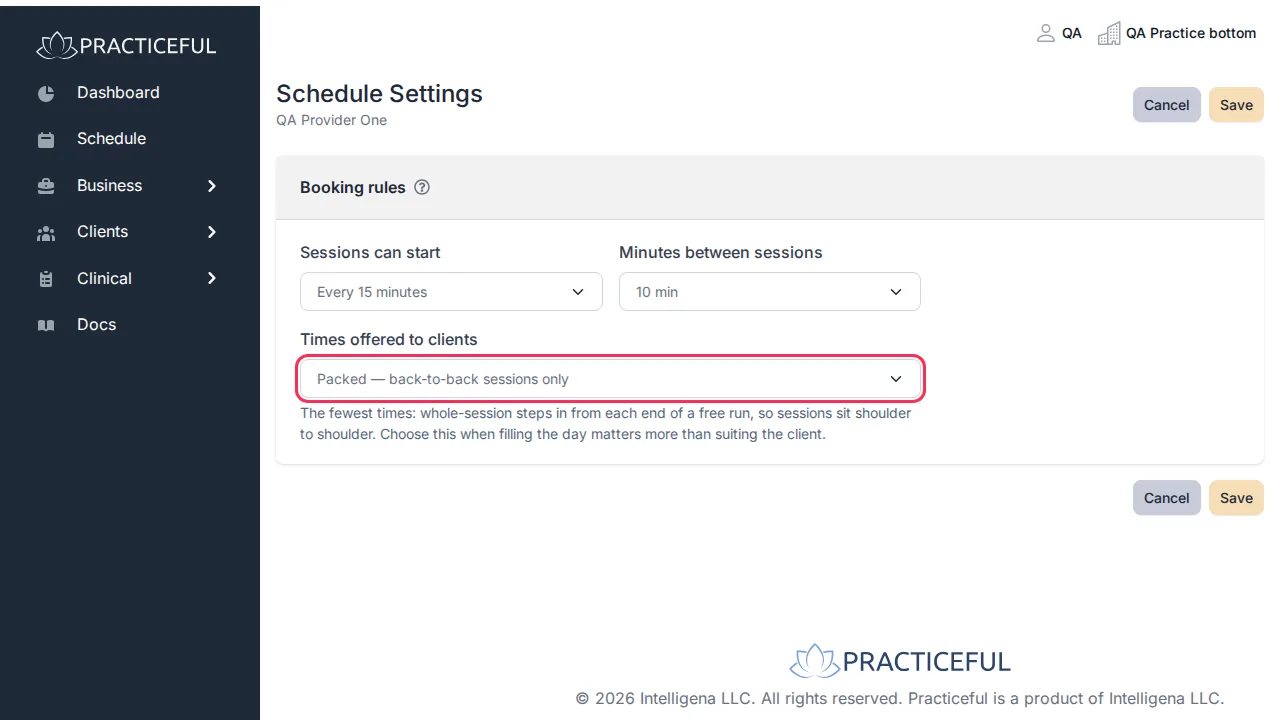
- Times offered to clients — which of the allowed start times clients see. A short
explanation of the selected option appears under the list. The ? beside
Booking rules explains the choices:
- Balanced offers every start that leaves no more unusable time than any other start would.
- Packed offers only starts that keep sessions back to back from each end of a free stretch.
- Flexible offers every start on your step, including ones that leave gaps nobody can book.
-
Press Save. You return to the calendar. Press Cancel instead to leave without changing anything.
The Settings button only appears if you are allowed to edit the schedule.
If something goes wrong
| You see | What it means | What to do |
|---|---|---|
| End time must be after start time. in the dialog | The end time is not later than the start time | Correct the times and press Save again. |
| Could not save. or another message in red in the dialog | The block was refused | Read the message, correct the entry and press Save again. |
| A client says no times are offered | No availability is published in the period they are looking at, or your booking rules leave no start that fits | Add availability, then check Schedule Settings. |