Add and book your first client
A client exists in Practiceful as soon as someone in your practice adds them. You can book and bill them straight away; they do not have to reply to an email or create a password first. This page is for providers and managers.
Before you start
- You are signed in as a provider or manager with permission to manage clients.
- To book a session, your practice has at least one service set up — see Services.
Add a client
- In the sidebar, open Clients and choose Clients.
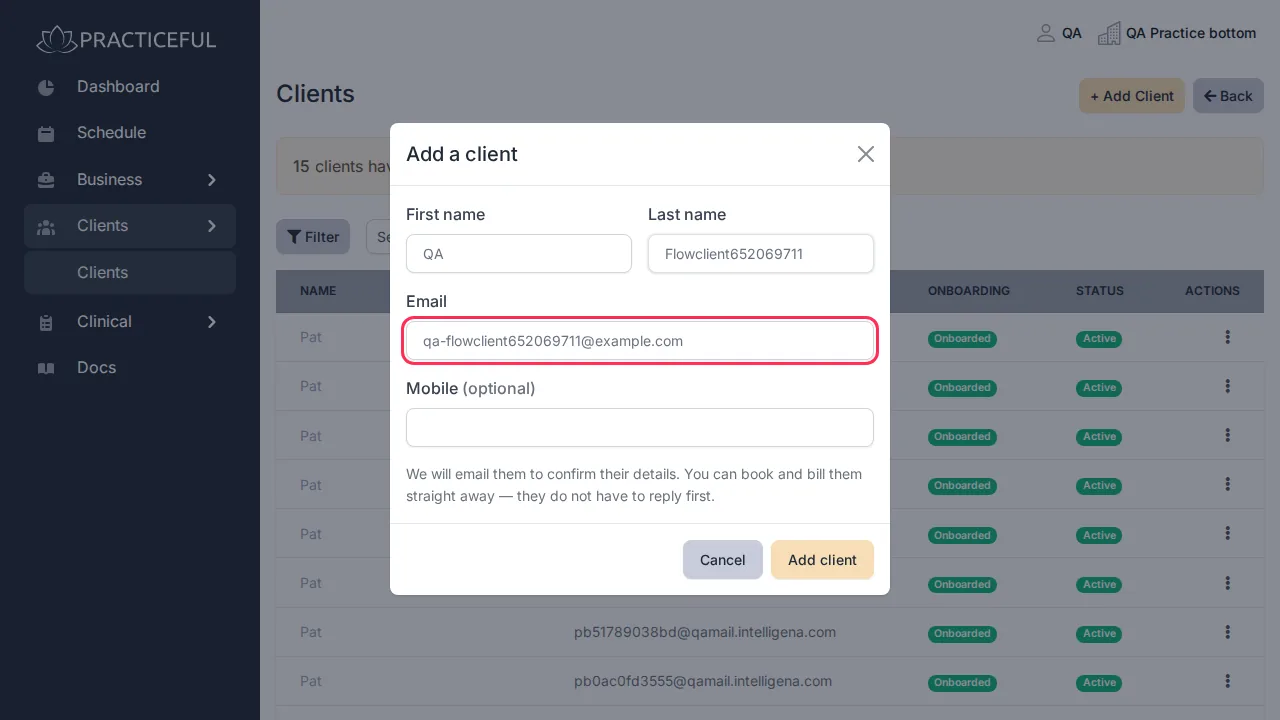
- Press + Add Client. The Add a client dialog opens.
-
Enter the client's First name, Last name and Email. Mobile (optional) can be left blank.
-
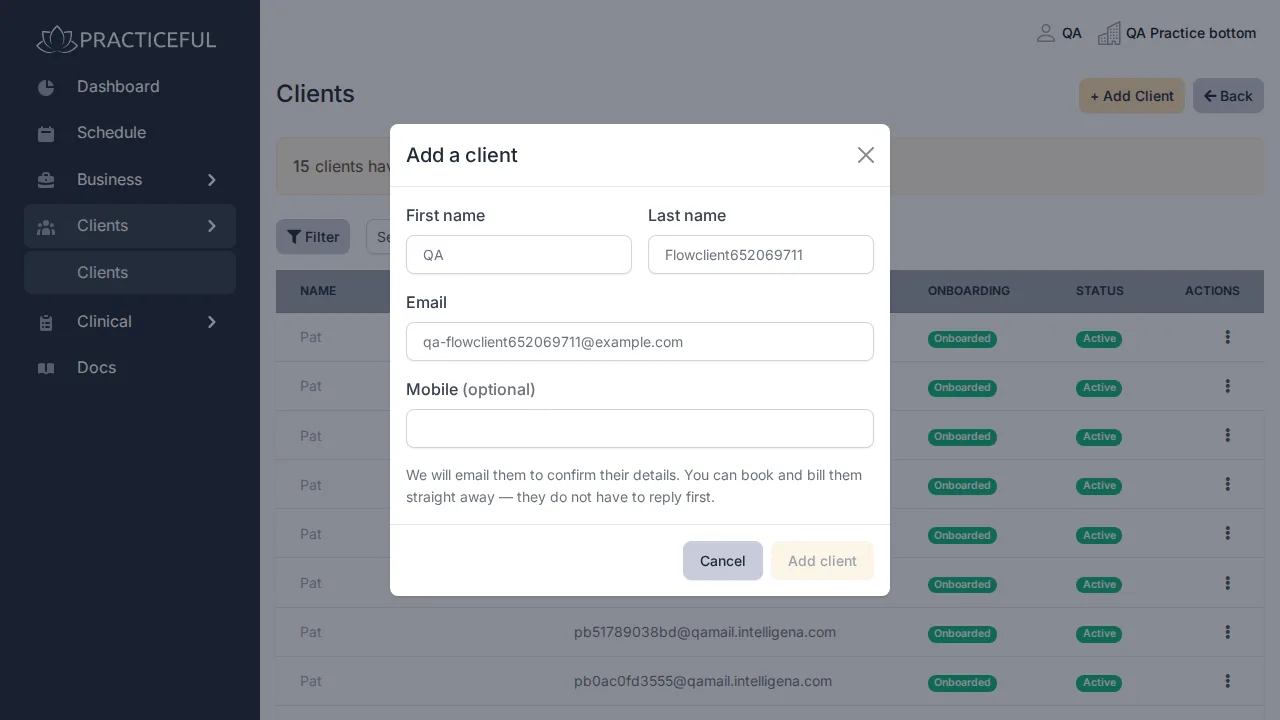
Press Add client. The list reloads with the client on it. The dialog explains that the client is emailed to confirm their details, and that you can book and bill them straight away.
The client's Onboarding column shows how far they have got with confirming their details and completing any forms. It is a reminder, not a restriction.
Book them into a session
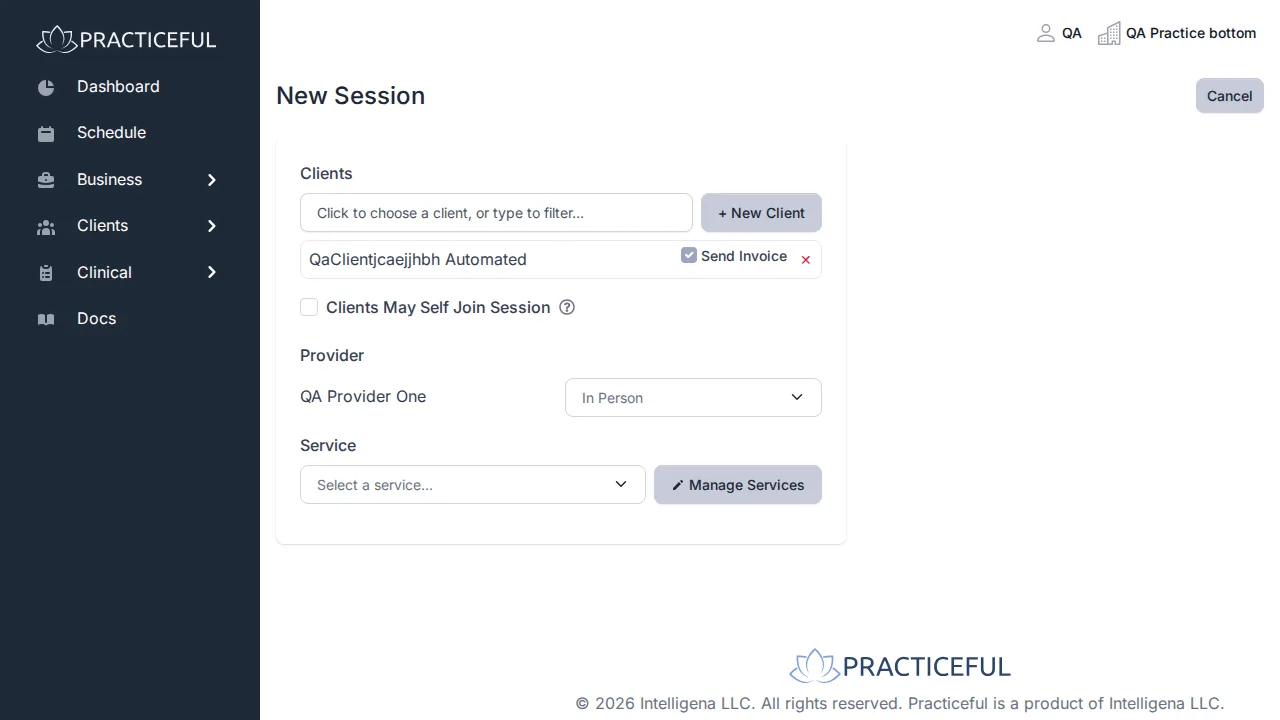
- In the sidebar, press Schedule, then press + Session. The New Session page opens.
-
Under Clients, click the box (Click to choose a client, or type to filter…) and choose the client from the list.
-
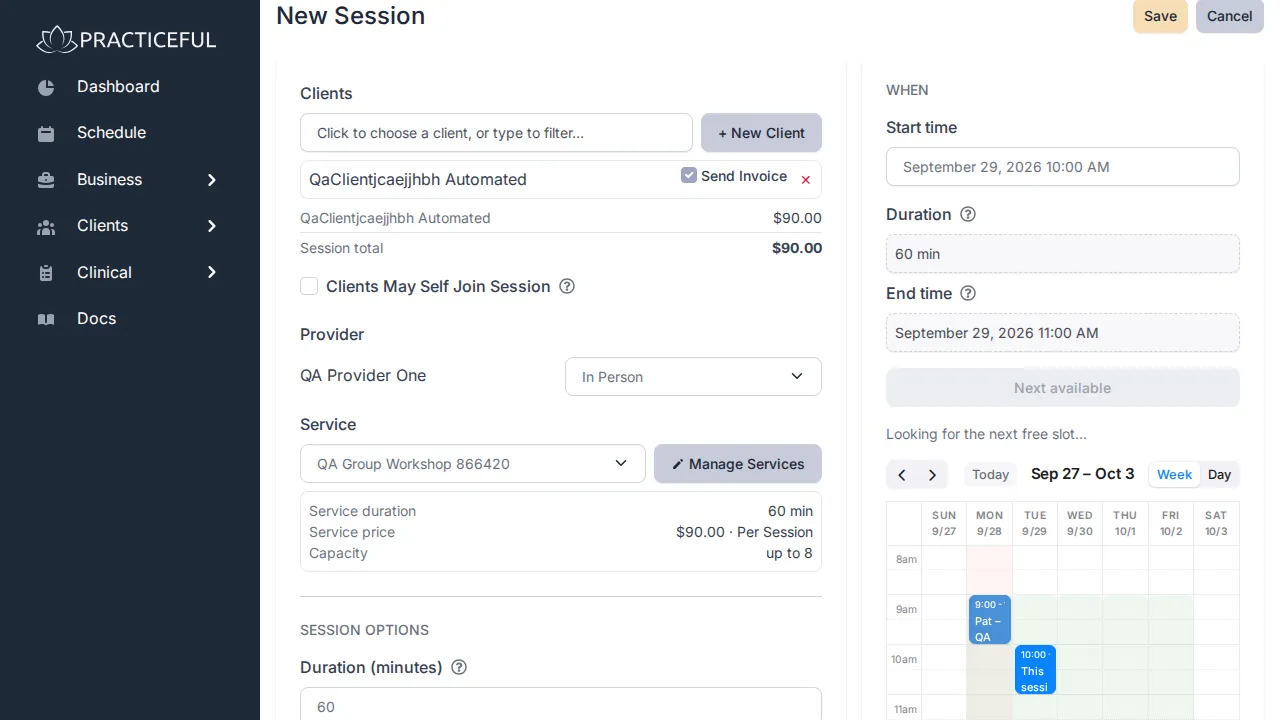
Under Service, open Select a service… and choose the service. The rest of the form appears once a service is chosen.
-
Under When, set the Start time. It may already hold the provider's next free time. The end time is worked out from the service's length.
-
Press Save. The client now has a scheduled session.
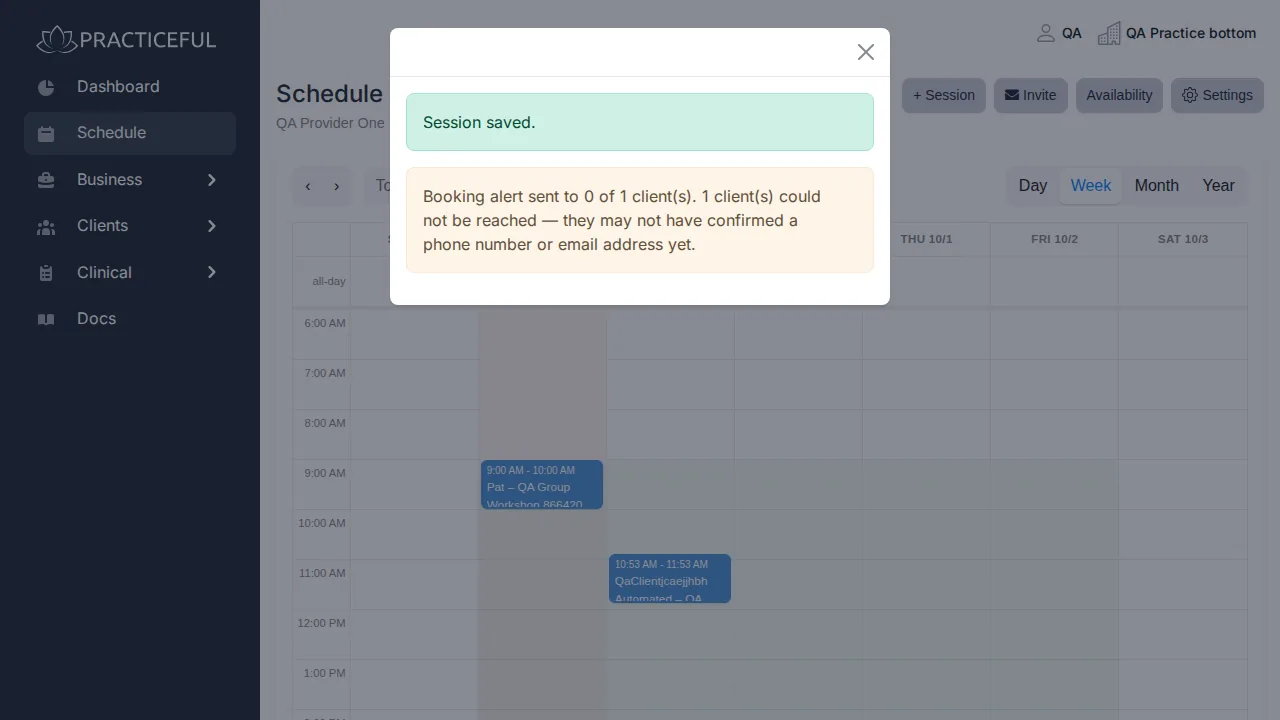
If something goes wrong
| You see | What it means | What to do |
|---|---|---|
| A message ending Save again to book it anyway. | The provider already has a session at that time | Change the time, or press Save again to double-book on purpose. |
| No Save button | No service has been chosen yet | Choose a service under Service. |
| The client is not in the Clients list on the session form | They have not been added to the practice | Add them first, or press + New Client on the session form. |