Client charts
A client's chart is where everything about one client is kept: their profile, sessions, billing, contacts, notes, treatment plans, session summaries and signed forms. This page is for providers and managers. It shows you how to open a chart, read the record before a session, send the client an email, and produce a superbill they can claim from their insurer.
Before you start
- You are signed in as a provider or a manager.
- The client is on your practice's client list. See Add your first client.
Open a client's chart
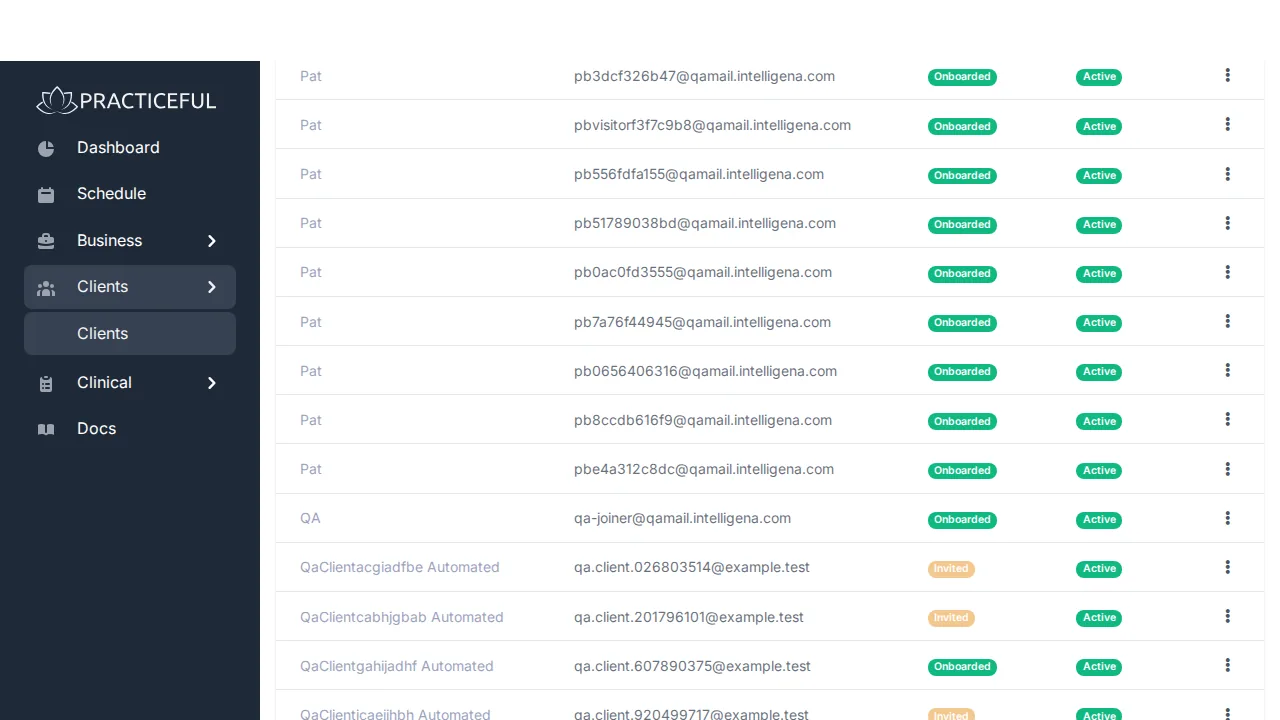
- In the sidebar, open Clients and press Clients. The client list opens, with an onboarding status for each client.
-
Press the client's row. Their chart opens.
-
Beside the client's name you see their status (Active, Inactive or Waitlist) and their onboarding status:
- Not contacted — the client is on record but nothing has been sent yet.
- Invited — the client has been invited but has not confirmed their details.
- Forms pending — the client has confirmed their details, but forms are still outstanding.
- Onboarded — nothing is outstanding.
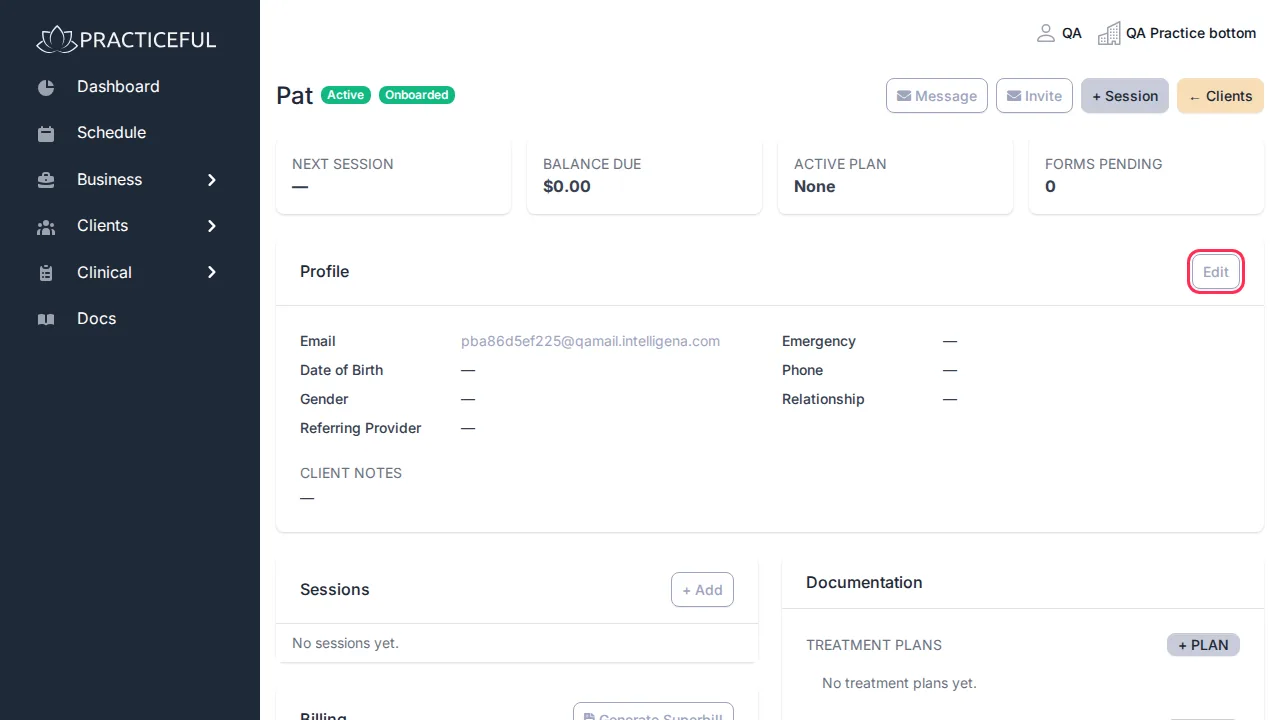
Onboarding status is worked out from the client's current state each time the chart opens, so it always matches what the client has actually done. It does not stop you booking or billing the client. While onboarding is outstanding, Remind to onboard appears at the top of the chart; it asks you to confirm before it sends a reminder email.
The chart's Profile card has an Edit button for the client's details. + Session books the client a session, and ← Clients returns to the list.
Read the record before a session
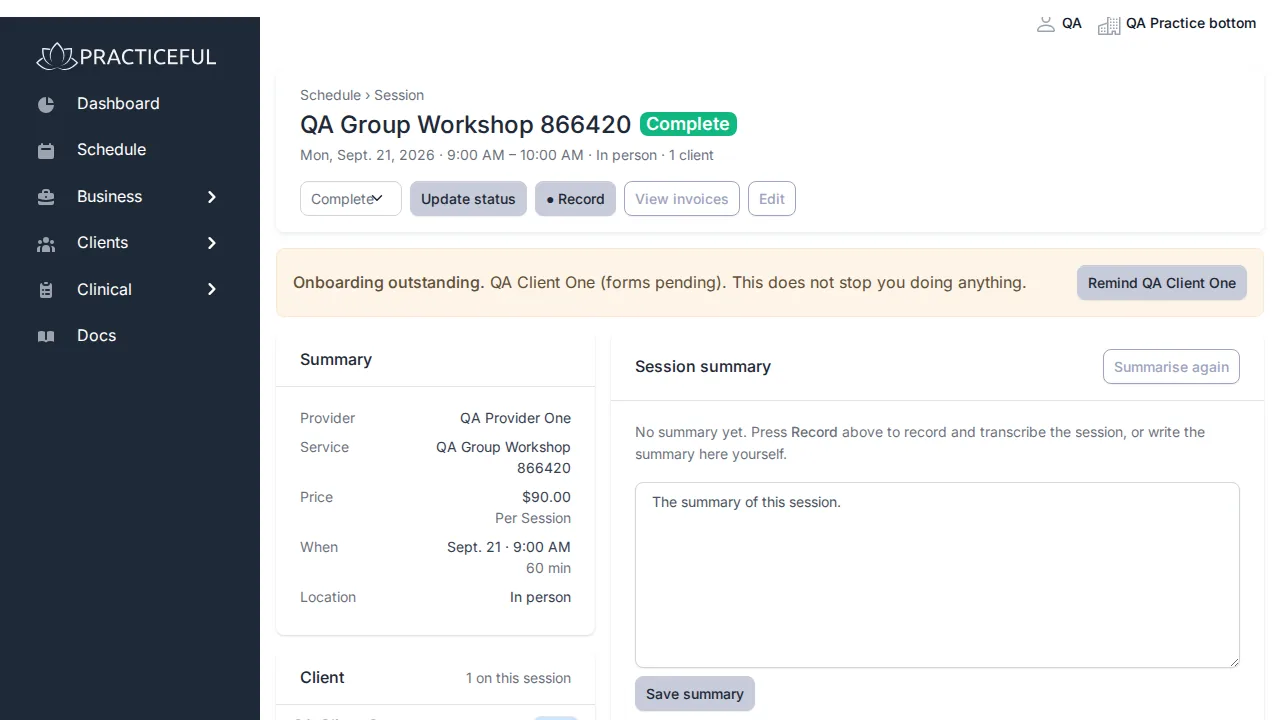
A client's treatment plans and notes are shown on the chart and on the session screen itself, so you do not have to leave the session to read them.
-
Open the session from your calendar. The Client documentation card lists each participant, with their Treatment Plans and Notes.
-
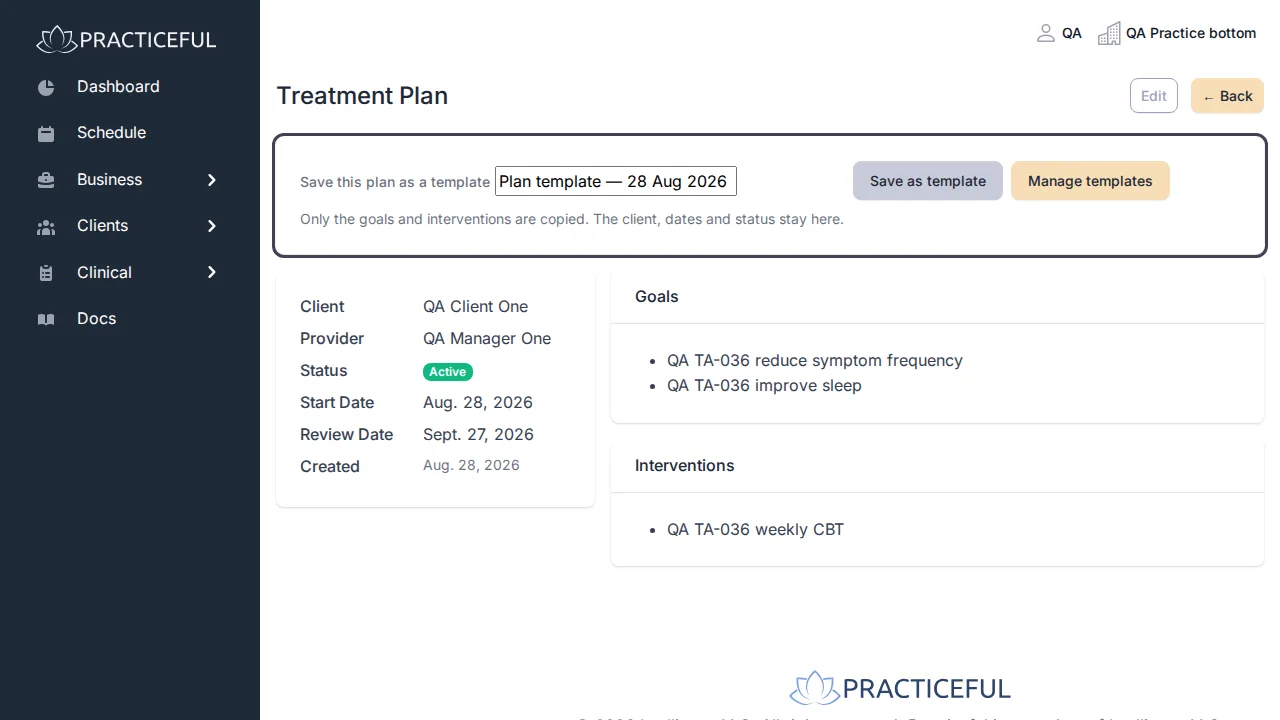
Press the date of a treatment plan to open it. The Treatment Plan screen shows its Goals and Interventions.
-
Press the back button at the top of the plan. You return to the session you came from, not to the chart.
A section with nothing in it says so — for example No treatment plans yet. or No notes yet. — rather than disappearing. On a session with more than four clients, the card shows one shared summary instead of each person's record; open each participant's chart to read theirs.
Email a client from their chart
-
On the chart, press Message. The Email dialog opens, showing the address it will go To.
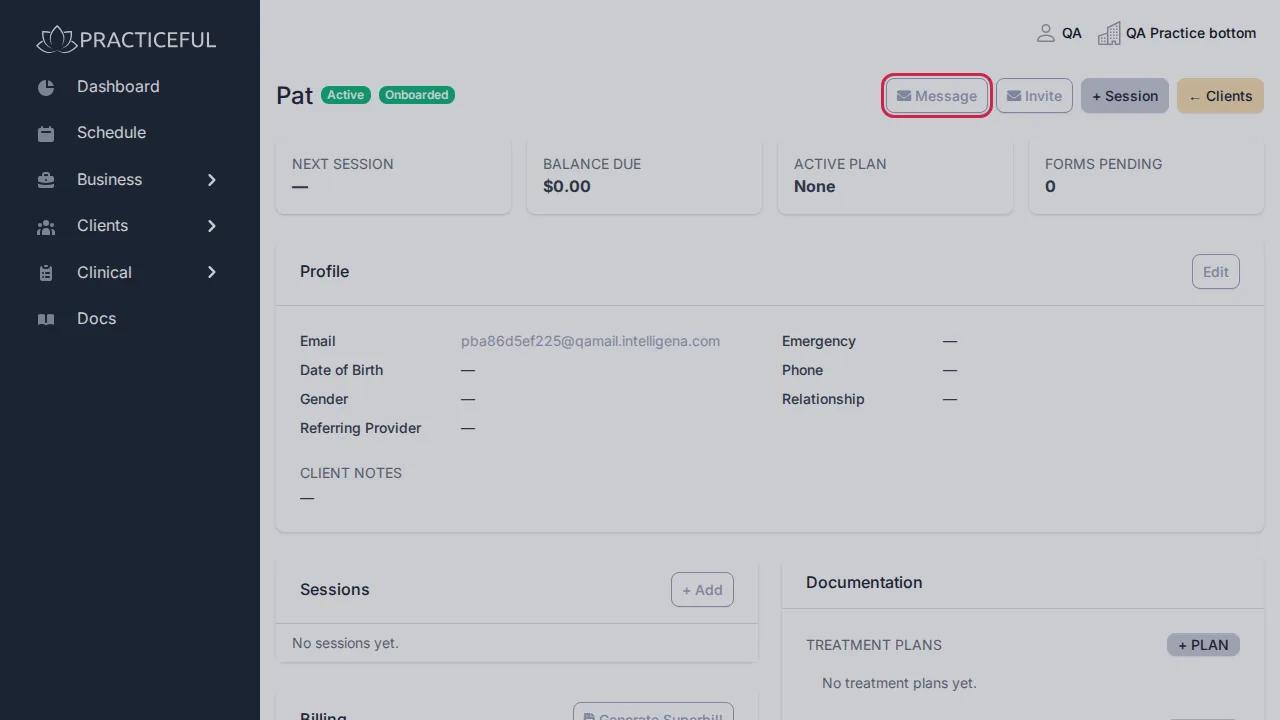
-
Type a Subject and a Message.
-
Press Send. The chart confirms Message sent to the client's address.
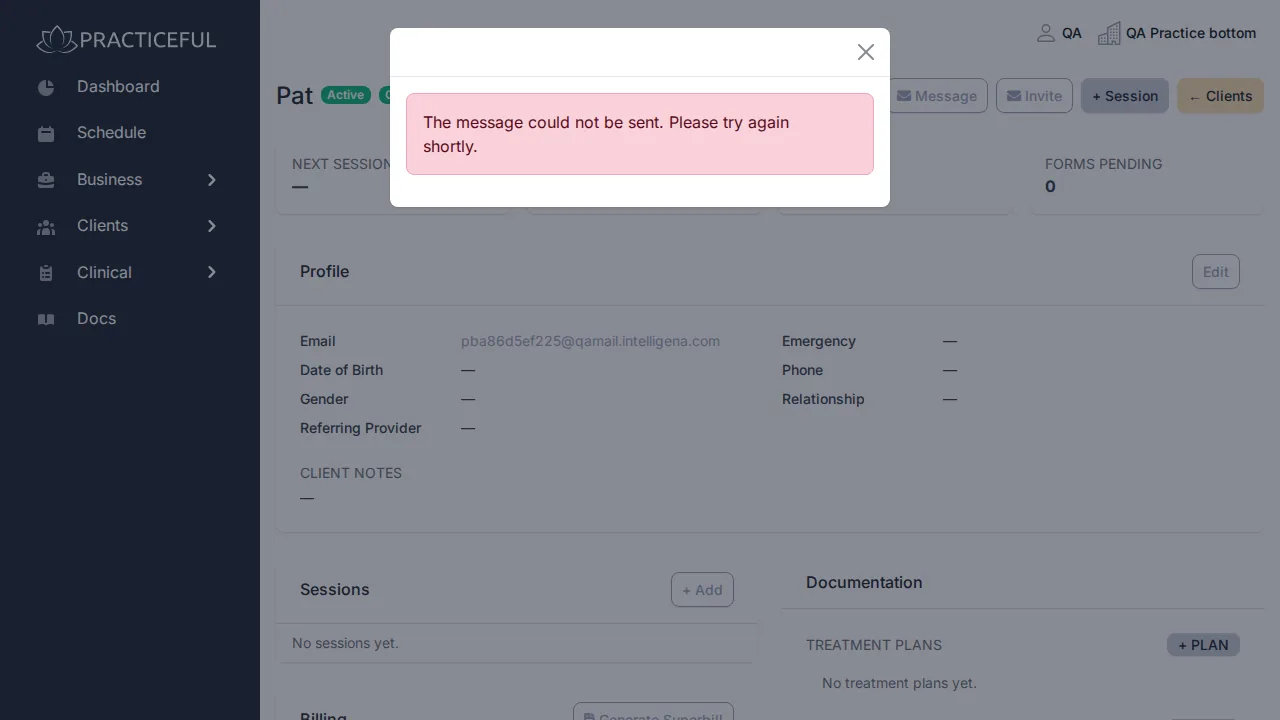
Message is available whenever the client has an email address on file — they do not need to have set up an account first. A client with no address shows No email address on file instead.
Produce a superbill
A superbill is a PDF a client can send to their insurer to claim back what they paid.
Before you start
- The client has paid for the sessions you want to include. A superbill only covers services already paid for.
- Your NPI and tax ID are on record. An insurer will refuse a superbill without them. See Practice settings.
- You can see billing. Generate Superbill only appears if you can.
-
On the chart, in the Billing card, press Generate Superbill. The Generate Superbill dialog opens and lists the client's paid sessions.
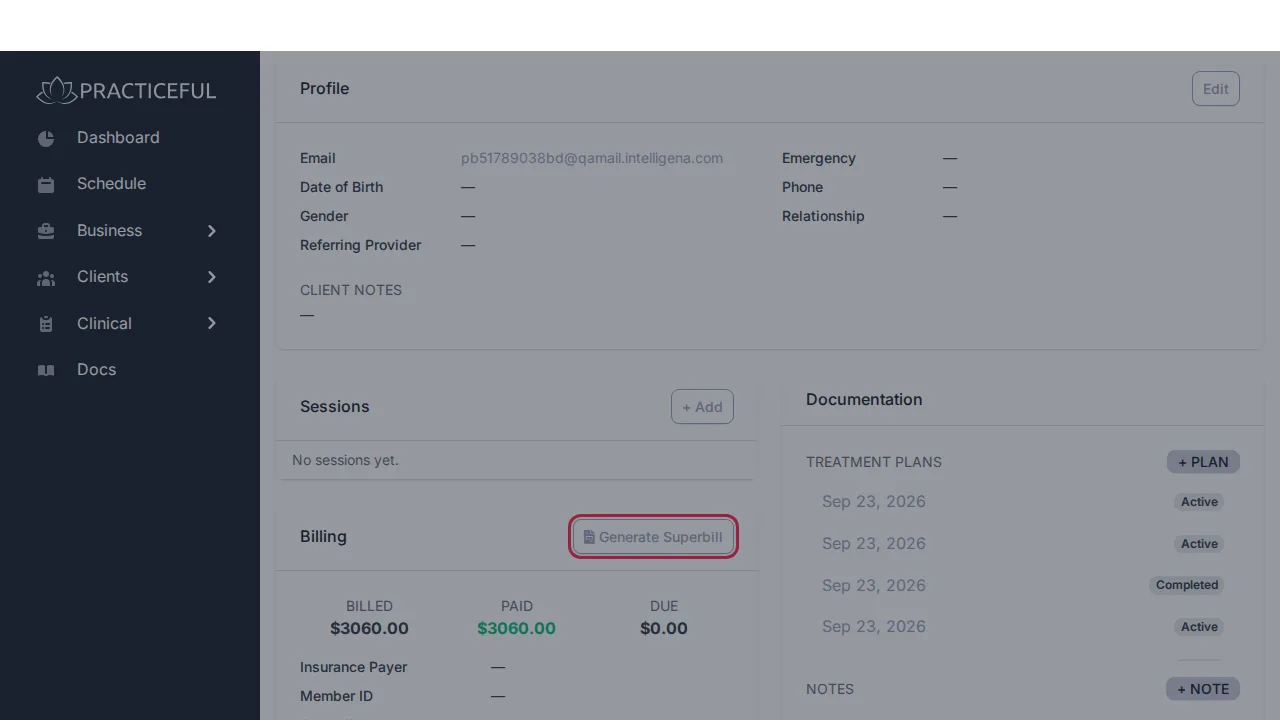
-
Narrow the list if you need to, using From, To and Provider.
-
Press Select all, or tick the sessions you want. Each row shows the invoice, date of service, service, CPT and ICD-10 codes, provider, amount, balance and status.
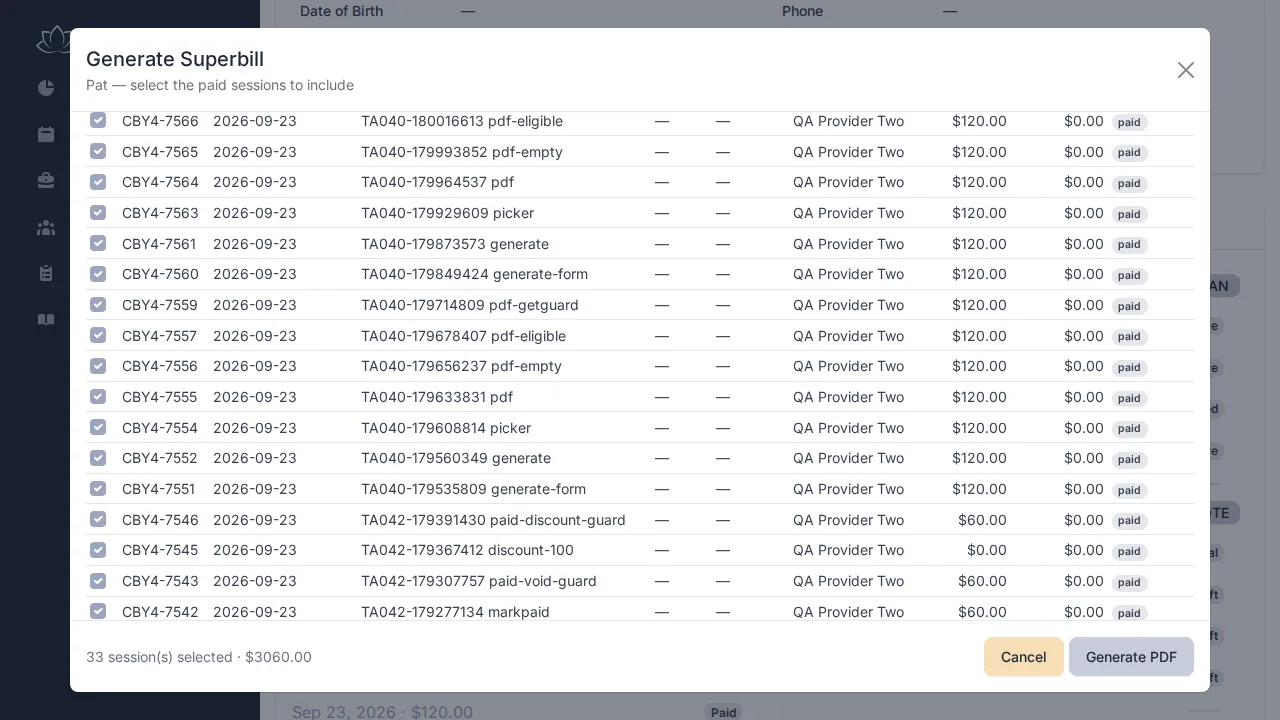
-
Press Generate PDF. The superbill opens as a PDF in a new tab. The dialog keeps your selection, so you can produce another for a different date range.
Generate PDF stays unavailable until at least one session is selected. The CPT code on each session comes from the session's Superbill coding card — see Sessions and notes.
If something goes wrong
| You see | What it means | What to do |
|---|---|---|
| No email address on file | There is no address to email the client at | Add one with Edit on the Profile card. |
| We do not have an email address for this client. | The message was refused because there is no address | Add an address, then try again. |
| The message could not be sent. Please try again shortly. | The email service did not accept the message | Try again later. |
| Too many messages just now — please wait a minute and try again. | Several messages were sent in a short time | Wait a minute, then send again. |
| This client has no paid invoices yet. A superbill can only cover services already paid for. | Nothing is eligible for a superbill | Once the client has paid for a session, try again. |
| No paid sessions match these filters. | Your dates or provider filter exclude every paid session | Widen From, To or Provider. |
| Could not load invoices. Please try again. | The dialog could not load the sessions | Close the dialog and open it again. |
| Notes and treatment plans need clinical-records access. on a session | Your role does not include clinical records | Ask your practice manager. |