Practice persona
The practice persona is a short written description of your practice, in its own voice, with a starter image. You build it once with AI help and edit it as you like. This page is for practice managers.
Open the account menu (your name at the top of the screen) and choose Practice Persona. There is a separate Your Persona for yourself as a person.
Before you start
The AI steps depend on Practiceful's AI service. Each one can take a while; a progress overlay covers the step while it works.
Build the persona
The wizard has three steps, and each one opens once the step before it is done.
- Describe it. Write a sentence or two about the practice — for example who you work with and where — and press AI Seed Persona. Practiceful identifies what kind of practice it is and prepares a few short questions.
- Answer a few questions. Brief answers are fine; they set the voice. AI Complete beside a question suggests an answer for you.
- Starter Image. The picture your landing and profile pages will use.
When you are happy with your answers and image, press Generate Persona. The written persona appears under Result. You can edit any wording directly, or press Improve Persona, say what the AI should change, and let it rewrite the text.
If you describe the practice again after doing some of this work, Practiceful asks you to confirm first, because your answers and the persona text are cleared. Reference photos, the image brief and the starter image are kept.
Add photos from your phone
The persona's image is built from reference photos. You can take them with your phone instead of emailing them to yourself.
- On the persona page, find the QR code (Scan to upload from your phone, or Scan to upload or take a headshot for photos of a person). The web address it encodes is shown beside it, in case your phone cannot read QR codes.
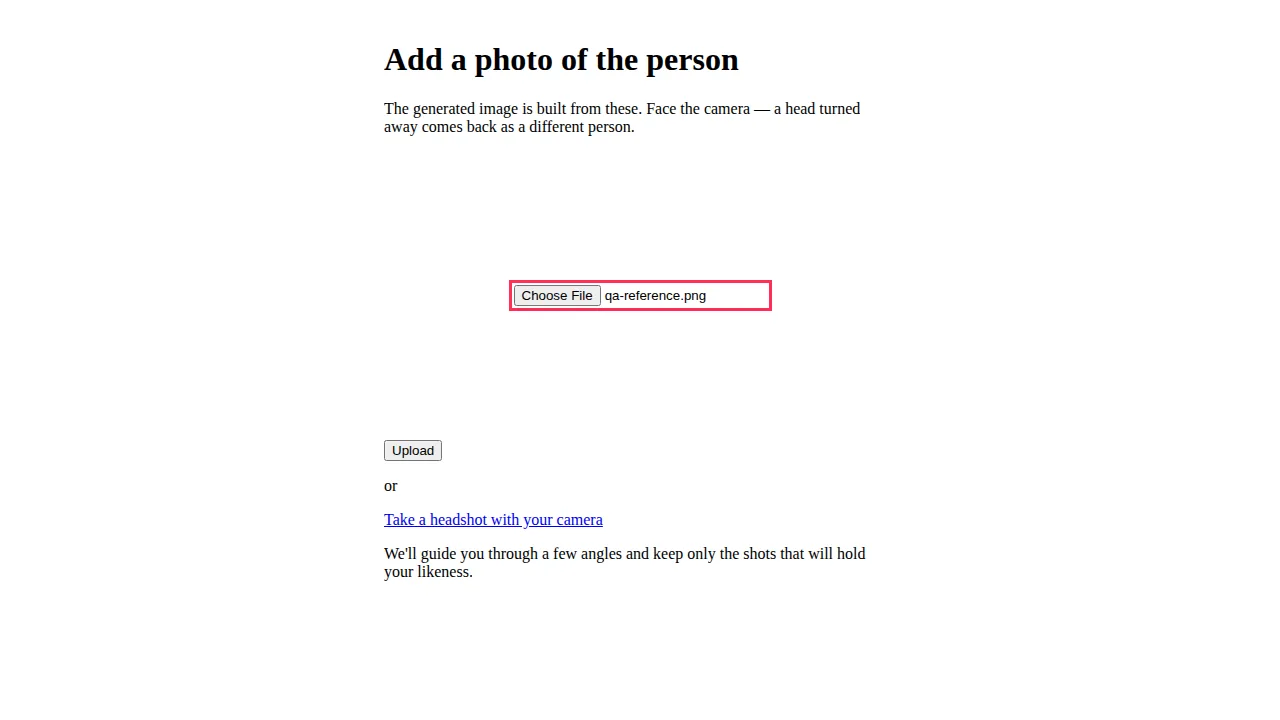
- Scan the code with your phone. A page opens asking you to add a photo — no sign-in is needed on the phone.
-
Choose a photo and press Upload.
-
The phone confirms the upload. Press Upload another to add more, or return to your computer.
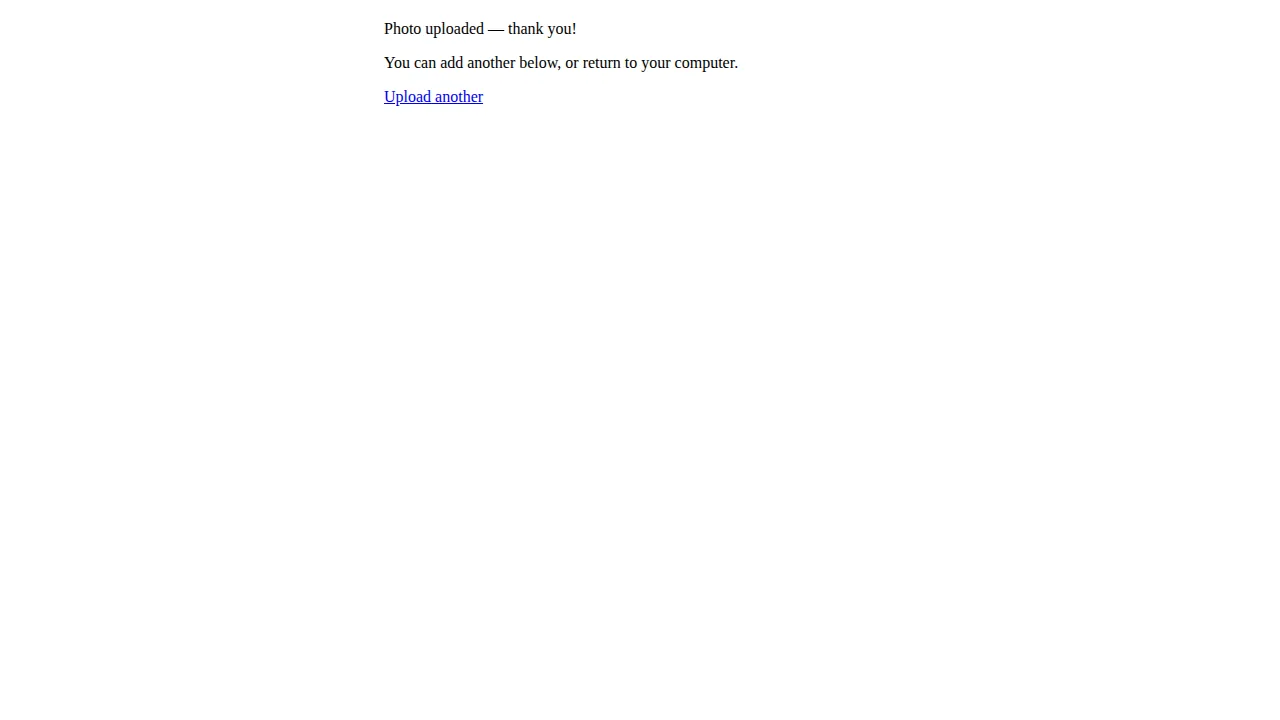
For a photo of a person, face the camera. If a photo will not keep the person's likeness, the phone says Photo uploaded — but it won't keep your likeness. and offers Take a better photo.
If the phone says This upload link has expired, reopen the persona page on your computer to get a fresh code.
Take a guided headshot
For a photo of a person, you can let the phone guide you through a headshot instead.
-
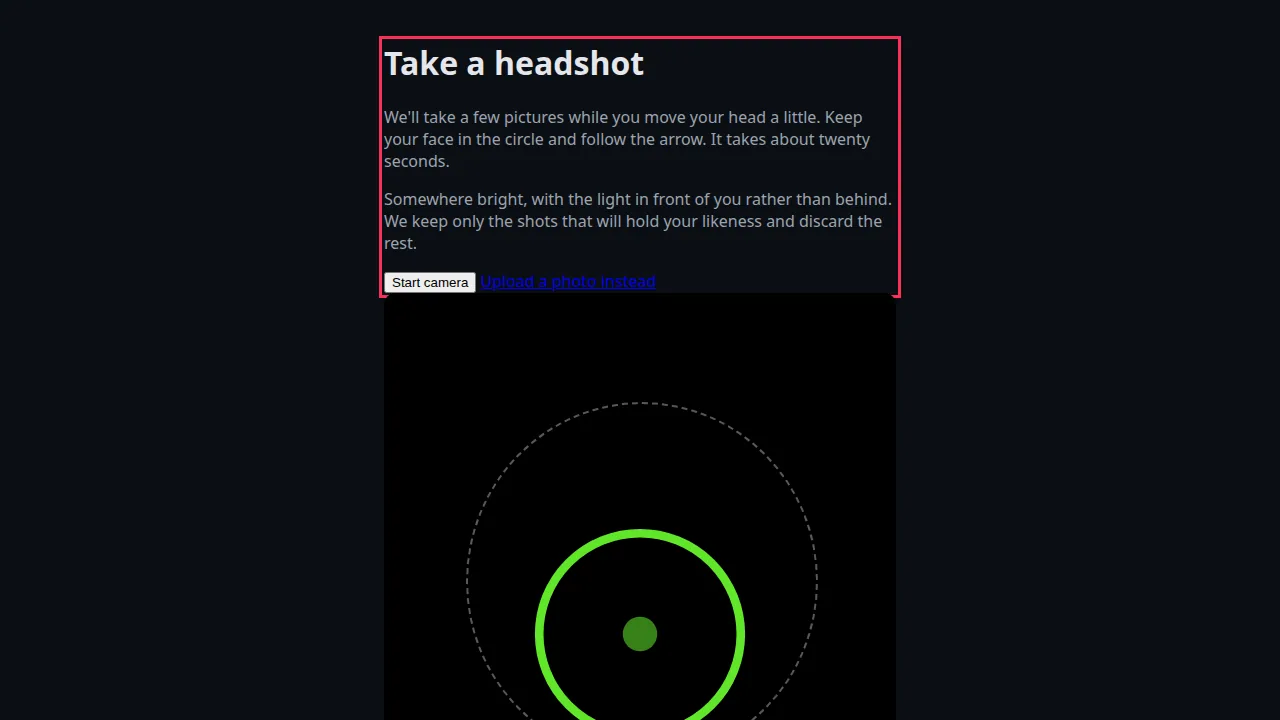
On the phone's upload page, press Take a guided headshot. Take a headshot explains what will happen: a few pictures while you move your head a little. Somewhere bright, with the light in front of you, works best.
-
Press Start camera and follow the guidance on screen. Practiceful keeps only the shots that will hold your likeness.
- Press Done when finished, or Take another set to try again.
If you would rather not use the camera, press Upload a photo instead.
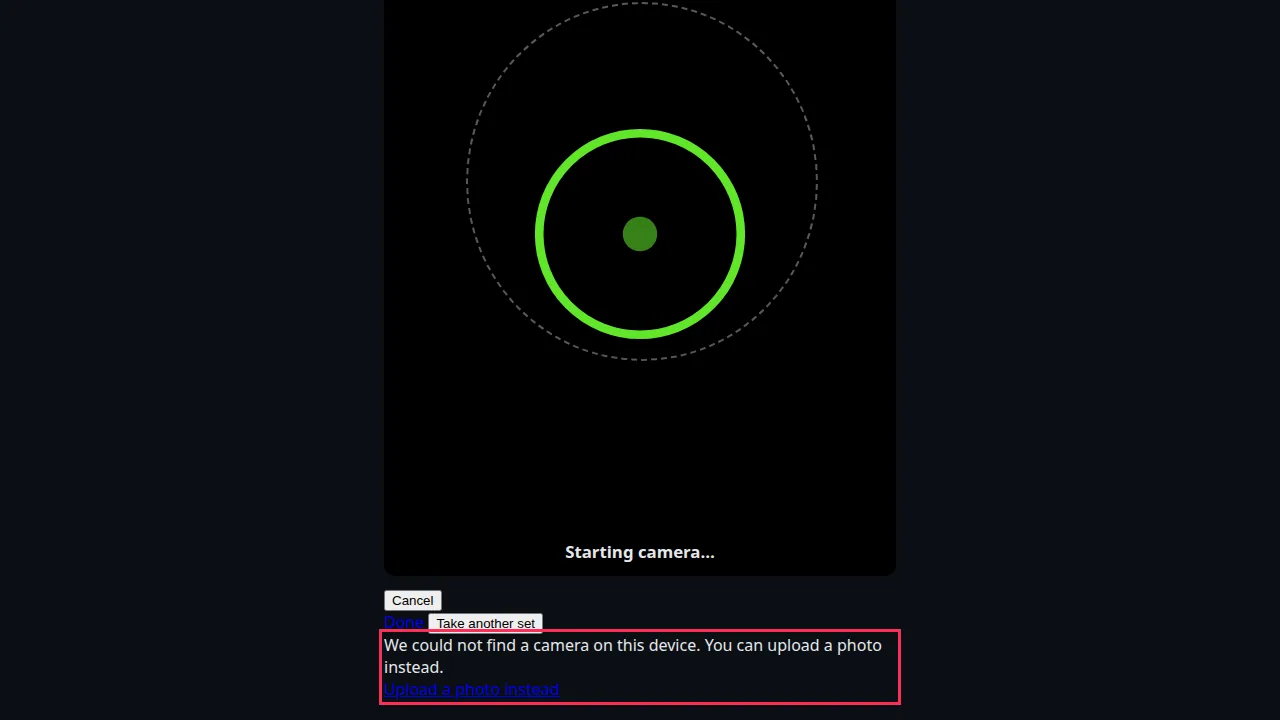
If the camera cannot start — for example you refused permission — the page explains why instead of showing a blank camera, and offers Upload a photo instead.
Related
- Your practice website — where the persona's image and voice are used
- Practice settings — the practice's details