Billing
This page is for practice managers. You will raise and send invoices, record payments taken outside Practiceful, set the fees the practice charges automatically, agree a special rate with one client, and turn a paid invoice into a superbill a client can claim on.
Billing lives under Business › Billing in the sidebar. That opens the invoice list; Billing Settings is the gear button in its title bar.
Card payments go to your own Stripe account
Clients pay by card through Stripe, directly into the practice's own Stripe account. Practiceful never holds, receives or pays out your clients' money. Until you connect a Stripe account, the practice cannot take card payments — see Connect card payments below.
Raise and send an invoice
Before you start
- You are signed in as a practice manager.
- The client and the provider already exist in the practice.
-
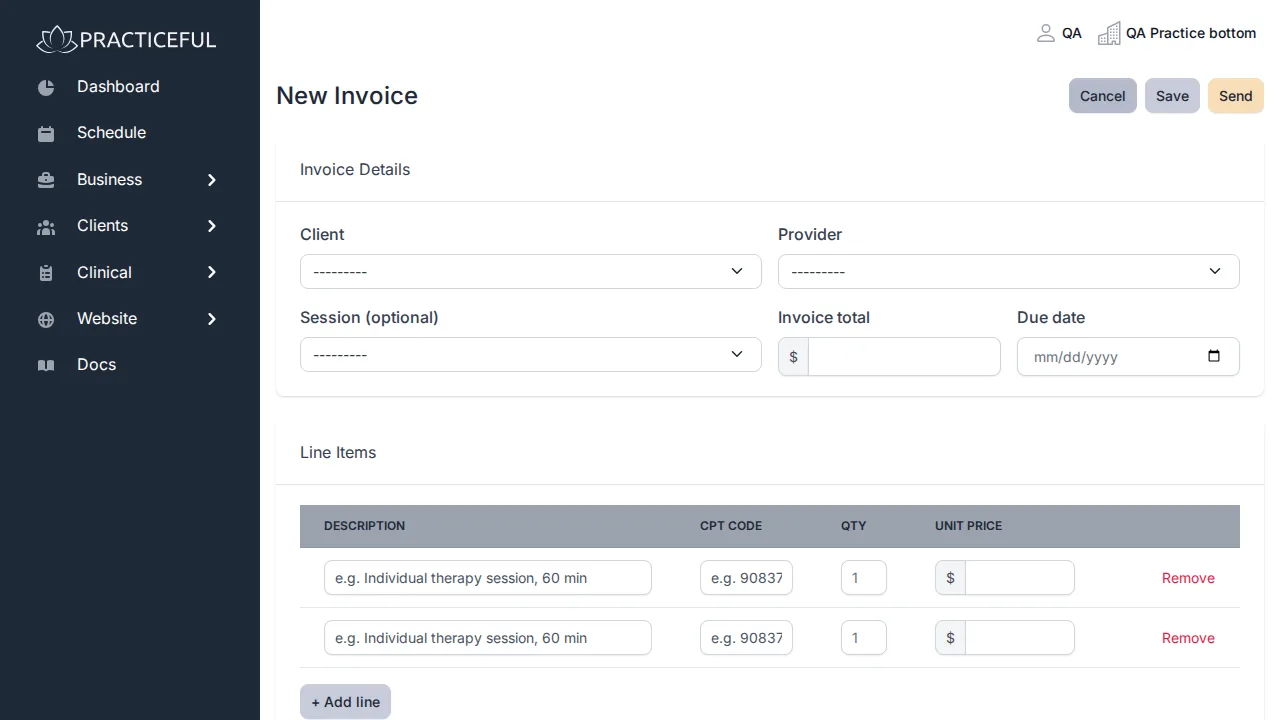
On the invoice list, press + New Invoice. The New Invoice screen opens.
-
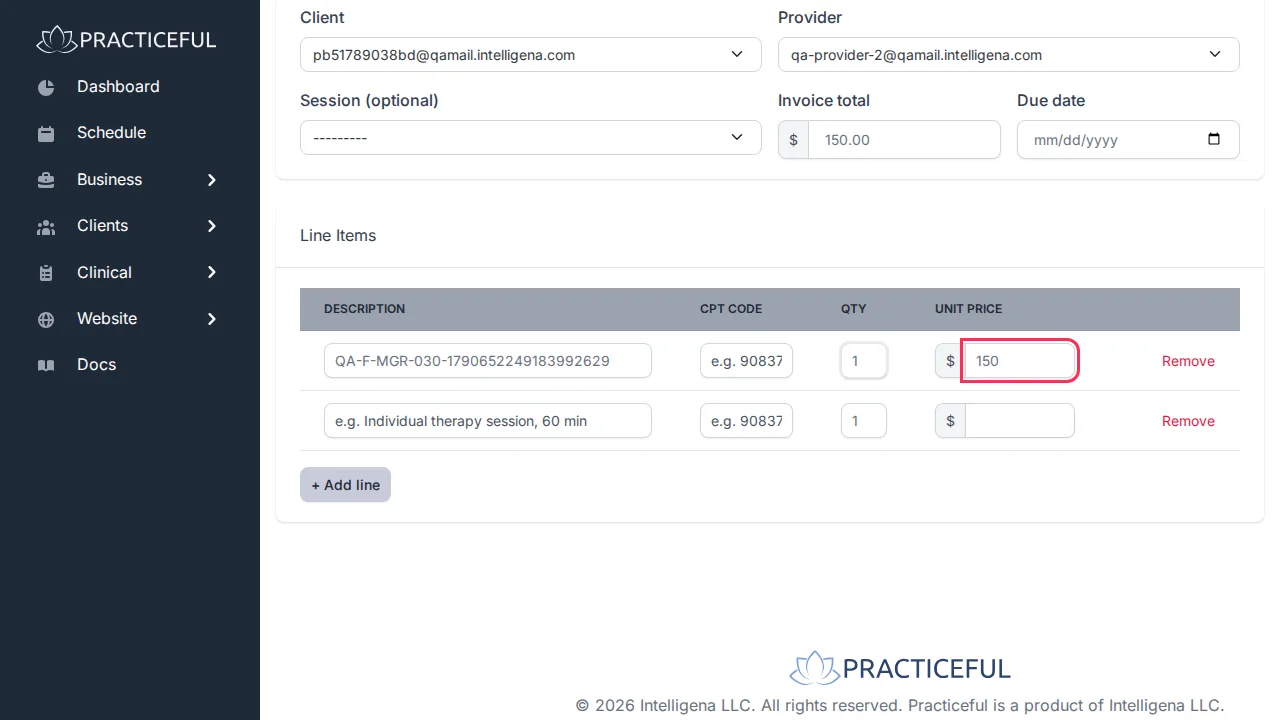
Choose the Client and the Provider. Both lists can be searched by typing. You can also link the invoice to a Session (optional).
- Enter the Invoice total. The currency is the practice's billing currency; there is nothing to choose.
-
Under Line Items, fill in the Description, Qty and Unit Price for each line. Press + Add line for another line.
-
Choose how to finish:
- Save keeps the invoice as a draft. Nothing is sent.
- Send saves the invoice and emails it to the client. A Send invoice confirmation asks Save this invoice and email it to the client now? — press Send in the dialog to send it.
The invoice opens on its own screen, Invoice [number]. After sending you see Invoice [number] sent to [address].
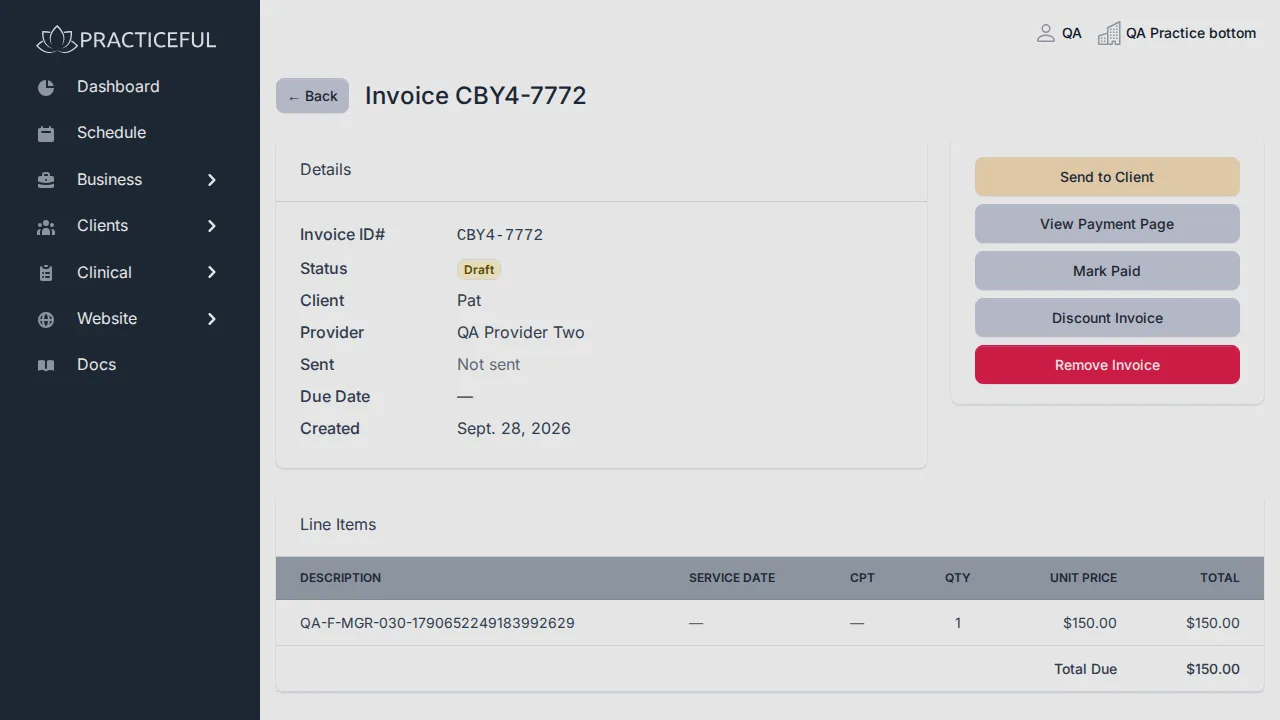
If the email could not be delivered, the invoice is still saved as a draft and you see a warning that no email was sent. Check the client has an email address on file, then send it again from the invoice screen.
Work with an existing invoice
Open an invoice from the list. What you can do depends on its status:
| Button | When it appears | What it does |
|---|---|---|
| Send to Client | Draft | Emails the invoice. The confirmation names the client and the address. |
| Resend Invoice | Sent or overdue | Emails it again as a payment reminder. |
| View Payment Page | Draft, sent or overdue | Opens the page the client pays on, in a new tab. |
| Mark Paid | Draft, sent or overdue | Records the invoice as paid in full, for money taken outside the payment page — cash, cheque, or bank transfer. |
| Discount Invoice | Draft, sent or overdue | Applies a discount. Press Apply Discount in the dialog. |
| Remove Invoice | Draft, sent or overdue | Removes the invoice. |
| Generate Superbill / View Superbill | Paid | See Produce a superbill. |
Remove an invoice
- On the invoice, press Remove Invoice. A dialog explains that the invoice will no longer appear in your invoice list or billing figures, and that the record is kept for the audit trail.
- Optionally tick Also cancel the sessions this invoice bills for. A session other clients are still being billed for is left scheduled.
- Press Remove Invoice. You see Invoice [number] removed.
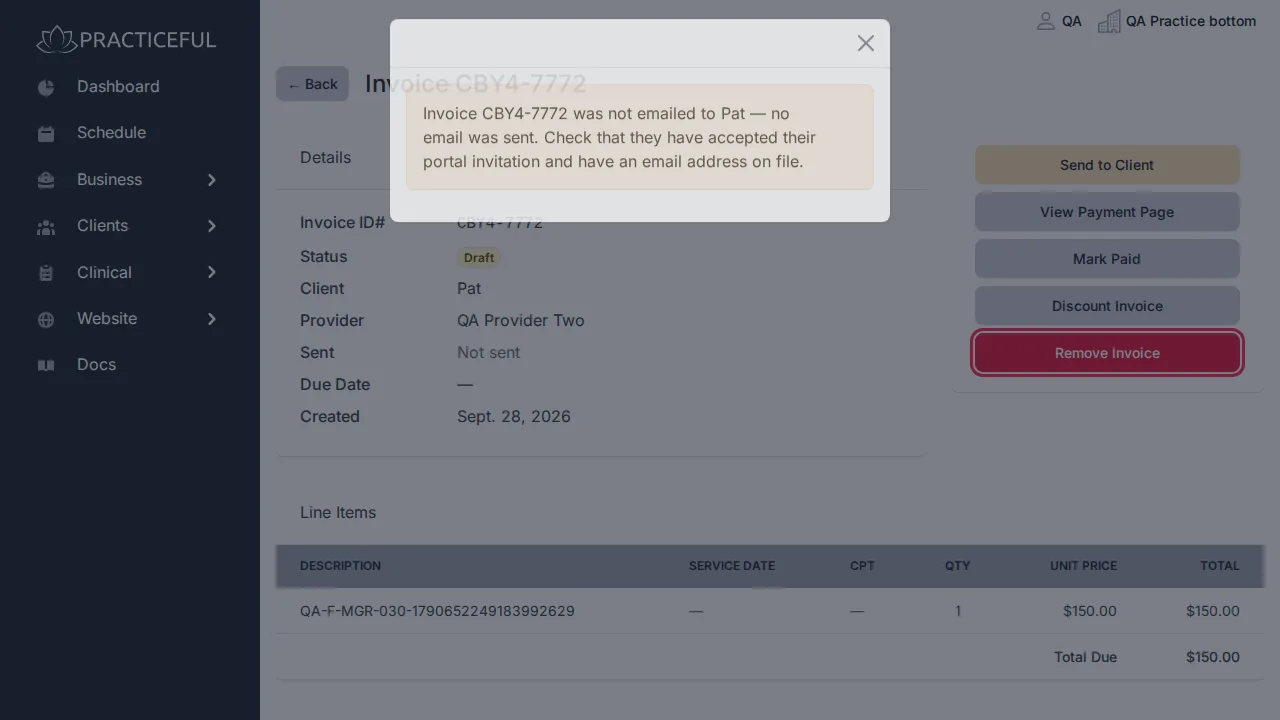
A paid invoice cannot be removed; refund it in Stripe instead.
See what the practice is owed
- In the sidebar, open Business › Analytics.
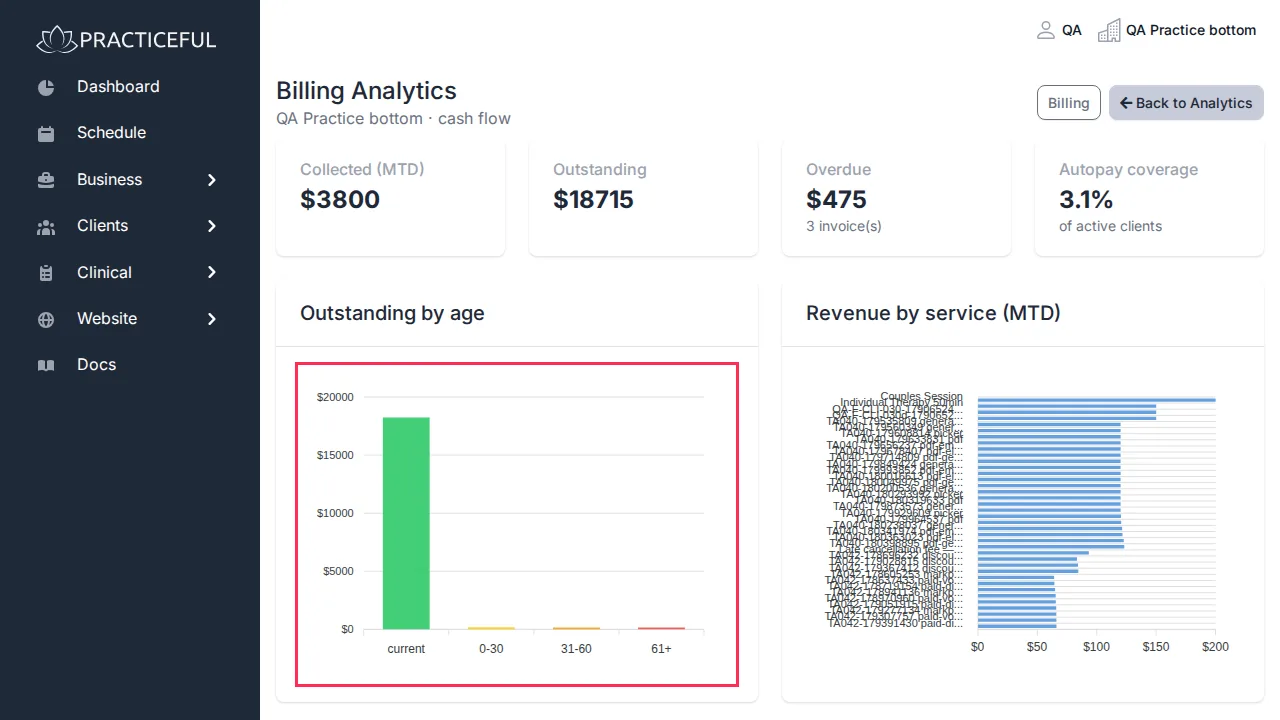
- In the Billing section, press Billing details →. Billing Analytics opens.
-
Outstanding by age shows unpaid invoices grouped by how long they have been owed. Revenue by service (MTD) shows what each service has brought in this month.
More reports are described in Analytics.
Set deposits and fees
The fees you set here are charged to the client's card automatically, so check them carefully.
-
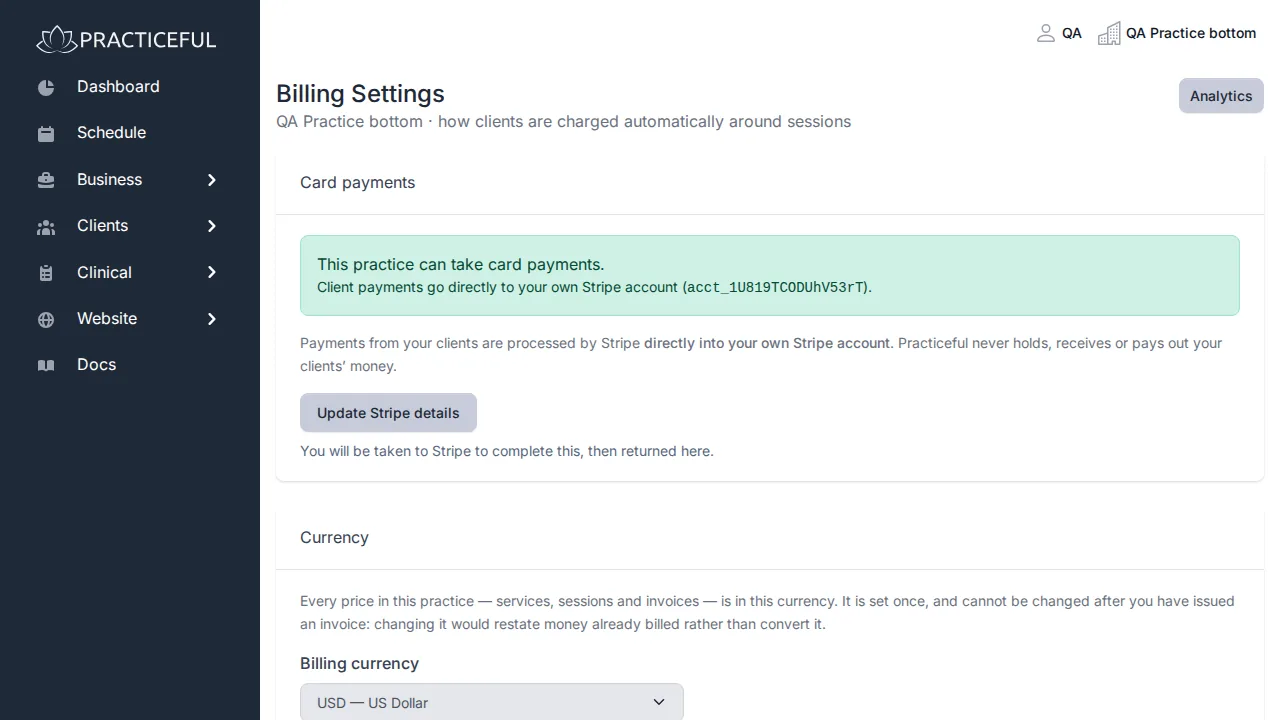
On the invoice list, press the gear button (Billing settings). Billing Settings opens.
-
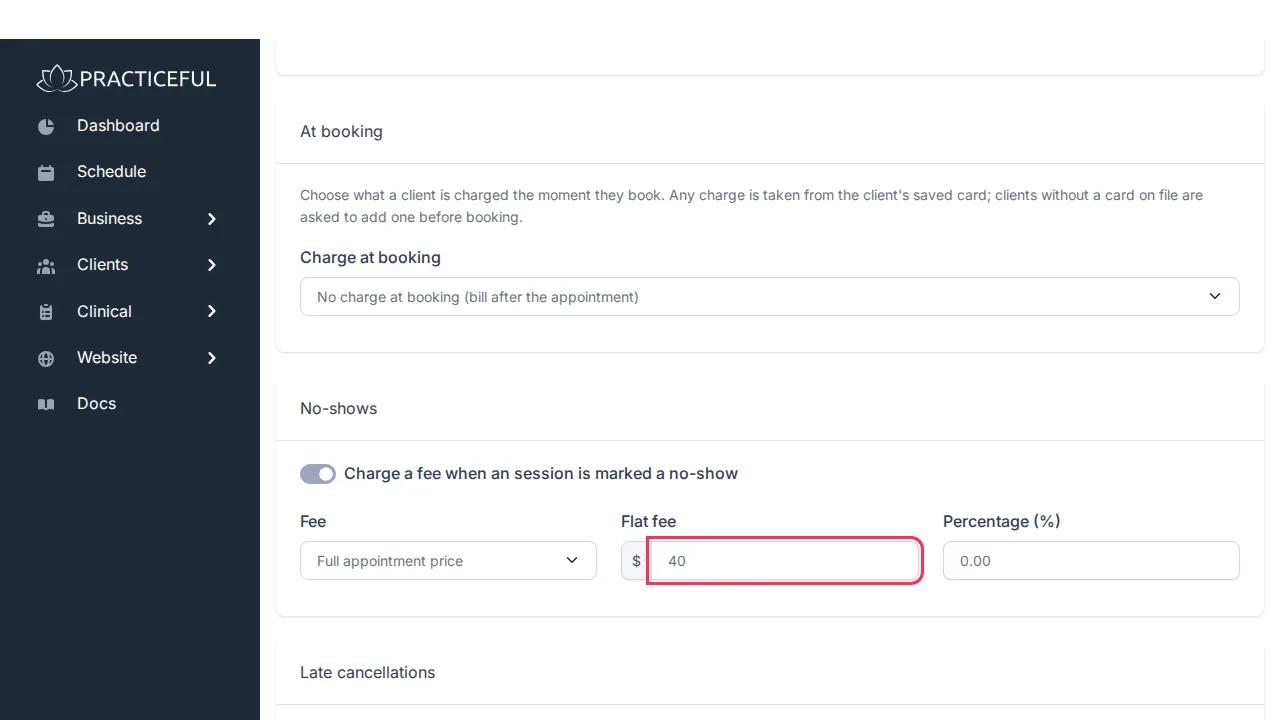
Under At booking, choose what Charge at booking does: no charge (bill after the appointment), the full price, a flat deposit, or a percentage deposit.
-
Under No-shows, turn on Charge a fee when a session is marked a no-show, then choose the Fee: the full appointment price, a percentage of it, or a flat fee. Enter the Flat fee or Percentage (%) to match.
-
Under Late cancellations, turn on Charge a fee for cancellations made too close to the session. Set Cancellation notice required (hours) — clients cancelling with less than this much notice are charged — and choose the fee in the same way.
- Press Save. You see Billing settings saved.
The amounts for a fee only apply while its switch is on.
Your billing currency
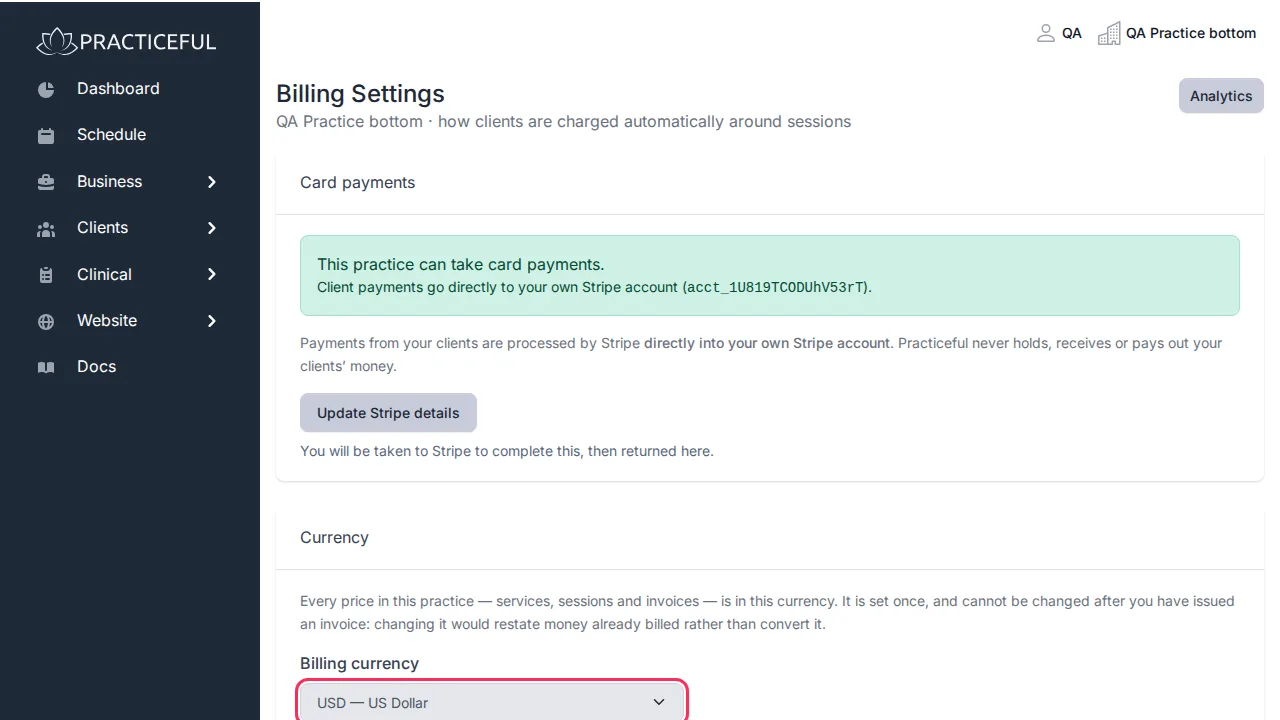
Every price in the practice — services, sessions and invoices — is in one currency, the Billing currency on Billing Settings. You set it once. After the practice has issued an invoice it is locked, and the control says Locked — this practice has already issued invoices in [currency]. Contact support to change it. Changing it would restate money already billed rather than convert it.
Connect card payments
The Card payments section at the top of Billing Settings shows whether the practice can take card payments:
- This practice cannot take card payments yet. — press Set up card payments.
- Stripe still needs more information. — press Finish Stripe setup.
- This practice can take card payments. — you can press Update Stripe details.
Each button takes you to Stripe to complete the step, then returns you here.
Agree a rate with one client
Use this for a sliding scale, a concession or a staff rate. A rate applies to one length of one service.
Before you start
- You can edit billing.
- The practice offers at least one active service.
-
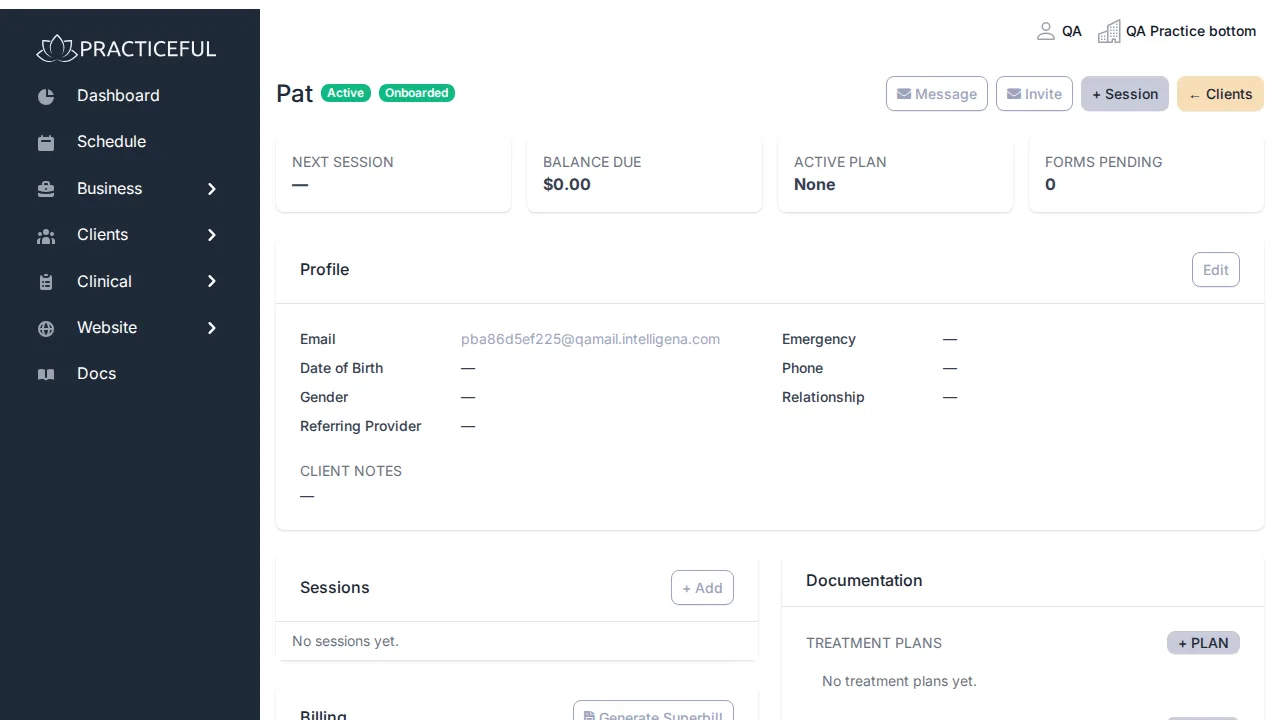
Open the client's chart. The Agreed rates card shows any rates already agreed, each beside the standard price, or No individual rates — this client pays your standard prices.
-
Press Set a rate (or Edit rates if the client already has one).
-
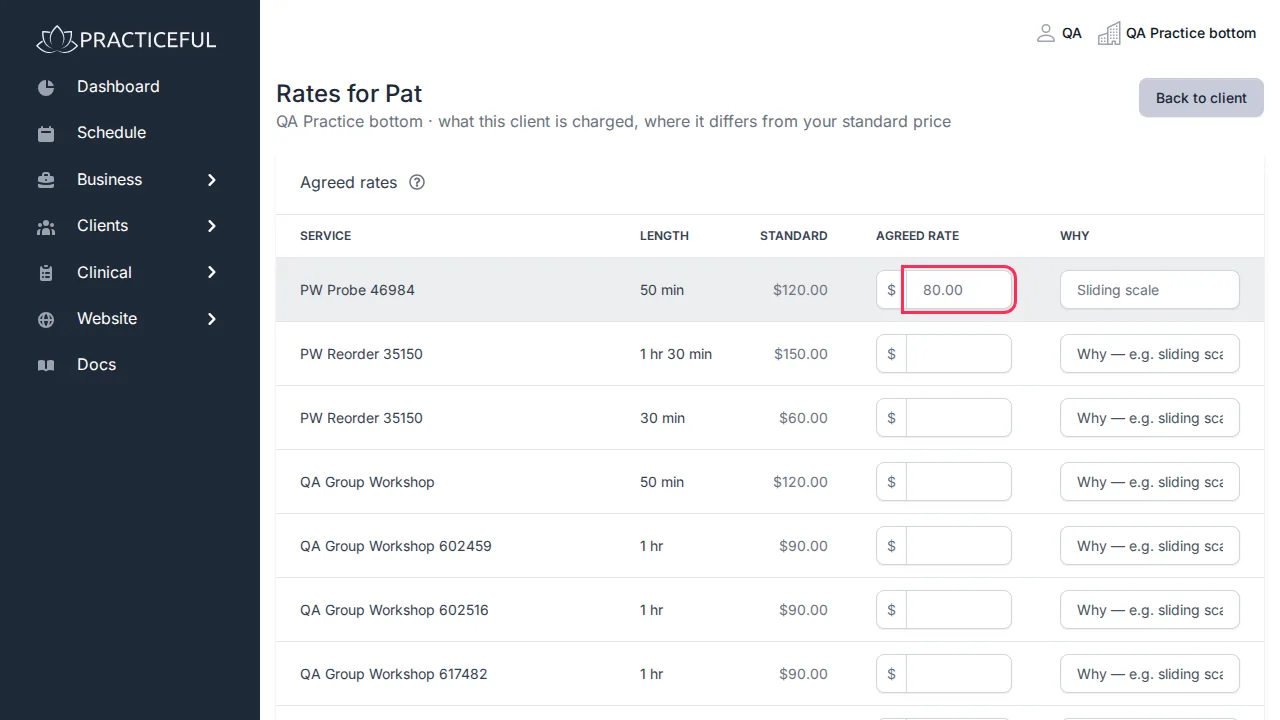
On Rates for [client], enter the Agreed rate for the length you want, and say Why in the box beside it.
-
Press Save rates. You return to the chart, and the Agreed rates card shows the new rate.
How the boxes behave:
- Leave a box empty and the client pays your standard price. Clearing a box you had filled in withdraws that rate.
- Enter 0 to see the client at no charge. That is different from leaving it empty.
- A session you price by hand on the session form still wins.
- Invoices already sent are never restated.
Produce a superbill
A superbill is a document a client can submit to their insurer. You can generate one for a paid invoice.
- Open a paid invoice and press Generate Superbill.
-
On Generate Superbill, check the Provider NPI and, optionally, the Taxonomy Code, then press Generate PDF.
-
The superbill opens. Press Download PDF to save it.
Once a superbill exists, the invoice shows View Superbill instead of Generate Superbill.
Saved cards
Clients save their own card, from Payment Methods in their own sidebar, so they do not re-enter it each visit. Staff cannot add or see card details: Stripe holds the card and Practiceful holds only a reference to it. See Paying.
If something goes wrong
| You see | What it means | What to do |
|---|---|---|
| Invoice [number] was not emailed to [client] — no email was sent. | The practice cannot email this client | Check they have an email address on file and have accepted their portal invitation, then use Send to Client again. |
| A paid invoice cannot be removed — refund it in Stripe instead. | The invoice has been paid | Refund it in your Stripe account. |
| This practice cannot take card payments yet. | No Stripe account is connected | Press Set up card payments. |
| Billing currency is greyed out | The practice has already issued invoices | Contact support if the currency really must change. |
| This practice offers no services yet, so there is nothing to agree a rate for. | There are no services to set a rate on | Add a service first — see Services. |