Your client dashboard and portal
This page is for you if you are a client of a practice that uses Practiceful — someone who books sessions, fills in forms and pays bills. There are two ways in, and you may use either:
- A link your practice emails you. You do not need an account or a password. Opening the link shows you what the email was about — a session, a bill, a form — plus your upcoming sessions.
- Signing in to your account, with your email address and password, if you have one. You then see your own dashboard, with your sessions, invoices and forms.
Open a link your practice emailed you
-
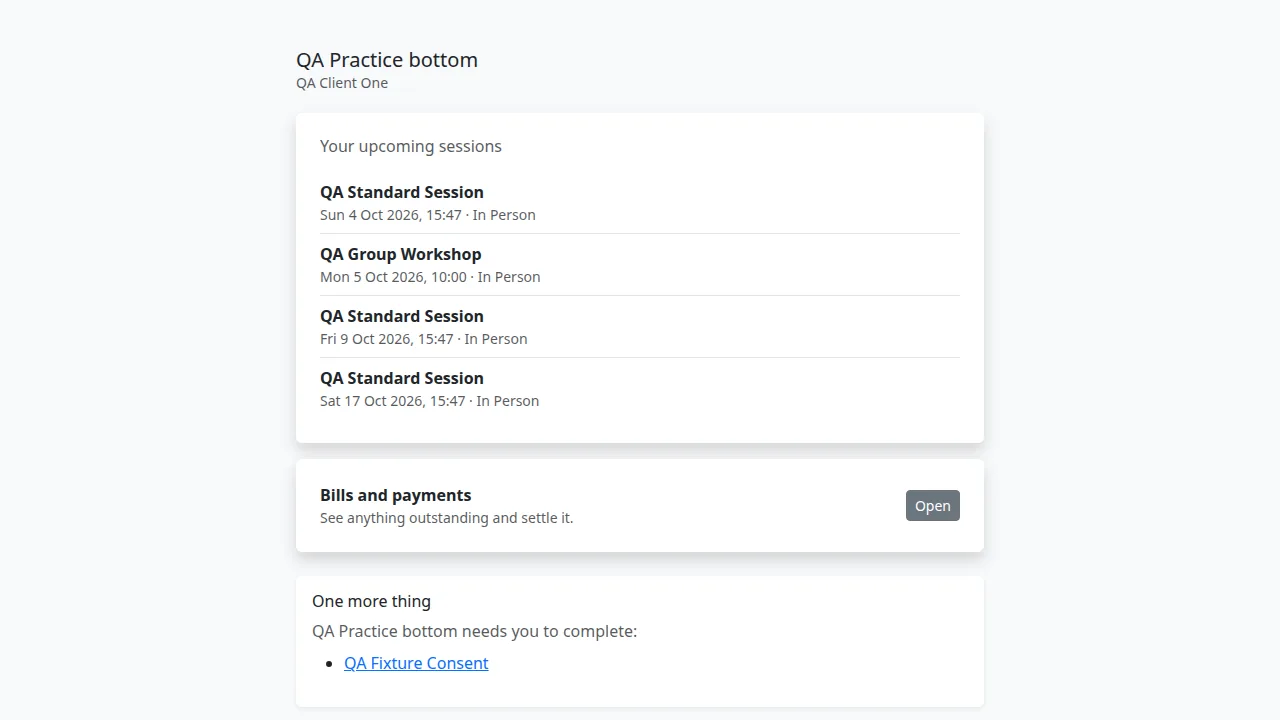
Open the email from your practice and press the link in it. A page opens with your practice's name at the top and your name underneath.
-
You see what the link was for. From a general link, that is Your upcoming sessions and Bills and payments; if you have nothing booked, it says You have nothing booked at the moment.
-
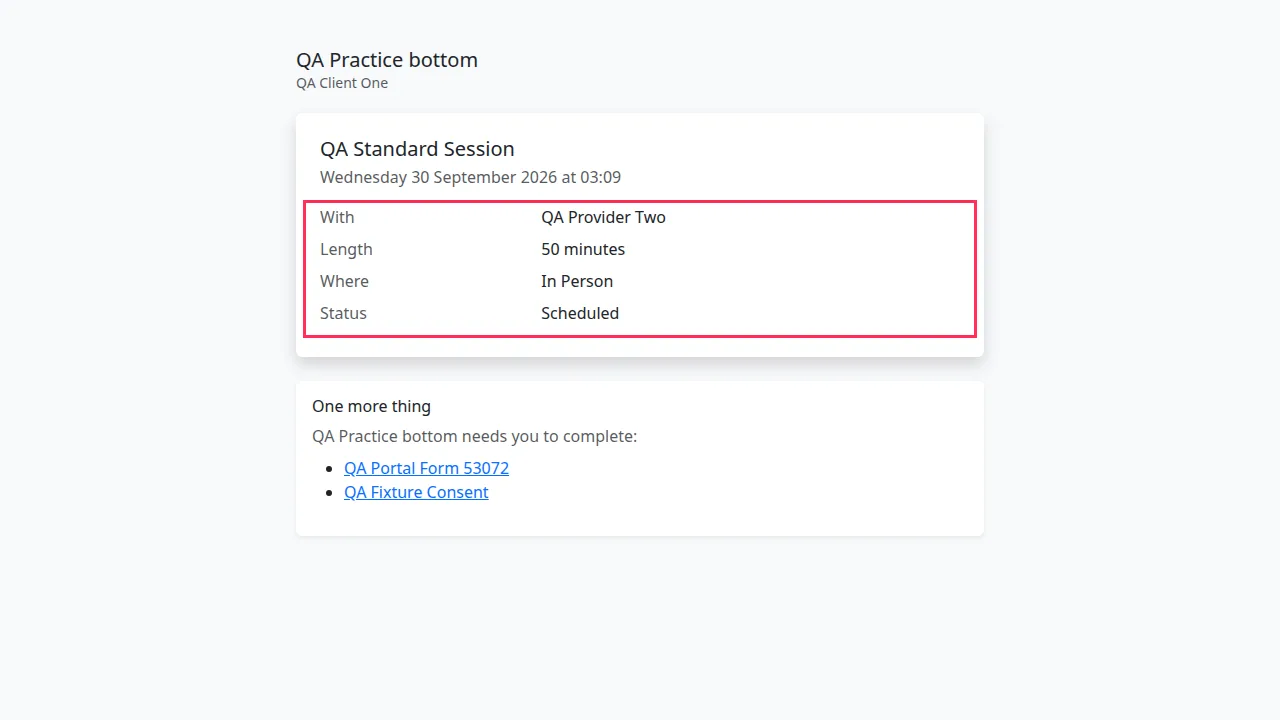
Press a session under Your upcoming sessions to see its details: the date and time, who it is With, the Length, Where it is and its Status. If the session is online, Join the session takes you to the video call.
-
Under Bills and payments, press Open to see anything you owe and pay it — see Paying your practice.
-
If your practice still needs something from you, a One more thing section appears below what you came for, listing the forms to complete. Once everything is done it says Thanks — your details are confirmed.
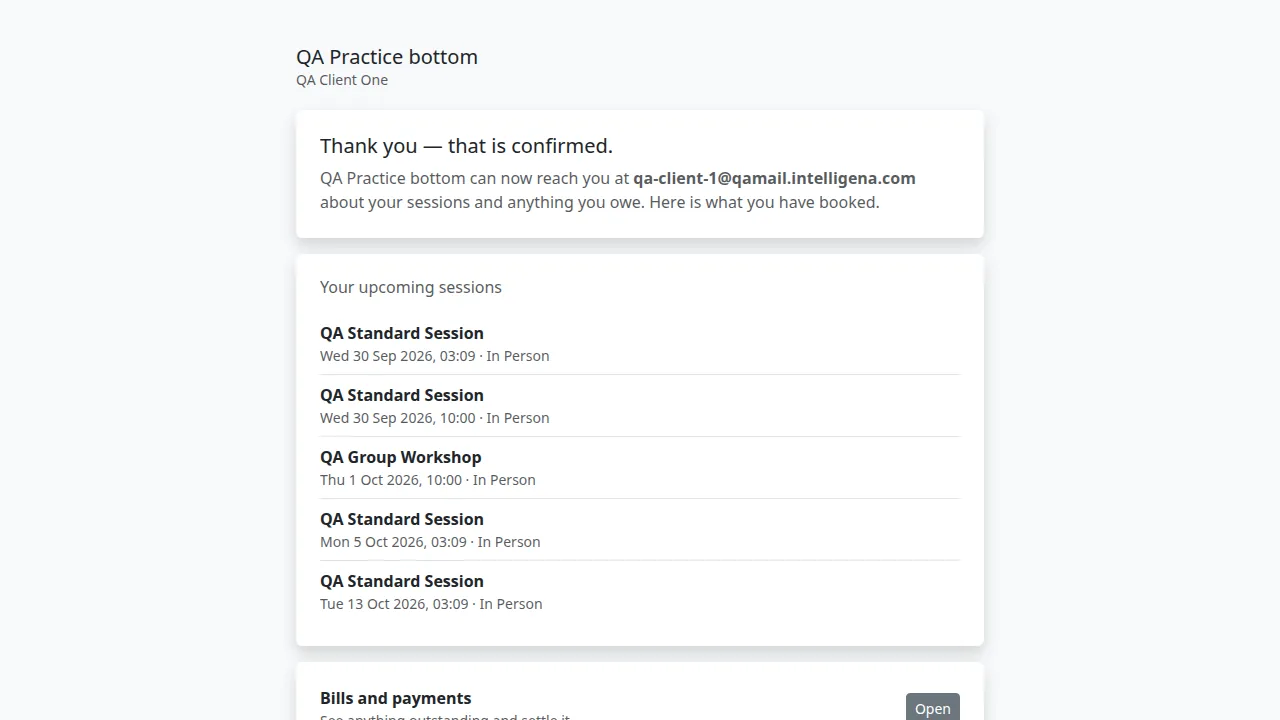
Opening a link from your practice also confirms your email address, so they can keep sending you your appointment details. If your practice sent you a link just to confirm your details, the page says Thank you — that is confirmed. and shows the address they will use.
The session page shows when, where and with whom — never your provider's notes. Some things, such as forms and session summaries, are more private, so the link asks you to confirm a code first — see Forms and Session summaries.
Confirm your email address before you book
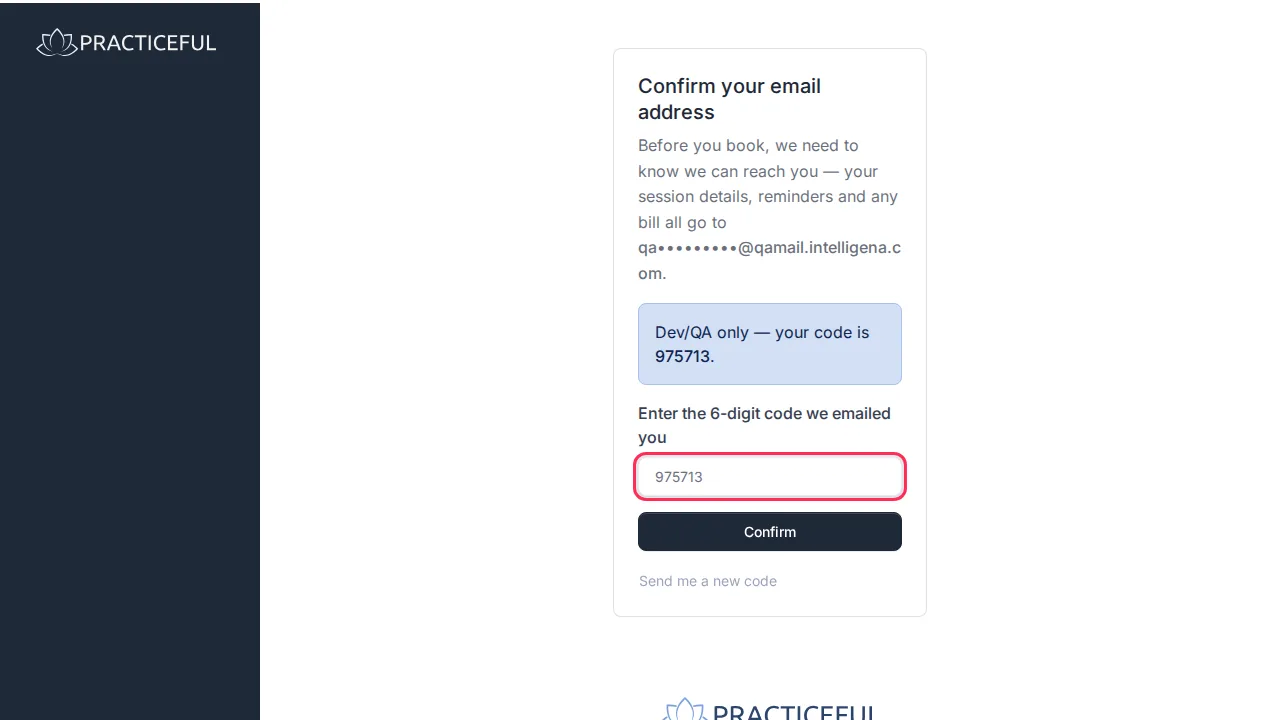
If your practice added you by hand and you have never opened one of their links, you may be asked to confirm your email address before you can book. The page is called Confirm your email address and shows (partly hidden) the address your practice holds for you.
- Press Email me a code. A 6-digit code is sent to that address.
-
Type the code into Enter the 6-digit code we emailed you.
-
Press Confirm. You see Thanks — your email address is confirmed. and can carry on booking.
The code can only go to the address your practice holds. If it is not your address, ask your practice to update it. If the code does not arrive, press Send me a new code.
Sign in to your account
- Go to the sign-in page and enter your Email and Password.
- Press Sign in. (The button becomes available after the page's automatic spam check finishes.)
-
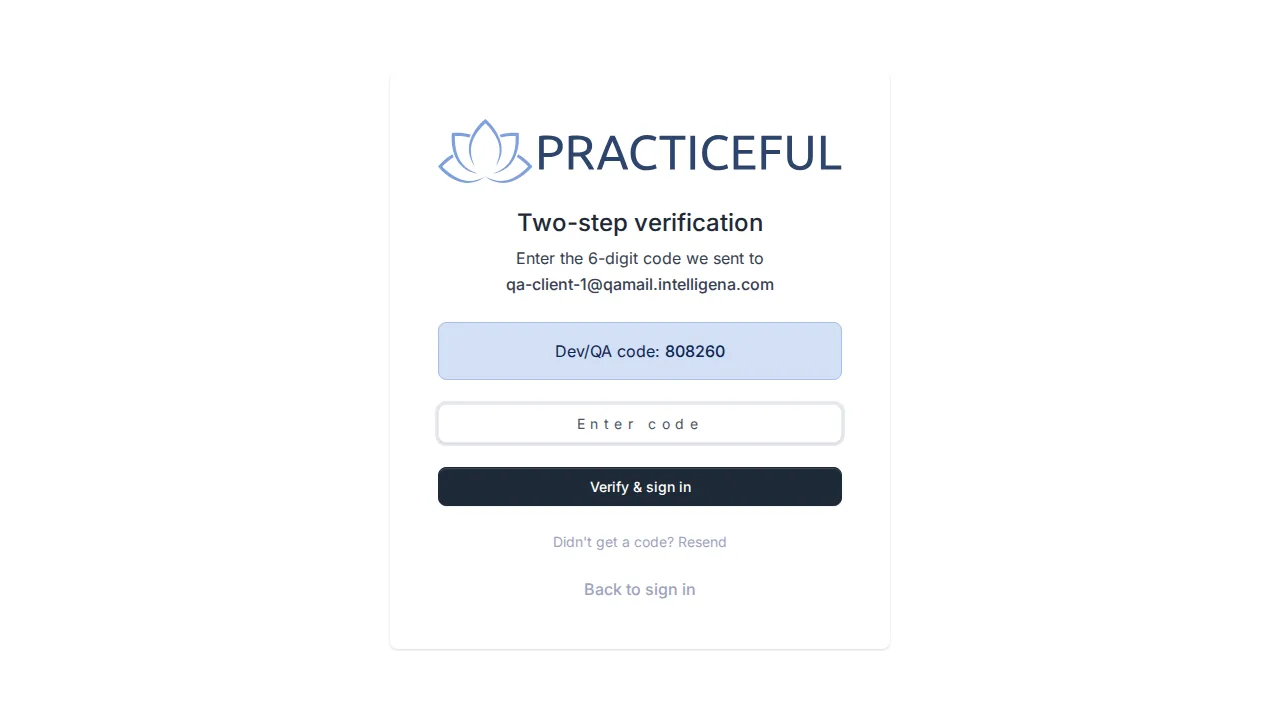
If you have turned on two-step verification, enter the 6-digit code and press Verify & sign in.
-
If your practice needs you to fill in a form before you carry on, it opens straight away with Please complete this form to continue. Complete it — see Forms.
-
You reach your dashboard, headed with your practice's name. It shows Next best actions, My sessions and Unpaid invoices.
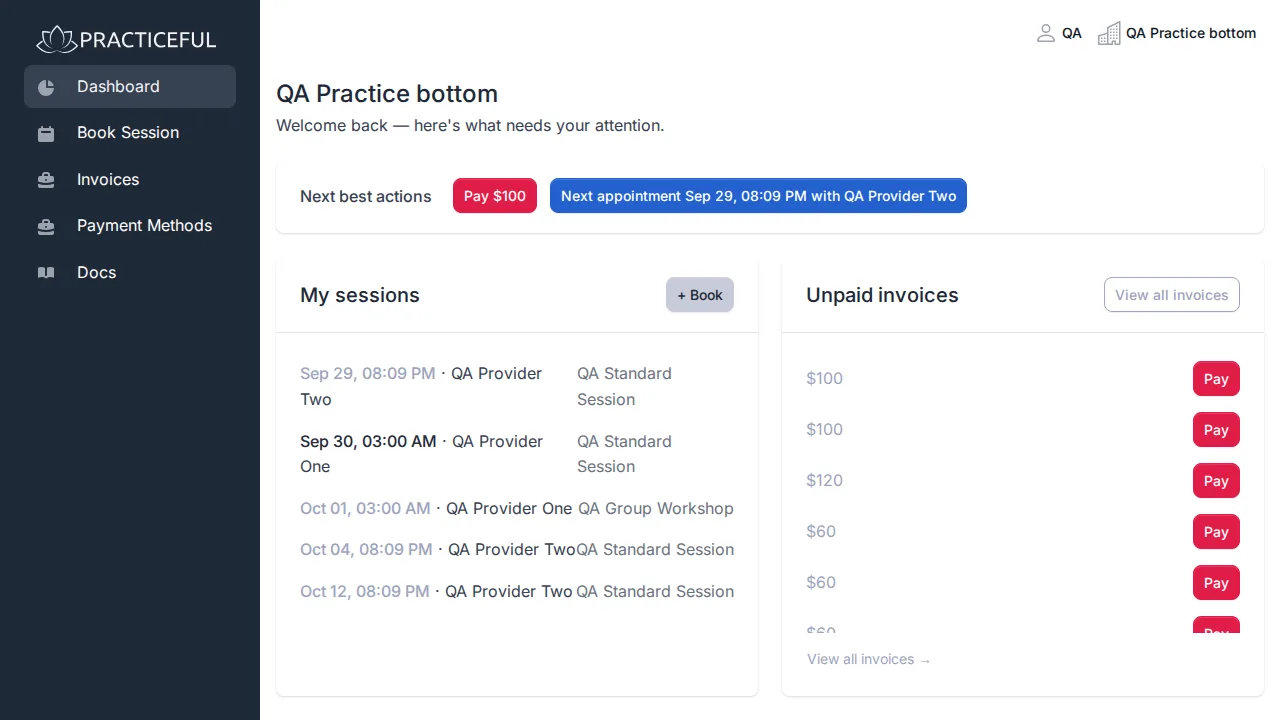
The menu on the left has Dashboard, Book Session, Invoices and Payment Methods. For more about signing in, including a lost password, see Signing in.
Join a session someone forwarded to you
Some sessions — a group or workshop, for example — let people sign themselves up. If someone sends you the link to one, you can take a place without an account.
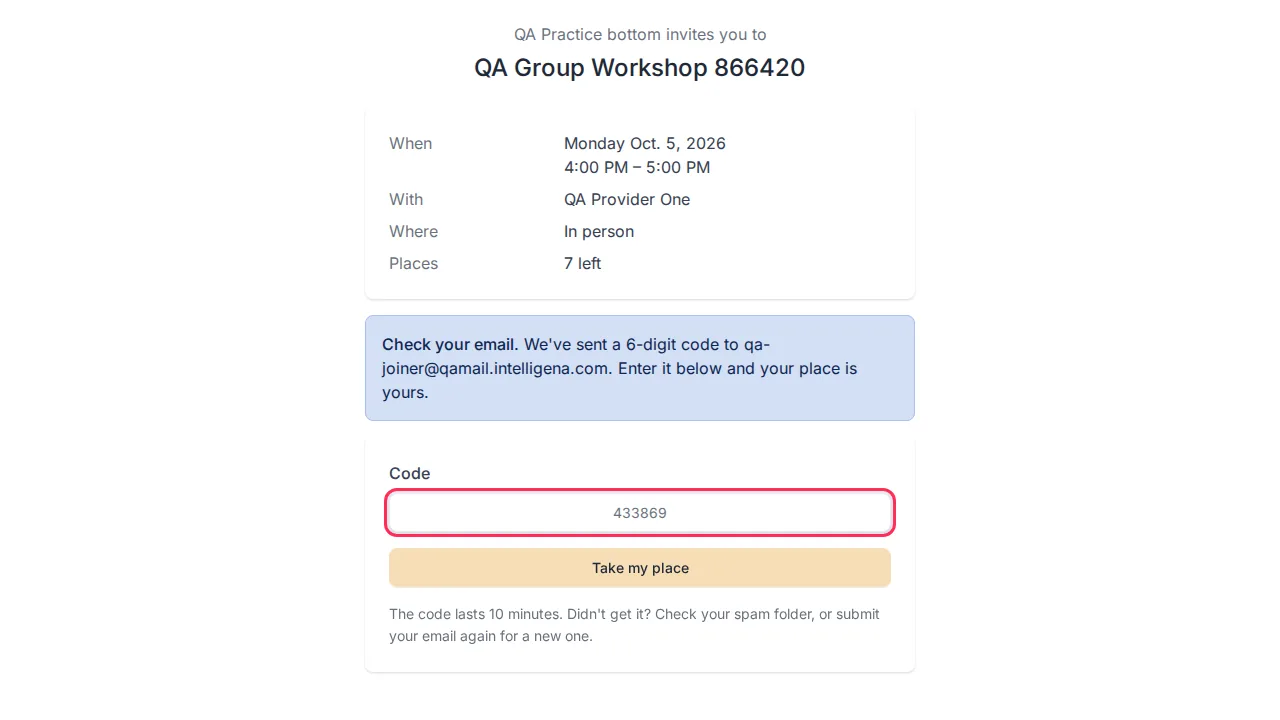
- Open the link. Join a Session shows the session, the date and time, the provider, whether it is online or in person, and how many places are left.
- Under Join this session, enter your First name and Email.
-
Press Email me a code. You see Check your email. and a 6-digit code is sent to you.
-
Enter the Code and press Take my place. You see You're on the list. Your place is saved, and you are added as a client of the practice.
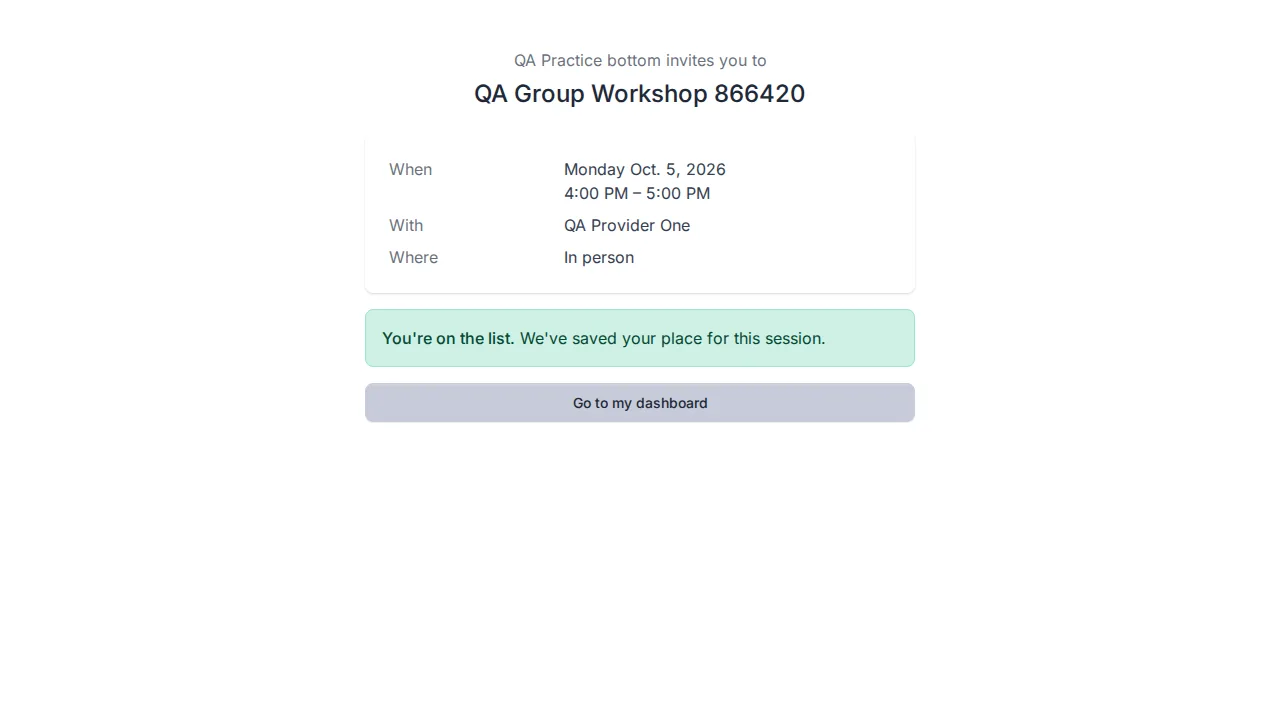
The code lasts 10 minutes. If you are already registered with the practice, press Sign in on that page to join straight away.
When a link has stopped working
Links from your practice do not last for ever, and your practice can withdraw them.
-
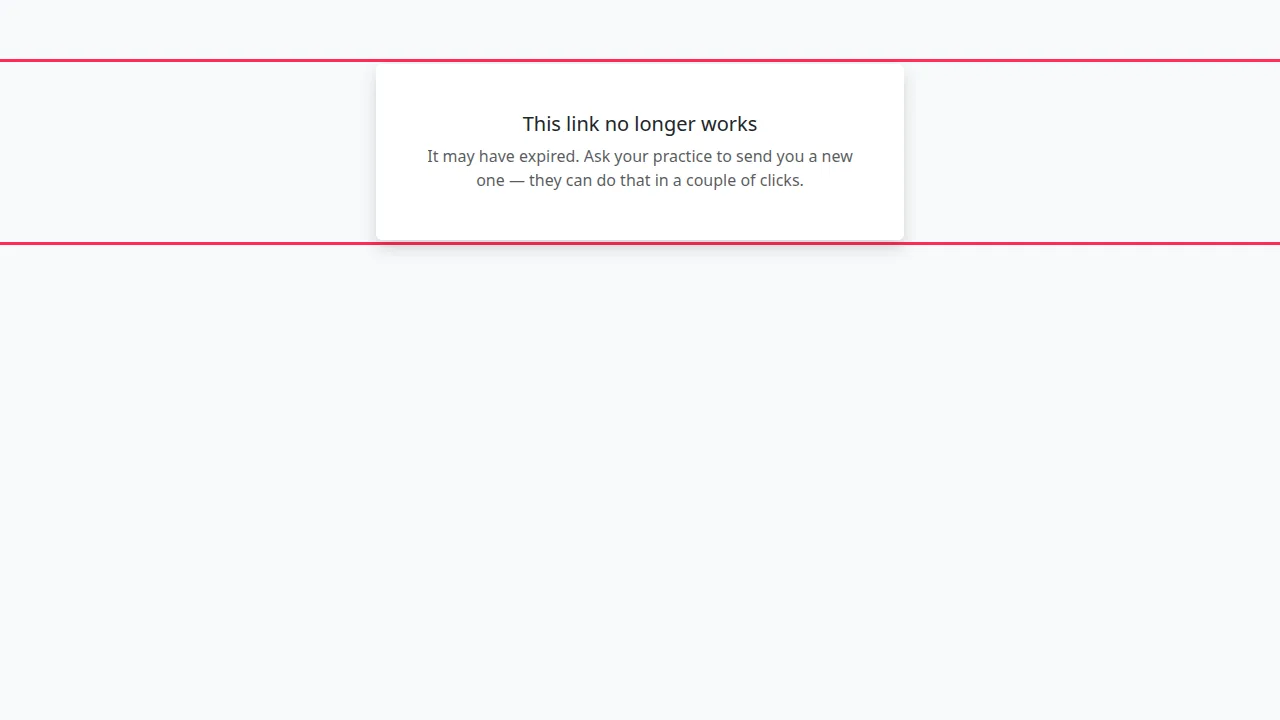
If you open an old link, you see This link no longer works, with It may have expired. Ask your practice to send you a new one — they can do that in a couple of clicks.
-
If you open a booking link that has already been used, you see Booked and the session it booked, with We have emailed you the details. To change this time, contact your practice, and their contact details.
-
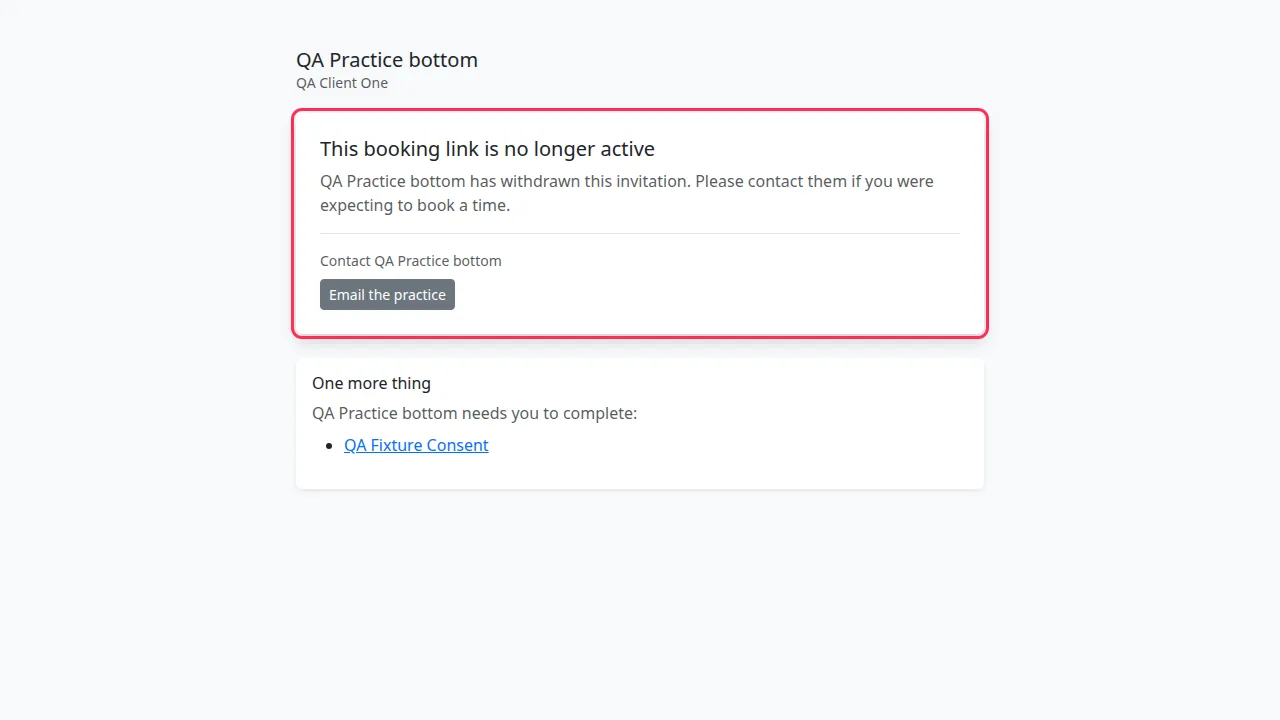
If a booking link has expired or been withdrawn, you see This booking link is no longer active, which says which of the two happened, and your practice's contact details.
If something goes wrong
| You see | What it means | What to do |
|---|---|---|
| This link no longer works | The link has expired, or has been replaced or withdrawn | Ask your practice to send you a new one. |
| This booking link is no longer active — This invitation has expired. | A booking invitation ran out before you used it | Contact your practice; they can send a new one. |
| This booking link is no longer active — has withdrawn this invitation | Your practice withdrew the booking invitation | Contact your practice if you expected to book. |
| That code doesn't match. Please check and try again. | The code was typed wrongly | Check the latest email and try again. |
| That code has expired. Ask for a new one below. | The code is too old | Press Send me a new code. |
| Too many attempts. Please wait a minute. | Several wrong codes in a row | Wait a minute, then try again. |
| This session is full. | Every place has been taken | Contact the practice to hear about the next one. |