Set up your practice
The first time you sign in to a new account, Practiceful asks for a few details before it opens your dashboard. This page walks through each screen you may meet. You become the practice's manager, which lets you invite staff, set up services and bill clients.
Before you start
- You have created your account and confirmed your email address — see Create your account.
- Keep your mobile phone to hand in case you are asked to confirm it.
Name yourself and your practice
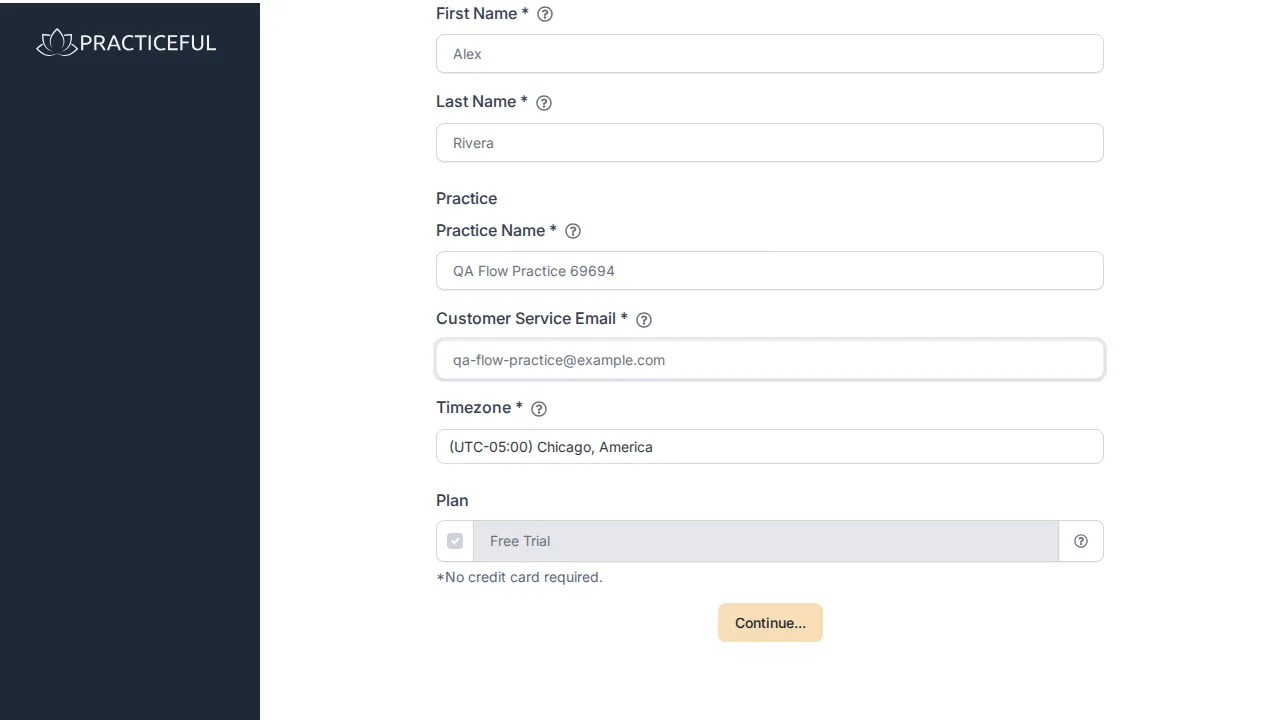
- Sign in. The Setup your account... page opens.
- Under Your Info, enter your First Name and Last Name.
- Under Practice, enter the Practice Name and the Customer Service Email clients should use to reach the practice.
- Check the Timezone. It is filled in from your computer's timezone; change it if your practice works in a different one.
-
Plan shows Free Trial — No credit card required.
-
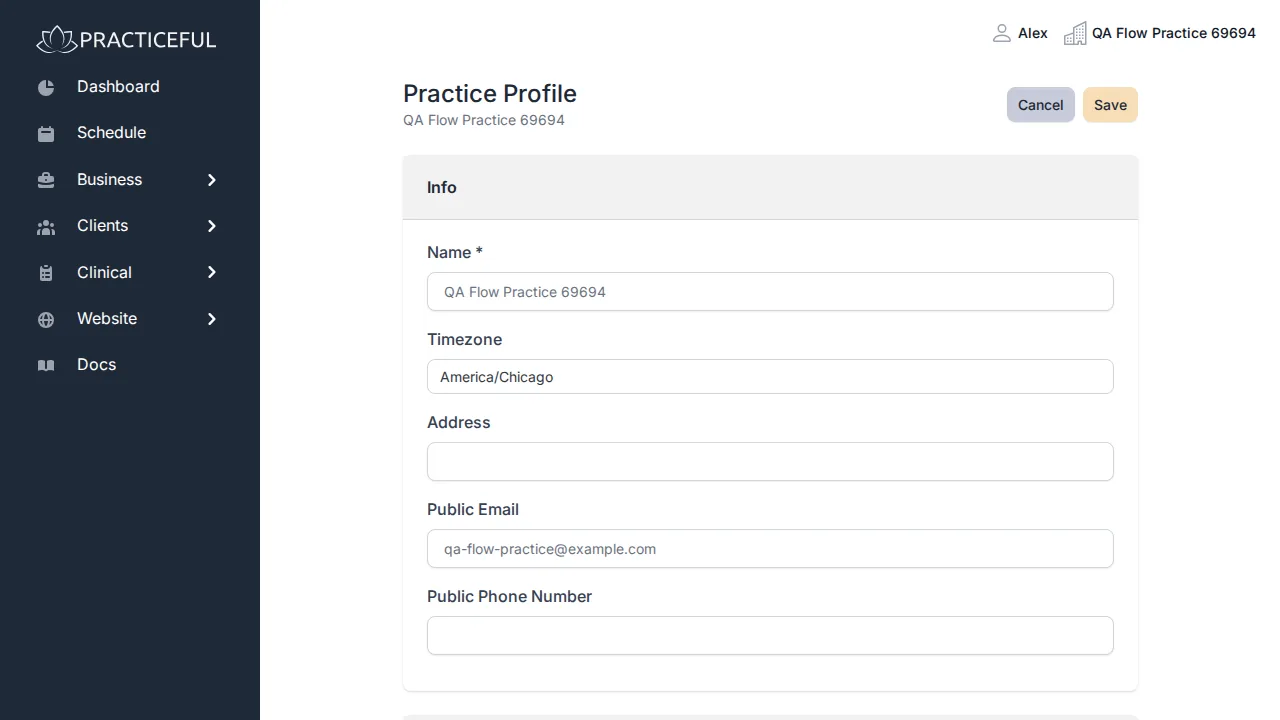
Press Continue.... Your practice is created, you are its manager, and your dashboard opens.
Prove a real person is behind the practice
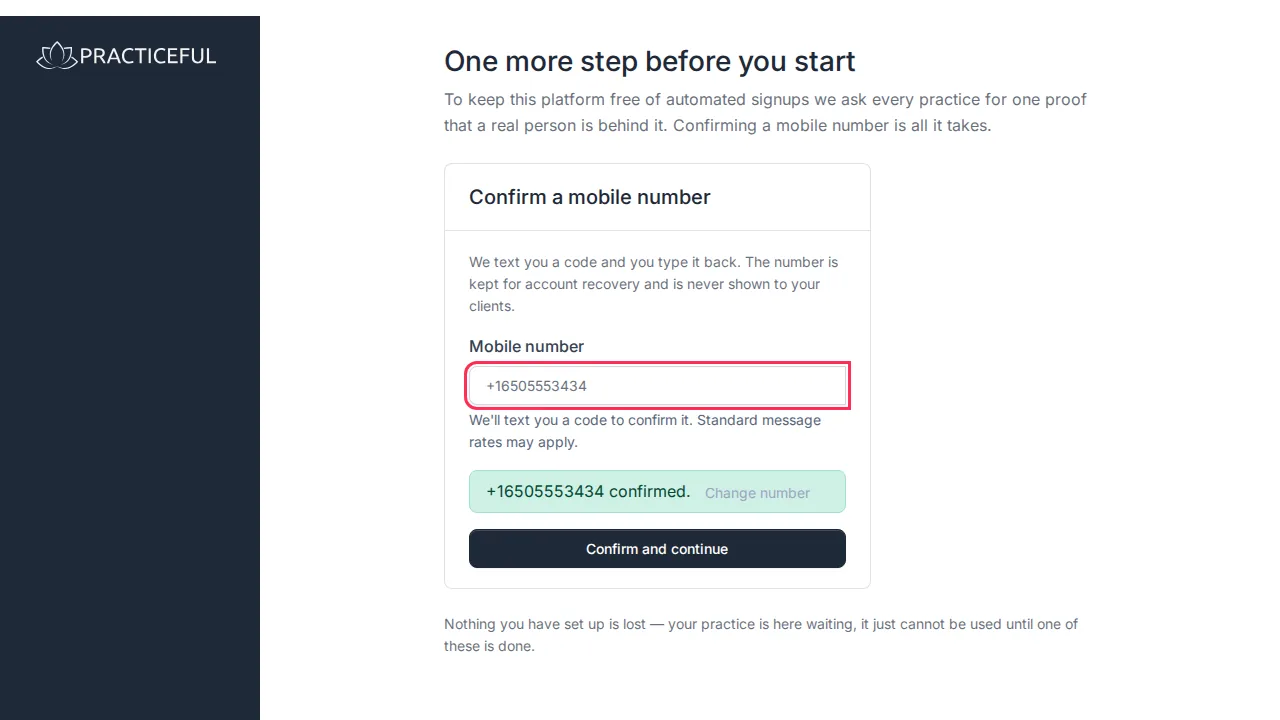
Every practice needs one proof that a real person runs it before it can be used. If you confirmed your mobile number when you signed up, that already counts and you will not see this screen. Otherwise, One more step before you start opens in front of every practice page until you finish it:
- Under Confirm a mobile number, enter your Mobile number and press Send code.
-
Type the code you are texted. The form says Number confirmed.
-
Press Confirm and continue. You see Thanks! Your mobile number is confirmed and your practice is ready. and your dashboard opens.
The number is kept for account recovery and is never shown to your clients. Nothing you have set up is lost while this step is outstanding.
When the page also shows Start a paid plan instead, you can press Choose a plan and pay by card instead — a card payment that clears is the other accepted proof. While Practiceful is onboarding by invitation, a confirmed mobile number is the only option.
Confirm your timezone
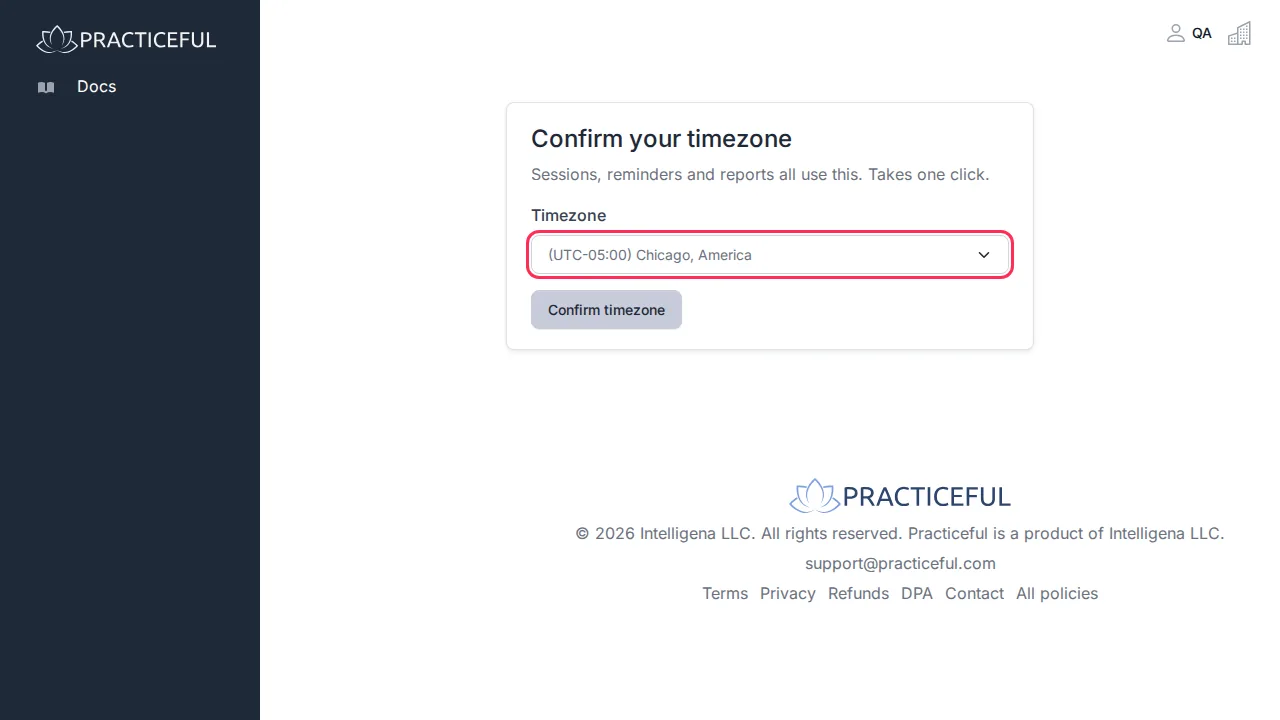
If your timezone has not been confirmed yet, you are asked once:
- The Confirm your timezone page says sessions, reminders and reports all use it.
-
Choose your Timezone.
-
Press Confirm timezone. The dashboard opens and you are not asked again.
If something goes wrong
| You see | What it means | What to do |
|---|---|---|
| Enter your mobile number and confirm the code we text you, then press Confirm. | Confirm and continue was pressed before the number was confirmed | Press Send code, type the code, wait for Number confirmed., then press Confirm and continue. |
| Your number was confirmed but we could not record it against this practice. Please contact support. | The confirmation worked but was not saved to the practice | Contact support from the Contact page. |
| Phone confirmation is not available on this deployment. Please contact support. | The site cannot send a confirmation text right now | Contact support, or use Choose a plan if it is offered. |