Client onboarding
A client has onboarded when they have confirmed how to reach them and completed the forms you give to every new client. This page is for practice managers and staff who can edit clients: you will see who is still onboarding and send them a reminder email.
By default nothing is blocked while a client onboards. You can book, bill and see anyone the moment you add them. To change that, see Decide how strictly clients must onboard.
See who has not onboarded
Each client's onboarding status is one of Not contacted, Invited, Forms pending or Onboarded. You see it on the client list and on the client's chart. Unless you have turned it off, the dashboard also shows an alert naming clients who have not onboarded.
Remind a client
Before you start
- The client's onboarding is not complete. The reminder is only offered until it is.
- The client has an email address on file.
-
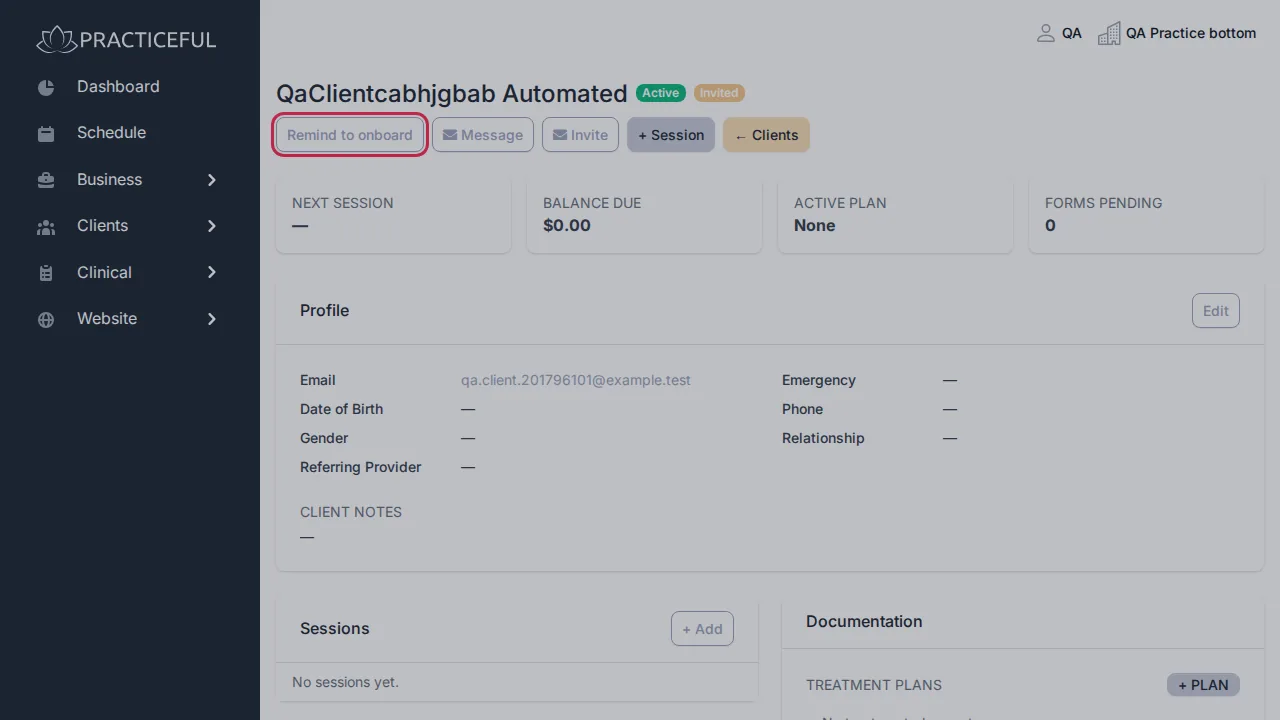
Open the client's chart and press Remind to onboard. From the client list you can instead open the row's actions menu (the ⋮ button at the right-hand end of the row) and choose Send reminder.
-
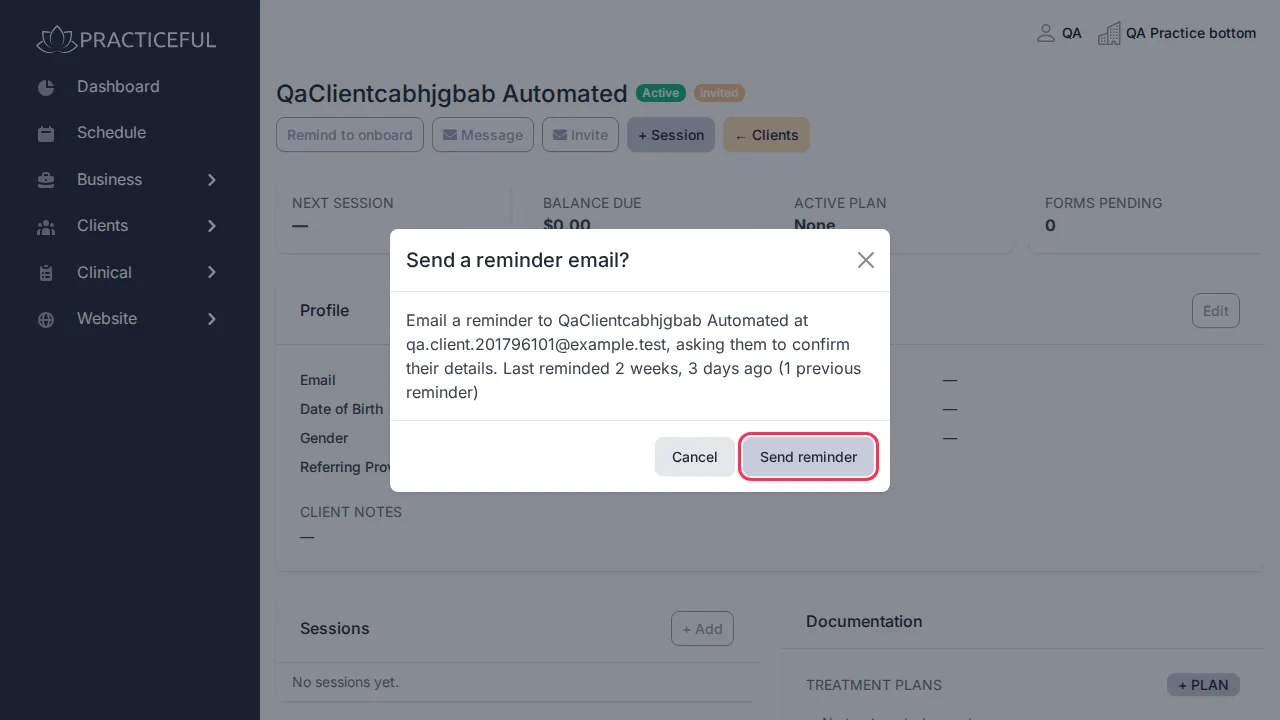
A dialog, Send a reminder email?, names the client and the exact address the email will go to, and says when they were last reminded — for example They have not been reminded before. Check the address.
-
Press Send reminder. You see Reminder sent to [address].
Nothing is sent until you press the button in the dialog.
Change your mind
- Open the reminder dialog as above.
-
Press Cancel, press Esc, or click outside the dialog.
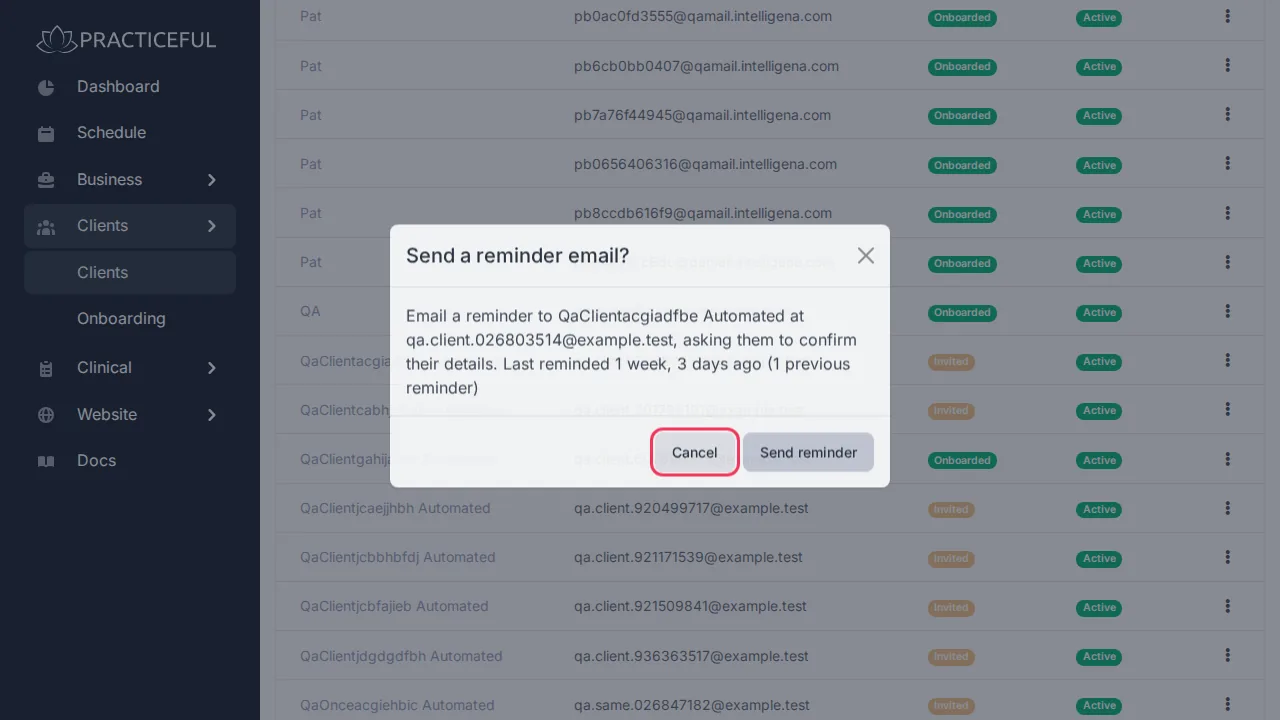
No email is sent, and the reminder is still there to use later.
If something goes wrong
| You see | What it means | What to do |
|---|---|---|
| You already reminded [client] a moment ago — nothing was sent. Try again in a minute if that was deliberate. | The same reminder was sent less than a minute ago | Nothing, unless you meant to send it twice — then wait a minute and send again. |
| We could not send that reminder just now. | The email could not be sent | Try again later, and check the client's email address. |
| No reminder button | The client has already onboarded, or you cannot edit clients | Nothing to do, or ask a practice manager. |
Related
- Services — onboarding settings
- Forms — the forms new clients receive
- Booking links — invite a client to choose a time