Sessions and notes
Each session in your calendar has its own screen. This page is for providers, and for managers who sign off notes. From the session screen you mark the session complete, write a progress note, code it for the client's superbill, record the session and produce a summary, and email that summary to the people who were there.
To open a session, press Schedule in the sidebar and press the session on the calendar. The session screen shows the service name, the status, the date and time, and buttons across the top.
Record a session so it can be billed
Before you start
The session has taken place, with one of your clients.
-
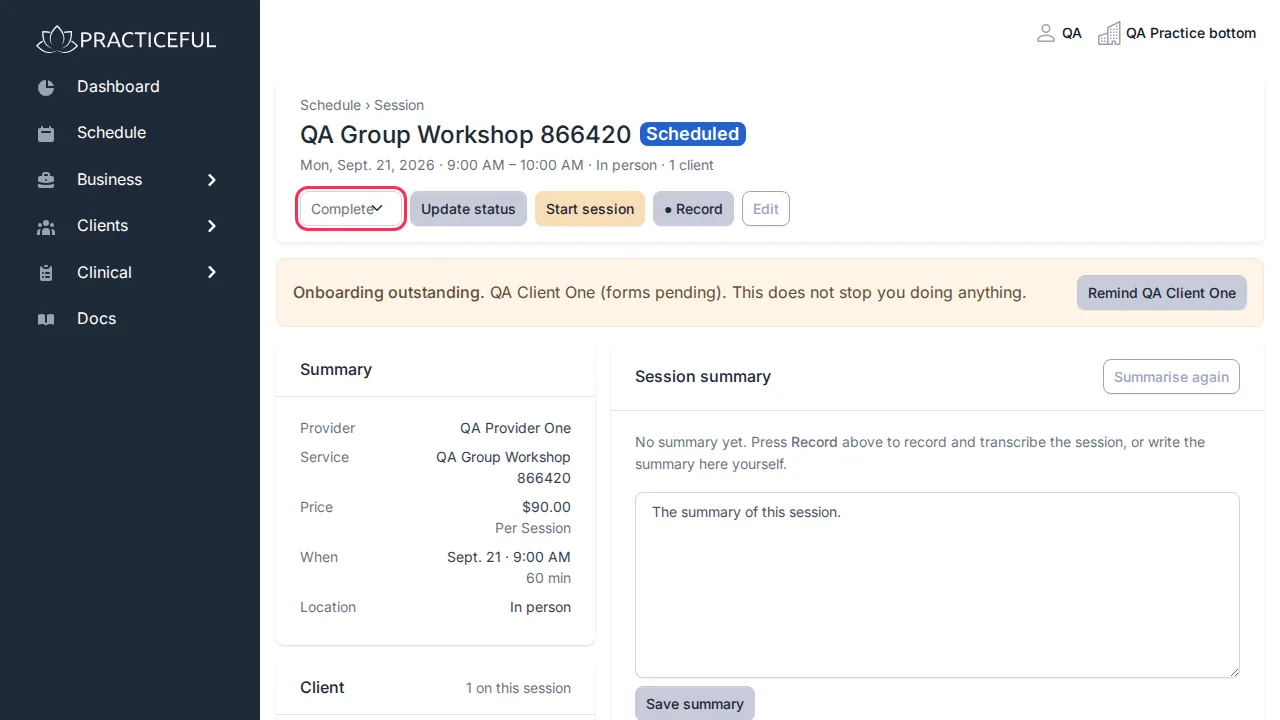
At the top of the session, choose Complete from the status list and press Update status.
-
In the Client documentation card, under the client's Notes, press + Note. New Progress Note opens. The note is filed against this session.
- Write the note. To start from one of your note templates, choose it under Start from a template and press Apply template first — see Treatment plans and templates.
-
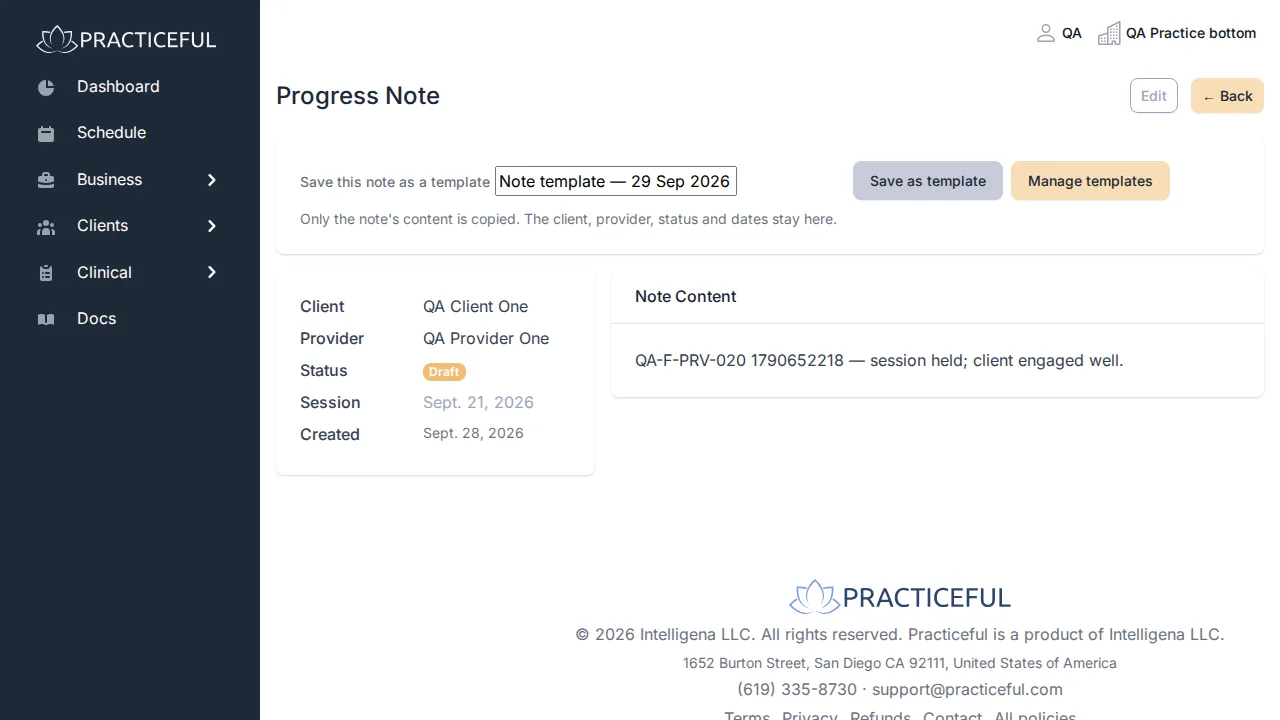
Press Save. The saved Progress Note opens.
-
Press the back button at the top of the note to return to the session.
-
In the Superbill coding card, enter the CPT procedure code (and, if you use them, Modifiers, Place of service and ICD-10 diagnosis codes). Press Save coding.
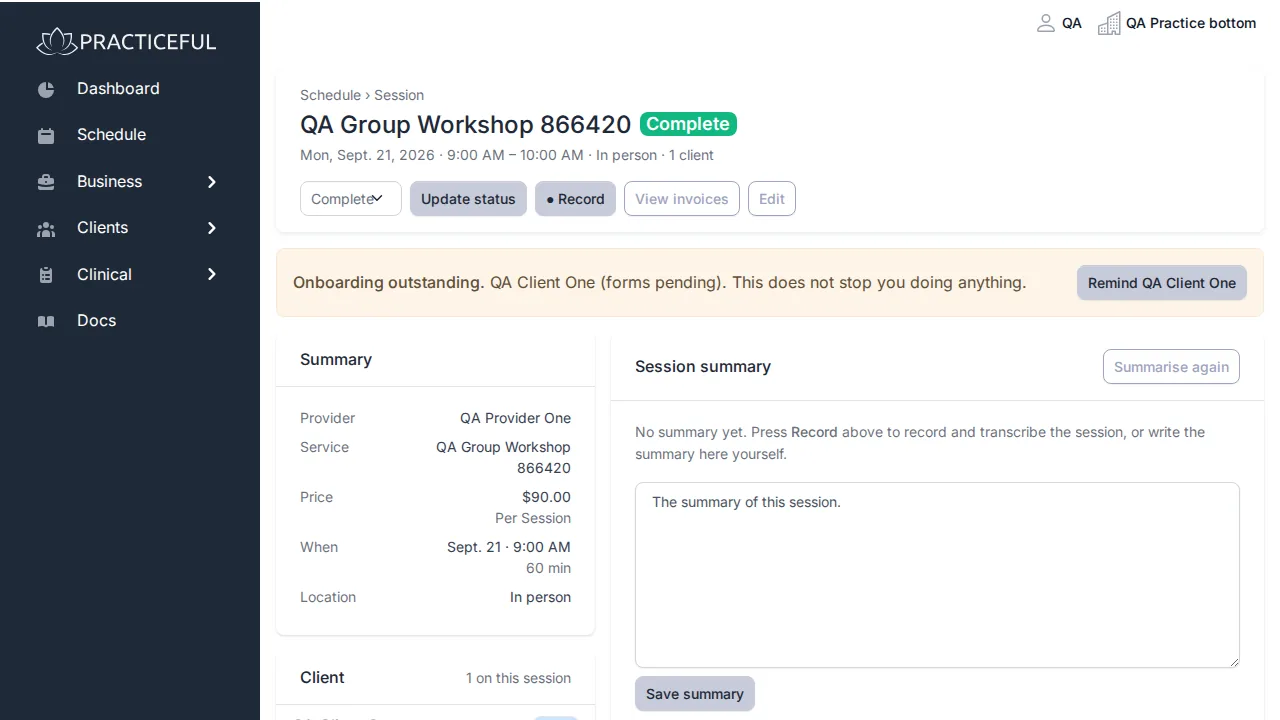
The session is now recorded and coded. The coding feeds the client's superbill — see Client charts. Once a session is Complete, View invoices appears at the top of the session.
Status choices are Scheduled, Confirmed, In Progress, Cancelled, No Show and Complete.
Record the session and get a summary
You can record a session in your browser, have it transcribed, and have a summary written from the transcript for you to proof-read.
Before you start
- You can edit the schedule. Record only appears if you can.
- Your computer has a microphone and your browser is allowed to use it.
- Transcription needs the speech model to be installed for your practice's server. If it is not, the recording dialog says Transcription is not available on this server yet — you can still record and write the summary yourself.
-
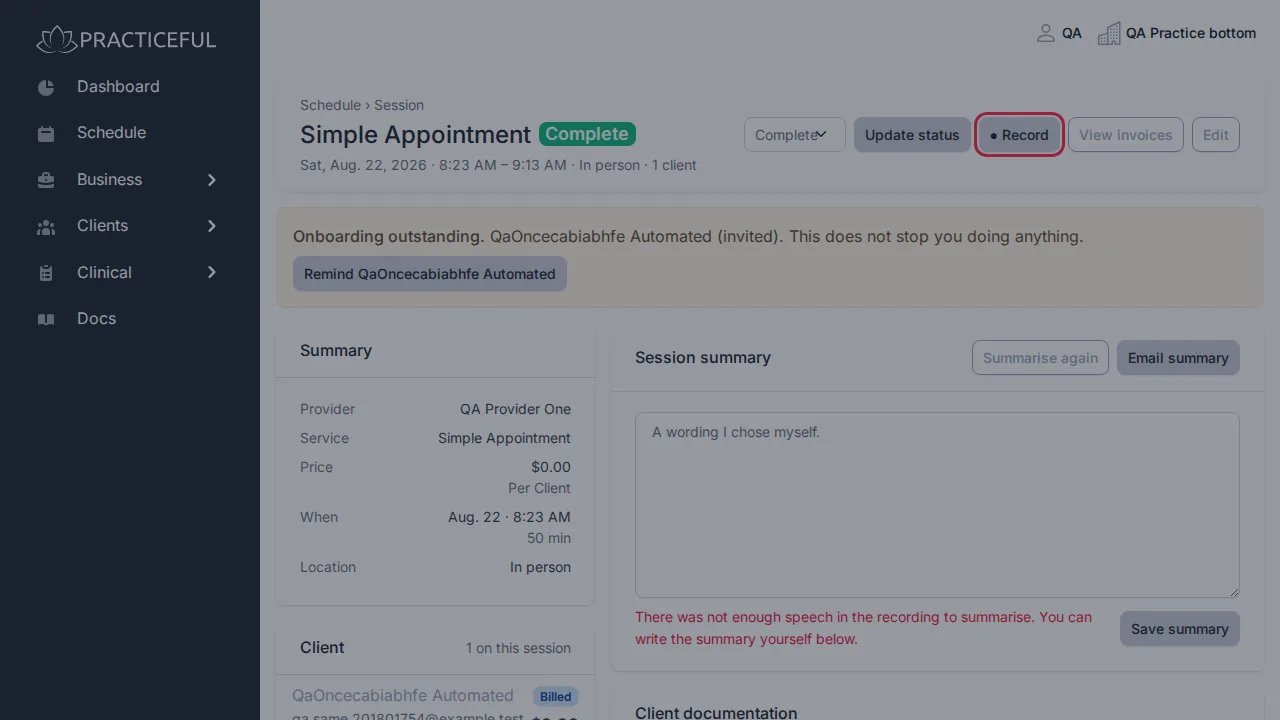
Press ● Record at the top of the session. Record this session opens.
-
Leave Transcribe this recording and Summarise it and save it as the session summary ticked. A summary needs a transcript, so the second is unavailable while the first is off.
-
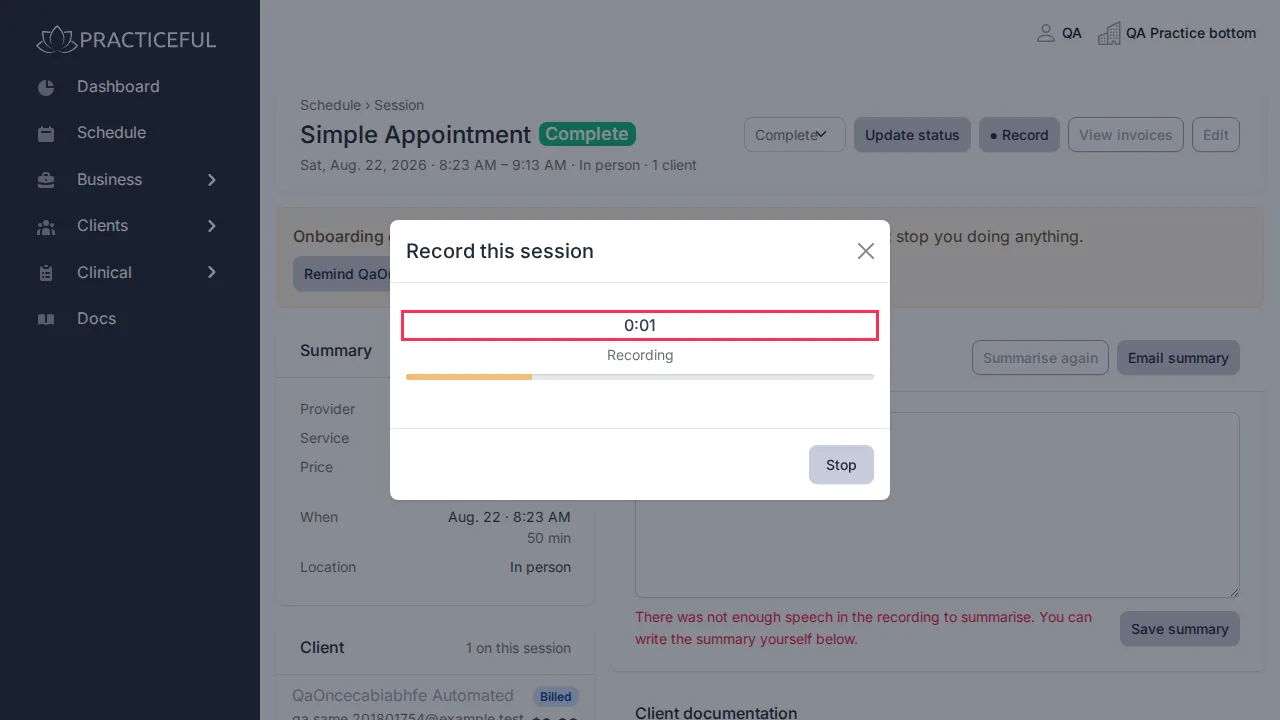
Press Start recording. Your browser asks for the microphone; allow it. The timer counts up while you record.
-
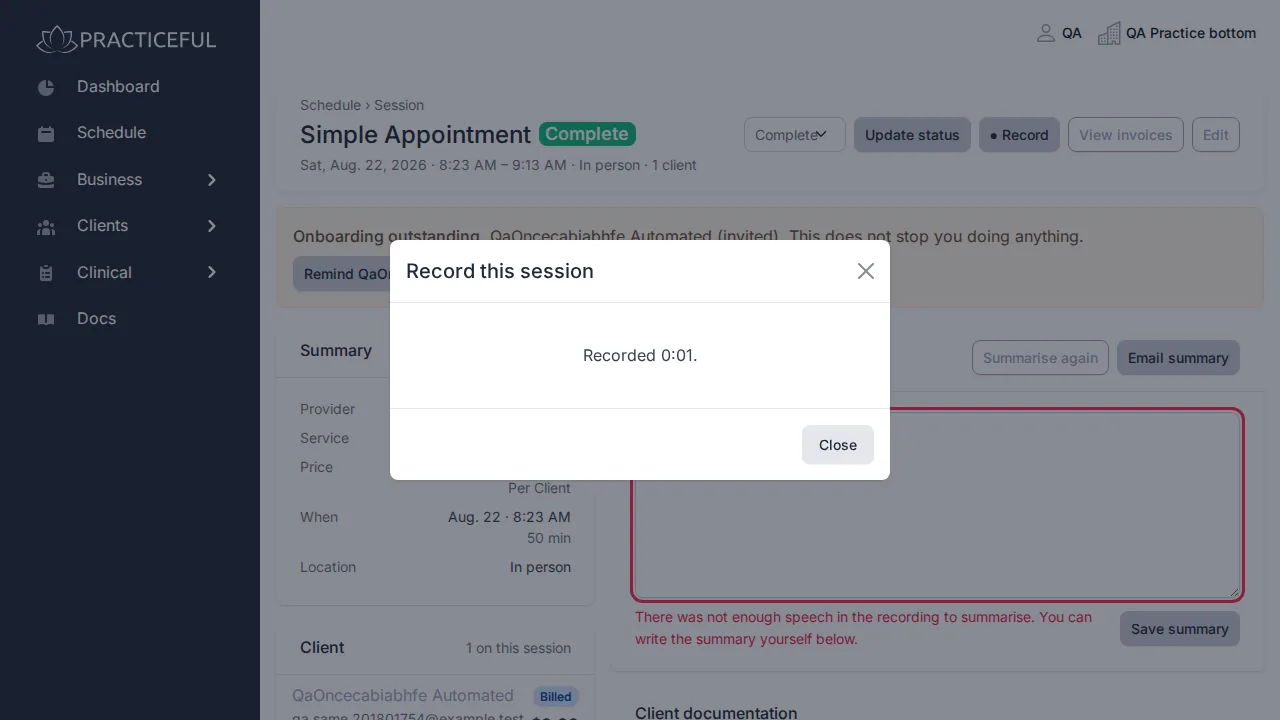
Press Stop when the session ends. The dialog reports how long you recorded, and whether the transcript was saved and the summary is being written.
-
Close the dialog. The Session summary card on the session fills in when the summary is ready, marked Written by AI from the session transcript — please read it before sending.
-
Read the summary and correct it in the box.
- Press Save summary. You see Summary saved. and the summary is marked Edited by you.
The recording is transcribed on your computer. The audio itself is never uploaded and is deleted when you stop. The first recording on a computer downloads the speech model once; the dialog tells you how large it is.
You can also write the summary yourself without recording: type it in the Session summary box and press Save summary. Summarise again rewrites the summary from the transcript; if you have already edited it, you are asked to confirm first.
Email the summary to the people who were there
Before you start
- The session has a summary. Email summary appears only once it does.
- At least one participant has an email address on file.
-
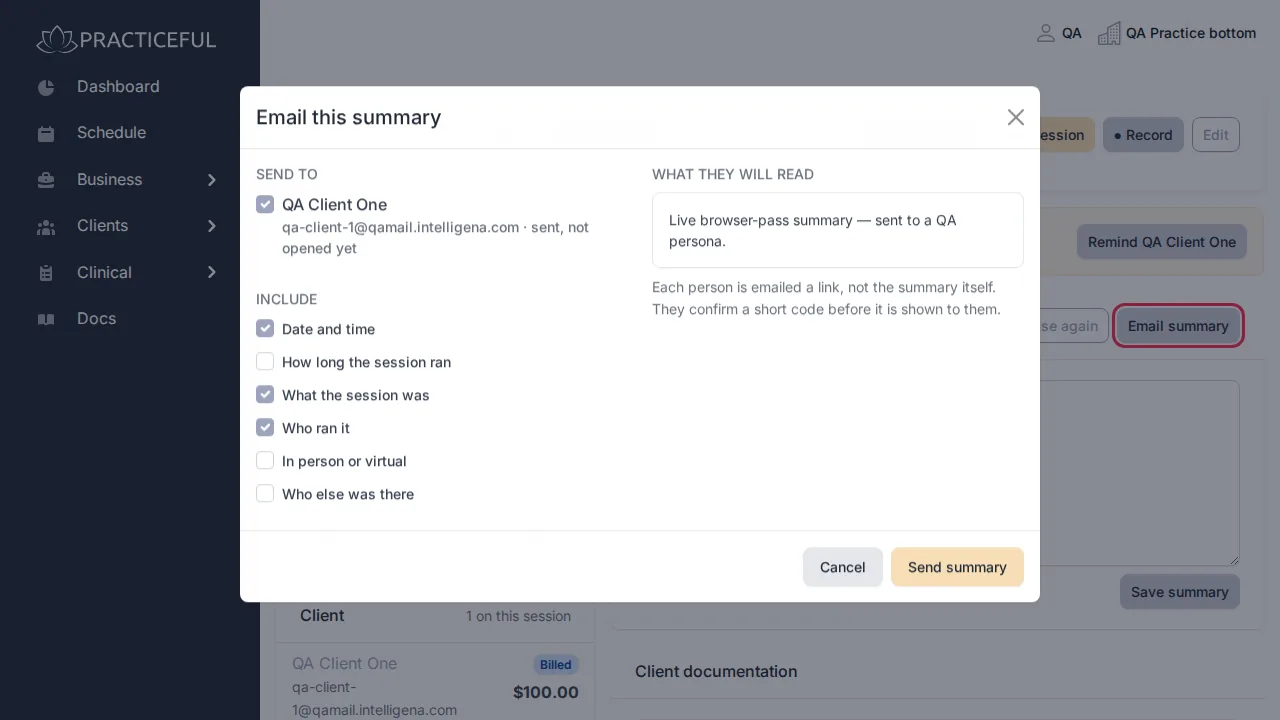
In the Session summary card, press Email summary. Email this summary opens.
-
Under Send to, tick the people to send it to. Anyone who cannot be emailed is still listed, with the reason, and cannot be ticked.
- Under Include, choose what to include. Who else attended is not included unless you tick it.
-
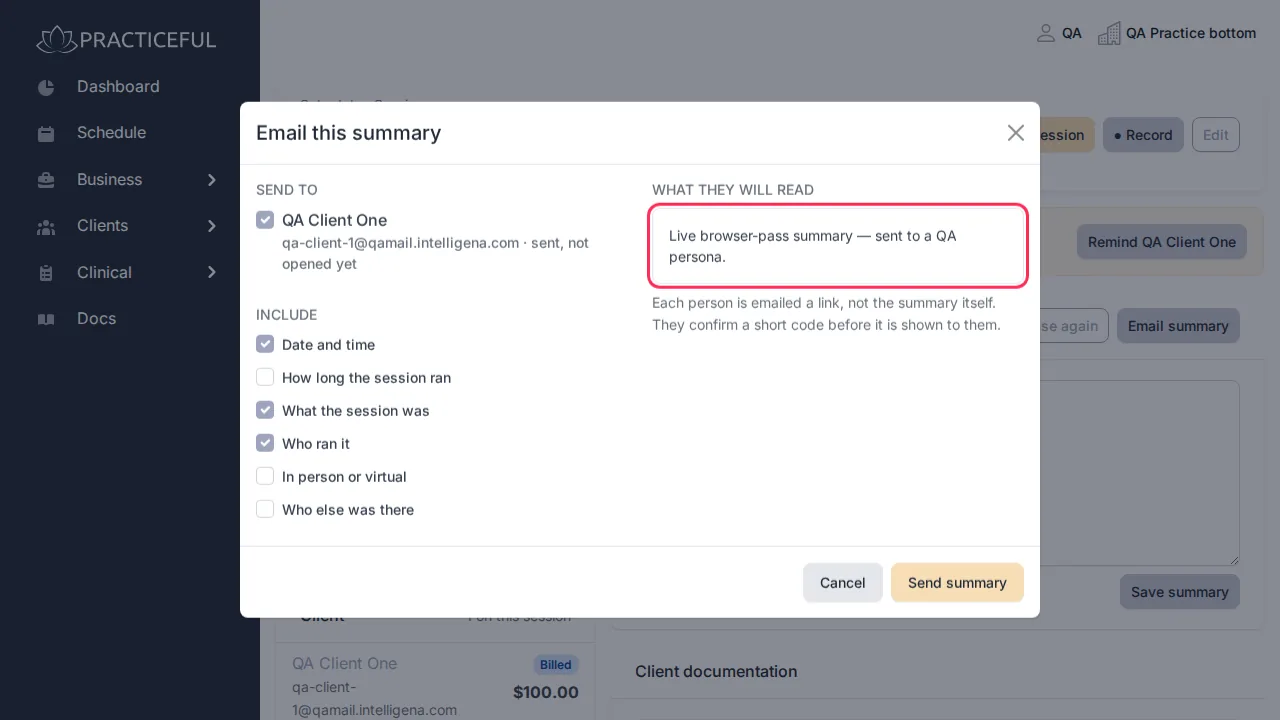
Read What they will read — this is the last look before sending.
-
Press Send summary. You see, for example, Summary sent to 1 person.
Each person is emailed a link, not the summary itself. They confirm a short code before it is shown to them — see Session summaries (for clients).
This is separate from the per-client Session summary boxes in Client documentation, which carry a Share this summary with the client tick box.
Sign off a note
A signed note is final. Signing needs permission to sign notes, which is a practice manager's capability; without it you do not see the button.
Before you start
The note is still a draft (unsigned).
-
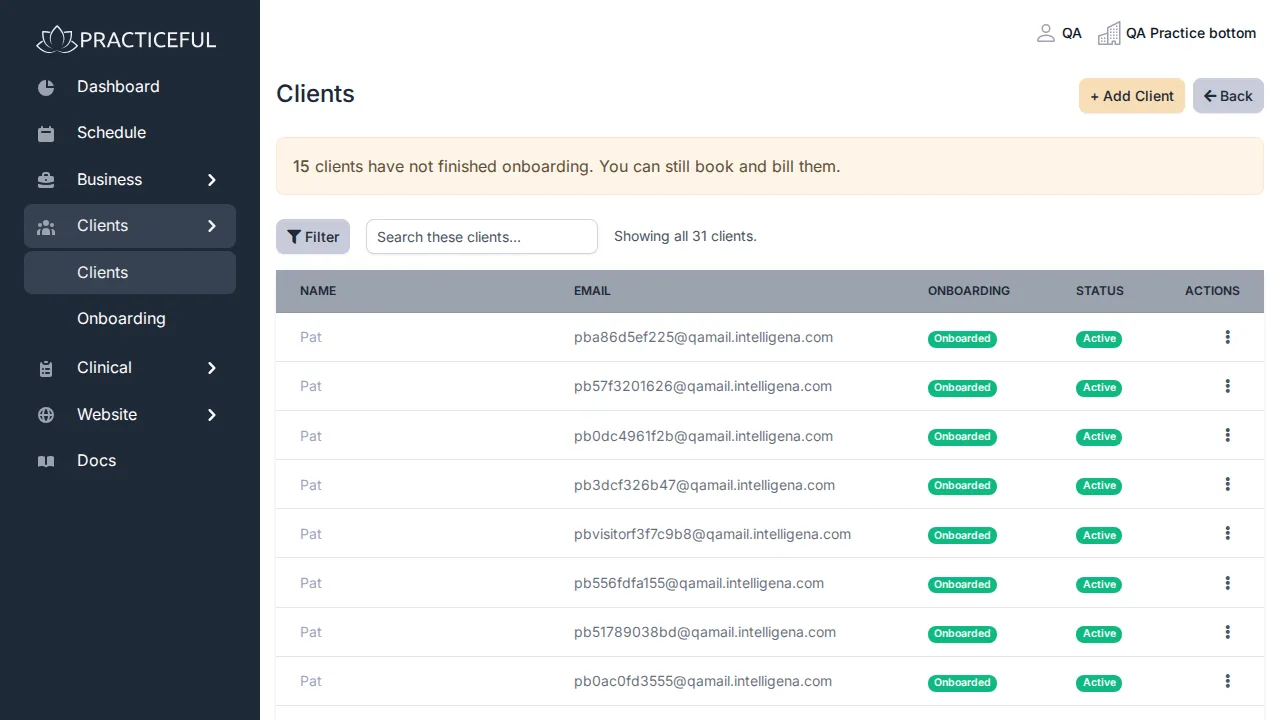
Open the client's chart and, in Documentation, press the note under Notes. Progress Note opens.
-
Press Sign & Finalize. A dialog asks Sign and finalize this note? This cannot be undone.
-
Press Sign & Finalize in the dialog to confirm. The note is signed.
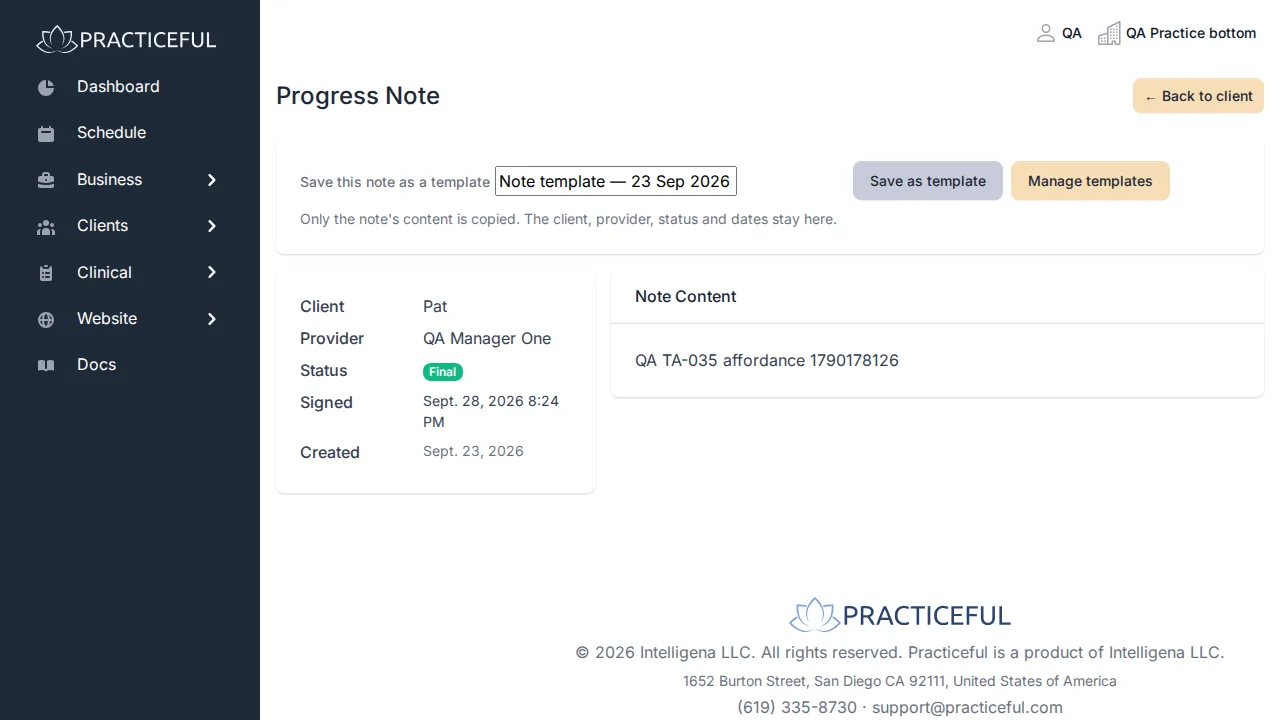
Once signed, the note no longer offers Edit or Sign & Finalize.
Correct a session's details afterwards
- On the session, press Edit. Edit Session opens with the session's current details.
- Change what you need — for example the Notes.
- Press Save. You return to the session, which shows your change.
Cancel leaves without saving; it does not delete the session.
If your change puts the session on top of another session for the same provider, the form tells you so and asks you to save again to keep it.
If something goes wrong
| You see | What it means | What to do |
|---|---|---|
| Transcription is not available on this server yet — the speech model has not been installed. You can still record and write the summary yourself. | Transcription is not set up | Record and type the summary yourself, or ask your practice manager. |
| Transcription stopped working, so there will be no transcript. The session is still being recorded. | The transcript failed; the recording carries on | Keep going and write the summary yourself. |
| Waiting for you to allow the microphone… | The browser is asking for the microphone | Allow it in the prompt at the top of the window. |
| Your transcript box after stopping | The transcript could not be saved, but it is still in this tab | Copy the text before closing the page. |
| Choose at least one person to send this to. | Nobody is ticked under Send to | Tick at least one person. |
| The summary could not be emailed. Nobody has been sent it — please try again. | The send failed for everyone | The dialog stays open with your choices; press Send summary again. |
| Sent to … . … could not be emailed. | Some people were sent it and some were not | Check the addresses of those who were not. |
| This provider already has a session at that time (…). Save again to book it anyway. | The edited session overlaps another | Change the time, or press Save again to keep the overlap. |
| Notes and treatment plans need clinical-records access. | Your role does not include clinical records | Ask your practice manager. |