Services
A service is something your practice delivers and schedules — an intake, a 50-minute session, a group workshop. Each service has one or more lengths, each with its own price. This page is for practice managers: you will add services, change what they cost and how long they run, and choose which of them clients can book on their own.
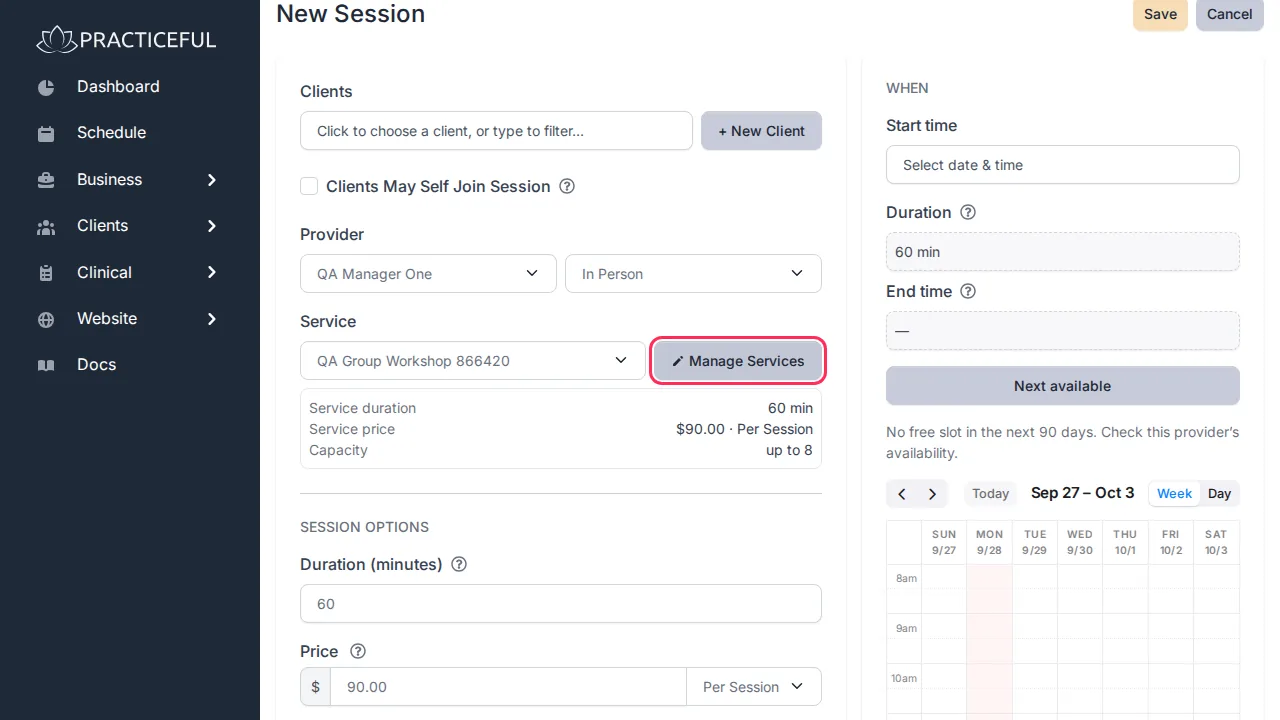
The Services screen is at /schedule/services/. You reach it from the session form:
on New Session, press Manage Services next to the service picker.
Before you start
- You are signed in as a practice manager, or as staff allowed to edit the schedule.
- Every practice has one built-in service. You can change its details, but it cannot be deleted or switched off — it is the fallback that means you always have something to schedule.
Add a service
-
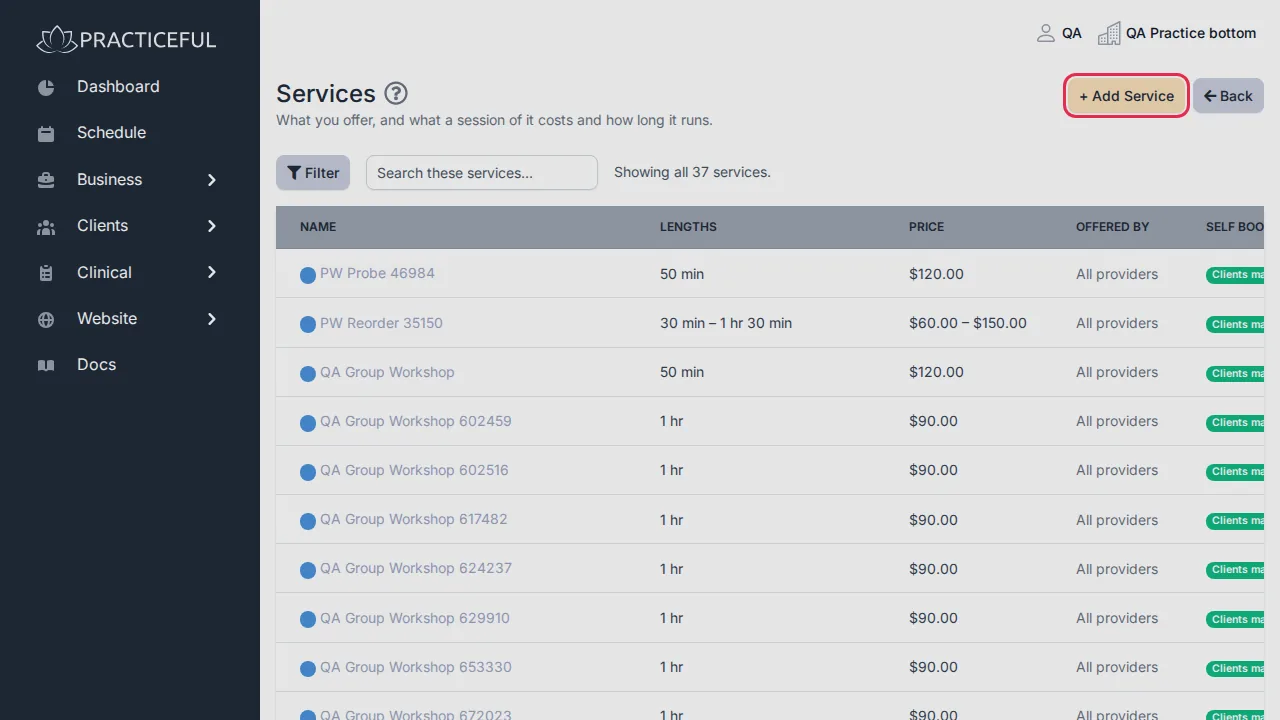
On Services, press + Add Service. If the practice has no services yet, the empty list shows its own add button instead; both open the Add a service dialog.
-
Type the service's Name, and fill in its Lengths and prices.
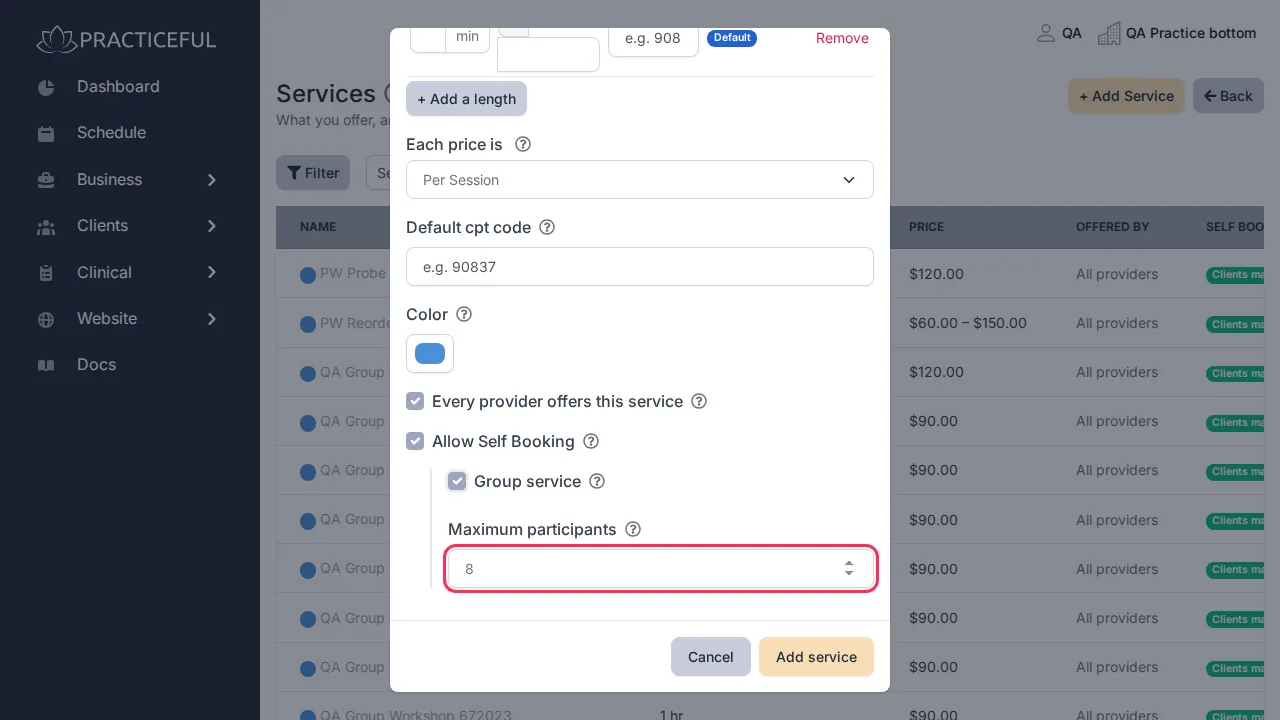
- To let clients book this service themselves, tick Allow Self Booking. Two more options appear inside it.
- For a service several clients attend at once, tick Group service. Until you do, Maximum participants is disabled and fixed at 1.
-
Enter Maximum participants, then press Add service.
The new service appears in the grid. Its Self booking column reads Clients may book or Staff only. If something you entered cannot be saved, the dialog reopens with the problem shown, rather than closing.
Staff can always book any service. Allow Self Booking answers one question only: may a client book it on their own?
Change a service's length or price
- On Services, open the row's actions menu (the ⋮ button at the right-hand end of the row) and choose Edit service. You can also click the service's name.
-
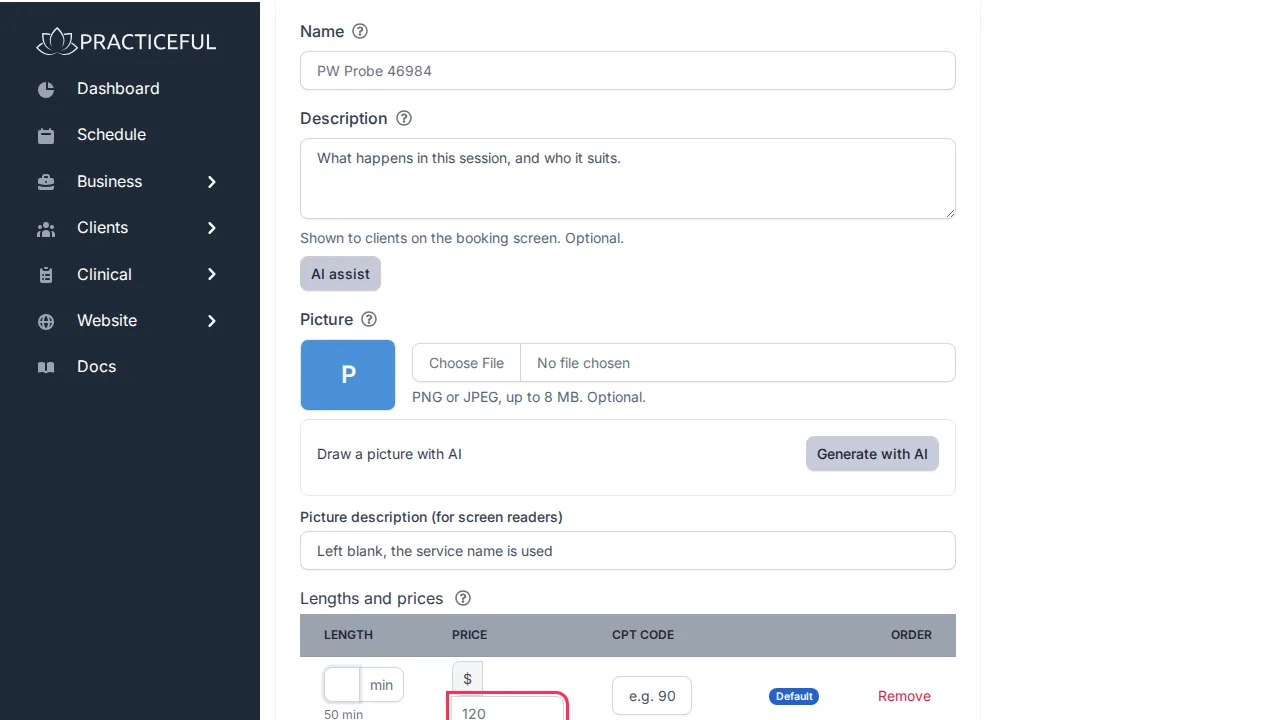
On Edit service, change the length in minutes and the Price for that length.
-
Press Save. There is a Save button in the title bar and another at the bottom of the form; both do the same thing.
The grid shows the new length and price.
Changes reach future sessions only
If the service is already in use, Edit service says so: This service is used by existing sessions. Changing its duration or price affects only sessions scheduled from now on — sessions already booked keep the values they were created with.
Let clients book an existing service
- Open the service's Edit service screen as above.
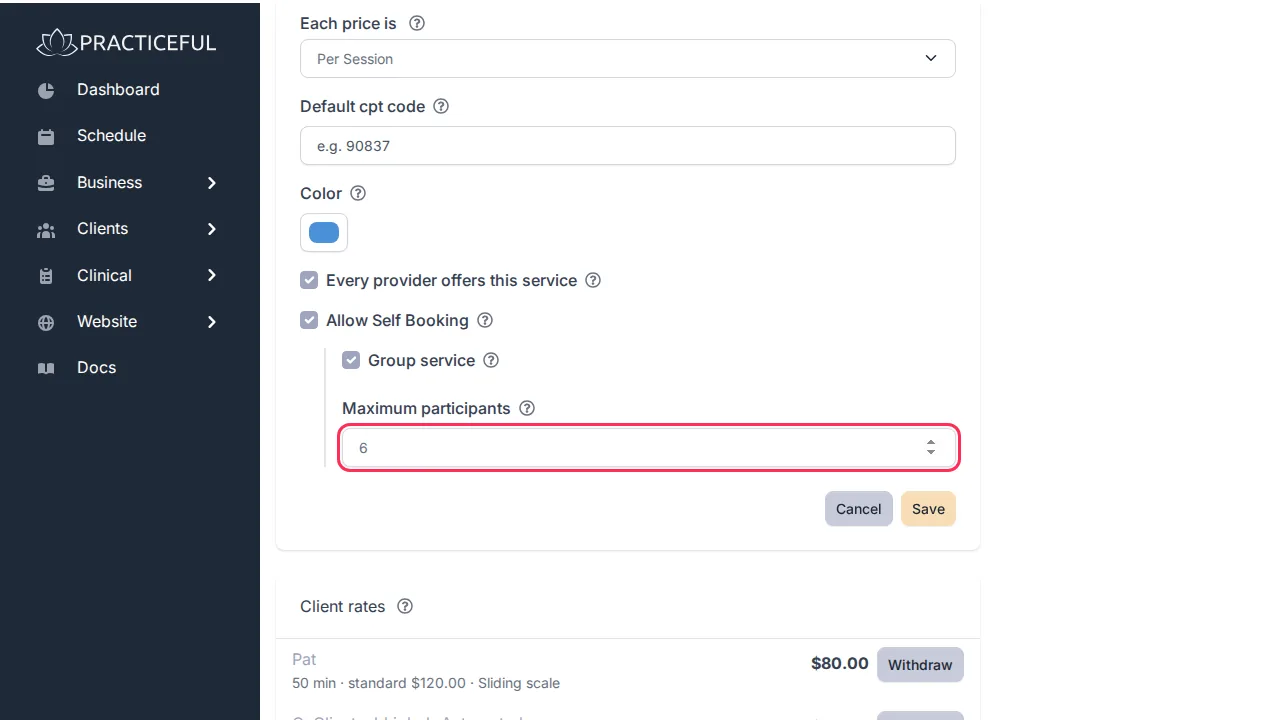
- Tick Allow Self Booking.
-
If it is a group service, tick Group service and enter Maximum participants.
-
Press Save.
The service is saved and clients can now choose it when they book.
Fix a service while you are booking a session
You may notice a wrong price or length half-way through booking someone in. You can fix it without losing the session you were filling in.
-
On New Session, press Manage Services. What you have typed so far is saved as a draft before you leave.
-
On Services, open the service's row actions and choose Edit service.
- Make your change and press Save, or press Cancel to change nothing. Either way you return to Services.
- Press Back in the title bar.
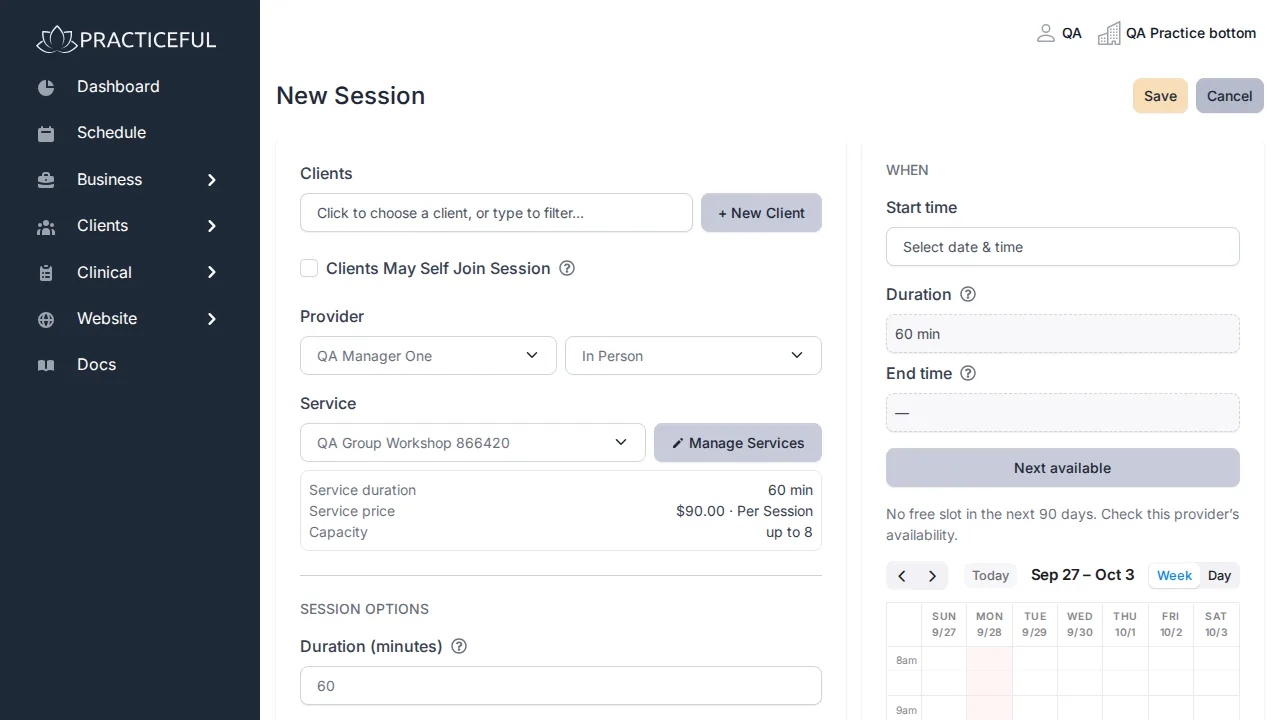
You are back on New Session with what you had already typed still in place.
Decide how strictly clients must onboard
A client has onboarded when they have confirmed how to reach them and completed the forms you have marked Assign to new clients. By default nothing here is required: you can book, bill and see anyone the moment you add them.
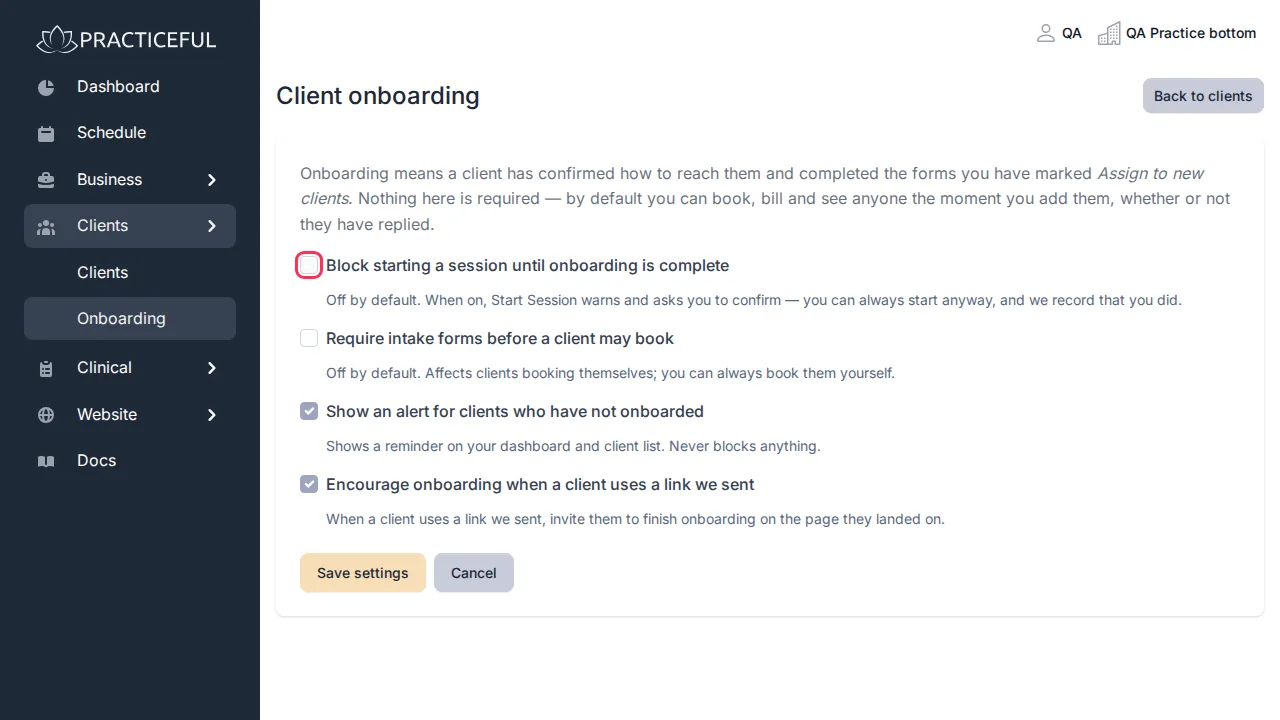
- In the sidebar, open Clients and choose Onboarding.
-
Choose the switches you want:
- Block starting a session until onboarding is complete (off by default)
- Require intake forms before a client may book (off by default)
- Show an alert for clients who have not onboarded (on by default)
- Encourage onboarding when a client uses a link we sent (on by default)
-
Press Save settings. You see Client onboarding settings saved.
Only practice managers can change these settings.
Related
- Booking links — send a client a link to pick their own time
- Client onboarding — remind clients who have not finished
- Billing — agree a special rate with one client
- Forms — the forms clients complete during onboarding