Create your account
Practiceful is onboarding new practices by invitation. You create an account in two stages: first you request an invitation, then you use the key you are emailed to create your account. This page is for the person who will run the practice. Clinicians you invite, and clients a practice adds, do not need an invitation key — see Invite your team.
Before you start
- You need the mobile phone you will confirm. Practiceful texts it a code to check that a real person is signing up.
- Use the email address you want to sign in with. The key you are sent only works with the address you give in your request, because that address becomes your login.
Request an invitation
-
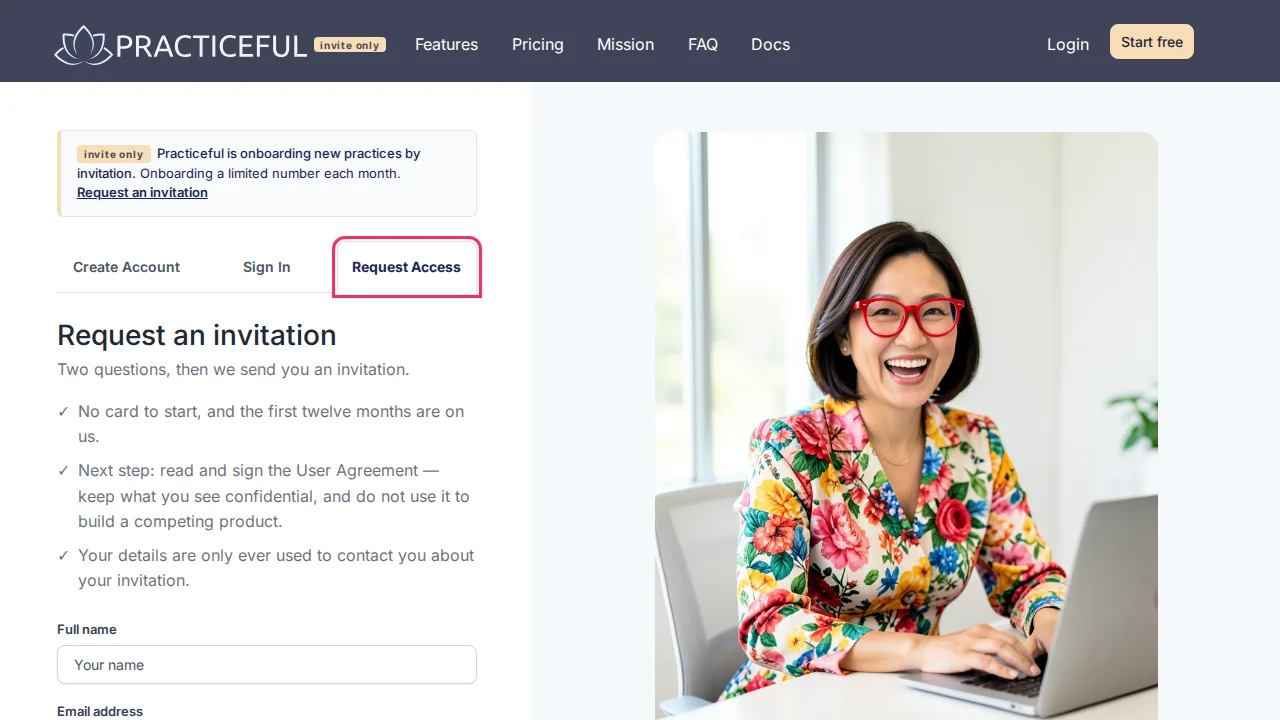
On the home page, press Request an invitation in the notice at the top. The sign-up page opens on the Request Access tab, headed Request an invitation.
-
Enter your Full name and Email address.
-
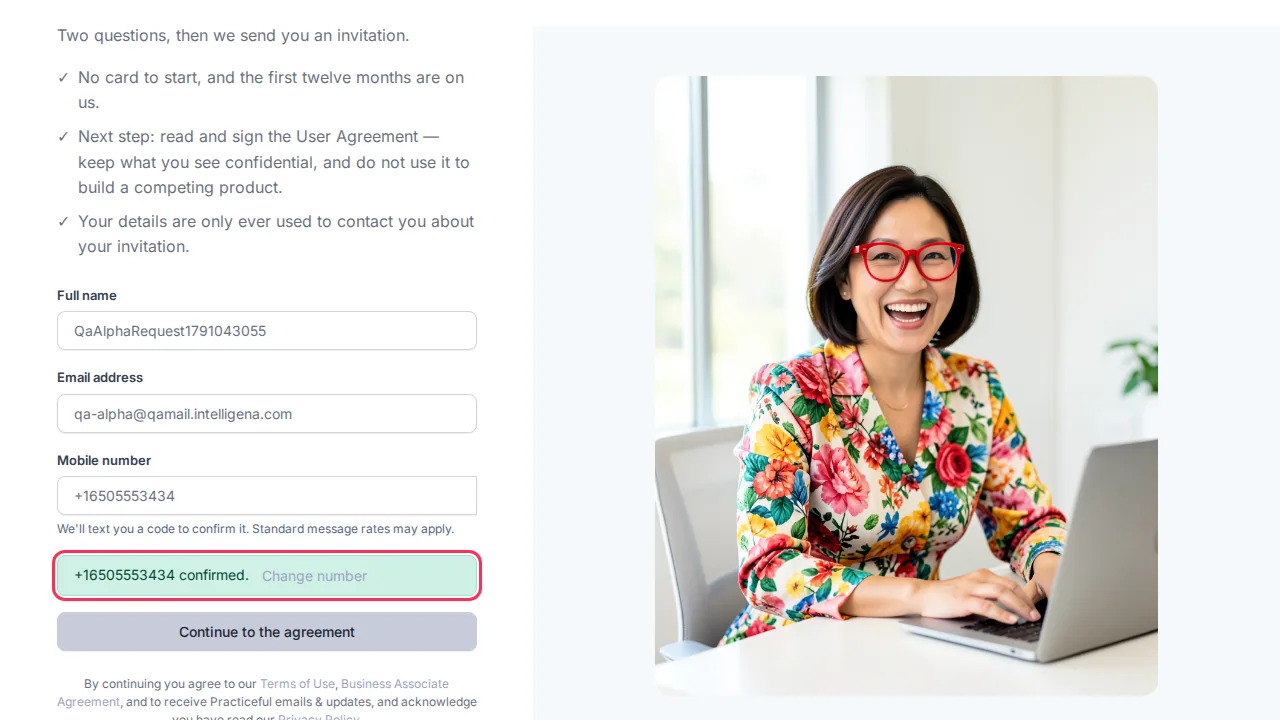
Enter your Mobile number and press Send code. Type the code you are texted. When it is accepted, the form says Number confirmed.
-
Press Continue to the agreement. Nothing is sent yet.
- The Practiceful Alpha User Agreement opens. Read it, type Your full legal name, and draw your signature in the signature box (Clear signature starts it again). If you cannot draw a signature, the page gives you an email route instead.
-
Tick the box confirming you have read and agree to the agreement, then press Sign and send my request.
-
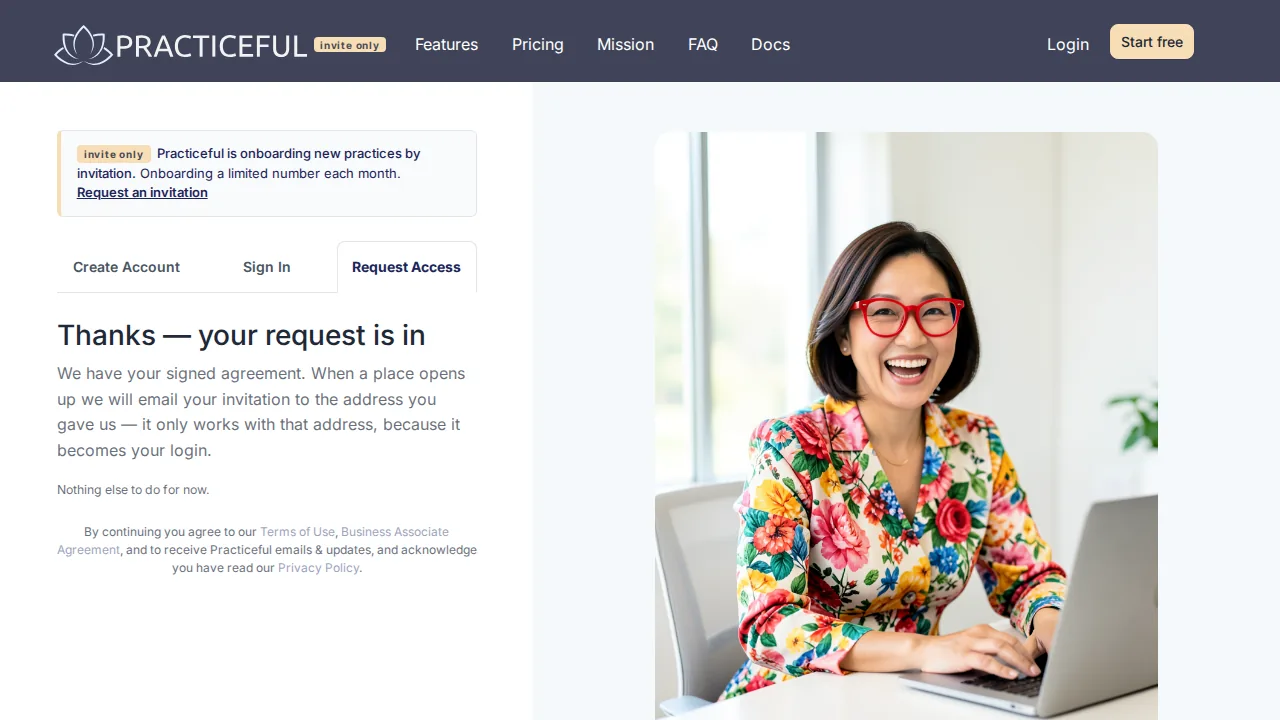
You see Thanks — your request is in. Practiceful keeps a PDF of what you signed with your request. When a place opens up, your invitation is emailed to the address you gave.
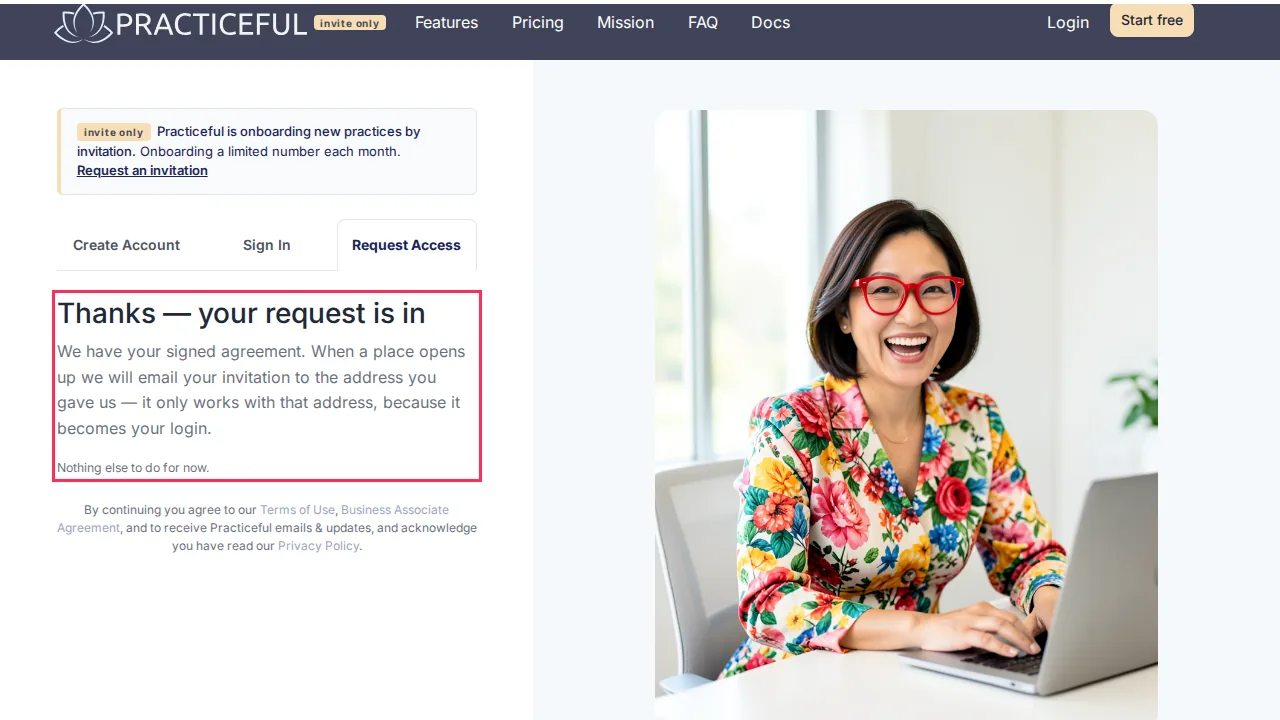
The request form states that there is no card to start and that the first twelve months are free.
Create your account with your key
- Open the sign-up page (Start free in the header). It opens on the Create Account tab.
-
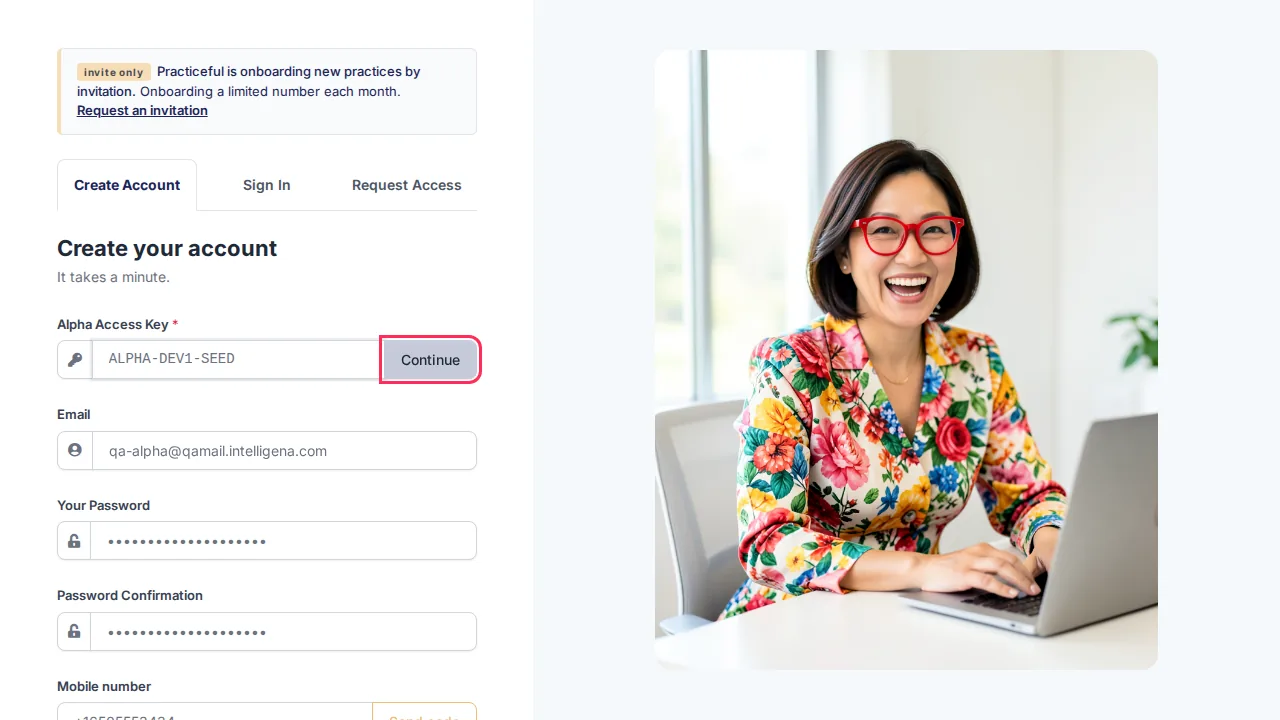
Type the key from your invitation email into Alpha Access Key and press Continue. Capitals, spaces and missing dashes do not matter. The rest of the form appears only once the key is accepted.
-
Enter your Email — the same address the key was sent to — then Your Password and Password Confirmation.
-
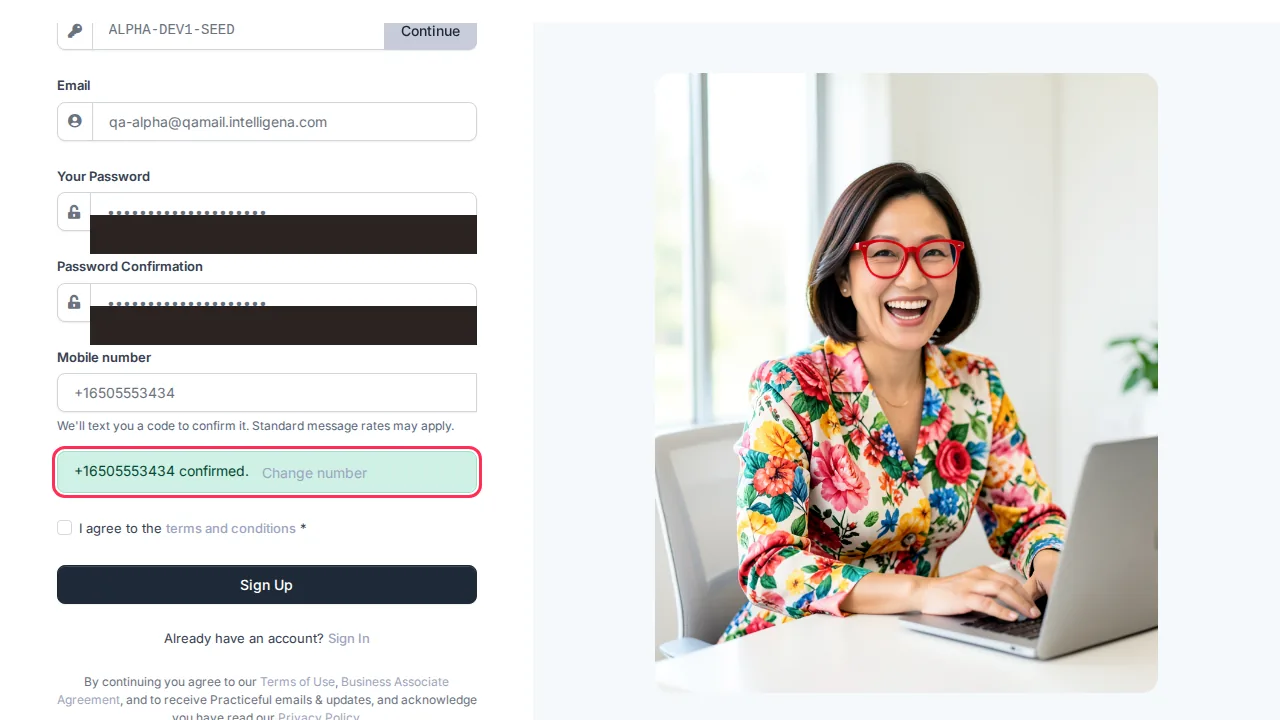
Enter your Mobile number, press Send code and type the code you are texted, until the form says Number confirmed.
-
Tick I agree to the terms and conditions and press Sign Up.
-
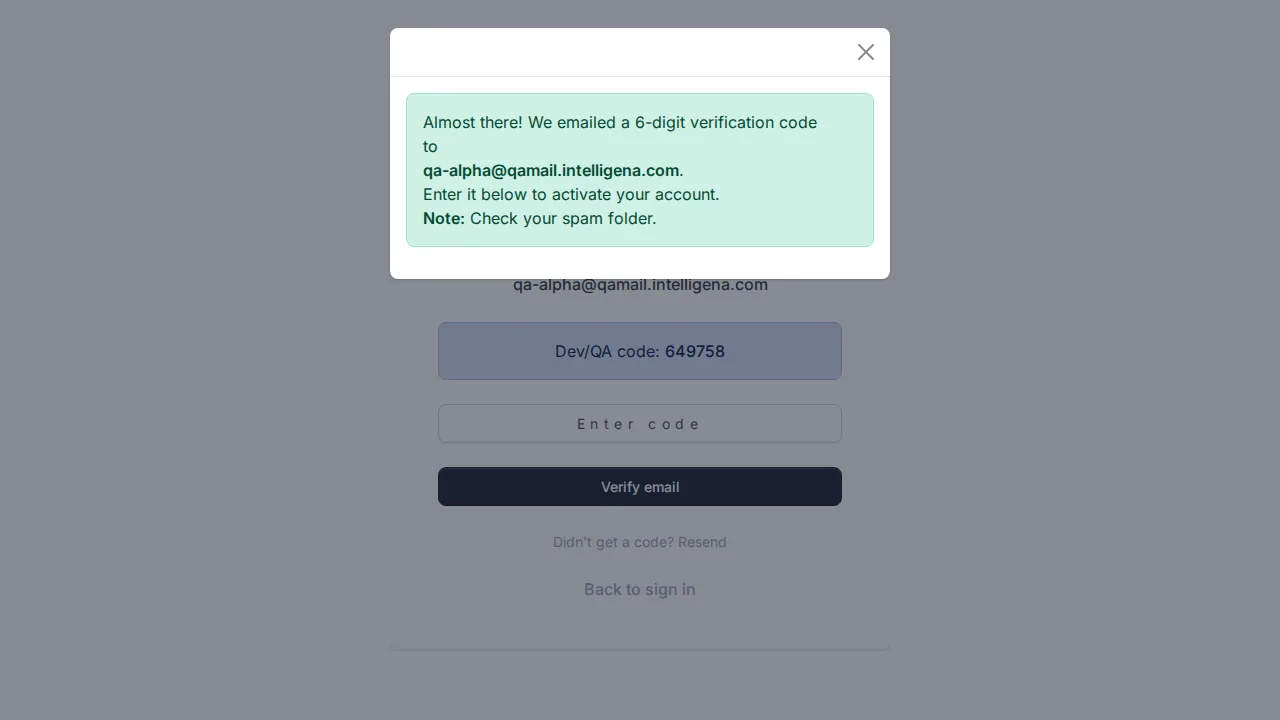
The Verify your email page opens. Enter the 6-digit code emailed to you and press Verify email. You see All set! Your email is verified — you can now log in.
-
Sign in. On your first sign-in you set up your practice — see Set up your practice. The free period from your key is applied when your practice is created.
If the verification code never arrived
- On the Verify your email page, press Didn't get a code? Resend.
- You see A new verification code has been sent. Check your spam folder too.
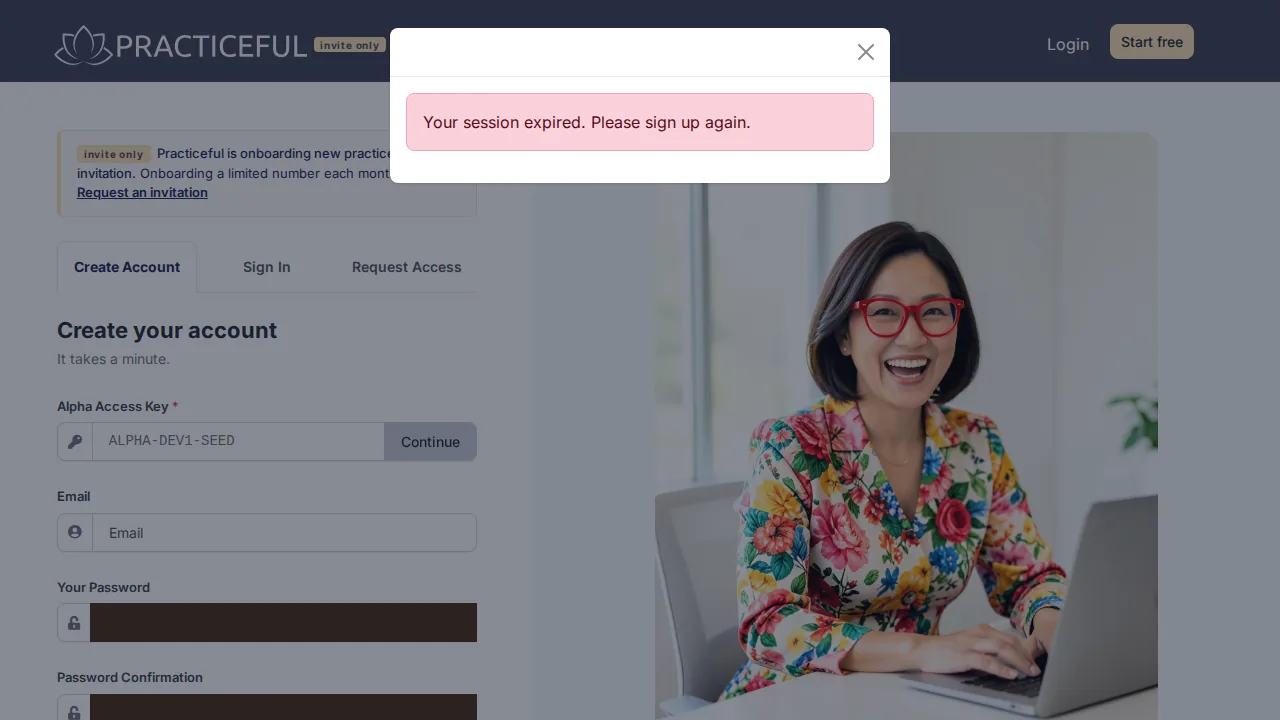
If the browser no longer remembers your sign-up, you see Your session expired. Please sign up again. and are taken back to the sign-up page.
If your activation link has expired
Some accounts are activated from an emailed link rather than a code. If signing in tells you the account has not yet been activated, get a new link:
- Press Resend Activation Email in the sign-in message (or go to
/activate/). - Enter Your Email and press Send Activation Email.
- The page tells you it has sent the link to that address. Open the email and click the link.
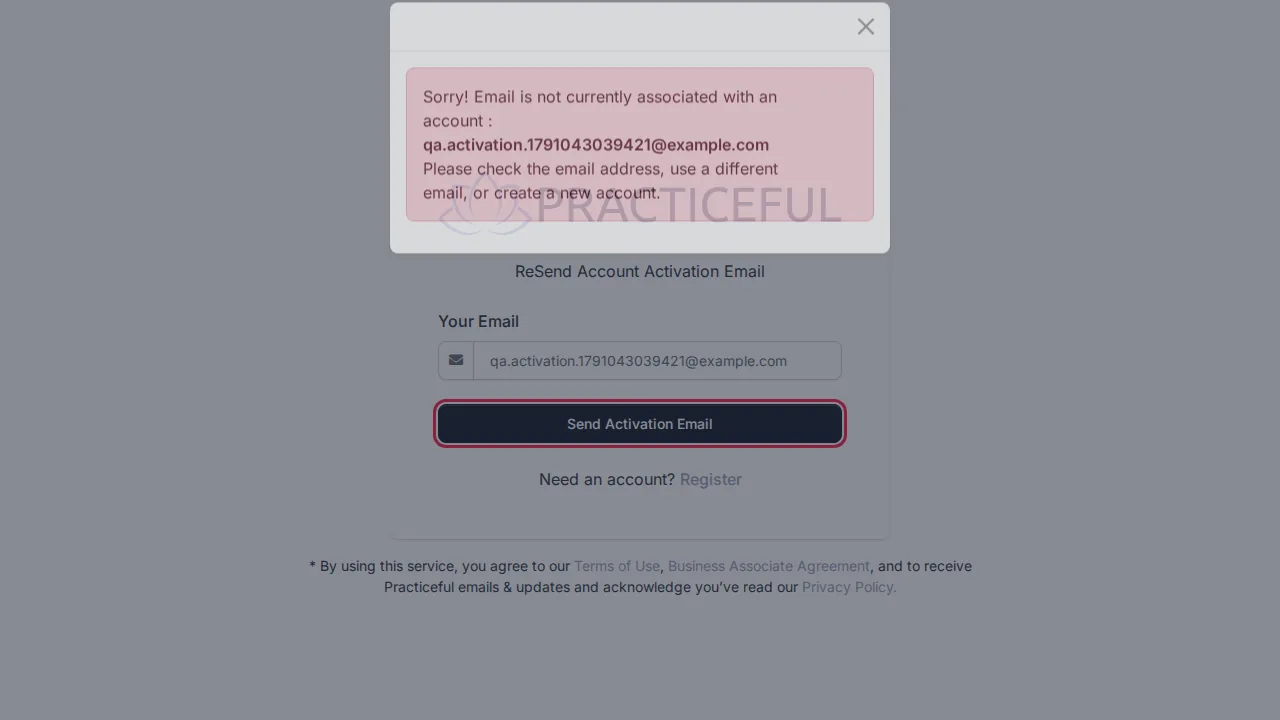
If something goes wrong
| You see | What it means | What to do |
|---|---|---|
| We couldn't submit that. Please check the highlighted fields below. | A field in your invitation request is missing or not accepted — often the mobile number was not confirmed | Fix the highlighted field. Make sure the form says Number confirmed. before you continue. |
| Your request timed out before it was signed. Please enter your details again. | The agreement page was opened with no request waiting — a stale tab or an expired session | Fill in the request form again. |
| Phone confirmation is not available on this deployment. Please contact support. | The site cannot send a confirmation text right now | Contact support using the details on the Contact page. |
| Sorry! Email already associated with account | An account already uses that address | Sign in, or reset your password — see Sign in. |
| Your account was created, but we could not deliver the verification code | Your account exists, but the code email was refused | Press Didn't get a code? Resend on the next page. |
| That code is not correct or has expired. Please try again. | The 6-digit code was mistyped or is too old | Type it again, or press Didn't get a code? Resend. |
| Too many attempts. Please wait a minute and try again. | Too many tries in a short time | Wait a minute, then try again. |
| Sorry! Email is not currently associated with an account | No account uses the address you gave on the activation page | Check the address, or create an account. |